Last updated: November 2026
Use this page to connect GitKraken Desktop to Trello so you can preview, create, edit, filter, and branch from cards without leaving your Git workflow. Trello is view-only for Community users, while paid GitKraken subscriptions unlock the full card management workflow.
Requirements and limits
- Integration covered here: Trello
- Community plan limit: View-only access
- Paid subscription requirement: Creating, editing, and branching from cards requires a paid GitKraken subscription
- Connection scope: Trello cards appear in the ISSUES section after authorization
- Filters: Custom filters use Trello filter syntax
Quick Start
- Go to Preferences > Integrations or click the ISSUES section in the Left Panel.
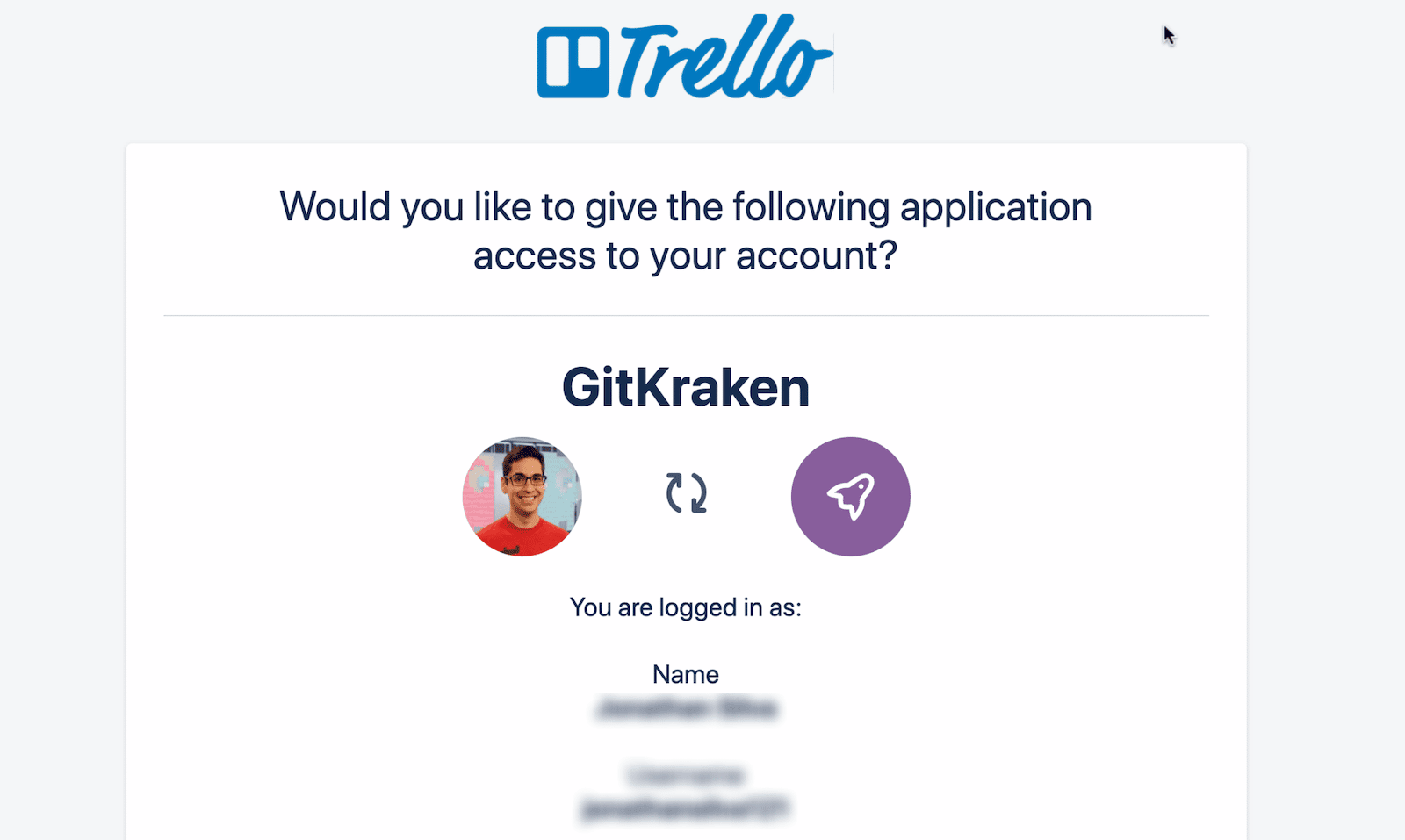
- Select Trello and click Connect to Trello, then finish connecting in your browser at gitkraken.dev. If Trello asks you to authorize the connection, click Allow.
- Find your Trello cards in the Left Panel under the All Cards filter, which is the default.
To view and edit a card: Click any card to open its detail view. You can edit the title, description, list, assignees, and comments. Changes sync with your Trello board in real time.
To create a new card: Click the + icon in the Left Panel, fill in the required fields, and submit. The card syncs to Trello automatically.
To create a branch from a card: Open the card detail view and click Create branch. GitKraken Desktop pre-fills the branch name from the card title, and the branch shows the Trello icon.
To filter cards: Use Trello’s filter syntax in the Left Panel to narrow results by board, list, label, or member.
The Trello integration is view-only for Community users. To use all features, upgrade to a paid GitKraken subscription.
How to connect the Trello integration
Set up the integration from the ISSUES section in the Left Panel or from Preferences > Integrations.
Use the Trello integration when: your team tracks work in Trello and you want cards visible beside your repository workflow. Do not use it as a full replacement for Trello when: you need broader board management features outside the card workflows covered here.
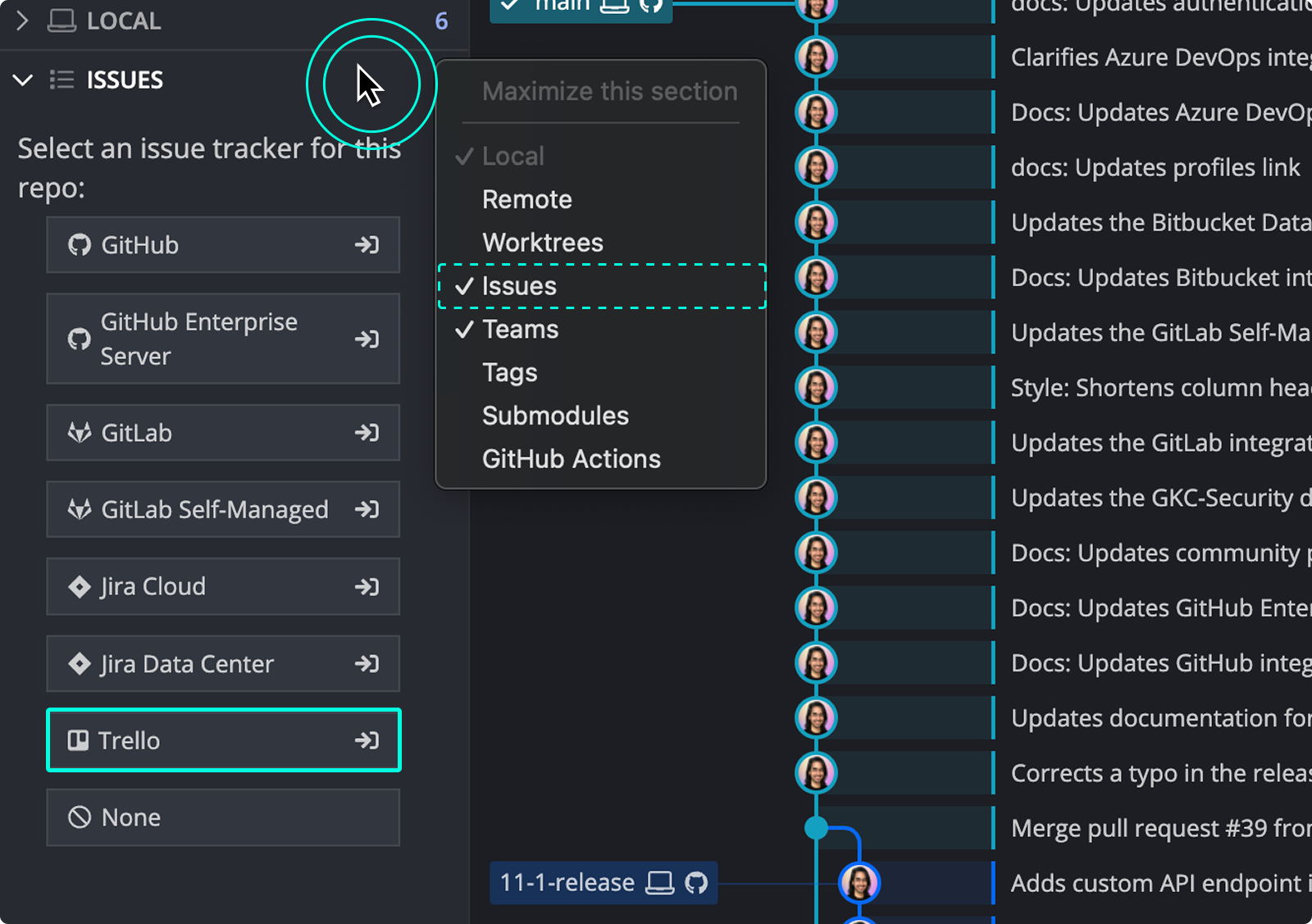
Trello connects through your GitKraken account, so sign in to GitKraken Desktop first. In Preferences > Integrations, select Trello and click Connect to Trello. Your browser opens gitkraken.dev to finish the connection. If Trello asks you to authorize the connection, scroll down and click Allow. You can also use the connection on your other computers and profiles. See How integrations connect through your GitKraken account.
How to preview Trello cards
After you connect, your Trello cards appear in the Left Panel under the default All Cards filter.
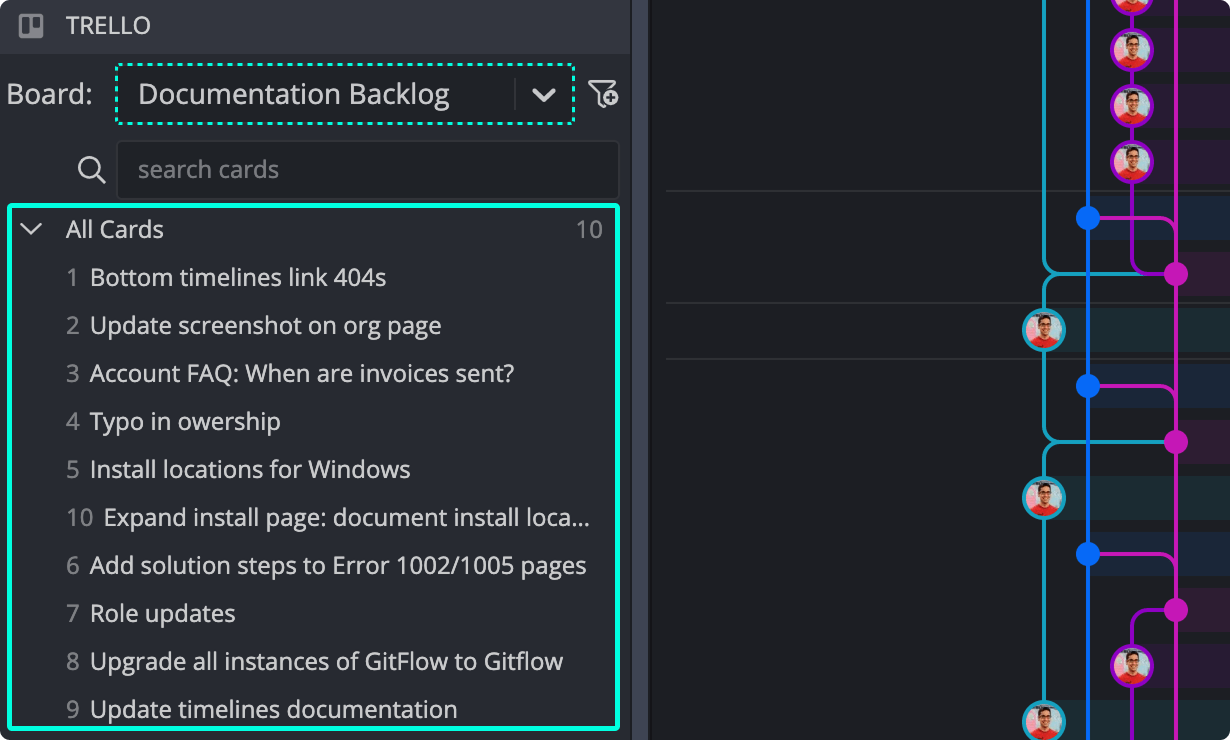
Hover over any card to preview its title, description, list, labels, and members.
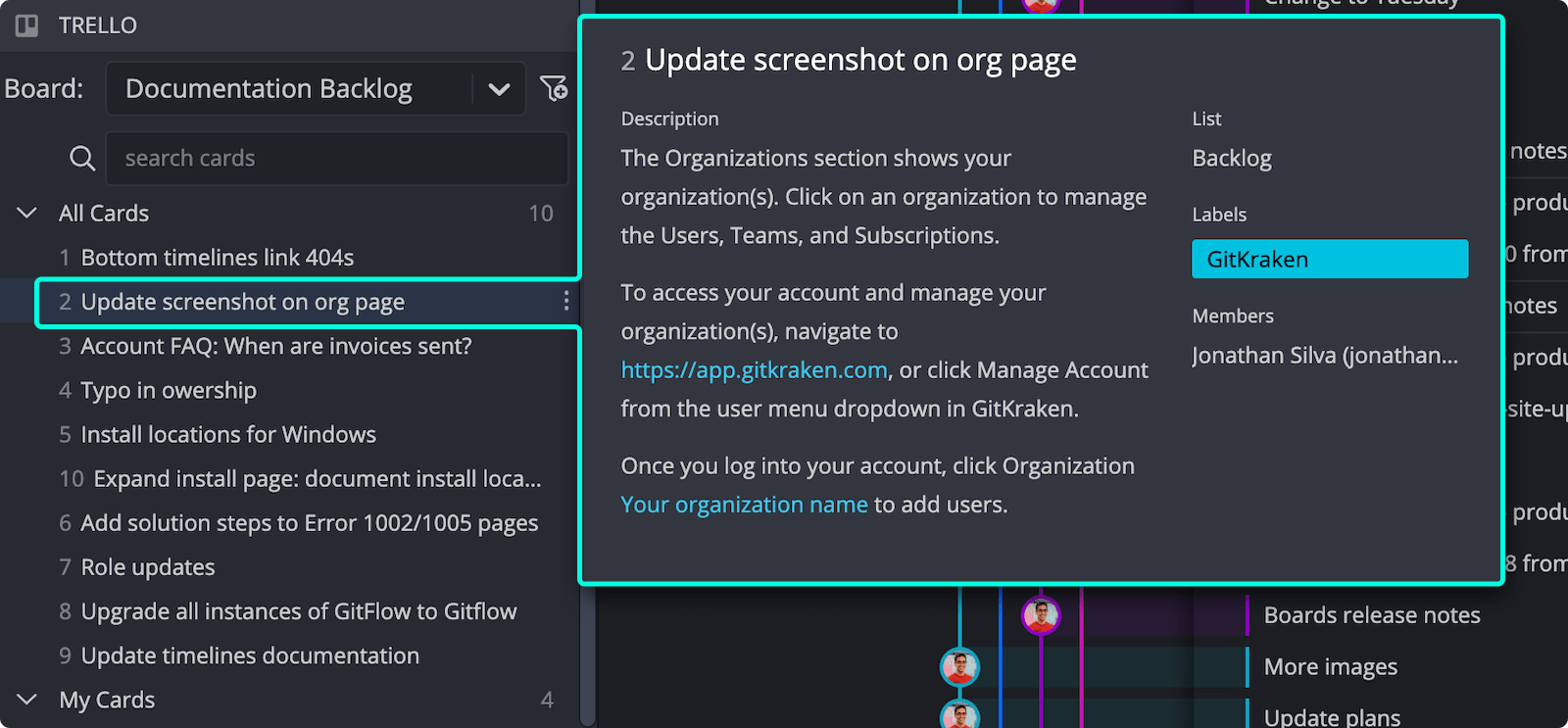
How to view and edit Trello card details
Click a card to open its detail view.
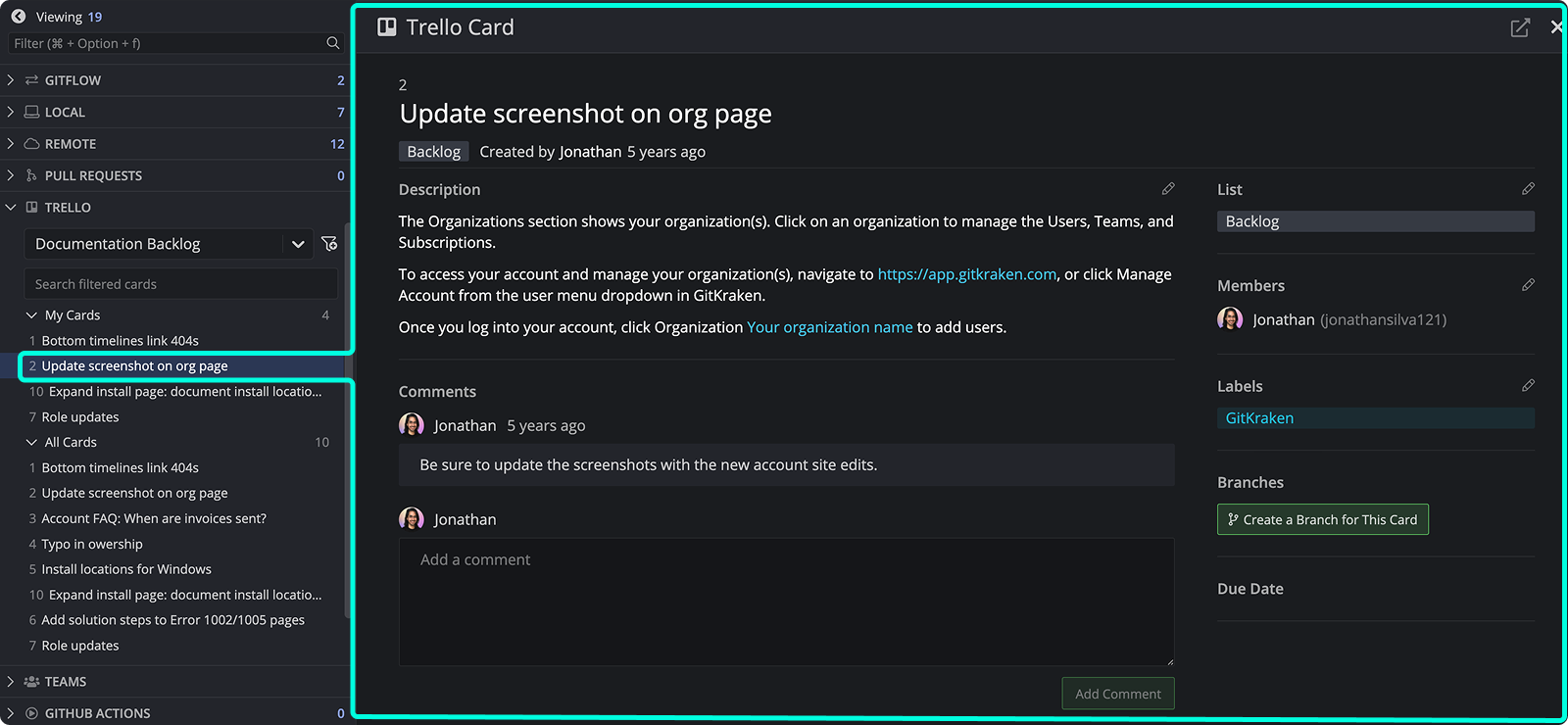
You can view and edit:
- Title and Description
- List
- Assignees
- Comments
Changes sync with your Trello board in real time.
How to create a new Trello card
Click the + icon in the Left Panel to add a new card.
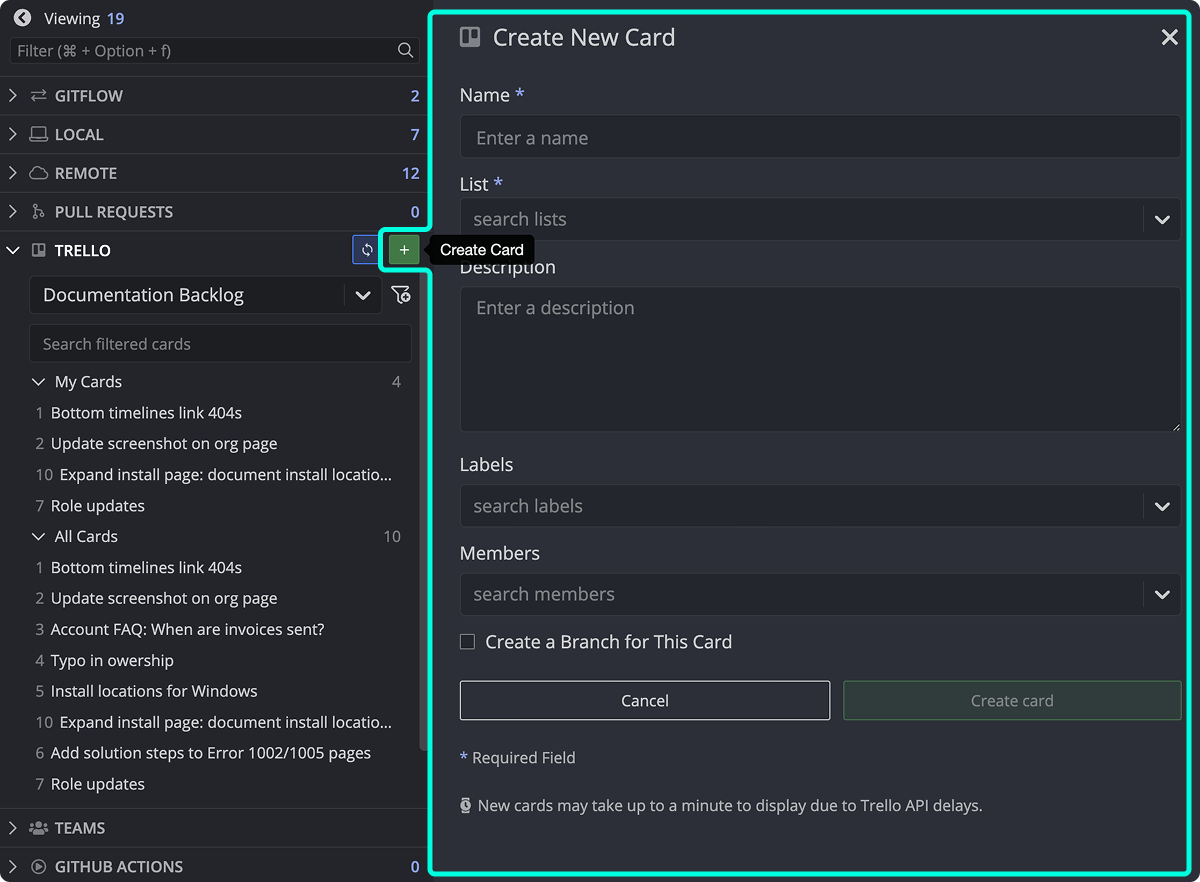
Fields marked with * are required. GitKraken Desktop syncs the card to Trello automatically.
How to create Trello card filters
You can use Trello’s filter syntax to create custom filters for your cards.
Use custom card filters when: you need to focus on a board, list, label, or member-specific queue. Do not rely on the default All Cards view when: it mixes too much unrelated work together.
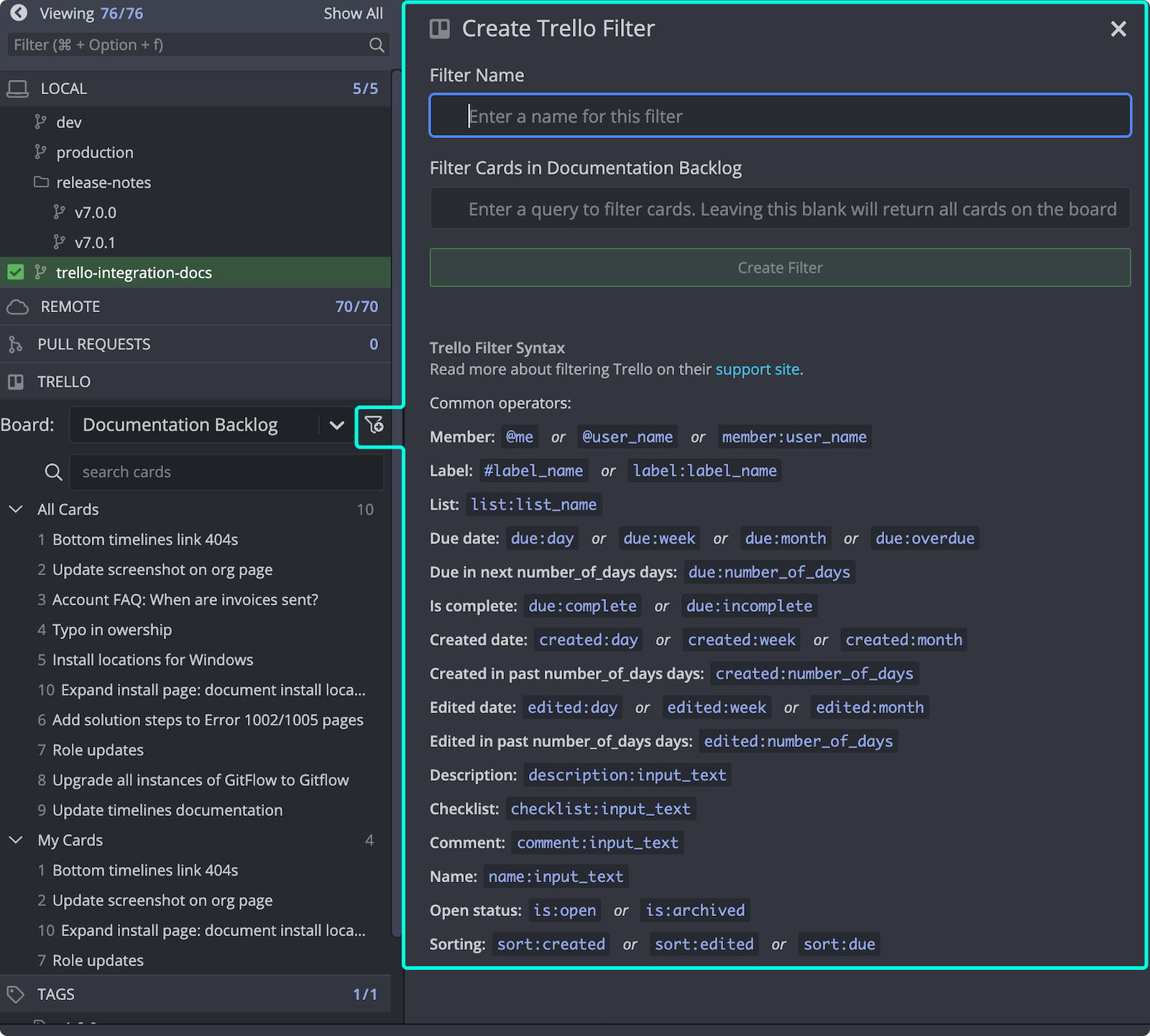
See Trello’s filtering guide for syntax examples.
How to create branches from Trello cards
To create a branch tied to a card, click Create branch in the card detail view, or right-click the card.
Use card-based branch creation when: the branch should map directly to one Trello card. Do not use it when: the branch covers several cards or needs a branch name that should not be derived from the card title.
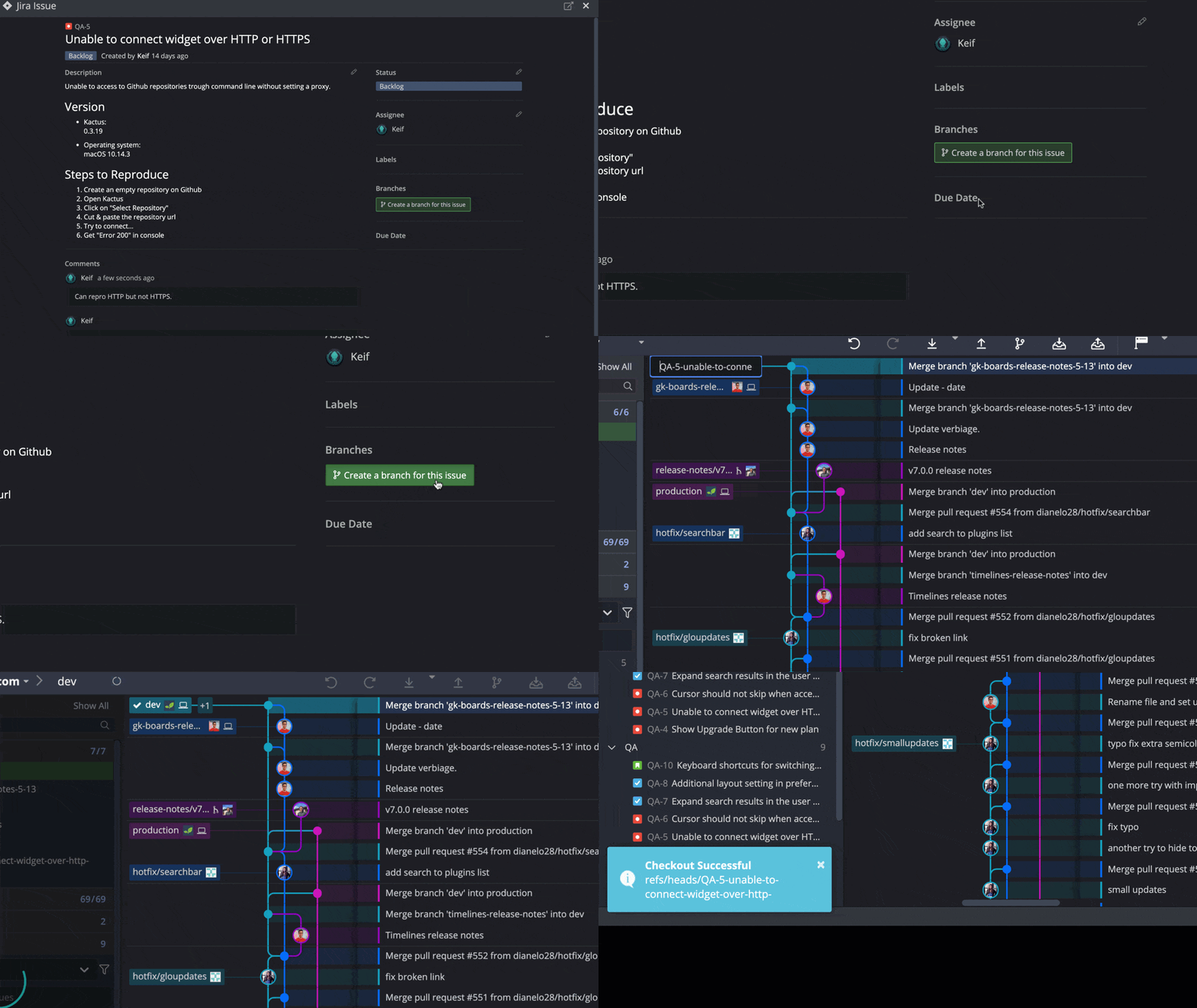
GitKraken Desktop pre-fills the branch name from the card title. Branches created from a card show the Trello icon.
How to copy a card link or open it in Trello
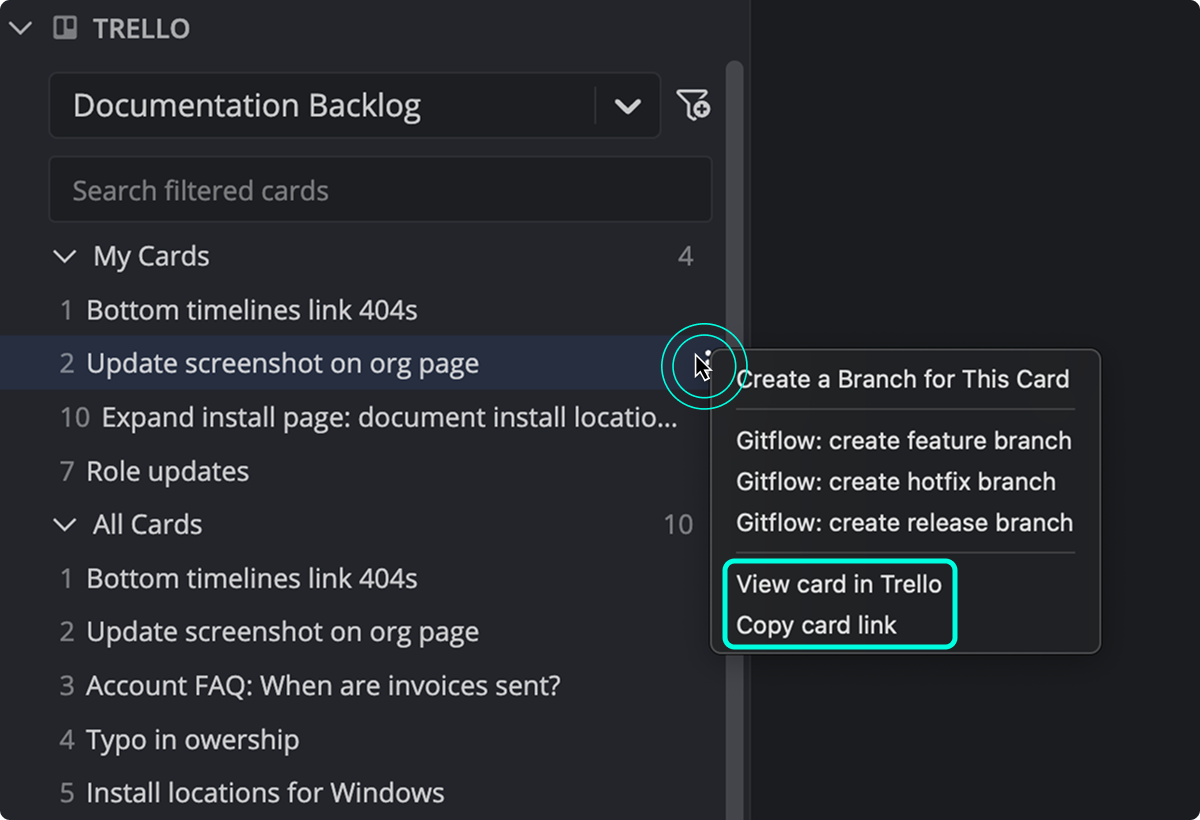
Click the icon or the icon to copy the link or open the card in Trello.