

Last updated: November 2026
Use this page to connect GitKraken Desktop to GitHub for sign-in, repository access, SSH setup, pull request work, and account management on GitHub.com. If repositories or remotes are missing after you connect, see How to fix missing repositories or remotes.
Requirements and limits
- Integration covered here: GitHub.com
- Community plan: Public repositories only
- Multiple GitHub accounts: Each profile uses one GitHub account at a time; you can switch a profile between connected accounts, and multiple profiles require a Pro plan
- SSH behavior: GitKraken Desktop uses the key set in Preferences > SSH unless a GitHub-specific key or local SSH Agent is configured
- Pull request review: Review on GitKraken.dev opens a pull request in GitKraken Code Review in your browser
| Workflow | GitHub.com support | Community limits | Notes |
|---|---|---|---|
| Sign in and connect account | Yes | None | Browser-based sign-in and connection through GitKraken.dev |
| Clone and browse repositories | Yes | Public repositories only | Private repo access requires a paid plan |
| SSH key generation and upload | Yes | Public repositories only | Uses GitKraken Desktop SSH settings unless overridden |
| Create and view pull requests | Yes | Public repositories only | Supported directly in GitKraken Desktop |
| Review pull requests | Yes | Public repositories only | Opens in GitKraken Code Review on GitKraken.dev |
| Multiple GitHub accounts | Yes | Not included | One account per profile; multiple profiles require a Pro plan |
Quick Start
To sign in with GitHub:
- Click the profile icon in the top-right corner of GitKraken Desktop and select Sign in.
- In the browser window that opens on GitKraken.dev, choose GitHub and log in with your GitHub credentials. The sign-in completes automatically.
To connect manually or add SSH:
- Go to Preferences > Integrations and select GitHub.
- Click Connect to GitHub and log in in the browser.
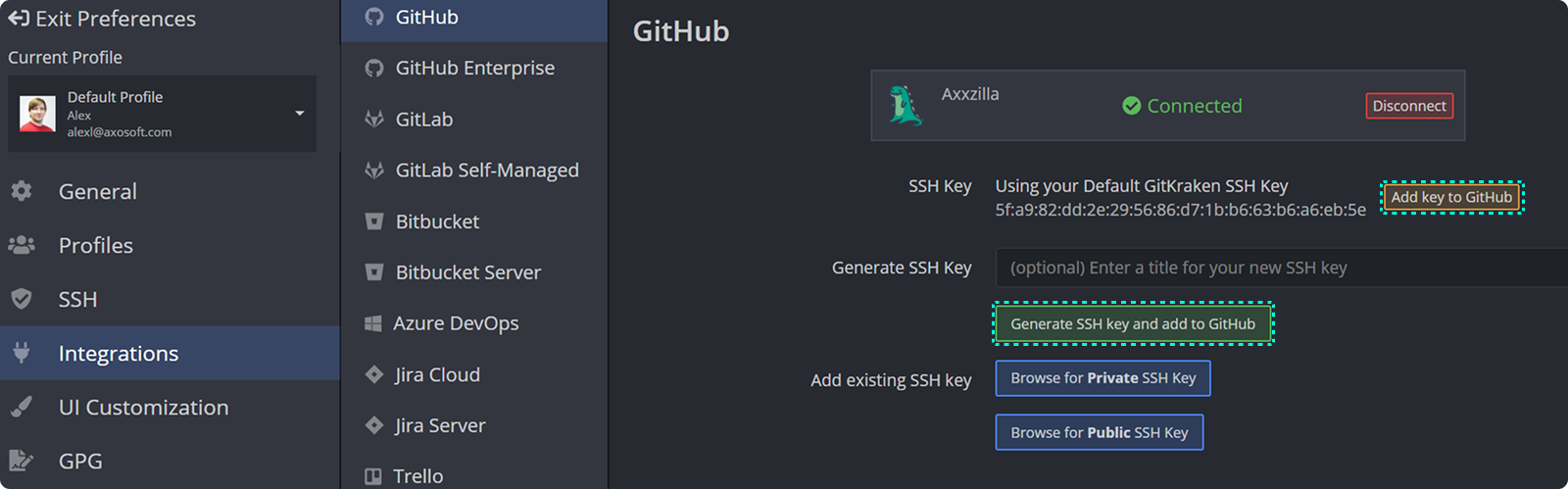
- To add an SSH key, click Generate SSH key and add to GitHub in the same panel.
To create a pull request:
- Push your branch to GitHub.
- Select the branch in the Left Panel, then click Start a pull request or use the Command Palette.
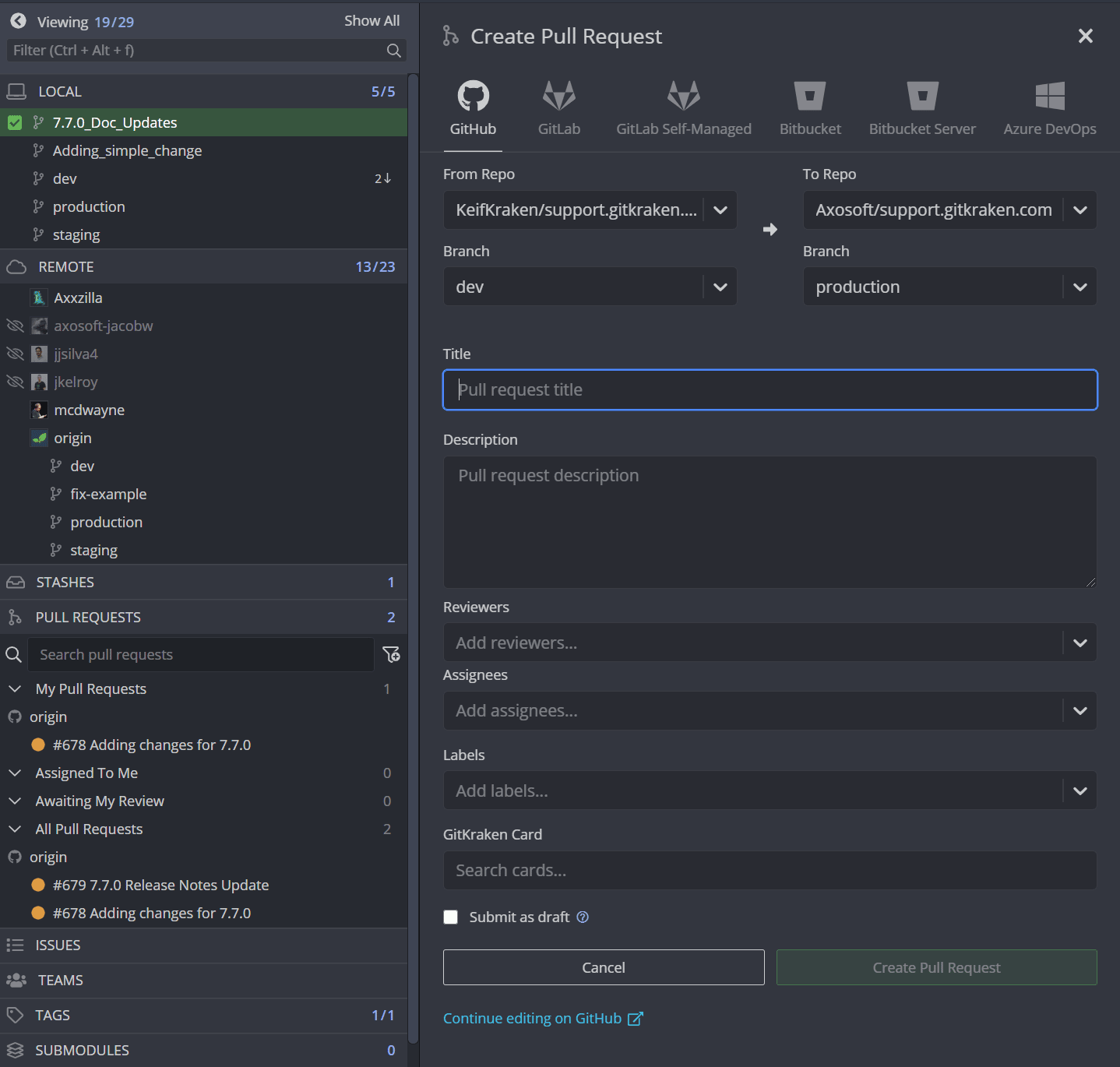
- Fill in the title, description, reviewers, and labels, then submit.
To review a pull request: Right-click the pull request in the Left Panel and select Review on GitKraken.dev. The pull request opens in GitKraken Code Review in your browser.
To use multiple GitHub accounts, connect another GitHub account and switch between them, or create separate profiles in GitKraken Desktop (Pro plan required).
With the GitHub integration, you can:
- Sign in to GitKraken Desktop with your GitHub account
- Create repositories on GitHub with
.gitignoreand license options - Generate an SSH key pair and add it to GitHub
- Fork repositories from GitKraken Desktop
- Save authentication into profiles
- Clone from your list of GitHub repositories
- Add remotes for GitHub repositories
- Create and work with pull requests
Note: The GitKraken Community plan only supports public repositories.
How to sign in with GitHub
GitKraken Desktop signs you in through your browser on GitKraken.dev.
Use GitHub sign-in when: you want GitHub to be your primary GitKraken Desktop identity and login path. Do not use sign-in as your only setup step when: you also need repository-level integration settings such as SSH key management or multiple profiles.
To sign in with your GitHub account:
- Click the profile icon in the top-right corner of GitKraken Desktop and select Sign in. During first-time setup, select GitHub as your provider instead. GitKraken Desktop shows the Sign In to GitKraken dialog and opens GitKraken.dev in your browser.
- On GitKraken.dev, choose GitHub and log in with your GitHub credentials.
The sign-in completes automatically and connects your GitHub account to GitKraken Desktop.
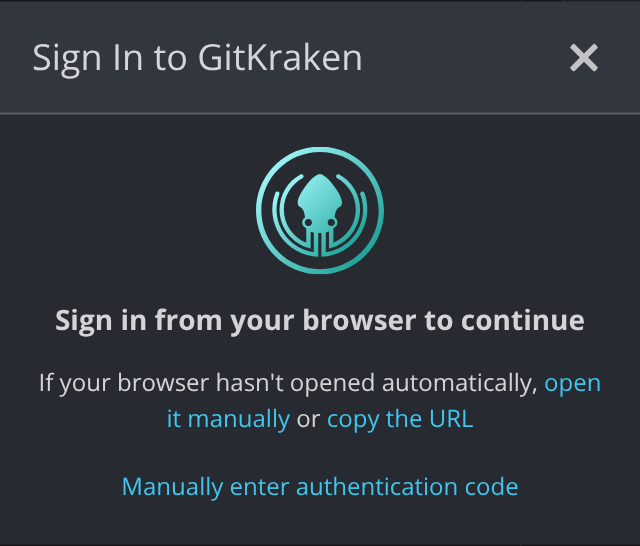
If your browser does not open, click open it manually or copy the URL in the dialog. If GitKraken.dev gives you an authentication code, click Manually enter authentication code, paste the code, and click Save.
How to connect GitKraken Desktop to GitHub
To connect your GitHub account manually, first sign in to your GitKraken account. GitHub connections belong to your GitKraken account, so a connection you make is also available on your other devices and profiles.
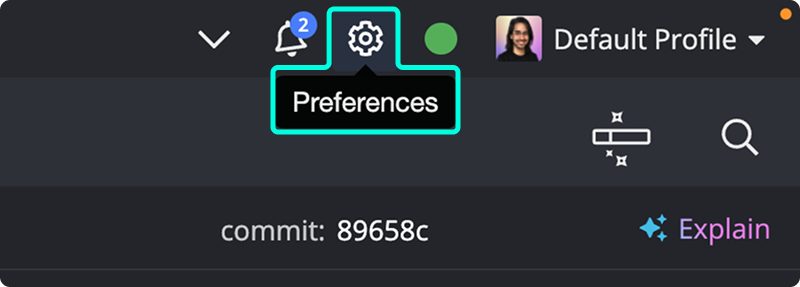
- Navigate to Preferences Integrations in the upper right corner.
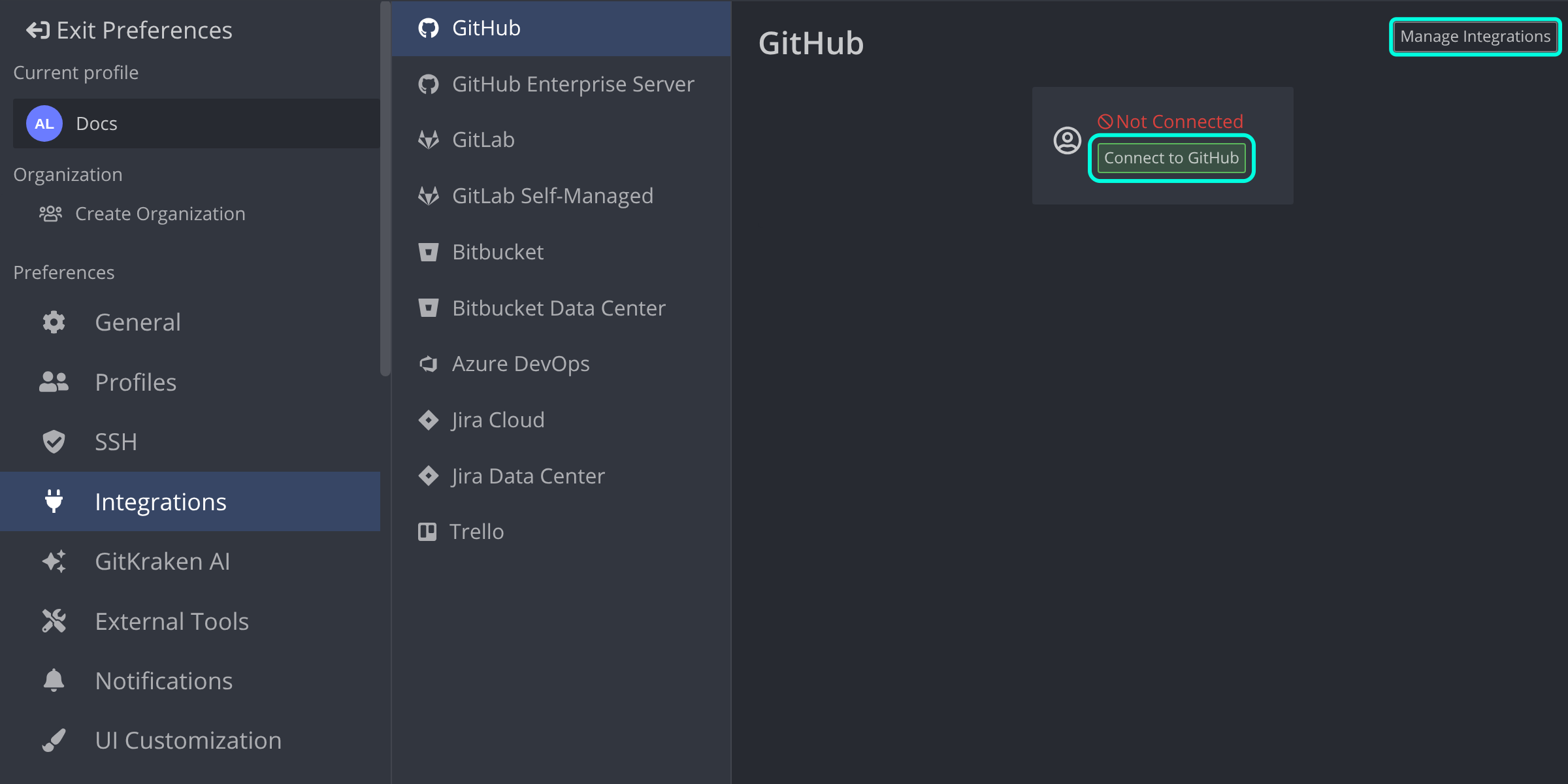
- From the Integrations window, select GitHub.
- Click Connect to GitHub. GitKraken Desktop opens your browser to authenticate with GitHub.
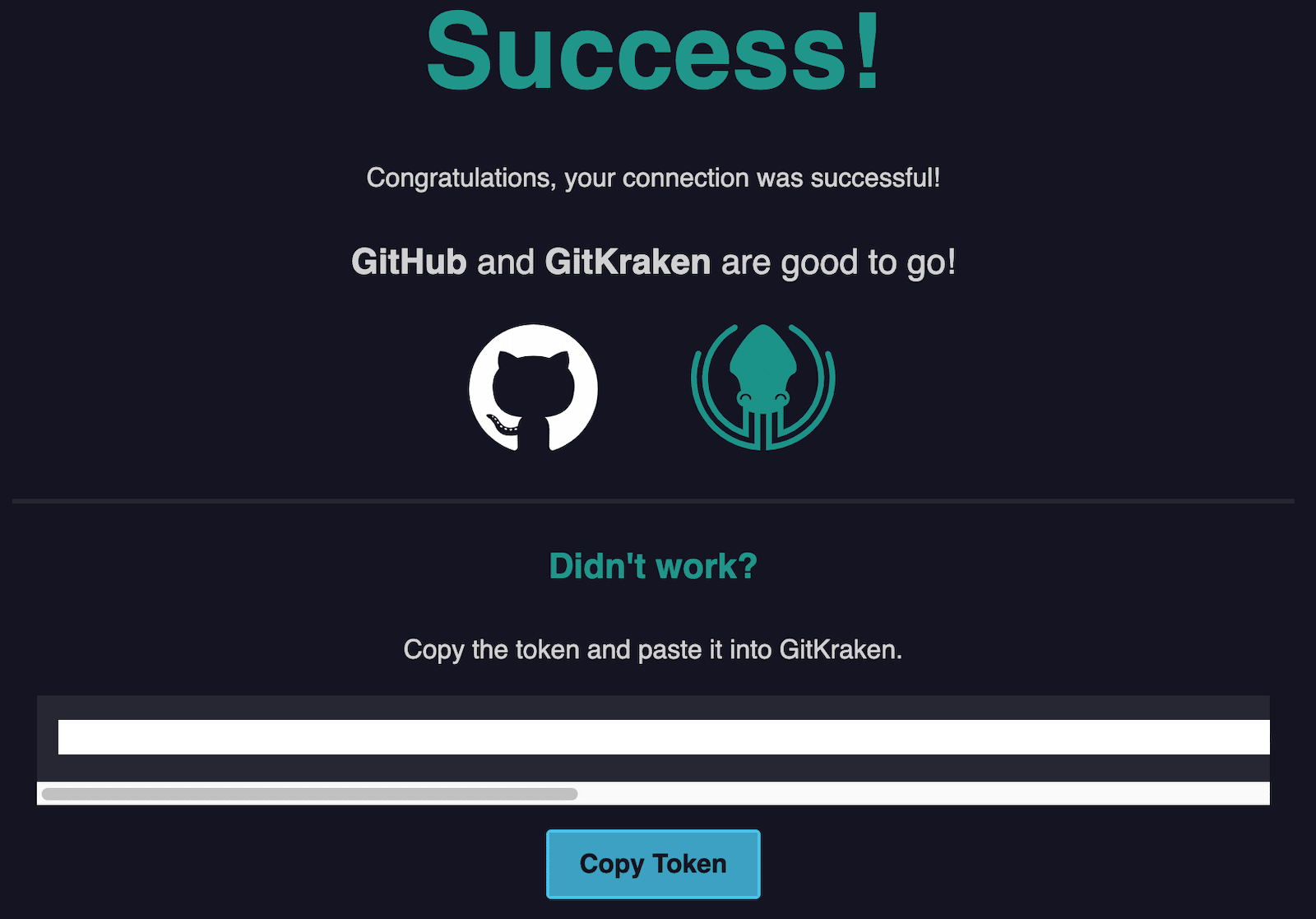
- Log in with your GitHub credentials. When the confirmation message appears, select Open GitKraken to finish.
When the connection is complete, the GitHub card shows Connected to your GitHub integration and your GitHub user name.
- Click Manage Integrations to manage your connected integrations on GitKraken.dev.
- Click Disconnect from this profile to remove the GitHub connection from the current profile. The connection stays available to your other devices and profiles.
How to generate an SSH key for GitHub
Note 📝 GitKraken Desktop uses your SSH key defined in Preferences SSH unless a GitHub-specific SSH key or your local SSH Agent is configured.
To generate and add an SSH key to your GitHub account:
- Go to Preferences Integrations.
- Click Generate SSH key and add to GitHub to complete the process automatically.
You can also:
- Use Add key to GitHub from SSH Defaults.
- Add an existing key with Add existing SSH key.
What GitHub OAuth enables in GitKraken Desktop
Use the GitHub integration when: you want repository discovery, PR creation, and GitHub-aware workflows directly inside GitKraken Desktop. Use GitKraken Code Review when: you need to review a pull request’s code. Click Review on GitKraken.dev to open it in your browser.
With GitHub connected, you can:
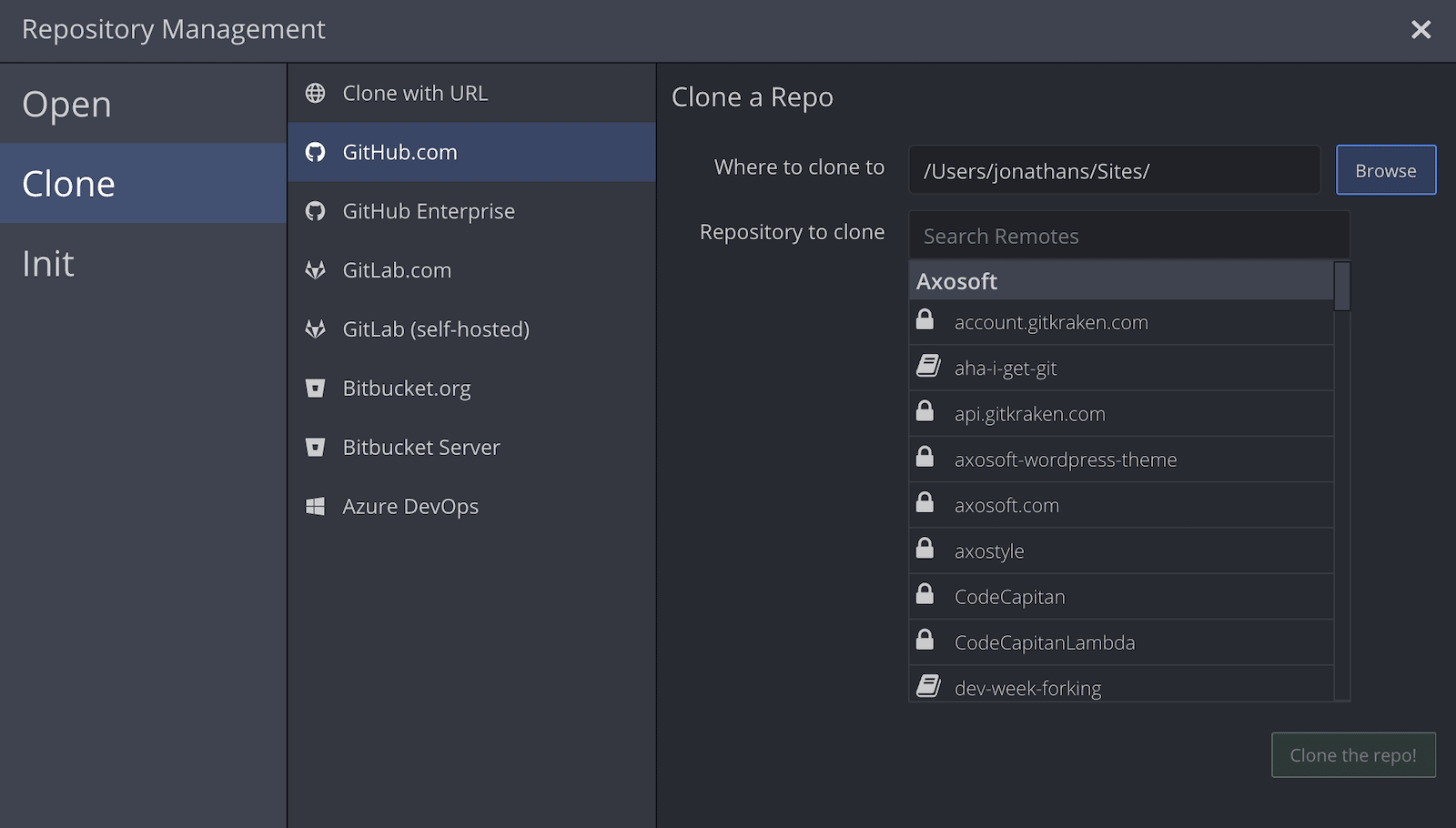
- See a list of your GitHub repositories when you clone.
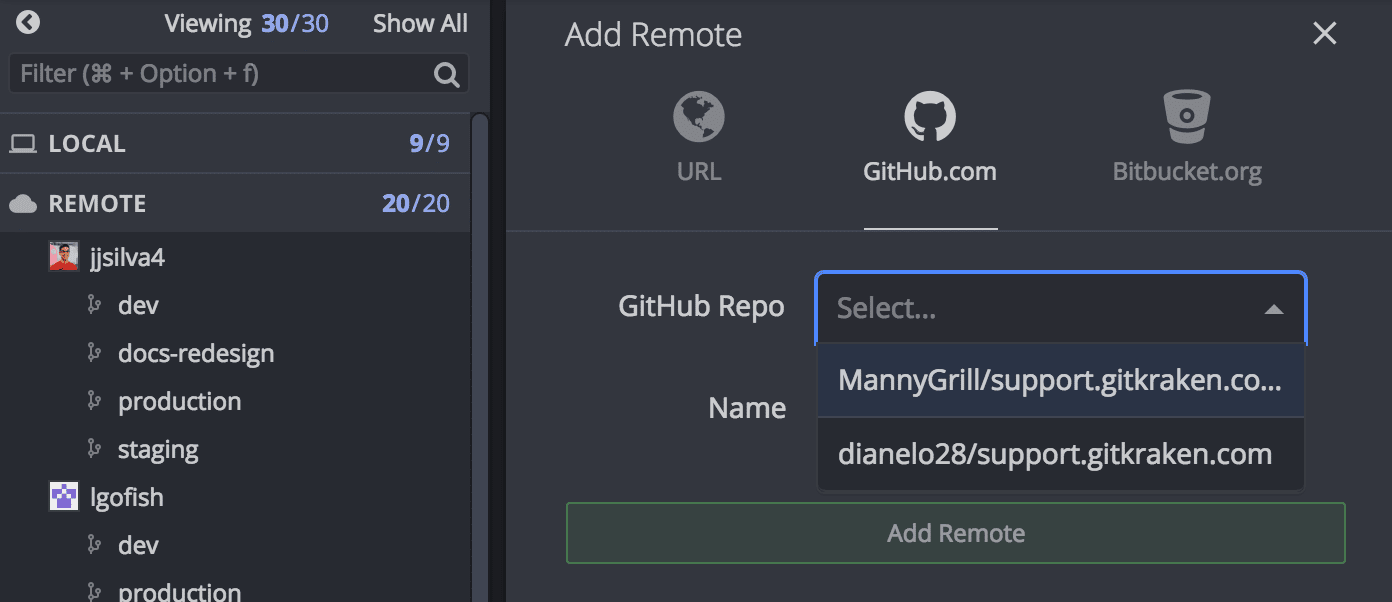
- See a list of repository forks when you add a remote.
How to create pull requests from GitKraken Desktop
Create and manage pull requests in GitKraken Desktop. When you create one, you can:
- Add reviewers
- Assign teammates
- Apply labels
How to use GitHub Pull Request View
On GitHub.com repositories, use Pull Request View in GitKraken Desktop to view and edit pull requests.
Use Pull Request View when: you want to edit PR metadata, check build status, or merge without leaving GitKraken Desktop. Use GitKraken Code Review when: you want to review the code in the pull request.
To open Pull Request View:
- Make sure the GitHub integration is connected.
- Open a GitHub repository in GitKraken Desktop.
- Select a pull request from the Left Panel, or check out the source branch to reveal a PR icon with the pull request number.
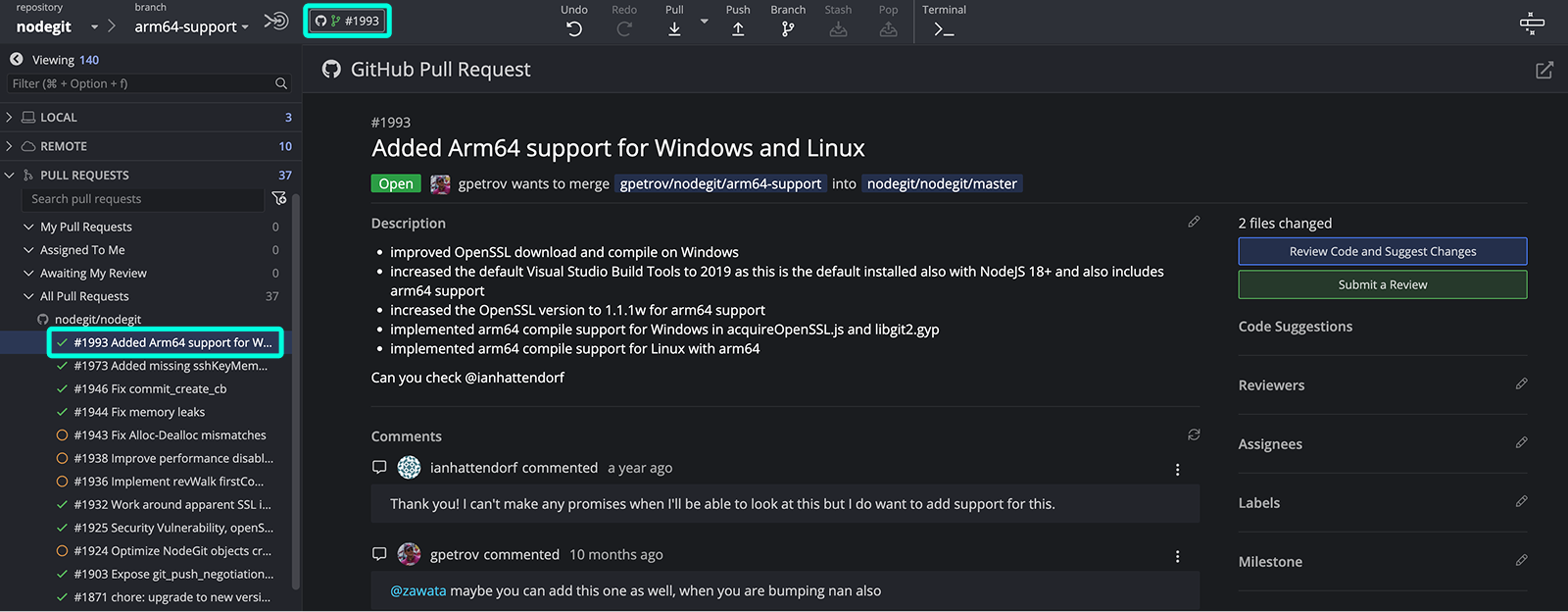
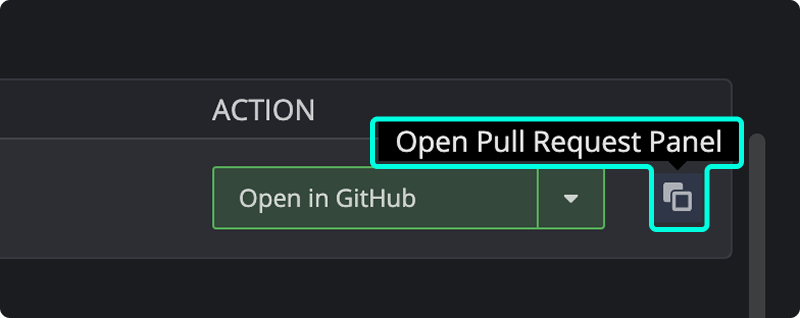
You can also open it from Launchpad: click the Open Pull Request Panel icon in the pull request’s row.
In Pull Request View, you can edit:
- Title
- Description
- Reviewers
- Assignees
- Milestones
- Labels
To review the files affected by a pull request, click Review on GitKraken.dev below the number of changed files. The pull request opens in GitKraken Code Review in your browser. For other ways to start a review, see How to review pull requests with GitKraken Code Review.
If the pull request is part of a stack, the Pull Request View header shows its position in the stack, with arrows to move between the pull requests in the stack. For details, see stacked pull requests.
How to accept or reject code suggestions
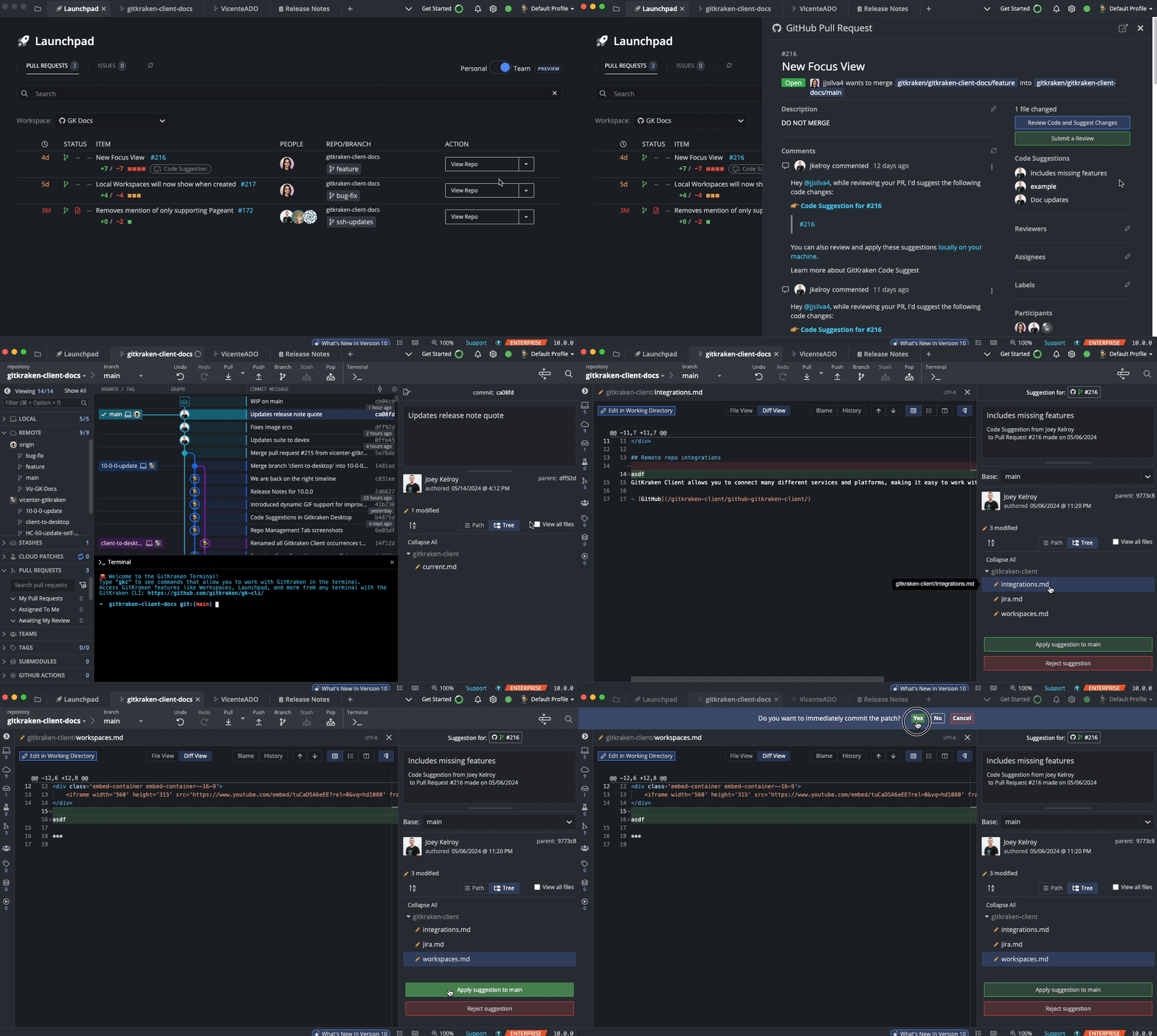
In Pull Request View, code suggestions from teammates appear under Code Suggestions.
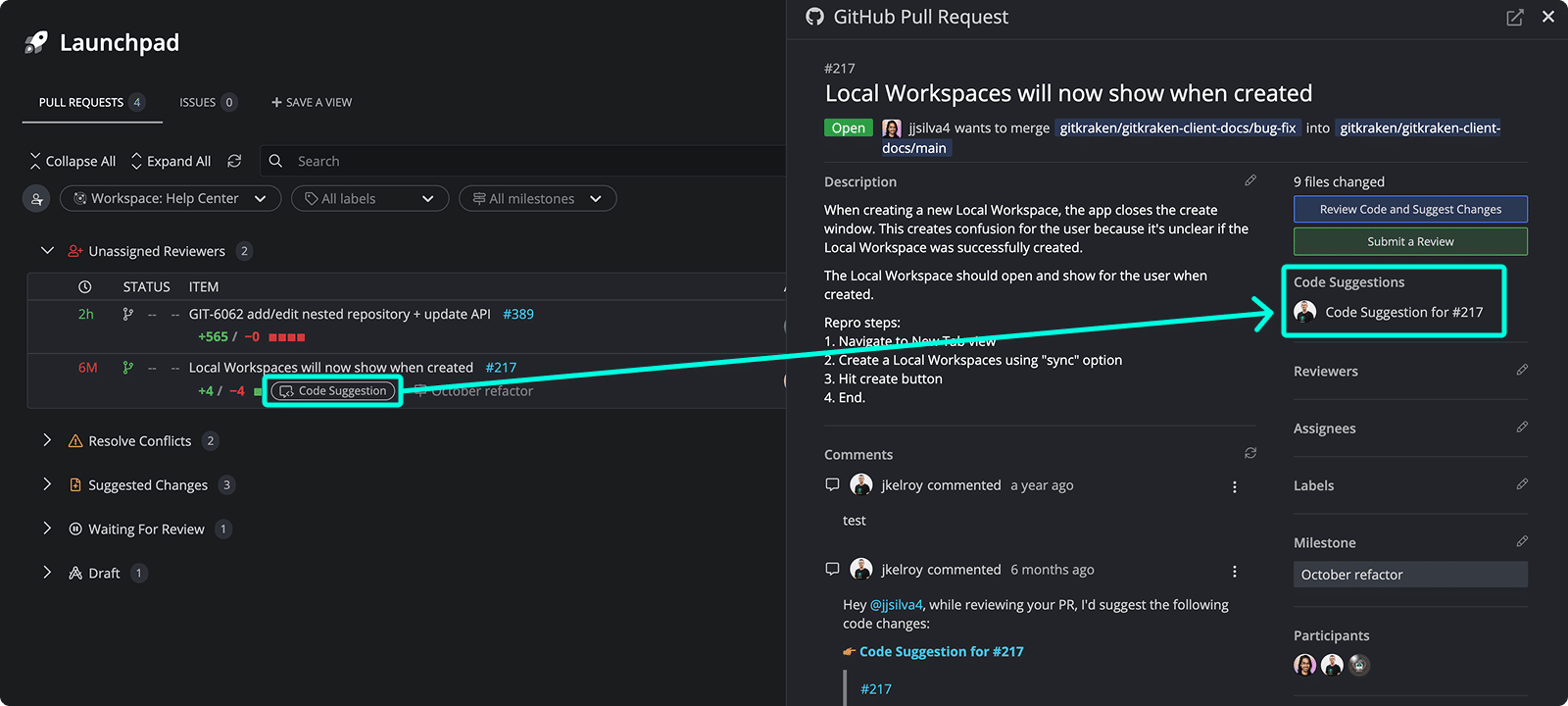
Click a suggestion to open its diff, then apply or reject the change.
How to check out branches, review build status, and add remotes
- Double-click a branch name in Pull Request View to check it out and view its graph.
- Click the build status to open the latest build in your browser.
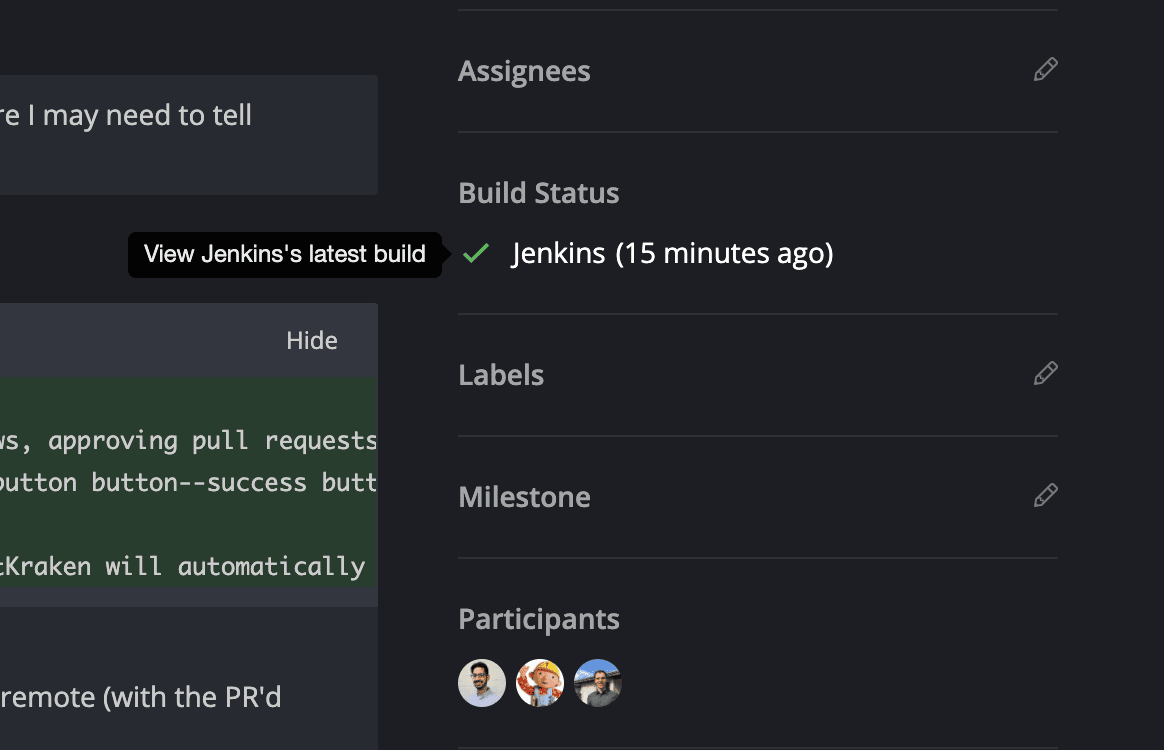
If the branch’s remote is not in your repository yet, GitKraken Desktop prompts you to add it.
How to merge pull requests
To merge a pull request:
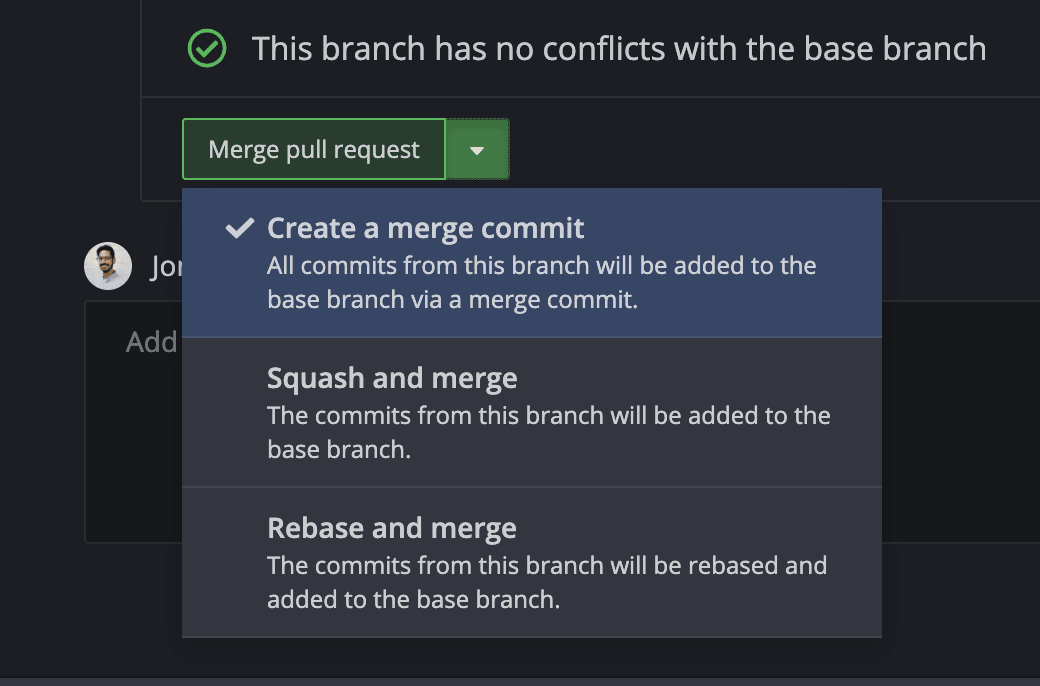
- In Pull Request View, click Merge Pull Request.
- Choose a merge method:
- Create a merge commit (default)
- Squash and merge
- Rebase and merge
If Pull Request View does not show recent updates, refresh GitKraken Desktop.
How to fix missing repositories or remotes
If remotes or repositories are missing in the Add Remote or Clone menus:
- Check that GitKraken has access in your GitHub Applications.
- Ask your organization to allow Organization Approval.
- If the repo is owned by another individual, they must also install GitKraken and authorize it.
- Read GitHub’s guide to third-party application restrictions.
How to connect multiple GitHub accounts
Each GitKraken Desktop profile uses one GitHub account at a time. You can connect more than one GitHub account and choose which one the current profile uses:
- Go to Preferences > Integrations and select GitHub.
- To add an account, click Connect another GitHub account and log in with that account in your browser.
- To switch accounts, click Use a different GitHub account for this profile and choose the account.
With a Pro plan, you can also use multiple profiles. You can associate each profile with a different GitHub account, then switch accounts by switching profiles.
