Last updated: April 2026
This page highlights GitKraken Desktop features that help developers move faster across everyday Git work. Use these tips to set up profiles, navigate with the Command Palette and shortcuts, connect integrations, manage coding agent and worktree workflows, and customize the Commit Graph when you want a more efficient workflow.
Requirements and limits
- This page is a curated overview that links to feature-specific documentation; use the linked pages for full steps and edge cases.
- Some tips reference paid features, including multiple Profiles and certain integrations.
- Integration capabilities vary by Git provider and plan, especially for Azure DevOps and self-hosted services.
- Shortcut, Command Palette, and UI behavior may differ by operating system or repository context.
How to set up profiles
Separate work and personal repositories—or manage multiple accounts with Profiles.
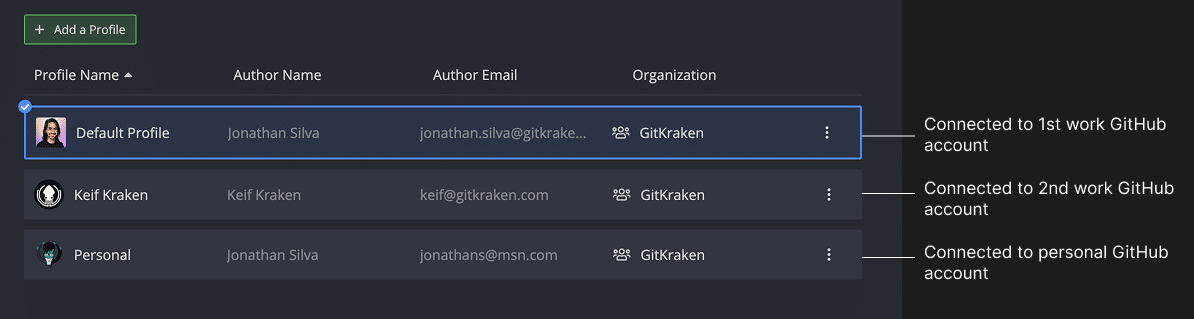
Each profile retains its own Git config, preferences, and open tabs.
Note: Access to multiple profiles requires a GitKraken subscription.
How to use the Command Palette
The Command Palette helps you navigate GitKraken quickly with keyboard-driven actions.
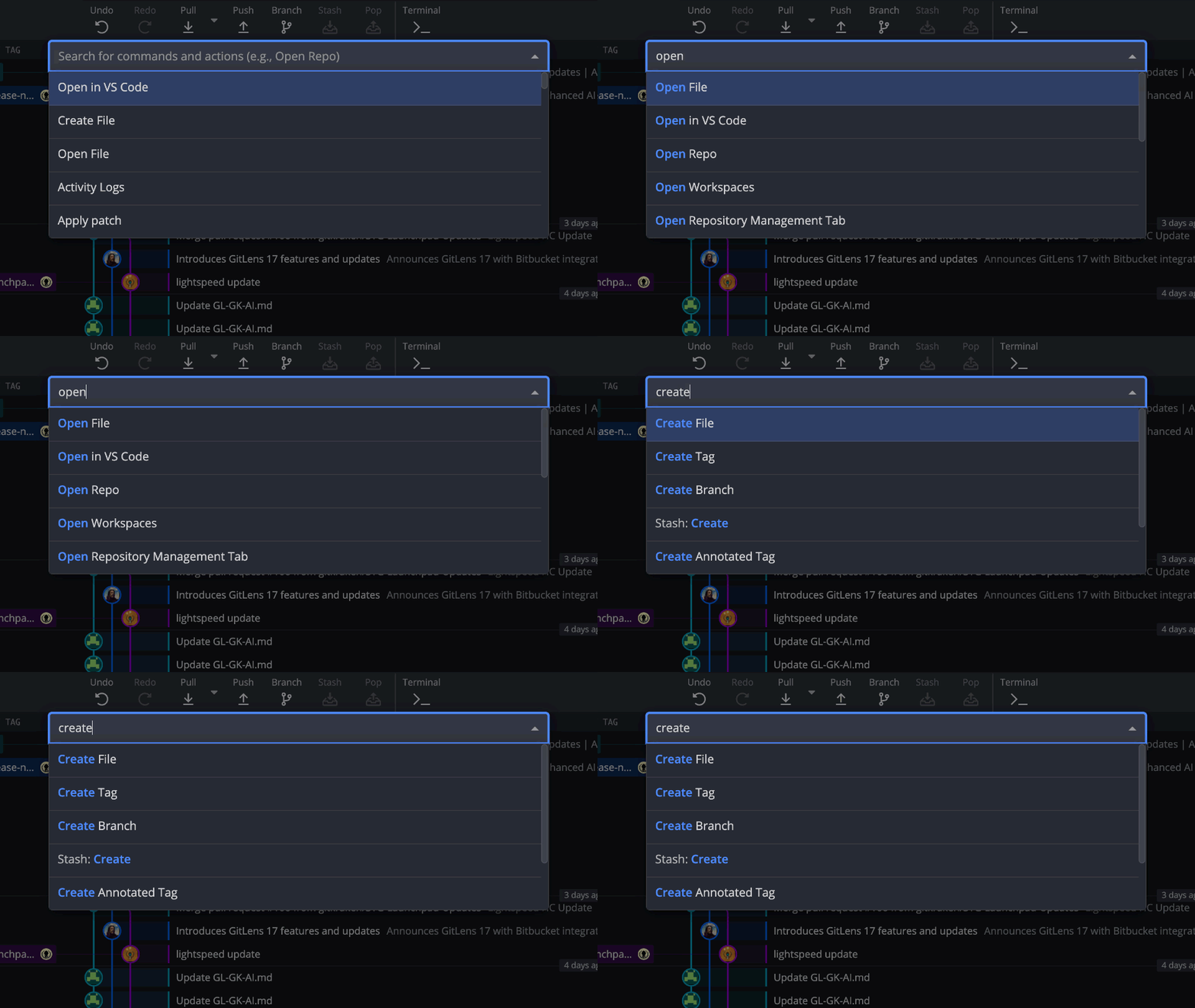
Common actions:
Core
Undo,Redo
File
Create File,Delete File,Open File,Edit File,View FileDiscard all changes,Stage all changes,Unstage all changes
How to use keyboard shortcuts
Speed through tasks with keyboard shortcuts.
| Action | Mac | Windows/Linux |
|---|---|---|
| Open keyboard shortcuts | ⌘/ | Ctrl/ |
How to use Agent Sessions View for parallel work
Use Coding Agents in GitKraken Desktop when you want to start and monitor coding agent sessions in parallel. In the Left Panel, use the List | Agents toggle to switch between the traditional List view and Agent Sessions View.
Agent Sessions View uses the same underlying worktrees as List view, but organizes them around coding agent sessions, status, and quick actions. For general worktree management, see Manage Git Worktrees in GitKraken Desktop.
How to cherry pick multiple commits
Select multiple commits using Cmd/Ctrl or Shift, then right-click and select Cherry pick X commits.
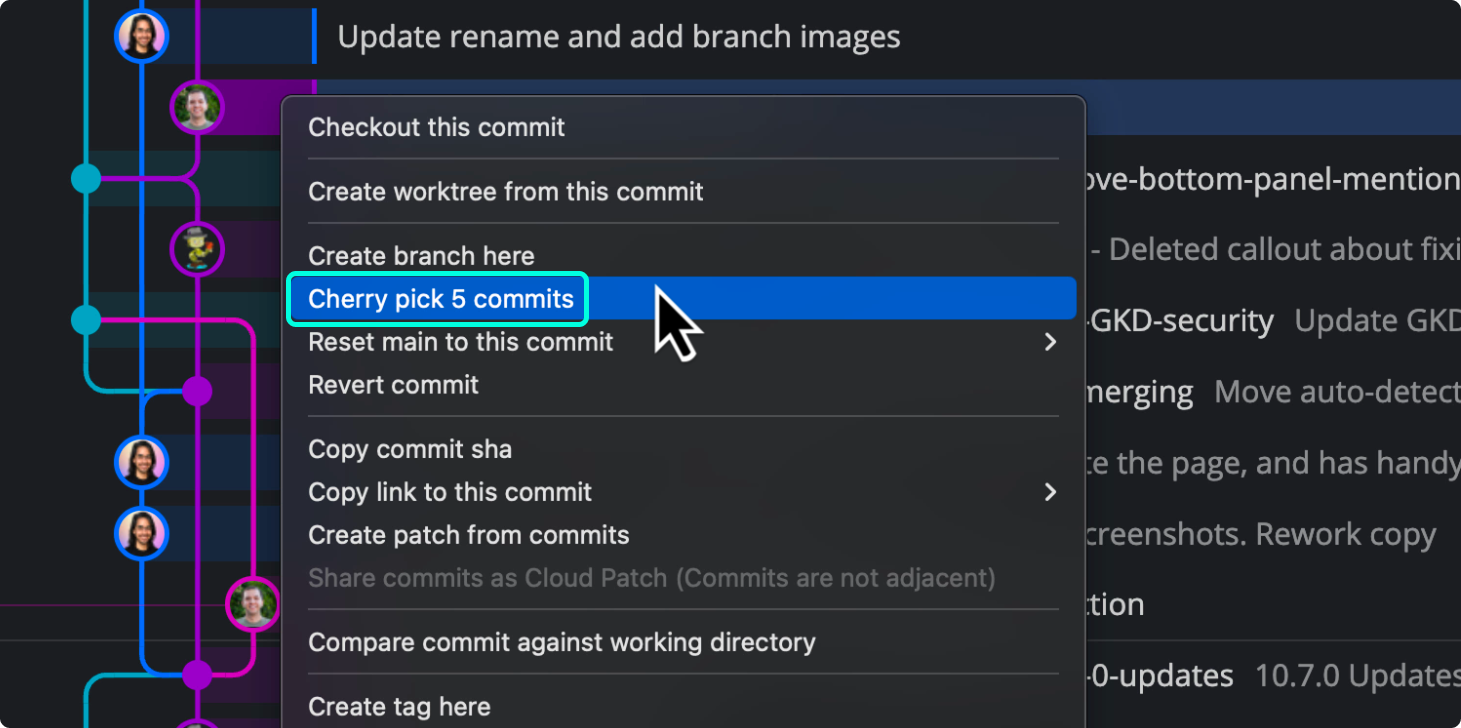
You can reorder, squash, drop, or rename commits before completing. Learn more in Interactive Cherry Pick.
How to integrate with Git services
Connect GitKraken Desktop with GitHub, GitLab, Bitbucket, and Azure DevOps to streamline cloning, remotes, and PR workflows.

Plan notes:
- Community users are limited to public repositories on GitHub/GitLab/Bitbucket.
- Azure DevOps integration requires a GitKraken subscription.
- Self-Hosted services require a paid plan that supports self-hosted integrations.
Benefits:
- Create repos and configure
.gitignoreor license files - Clone via remote repo list
- Manage remotes and pull requests
How to hide and solo branches
Control the Commit Graph display with Hide and Solo options.

Hide
Click the eye next to a branch or right-click to hide it. Hidden branches show a gray icon.

Solo
Right-click a branch and select `Solo` to show only that branch. Repeat to solo/unsolo other branches using the orange icon.
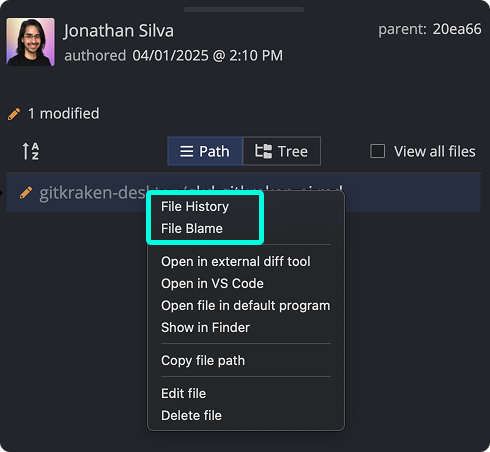
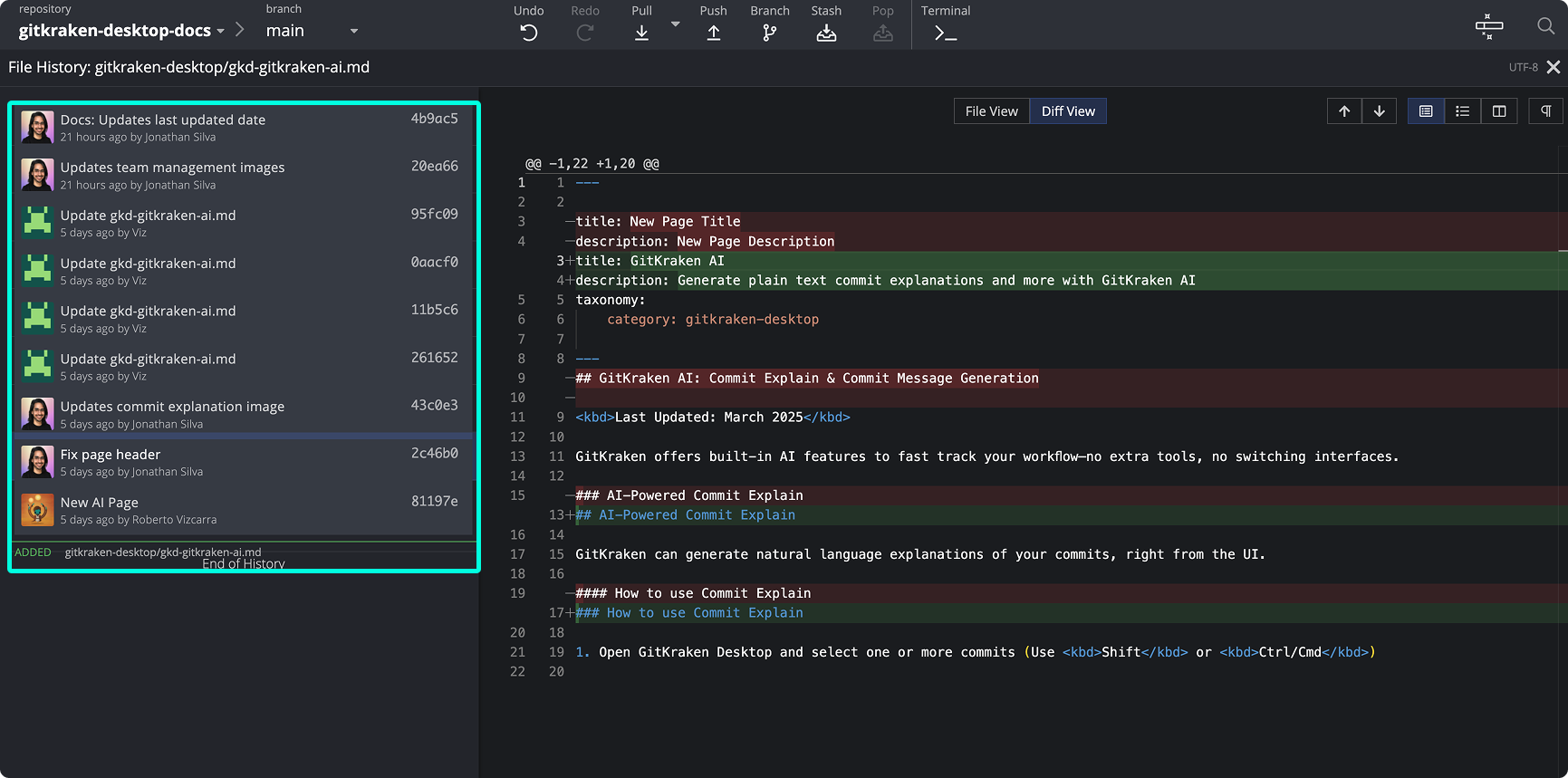
How to view file history and blame
View file history and blame by clicking a commit and right-clicking a file.
How to open the GitKraken Desktop terminal
Run Git commands with the GitKraken Terminal. Click in the toolbar or use Alt/Opt + T.
You can also use the embedded terminal for manual coding agent workflows in a repository or worktree, including agents that GitKraken Desktop does not explicitly integrate with.
Set a default terminal from Preferences > External Tools. For terminal sessions that follow your active worktree, see GitKraken Terminal Guide.
How to resize the Commit Graph
Hover over the graph’s colored lines and drag to resize.