

Last updated: March 2026
Use this page to cherry pick one or more commits onto your current branch in GitKraken Desktop when you need selected changes without merging an entire branch. It covers single-commit cherry picks, multi-commit interactive cherry pick, and the reorder, squash, reword, and drop actions available before applying changes.
Quick Start
To cherry pick a single commit:
- Check out the branch where you want to apply the commit.
- Right-click the commit in the Commit Graph.
- Select Cherry pick commit.
To cherry pick multiple commits:
- Hold Cmd (Mac) or Ctrl (Windows/Linux), or use Shift, to select multiple commits in the graph.
- Right-click one of the selected commits.
- Select Cherry pick X commits.
The interactive cherry-pick tool opens, where you can reorder commits by dragging, squash child commits into parents, reword commit messages, or drop commits before applying. Use keyboard shortcuts in the interactive view: P to pick, S to squash, R to reword, and D to drop. Click Reset to abandon the session without applying changes.
How to cherry pick a single commit
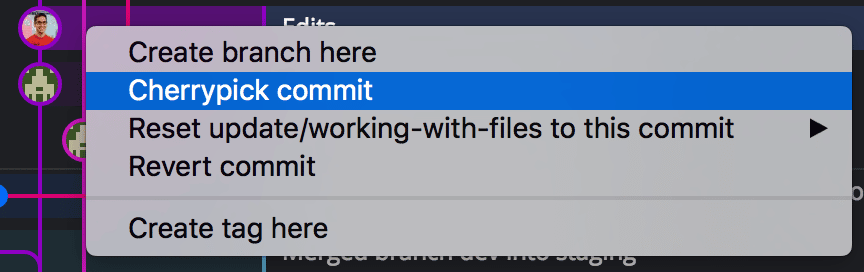
- Check out the branch where you want to apply the commit.
- Right-click the commit in the graph.
- Select Cherry pick commit.
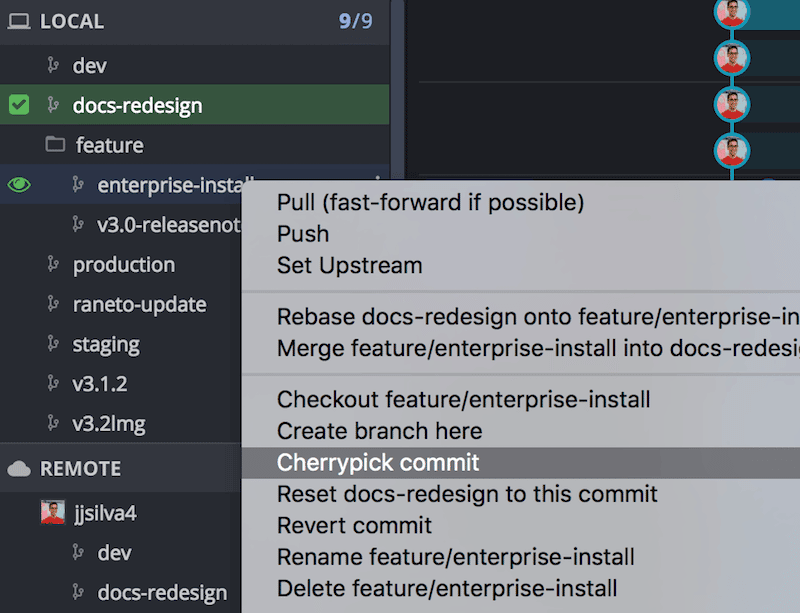
You can also cherry pick the HEAD commit of a branch by right-clicking a branch name under the Local section of the Left Panel.
How to cherry pick multiple commits
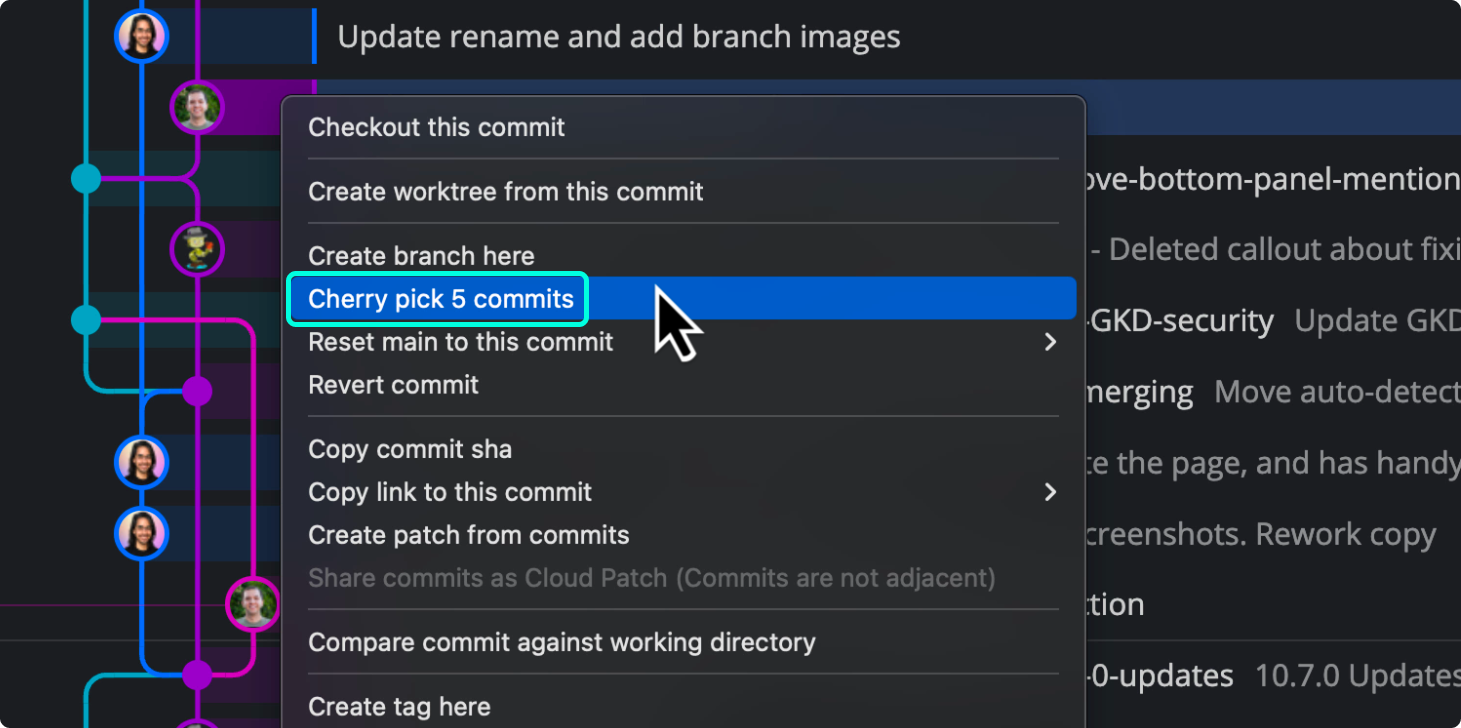
- Hold Cmd (Mac) or Ctrl (Windows/Linux) or Shift and click multiple commits.
- Right-click one of the selected commits.
- Choose Cherry pick X commits.
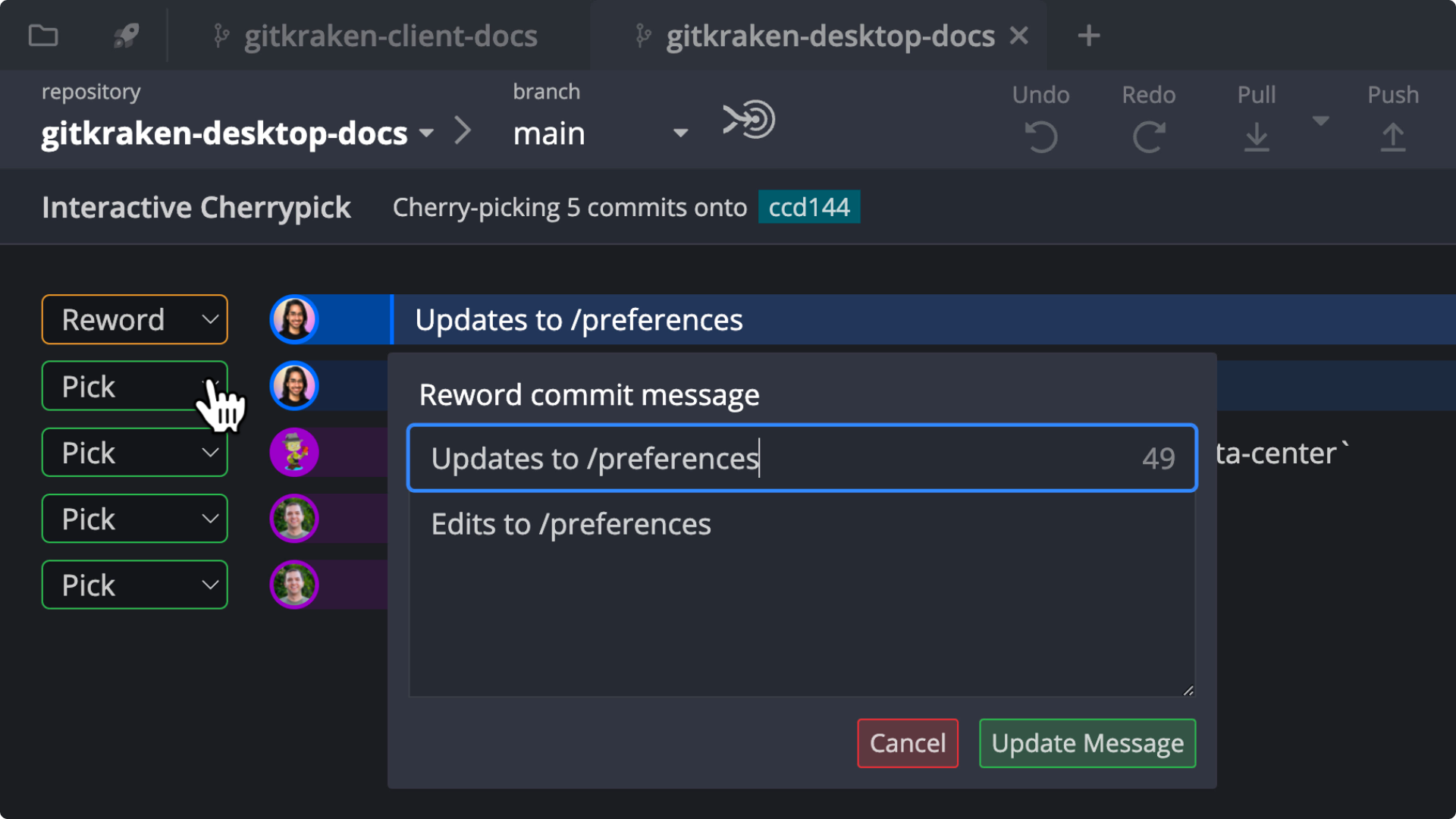
This opens the interactive cherry pick tool where you can:
- Reorder commits with drag-and-drop
- Squash commits
- Reword commit messages
- Drop a commit
What the interactive cherry-pick actions do
- Pick: Apply the commit as-is to the target branch.
- Reword: Edit the commit summary and description.
- Squash: Combine a child commit into its parent (requires a parent-child relationship).
- Drop: Remove a commit from the list.
Use keyboard shortcuts to manage commits in the interactive view:
P = Pick S = Squash R = Reword D = Drop
To abandon the cherry-pick session, click:
