

Last updated: March 2026
Use this page to connect GitKraken Desktop to Bitbucket Data Center in a self-hosted environment so you can authenticate with a personal access token, configure SSH, clone repositories, and work with pull requests. This integration requires an Advanced subscription tier or higher.
Requirements and limits
- Integration covered here: Bitbucket Data Center in a self-hosted environment
- Plan: Advanced subscription tier or higher for self-hosted integrations
- Authentication: Personal Access Token (PAT)
- Server support: Bitbucket Data Center versions released within the past year
- Account limit: One Bitbucket Data Center account per profile; multiple accounts require multiple profiles
- SSH behavior: GitKraken uses the key in Preferences > SSH unless you configure a Bitbucket-specific key or use your system SSH Agent
- Pull request reviewer visibility depends on token scopes and repository permissions
Quick Start
- Go to Preferences > Integrations in GitKraken Desktop.
- Select Bitbucket Data Center, enter your host domain, and click Generate a token on Bitbucket Data Center.
- Log in to your Bitbucket Data Center account in the browser and create a Personal Access Token with the appropriate permissions.
- Copy the token, paste it into GitKraken Desktop, and click Connect.
To configure SSH access after connecting:
- In Preferences > Integrations, click Generate SSH key and copy to clipboard.
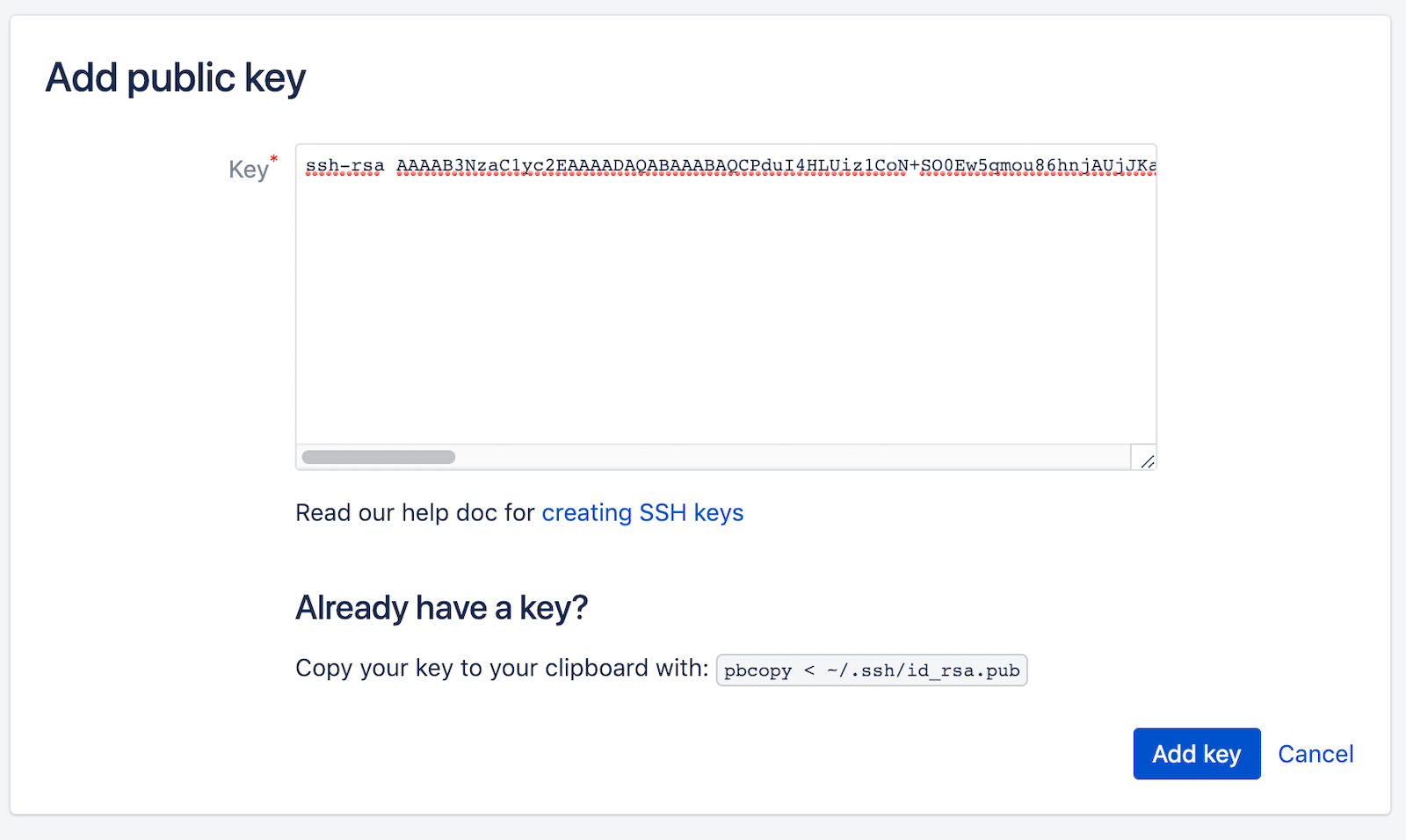
- Open your Bitbucket Data Center account settings and add the copied public key.
Once connected, you can clone repositories directly from your Bitbucket Data Center list, add remotes including forks, and create and view pull requests from within GitKraken Desktop. GitKraken Desktop supports one Bitbucket Data Center account per profile. Use multiple profiles to work with more than one account.
What the Bitbucket Data Center integration lets you do
- Create repositories on Bitbucket Data Center with optional .gitignore and license files.
- Generate and copy an SSH key to use with Bitbucket Data Center.
- Save authentication in reusable profiles.
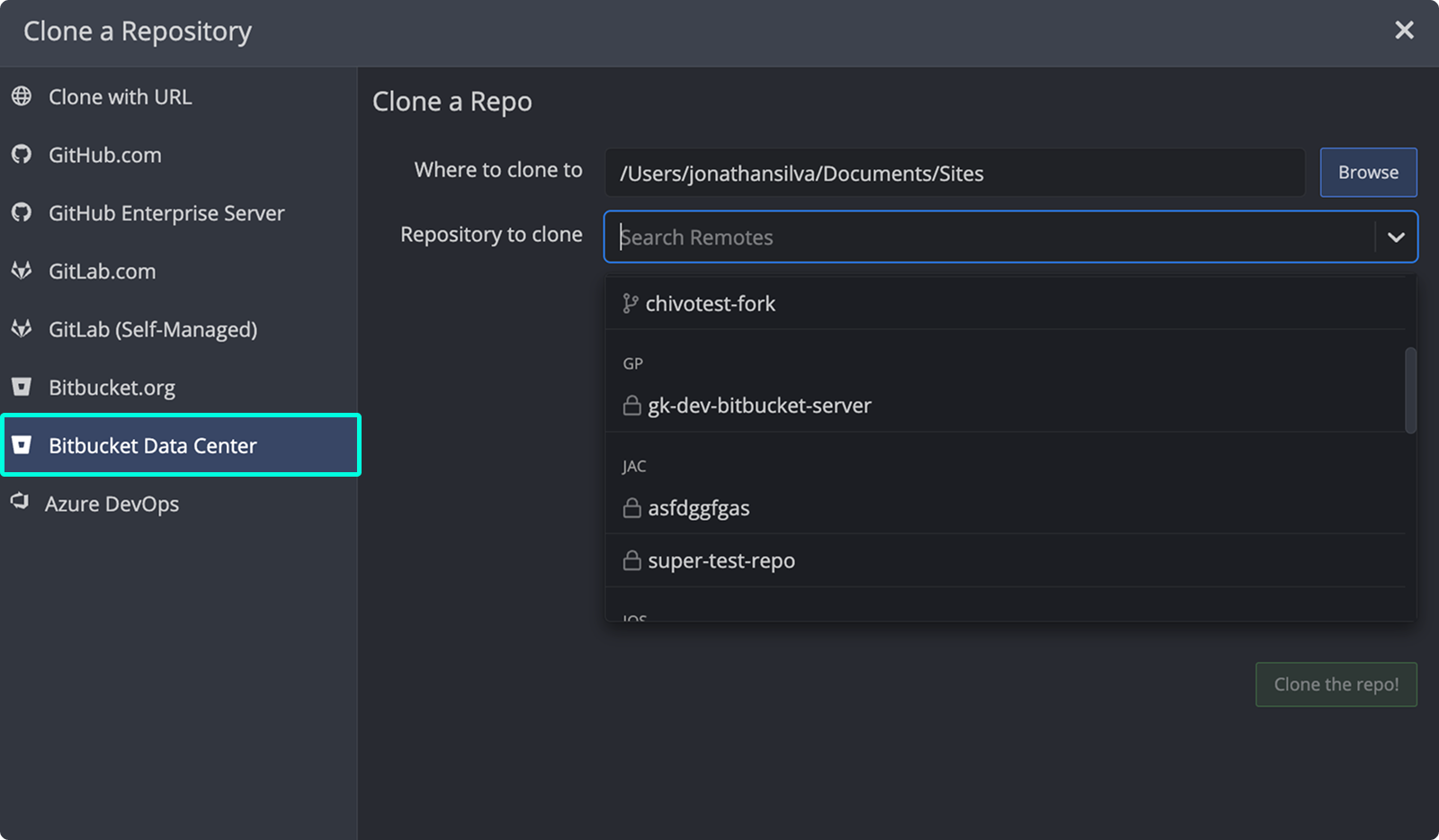
- Clone from your Bitbucket Data Center repository list.
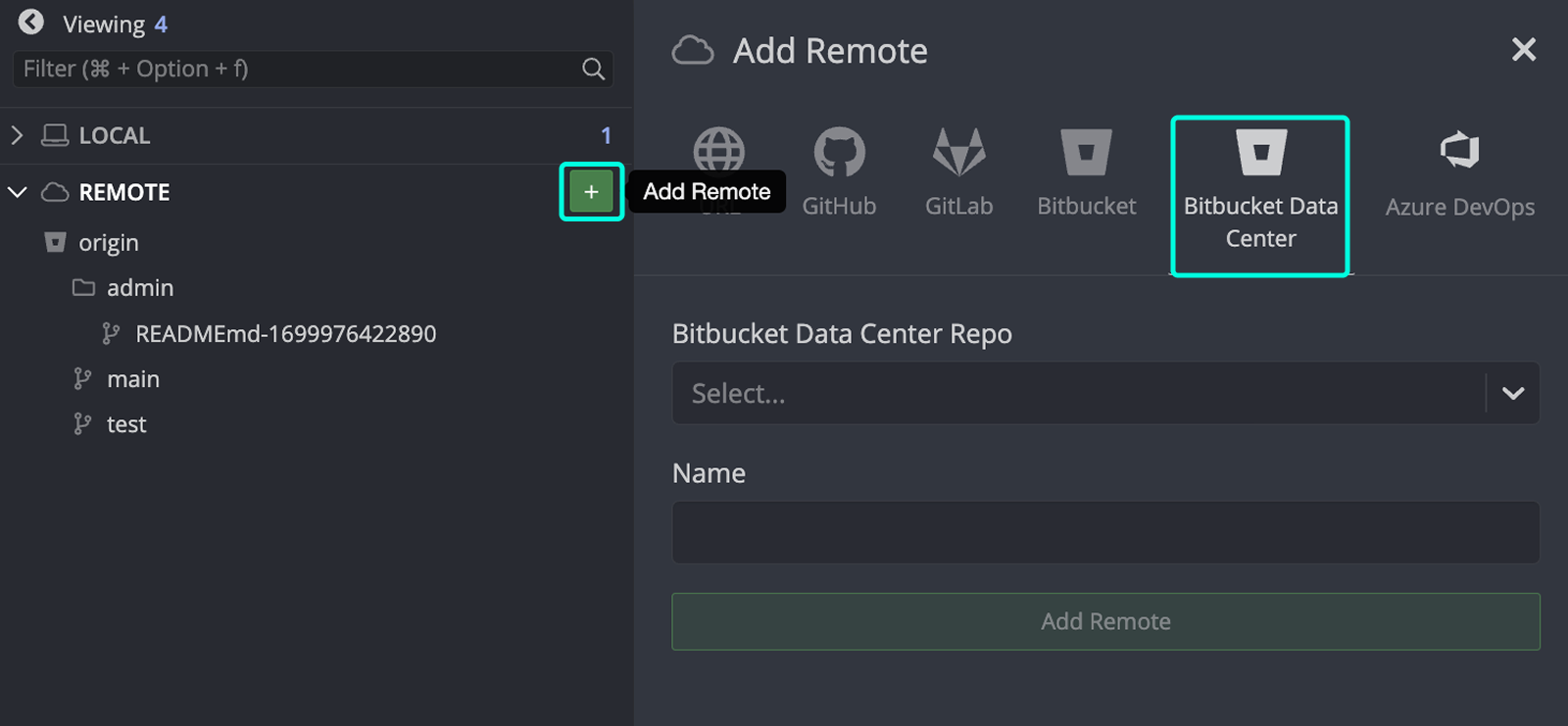
- Add remotes for Bitbucket Data Center repositories.
- Create and view pull requests.
Note: All self-hosted server integrations, including Bitbucket Data Center, require an Advanced subscription tier or higher.
How to connect Bitbucket Data Center
Note: GitKraken Desktop supports Bitbucket Data Center versions released within the past year.
Use Bitbucket Data Center integration when: your repositories live on a self-hosted Bitbucket Data Center server. Don’t use the Bitbucket.org integration when: your environment requires self-hosted server access, PAT authentication, or Data Center-specific permissions.
To authenticate:
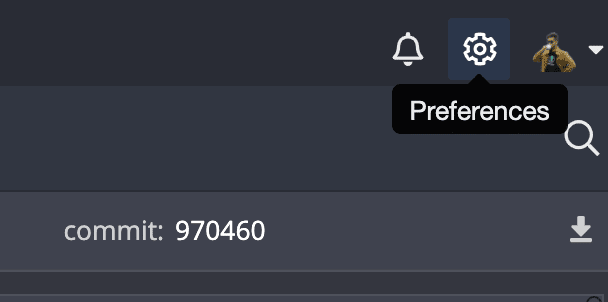
- Go to Preferences > Integrations.
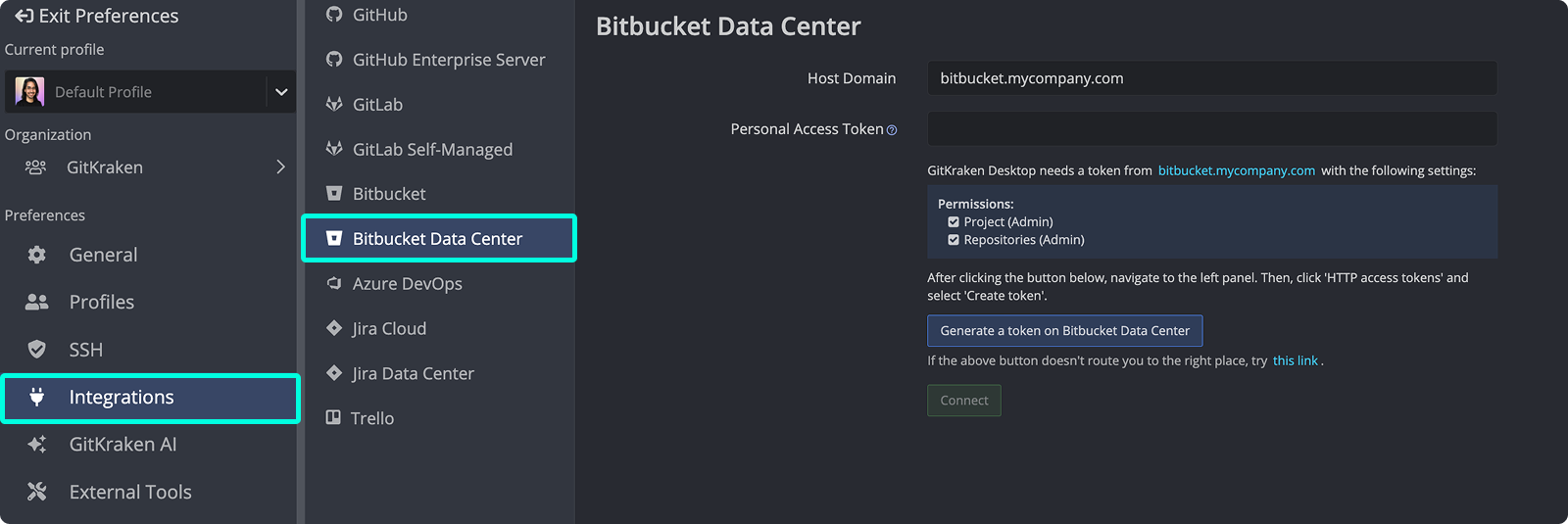
- Choose Bitbucket Data Center. Enter your host domain and click . Ensure the token has appropriate permissions.
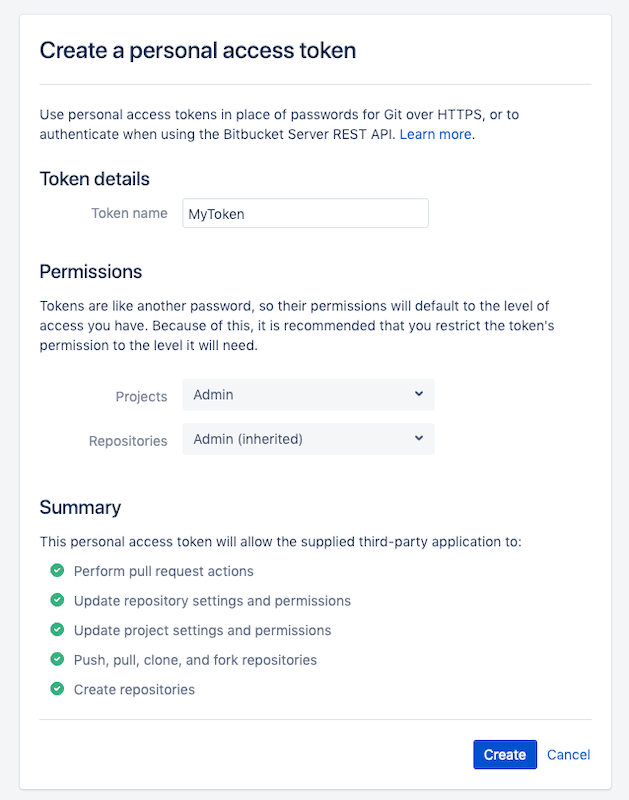
- In the browser, log in to your Bitbucket Data Center account and create the token.
- Paste the token into GitKraken and click .
How to generate SSH keys for Bitbucket Data Center
Note: GitKraken uses the key in Preferences > SSH unless you configure a Bitbucket-specific SSH key or use your system SSH Agent.
- Open Preferences > Integrations.
- Click .
- Follow the in-app toast or manual instructions to add the key.
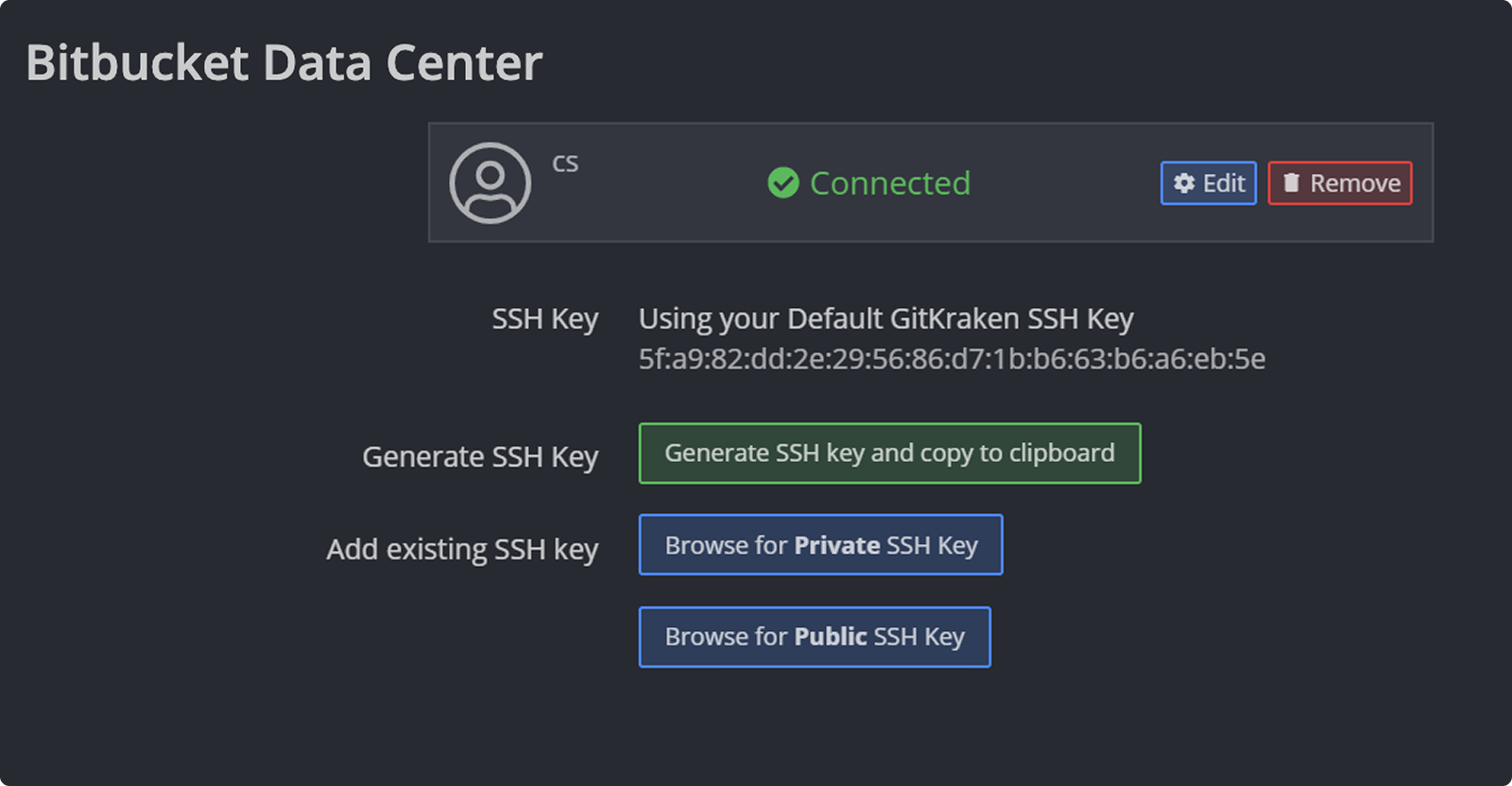
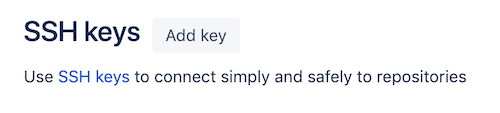
- In your Bitbucket Data Center account:
- Click .
- Paste your public key and click .
What Bitbucket Data Center authentication enables in GitKraken Desktop
GitKraken allows you to:
Use this integration when: you want cloning, remotes, and pull request workflows against your self-hosted Bitbucket Data Center instance inside GitKraken Desktop. Don’t use it when: your repositories are on Bitbucket.org rather than a self-hosted server.
- Search your repositories when cloning:
- View forks when adding remotes:
Manual entry of repository URLs is also supported.
How to connect multiple Bitbucket Data Center accounts
GitKraken supports one Bitbucket Data Center account per profile. Use multiple profiles with GitKraken Pro to switch between accounts.
Use multiple profiles when: you need to switch between separate Data Center accounts or host domains. Don’t use multiple profiles when: one profile already covers the single self-hosted account you use.
How Bitbucket Data Center pull request reviewers work
If your token includes Project Admin and Repository Admin scopes, and you have the correct permissions, GitKraken will display reviewer details for pull requests.
