

Last updated: August 2026
Use this page to create, review, filter, comment on, and merge pull requests in GitKraken Desktop across supported providers such as GitHub, GitLab, Bitbucket, and Azure DevOps. It also covers GitHub-specific review features such as code suggestions, pull request view, and merge options inside the app.
Requirements and limits
- Supported providers on this page: GitHub, GitLab, Bitbucket, and Azure DevOps
- Precondition: Push your branch to the remote before creating a pull request
- GitHub-specific features: Pull Request View, code suggestions, in-app merge options, and the Review on GitKraken.dev button
- Template support: Pull request templates are supported for GitHub, GitLab, and Azure DevOps
- Azure DevOps note: If the PR form does not populate, verify the remote URL and integration domain on the Azure DevOps integration page
- Feature scope varies by provider, so some actions described here are GitHub-only
| Provider | Create PR or MR | View PR or MR | Merge in app | Notes |
|---|---|---|---|---|
| GitHub | Yes | Yes | Yes | Review and suggestion features are strongest here |
| GitLab | Yes | Yes | Yes | Uses merge request terminology |
| Bitbucket | Yes | Yes | Yes | Some reviewer workflows depend on permissions |
| Azure DevOps | Yes | Yes | Yes | Verify remote URL and integration domain if the form does not populate |
Quick Start
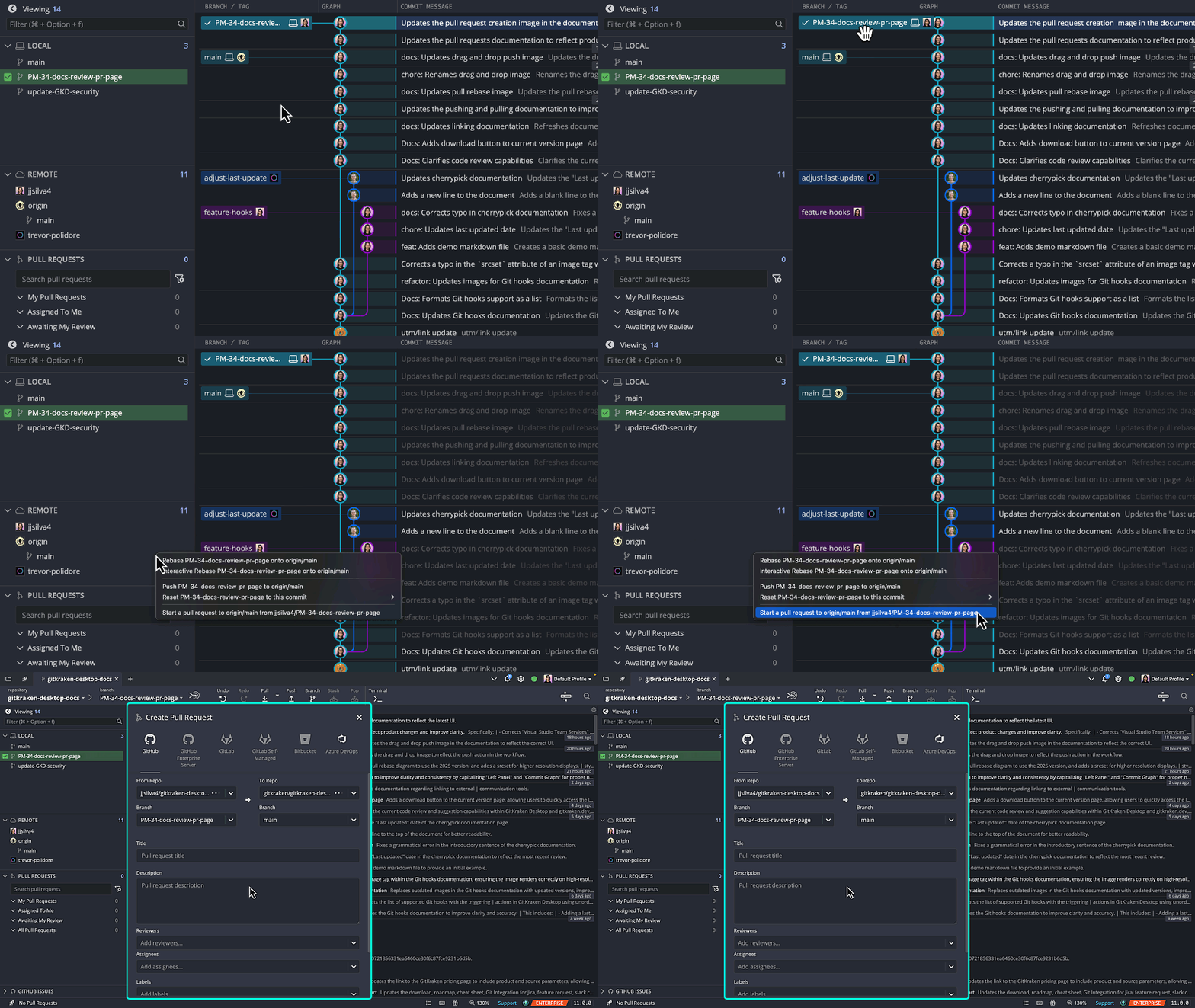
To create a pull request:
- Drag one branch onto another in the commit graph and select Start a pull request.
- Or right-click the target branch and choose the same option.
- Or click the + icon in the PULL REQUESTS section of the Left Panel.
To review a pull request (GitHub integration):
- Select a PR in the Left Panel or click the PR icon in the Launchpad.
- Click Review Code and Suggest Changes to open the diff view.
- Write suggestions directly in the editor. Suggestions are posted as comments on the GitHub PR.
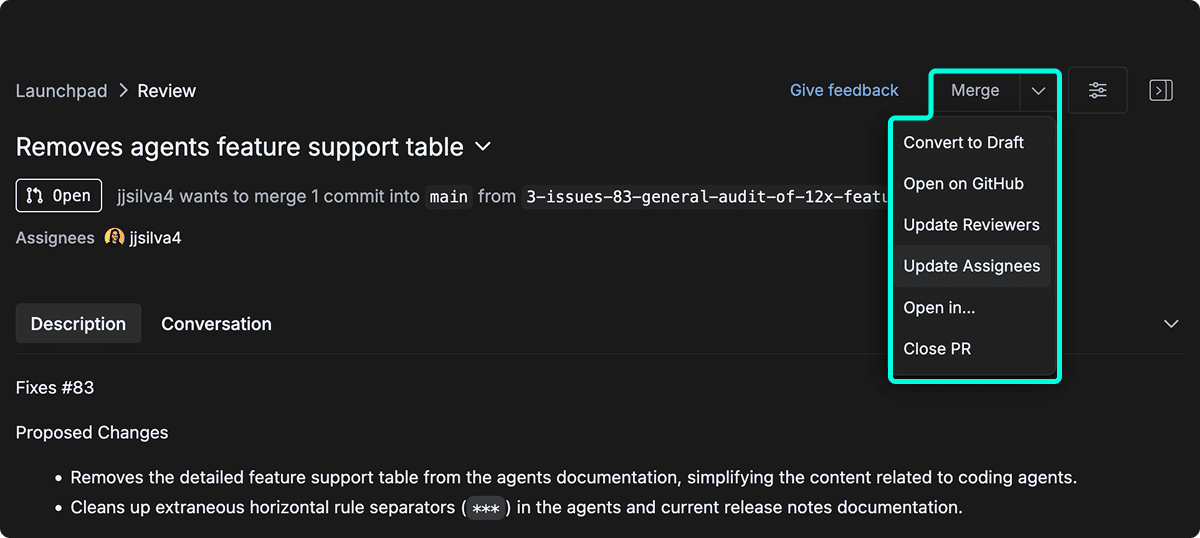
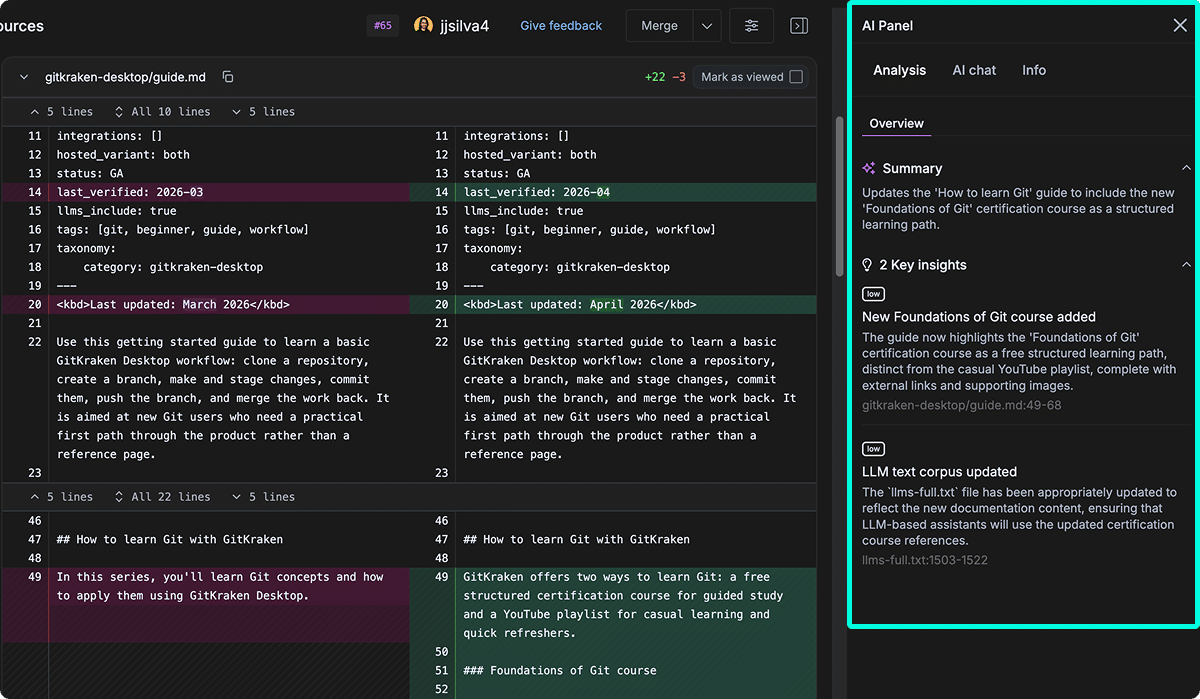
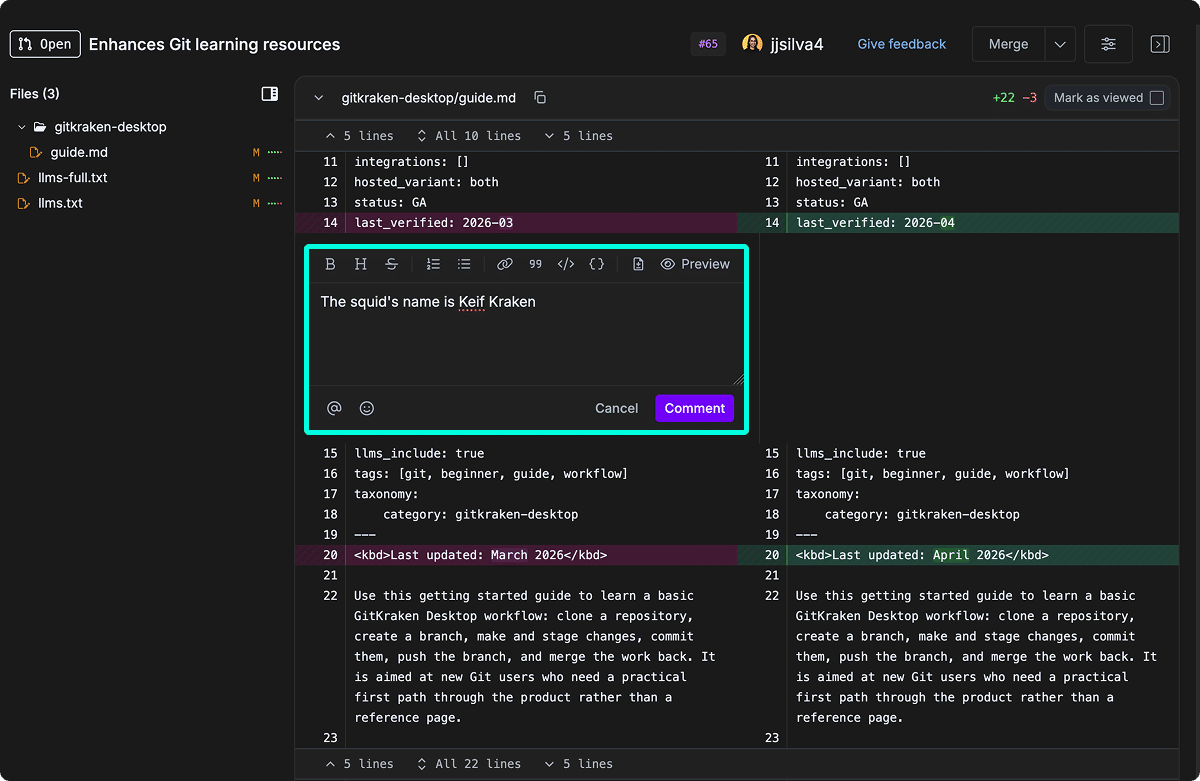
To review a GitHub pull request on GitKraken.dev: Click Review on GitKraken.dev in the GitHub Pull Request view to open the PR in GitKraken Code Review. You can review with cleaner diffs, AI-generated suggestions, and integrated chat, and approve or comment as you would on GitHub.
To merge a pull request: Click Merge pull request in the GitHub PR view and select a merge strategy (merge commit, squash, or rebase).
To filter pull requests: Use predefined filters like “My pull requests” or create custom filters in the Left Panel. PR icons indicate CI status and review state.
Push your branch to the remote before creating a pull request.
How to create a pull request
To create a pull request:
- Drag one branch onto another and select Start a pull request
- Or right-click the target branch and choose the same option
- Or click the icon in the Left Panel PULL REQUESTS section
Use GitKraken Desktop PR creation when: your branch is already pushed and you want to open or manage the PR without leaving the app. Don’t start the PR yet when: the branch is not pushed, the target branch is still unclear, or you need provider-specific options not exposed in GitKraken Desktop.
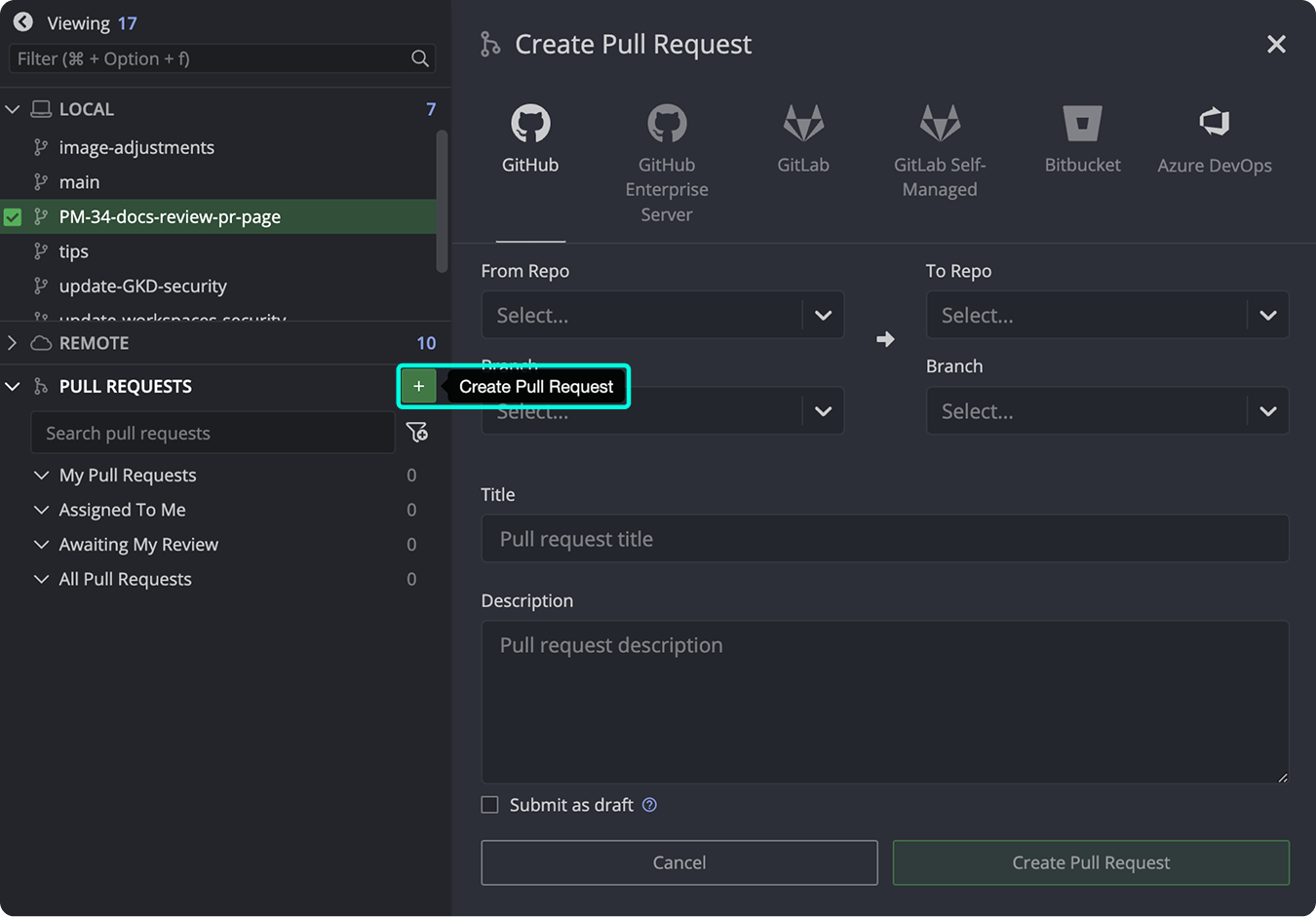
Note: If the Azure DevOps PR form isn’t populating, see Azure DevOps Integration.
How pull request templates work
GitKraken Desktop supports PR templates on GitHub, GitLab, and Azure DevOps. When committed to the remote, the template appears during PR creation.
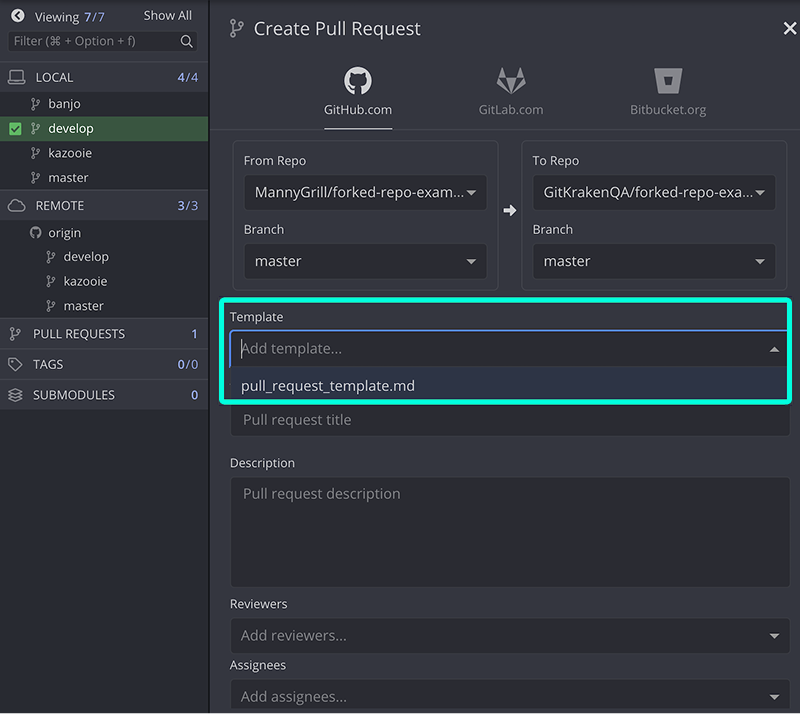
Tips:
- Follow your provider’s documentation for file location
- Ensure the template is on the currently checked out branch
Resources:
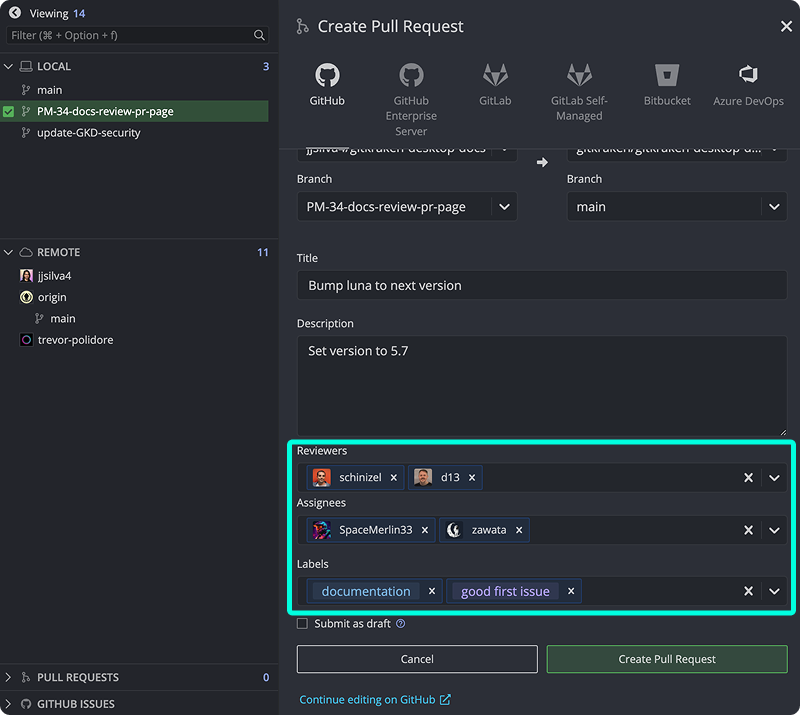
How assignees, labels, and reviewers work
Some integrations allow adding:
- Assignees
- Reviewers
- Labels
Conflict warnings appear if your source and target branches differ:
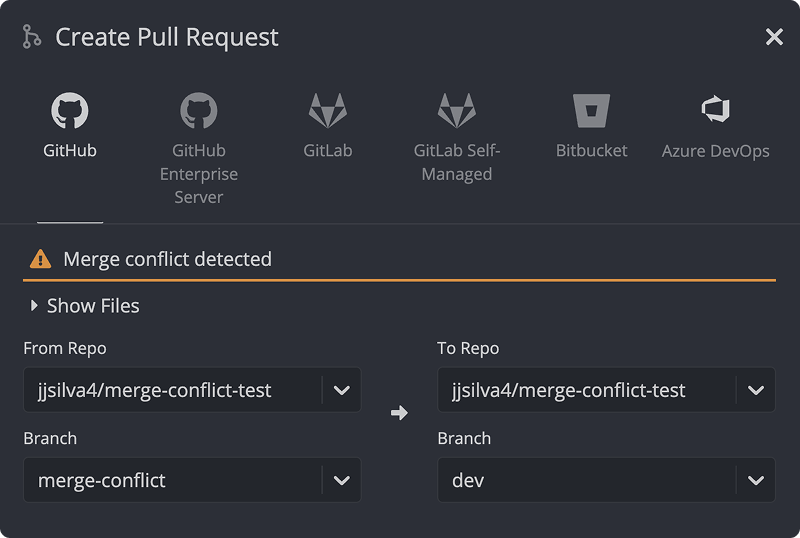
Reminder: Push your branch before creating a pull request.
How draft pull requests work on GitHub
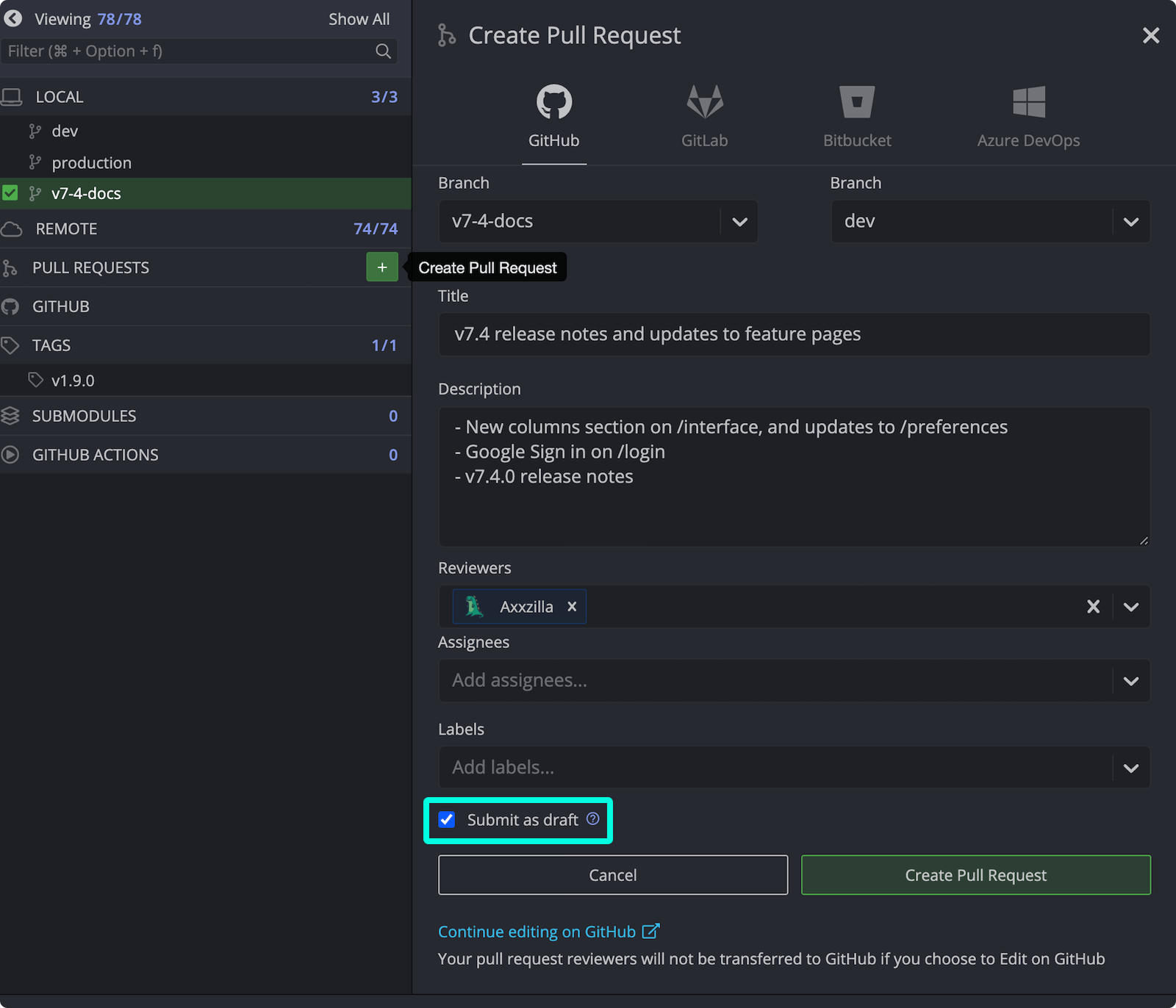
With the GitHub integration, select the draft checkbox to mark the pull request as a draft.
Use a draft pull request when: you want early visibility or feedback before the branch is ready to merge. Don’t mark it ready too early when: the implementation still needs major changes and you are not ready for formal review.
How GitHub Pull Request View works
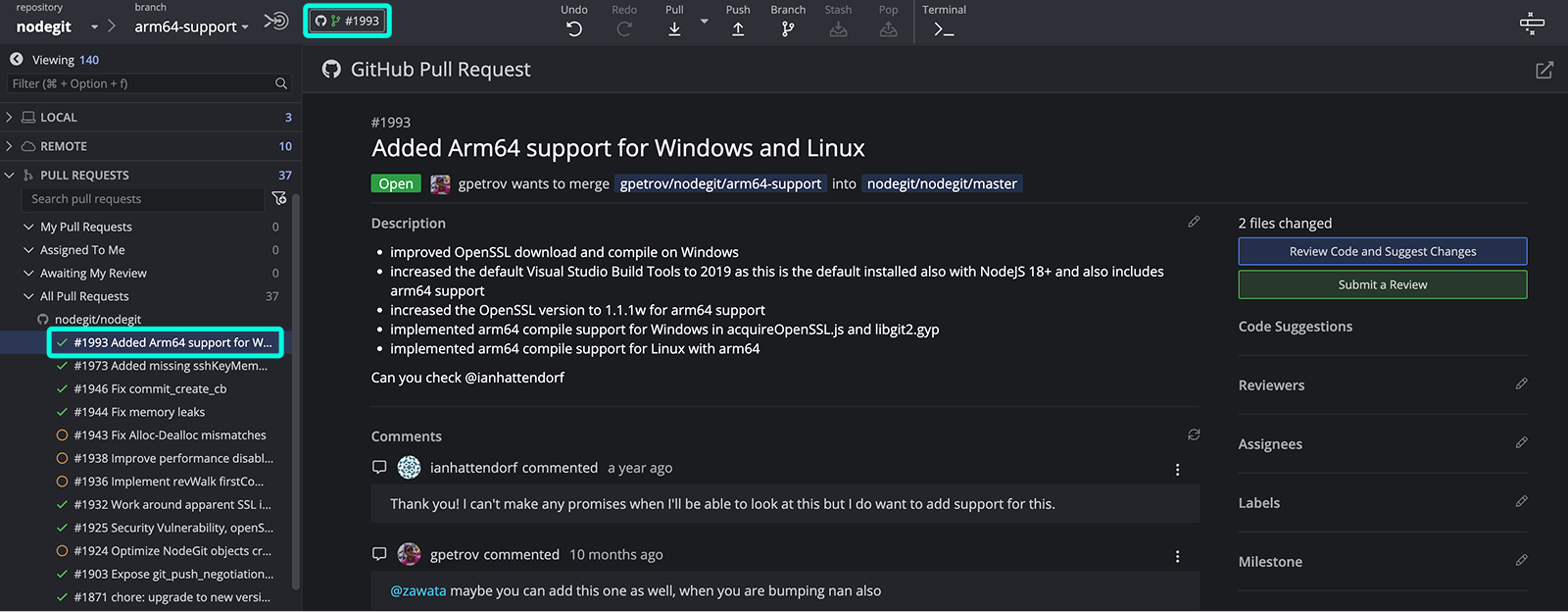
Enable the GitHub integration to access GitHub PR view:
- Select a PR in the Left Panel
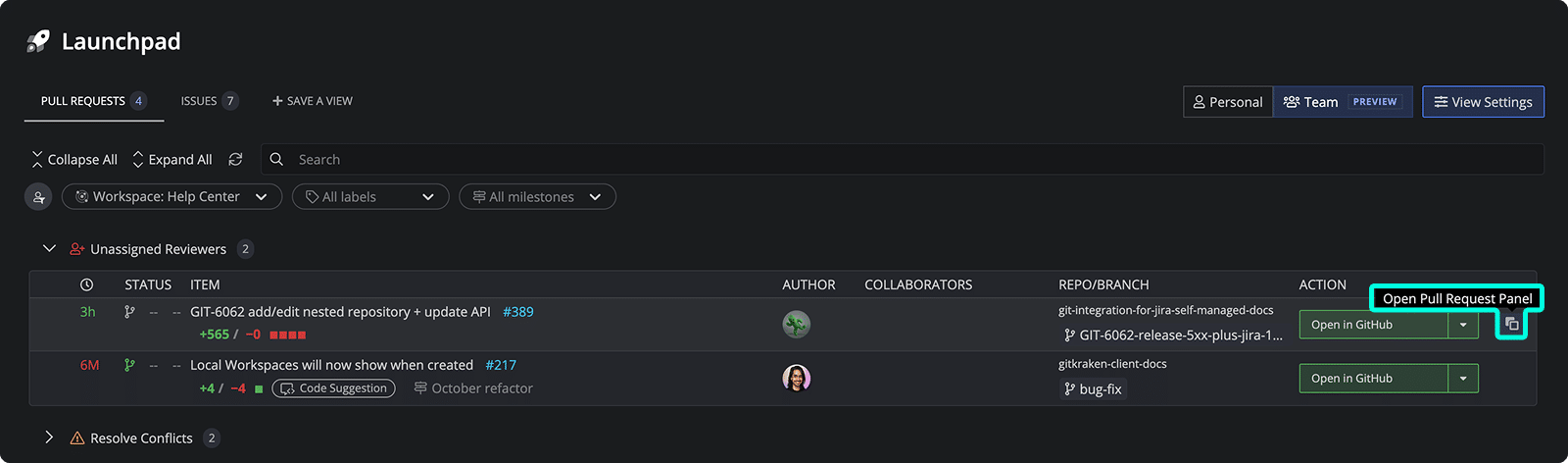
- Or click the PR icon in the Launchpad
Use GitHub Pull Request View when: you want to update PR metadata, inspect changes, or suggest edits inside GitKraken Desktop. Don’t rely on it for every review workflow when: your team depends on deeper provider-native review features outside the app.
From this view, GitHub users can edit:
- Title
- Description
- Reviewers
- Assignees
- Milestones
- Labels
Click to review changes.
How to review GitHub pull requests on GitKraken.dev
In the GitHub Pull Request view, click to open the pull request with GitKraken Code Review in your browser.
Use GitKraken.dev review when: you want a faster, more focused PR review experience or you want to use AI-assisted suggestions and integrated chat. Stay in the in-app review when: you want to suggest code edits directly from GitKraken Desktop and post them as comments on the GitHub PR.
GitKraken Code Review gives you a faster review experience for GitHub PRs with:
- Cleaner diffs that are easier to scan
- AI-generated suggestions to speed up review
- Integrated chat with the rest of your team
- The ability to approve and comment just like on GitHub
How to suggest changes
When you click to , this will allow you to write the code suggestion directly in GitKraken Desktop’s editor or gitkraken.dev.
Use code suggestions when: you want to propose concrete edits for the PR author to review or apply. Don’t use suggestions when: you only need a high-level comment or architectural discussion without an exact code change.
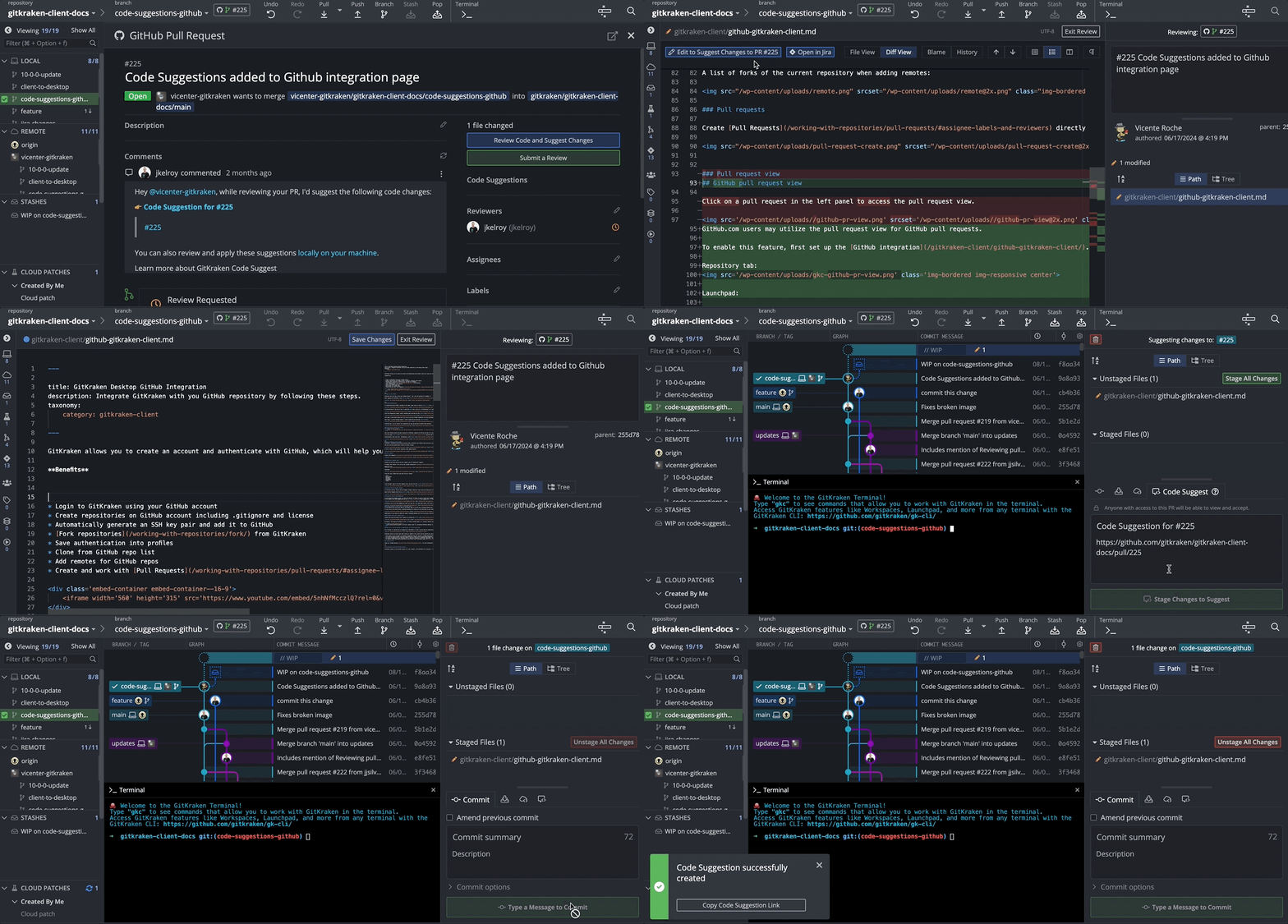
All code suggestions are posted a comments in the GitHub pull request conversation with a link to review the code suggestion inside of gitkraken.dev or GitKraken Desktop.
How to accept or reject suggestions
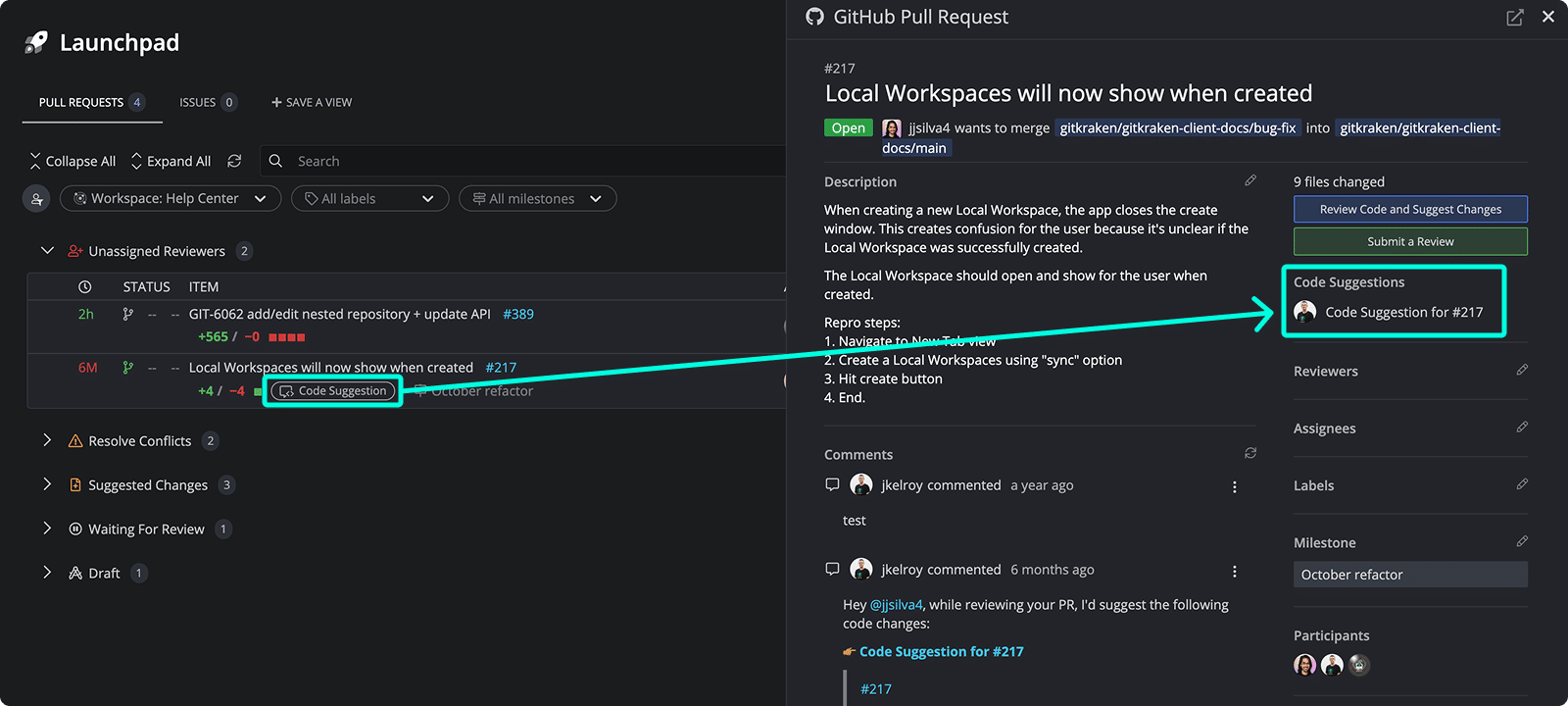
Code suggestions display in the PR view under the “Code Suggestions” label:
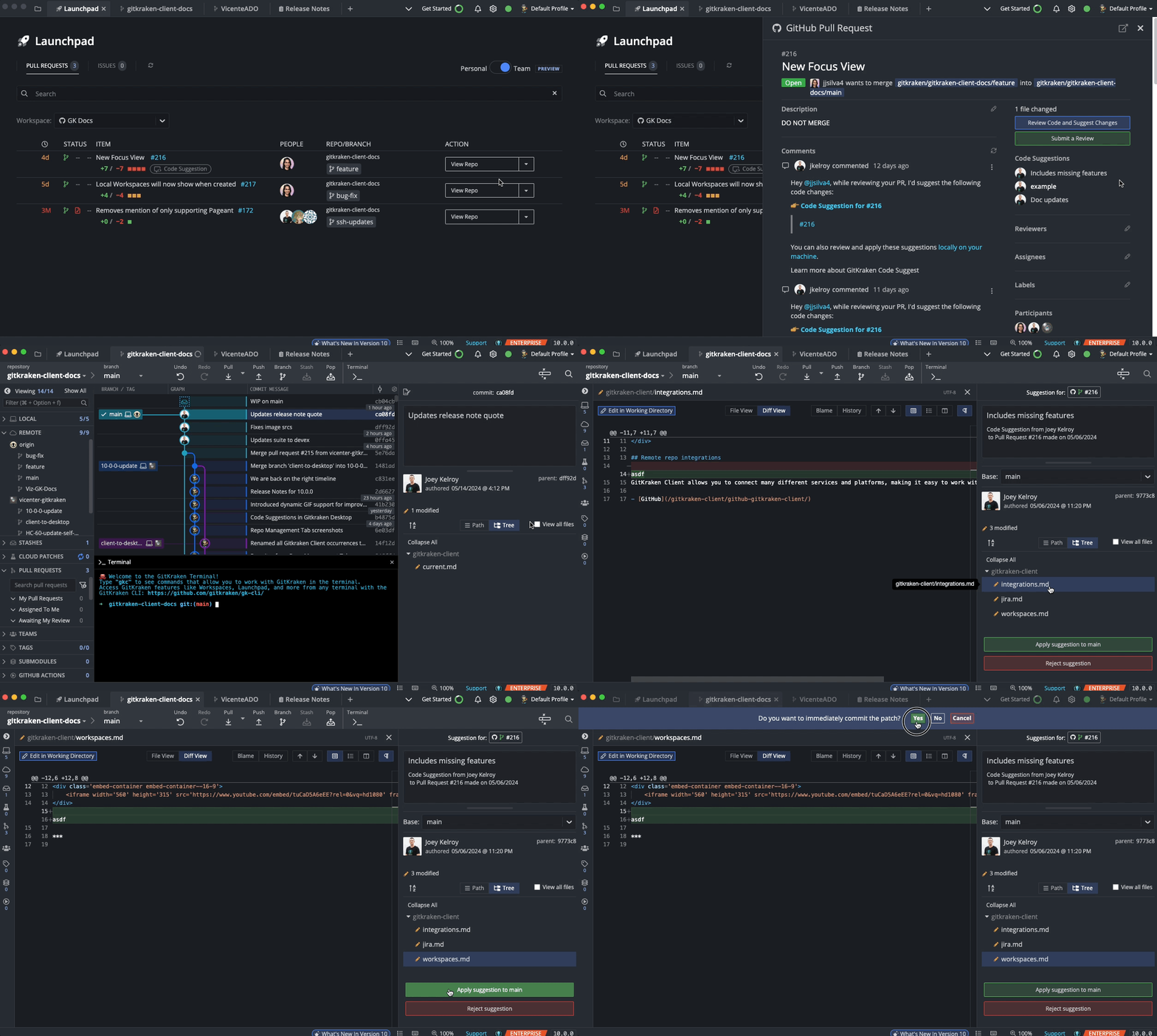
You can apply or reject each suggestion in the Commit Panel:
How commenting and quoting work
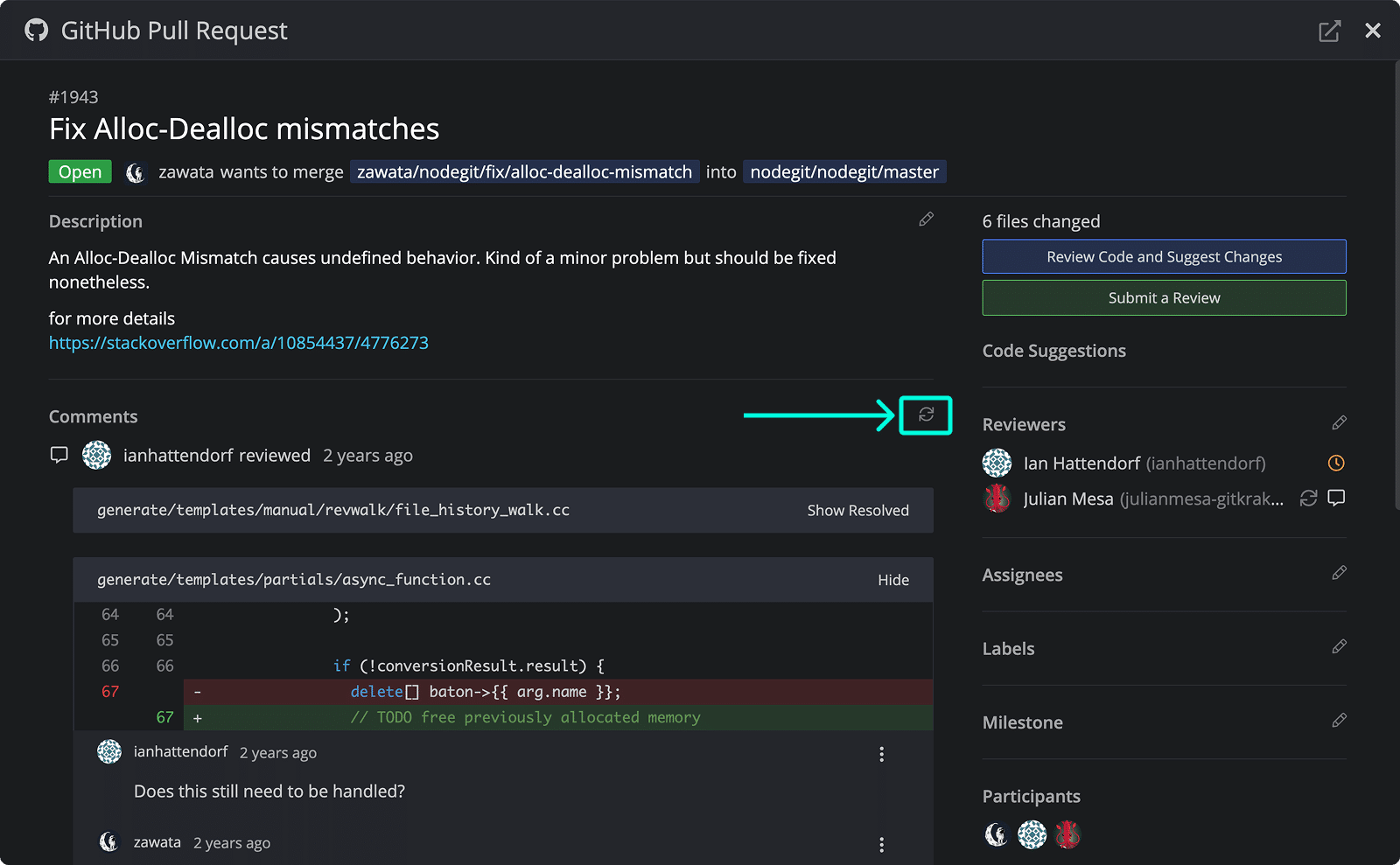
Comment on pull requests, refresh the comments feed, or quote replies:

How branch actions and build status work
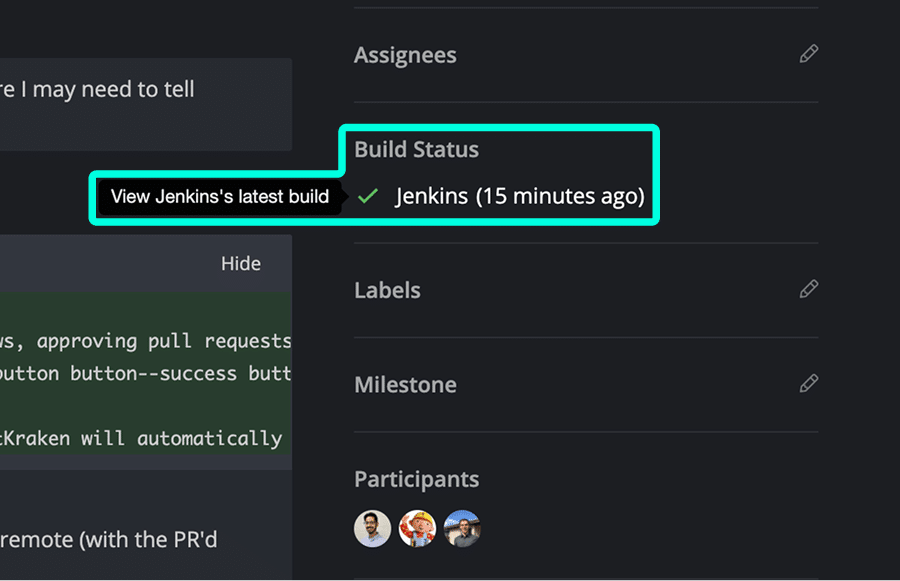
Double-click a branch in the PR view to check it out. Click build status to open in browser.
If the remote isn’t added yet, GitKraken will prompt you to add it.
How to merge in GitHub PR View
Click to merge.
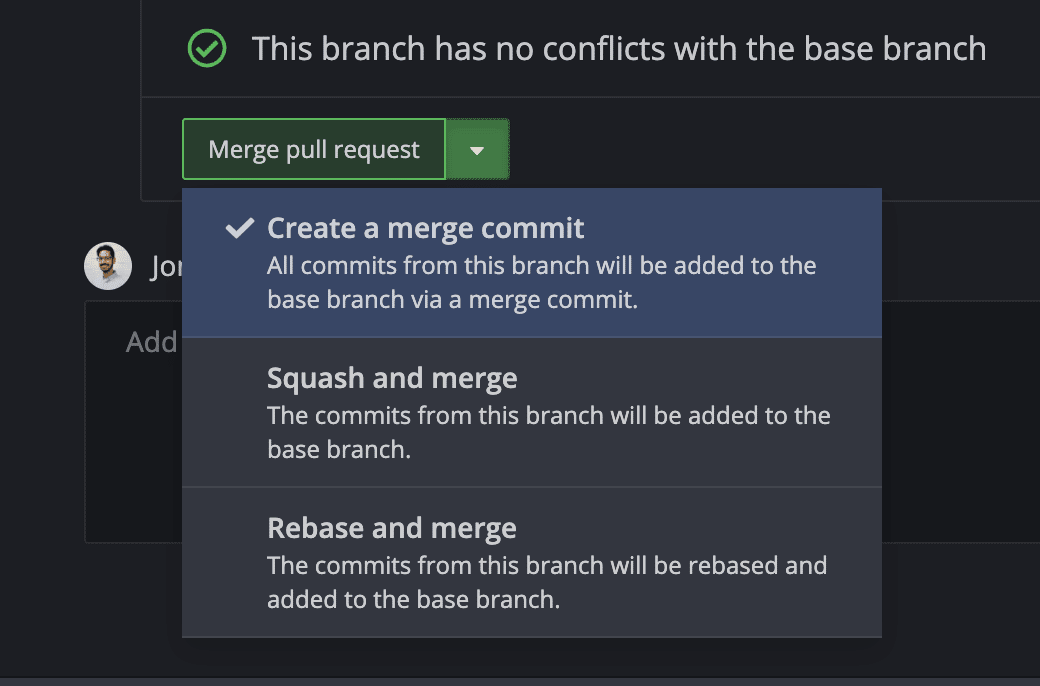
Choose:
- Create a merge commit
- Squash and merge
- Rebase and merge
If data appears out of sync, refresh GitKraken Desktop.
How the active pull requests panel works
Active PRs appear with this icon  and are listed in the PULL REQUESTS section of the Left Panel.
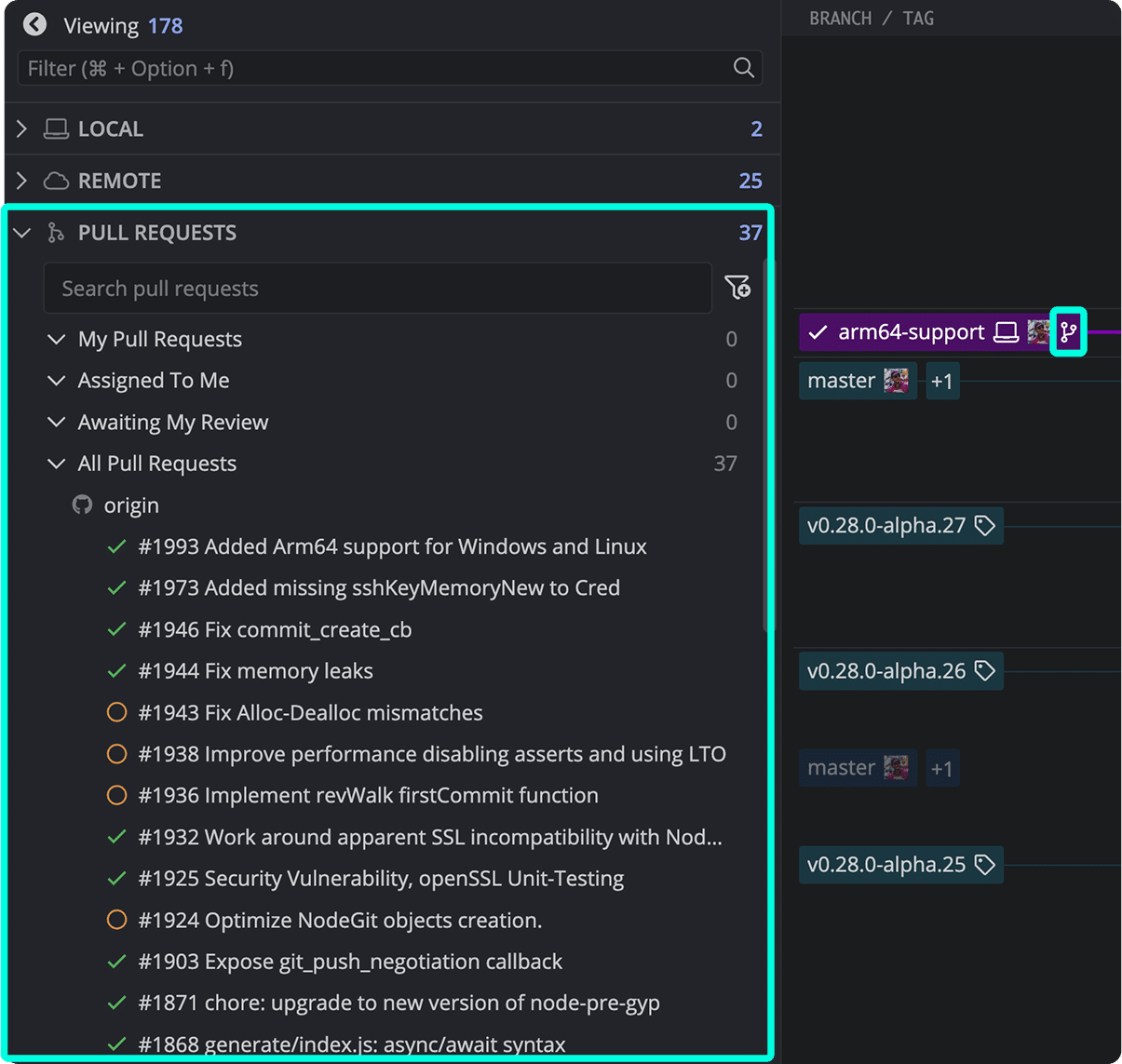
Use predefined filters like My pull requests or All pull requests, or create custom filters.
Tooltips show branch, author, status, and more:
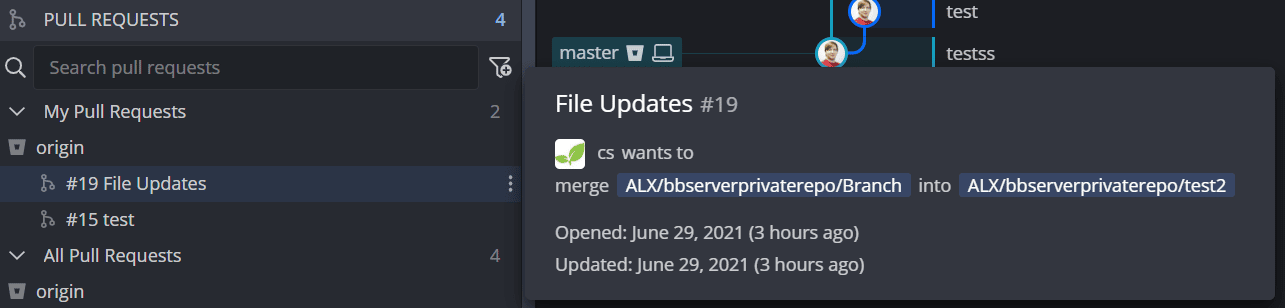
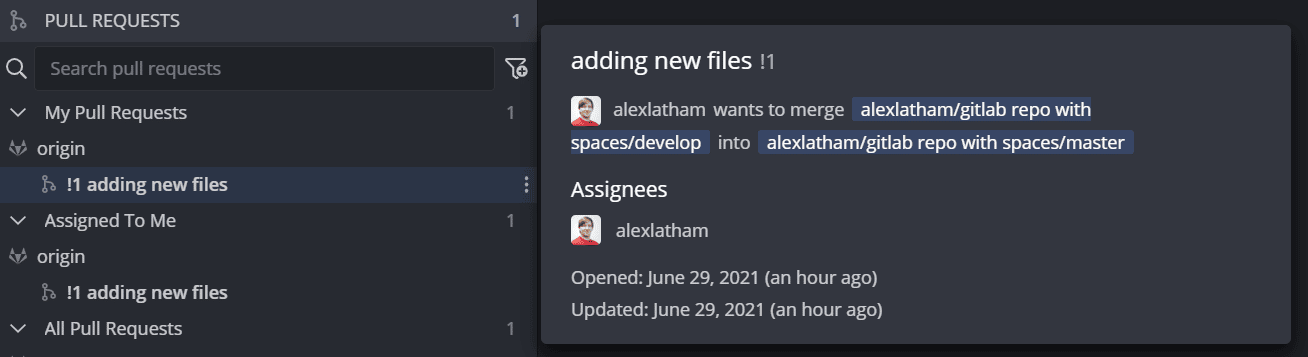
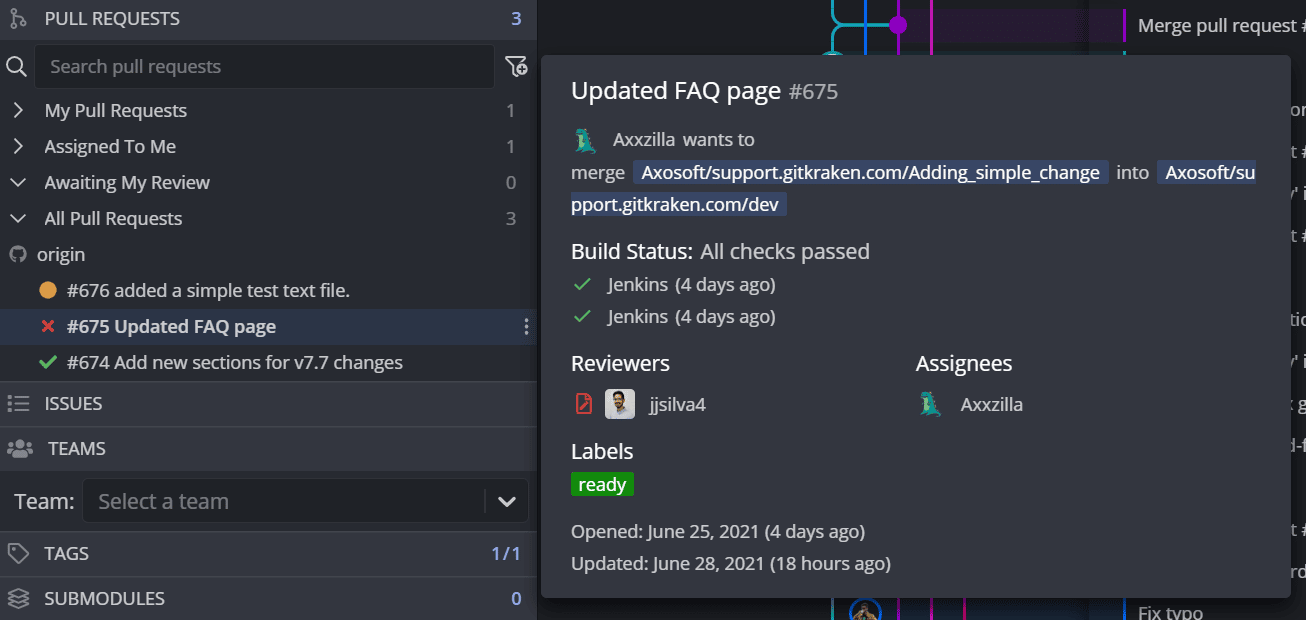
Pull request icons:
- = CI passed and approved
- = CI passed/pending or reviews pending
- = Failing CI or changes requested
How merged pull request status appears in the interface
When a GitHub pull request is merged, GitKraken Desktop surfaces a merged PR status pill in three locations associated with the branch:
| Location | When it appears |
|---|---|
| Toolbar | When the branch with a merged PR is checked out |
| Commit Details panel | When you select a commit on the branch with a merged PR |
| Worktree cards (Agent Sessions View) | On the card for the branch with a merged PR |
Use the merged PR pill to confirm that a branch’s work has shipped before you delete the branch or remove its worktree.
