

Last updated: March 2026
Use this page to inspect Activity Logs in GitKraken Desktop when you need to see recent Git operations, application events, performance timing, or Git hook output. It explains the difference between the Application and Repository tabs, how extended logging changes the output, and how hook failures surface in the log UI.
Requirements and limits
- Scope: Real-time GitKraken Desktop application and repository event logs
- Access point: Activity Logs icon in the footer toolbar
- Application tab: Shows GitKraken Desktop instance events and is not tied to the active repository
- Repository tab: Shows Git operations for the currently active repository only
- Extended logging: Enable in Preferences > General for more detailed repository log output
- Hook log behavior: Git hook failures surface in the Repository log and through snackbox links to the hook output
Quick Start
- Open GitKraken Desktop and open any repository.
- Click the Activity Logs icon in the footer toolbar at the bottom of the window.
- Select the Application tab to view actions taken by GitKraken Desktop itself, such as opening repositories or refreshing the Git config.
- Select the Repository tab to see Git operations performed on the current repository, such as fetch, push, and merge.
- To include more detail in the Repository tab, go to Preferences > General and enable Use extended logging in activity log.
- If a Git hook fails, a snackbox notification will appear with a link to the hook log. Click it to view the hook output directly.
Each log entry includes a timestamp, a description of the action, and duration in milliseconds. Logs are displayed in plain text format and update in real time as you work.
What Activity Logs are
The Activity Logs panel, located in the footer toolbar of GitKraken Desktop, provides real-time feedback on actions taken within the application and your repositories.
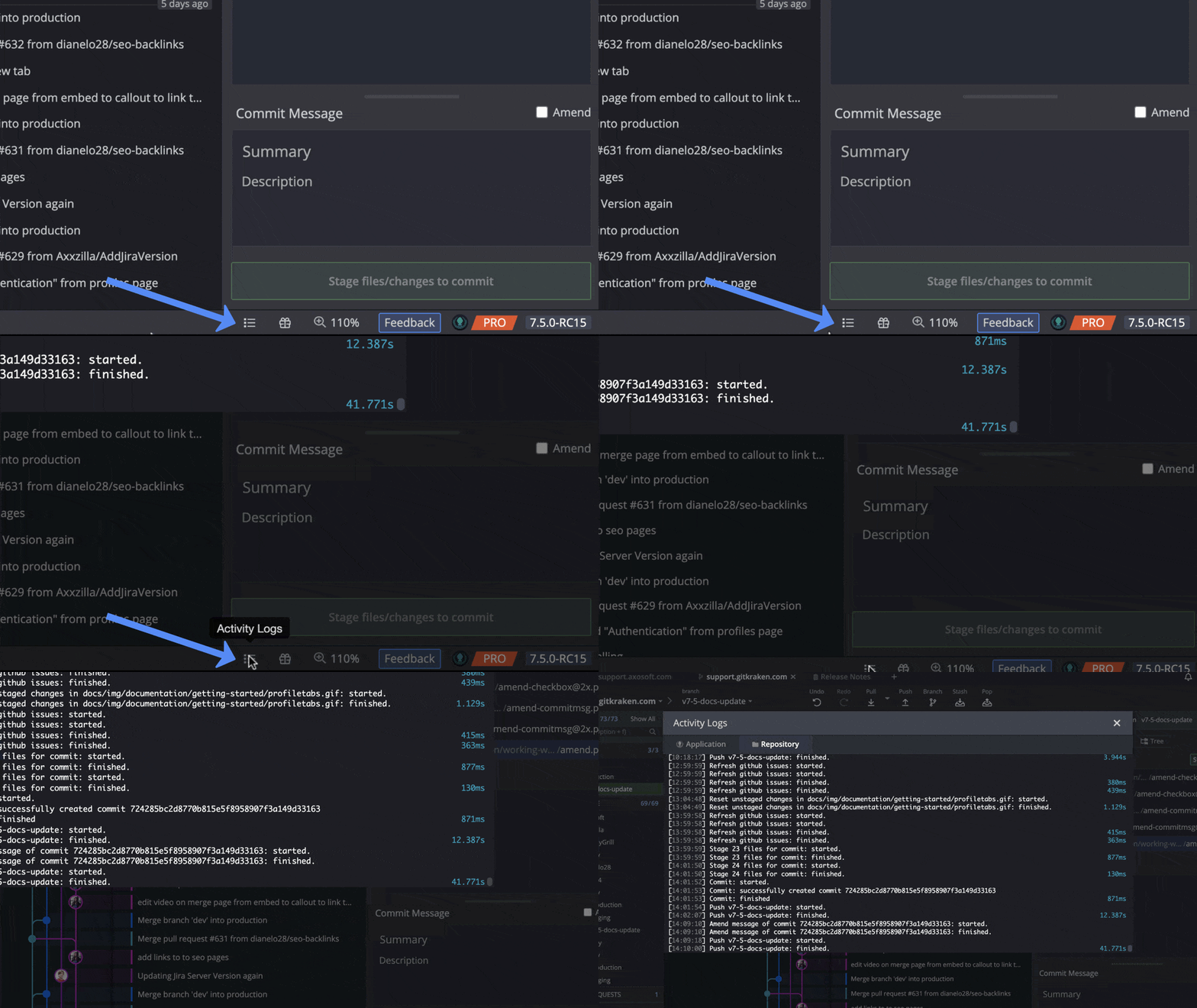
Each log entry includes a timestamp, a description of the action, and performance data in milliseconds. The logs are stored in plain text and presented in a standard log format.

How the Application log works
The Application tab in Activity Logs displays actions specific to the GitKraken Desktop instance. Events include:
- Creating a project
- Clearing SSH credentials
- Setting the global gitconfig
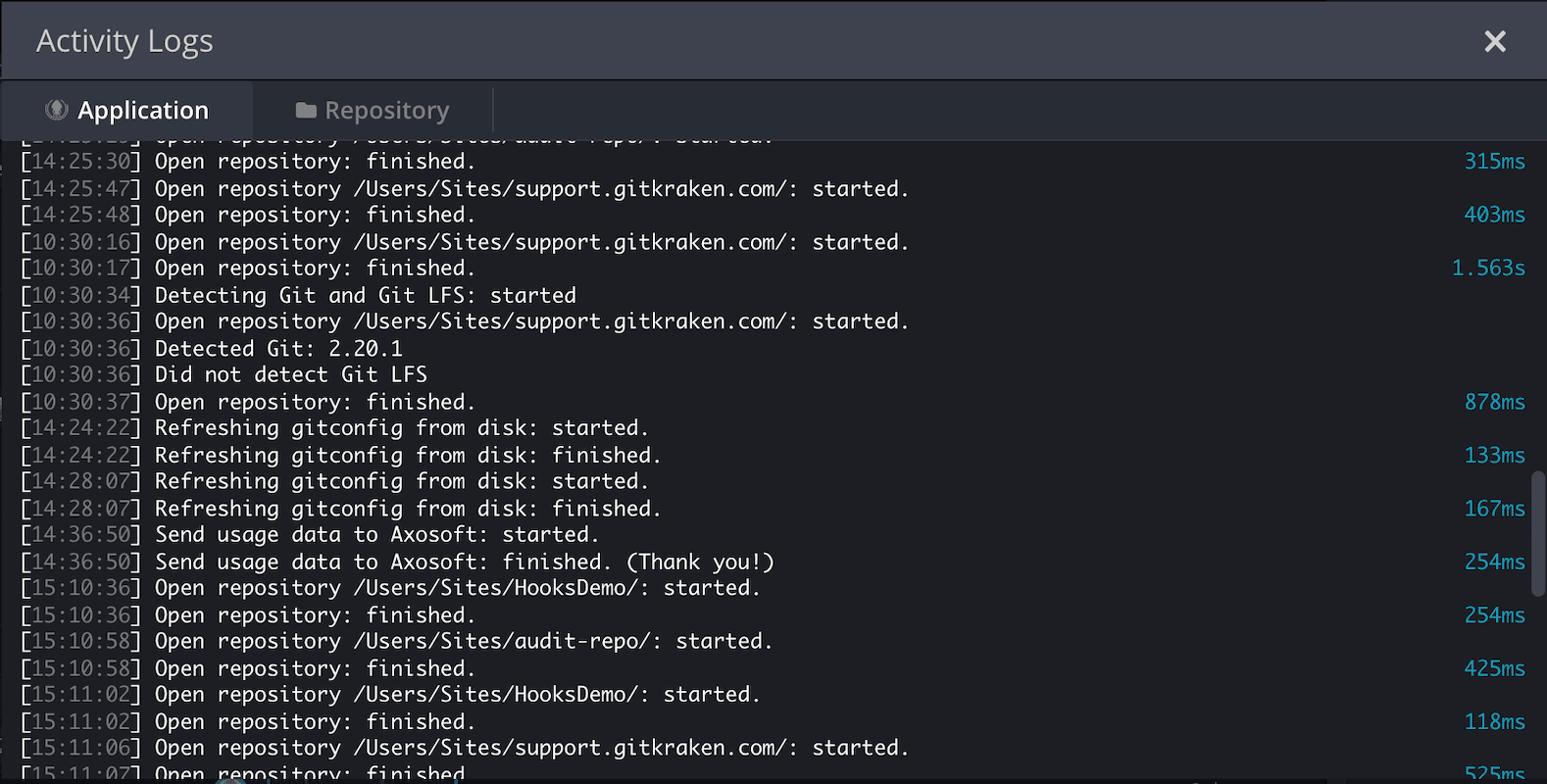
This log remains static regardless of which repository is currently open.
How the Repository log works
The Repository tab displays Git operations performed on the currently active repository, such as:
- Fetch
- Push
- Merge
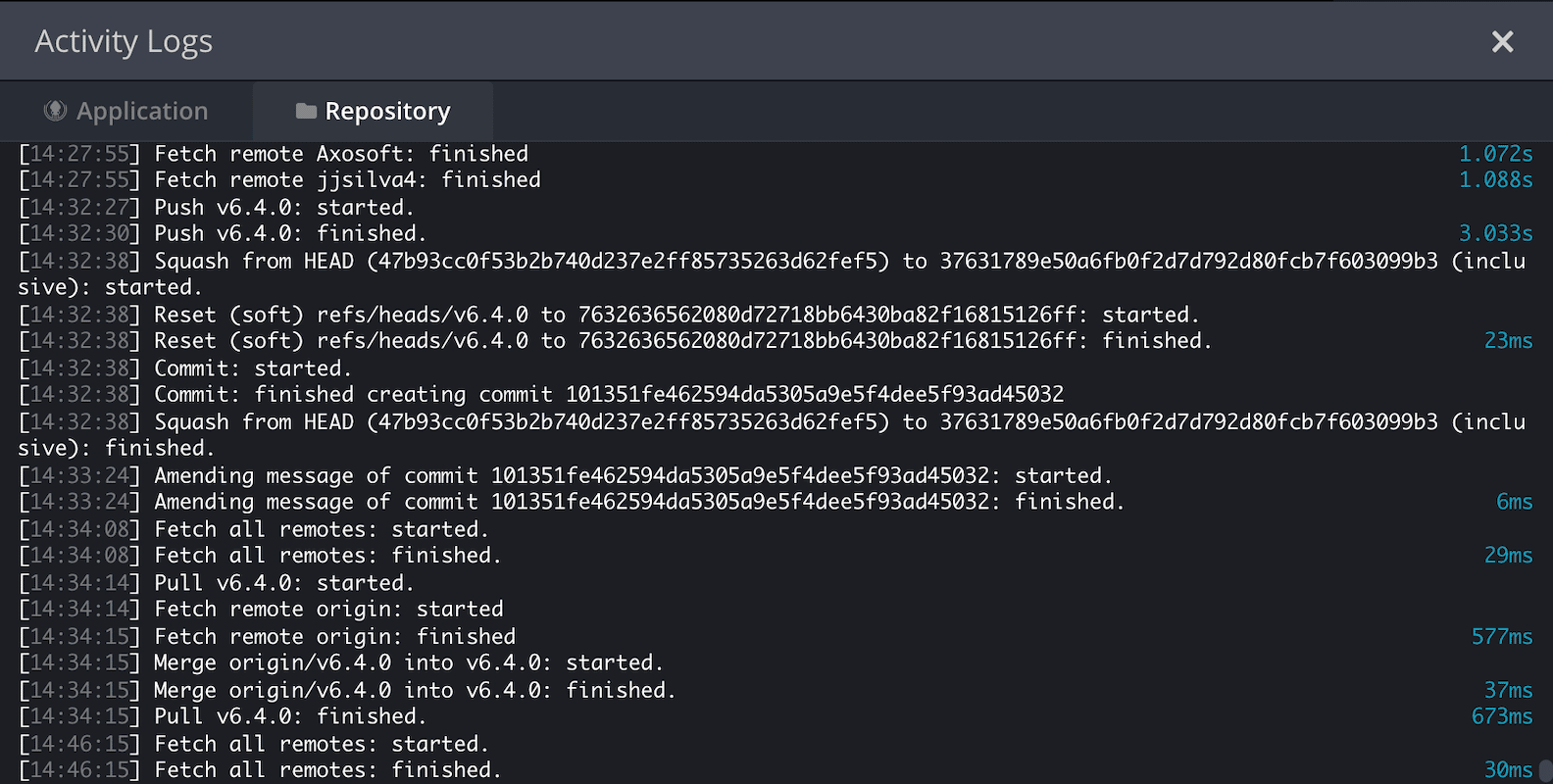
Repository logs only reflect actions from the active repo.
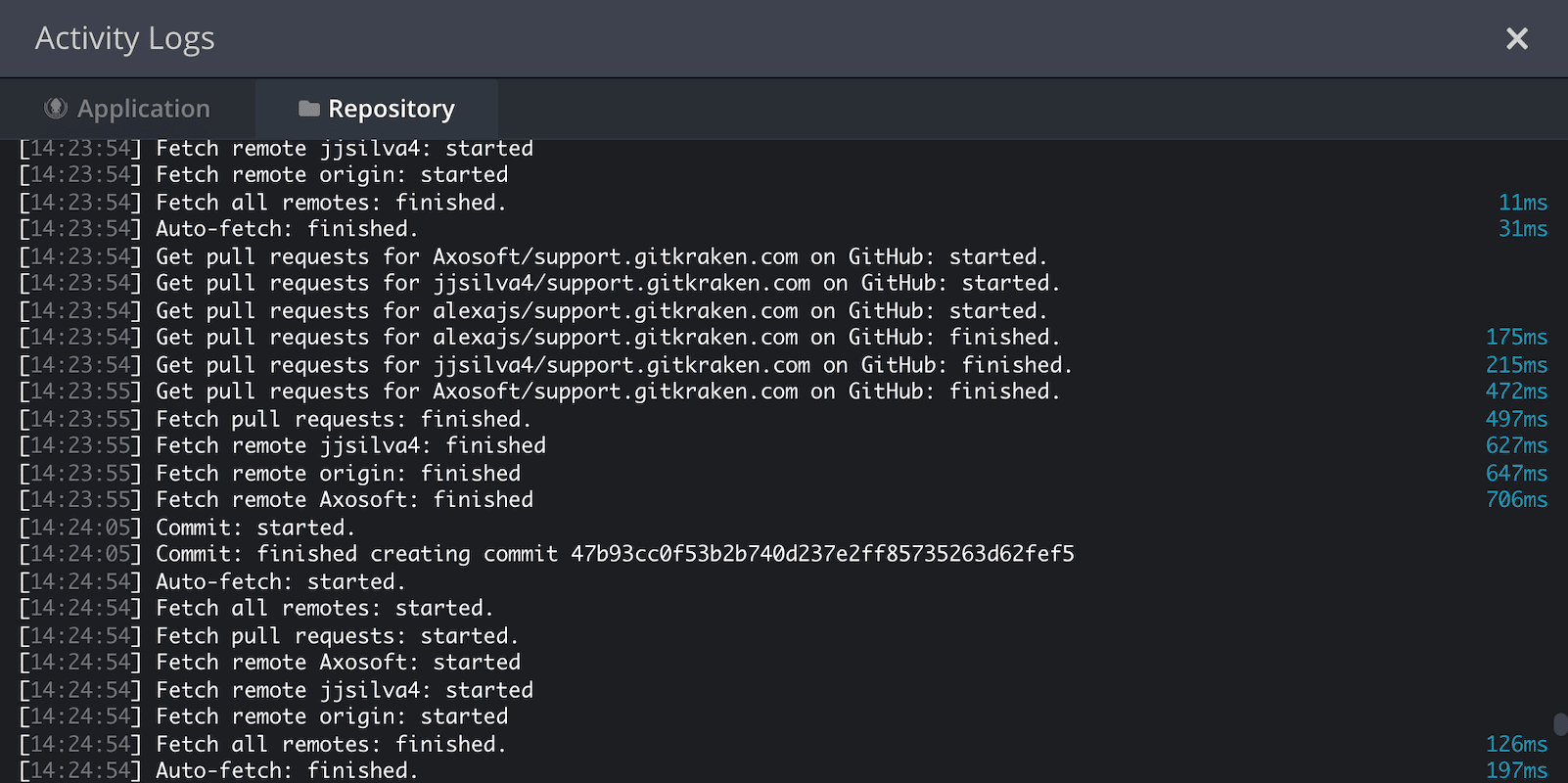
Note: For more detailed entries, go to Preferences > General > Use extended logging in activity log.
Enabling extended logging adds more granularity, including details like Auto-fetch activity.
How the Git hook log works
If you use Git hooks, the Repository tab will display hook activity such as:
- Success messages
- Warnings and failures
- Errors
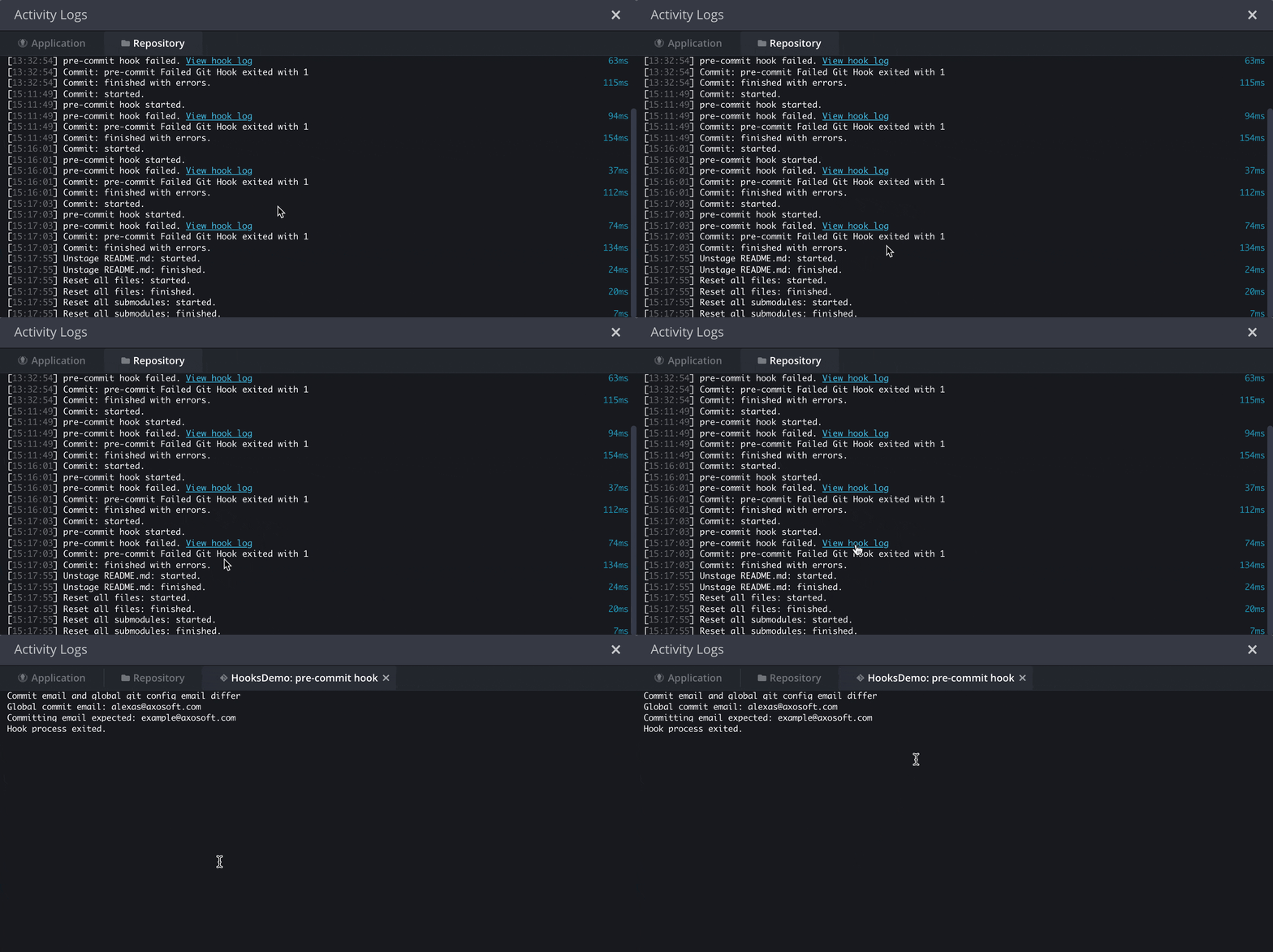
This provides context for events, making it easier to troubleshoot issues.
Additionally, you can open the Git hook log directly from the snackbox notification if a hook-related error occurs.

