

Last updated: March 2026
Use this page to authenticate GitKraken Desktop with Git hosts that do not have a dedicated integration page, including TFS, AWS CodeCommit, Google Cloud Source Repositories, and custom services. It covers HTTPS cloning, SSH key setup, SSH agent usage, proxy handling, and credential reset behavior.
Requirements and limits
- Host scope: Git hosts without a dedicated GitKraken integration page
- Authentication methods: HTTPS or SSH
- Supported SSH URL formats:
ssh://{user}@{host}/{repo}and{user}@{host}:{repo} - Windows SSH note: Only Pageant is supported as the local SSH agent
- Proxy behavior: Windows uses system proxy prompts; macOS and Linux prompt directly in GitKraken Desktop
| Host type | HTTPS | SSH | Special requirement |
|---|---|---|---|
| TFS | Yes | Possible | May require Basic Authentication on IIS |
| AWS CodeCommit | Yes | Yes | Requires AWS-specific credentials or SSH setup |
| Google Cloud Source Repositories | Yes | Yes | Requires the appropriate Google Cloud credentials |
| Custom Git host | Yes | Yes | Depends on host-specific URL, SSH key, proxy, or certificate setup |
Quick Start
To clone with HTTPS:
- Copy the HTTPS URL from your hosting service (e.g.,
https://example.com/username/repo.git). - In GitKraken Desktop, go to File > Clone Repo.
- Paste the URL and click Clone the repo.
To set up SSH and clone with SSH:
- Go to Preferences > SSH.
- Generate a new SSH key pair or browse to an existing one.
- Copy the public key and add it to your hosting service’s SSH settings.
- Copy the SSH URL from your hosting service.
- Go to File > Clone, paste the SSH URL, and click Clone the repo.
To use a local SSH agent instead of managing keys manually, enable Use local SSH agent under Preferences > SSH. To reset stored HTTPS credentials, go to Preferences > General and click Forget All.
How HTTPS authentication works
This is the default and most common method for interacting with remotes. It requires your Git username and password.
Use HTTPS when: you want the simplest setup and your host supports standard username/password or token-based HTTPS access. Use SSH instead when: your environment already relies on SSH keys or you want to avoid repeated HTTPS credential prompts.
How to clone with HTTPS
-
Copy the HTTPS URL from your hosting service, which typically looks like:
https://example.com/username/myrepository.git -
In GitKraken Desktop, go to File > Clone Repo.
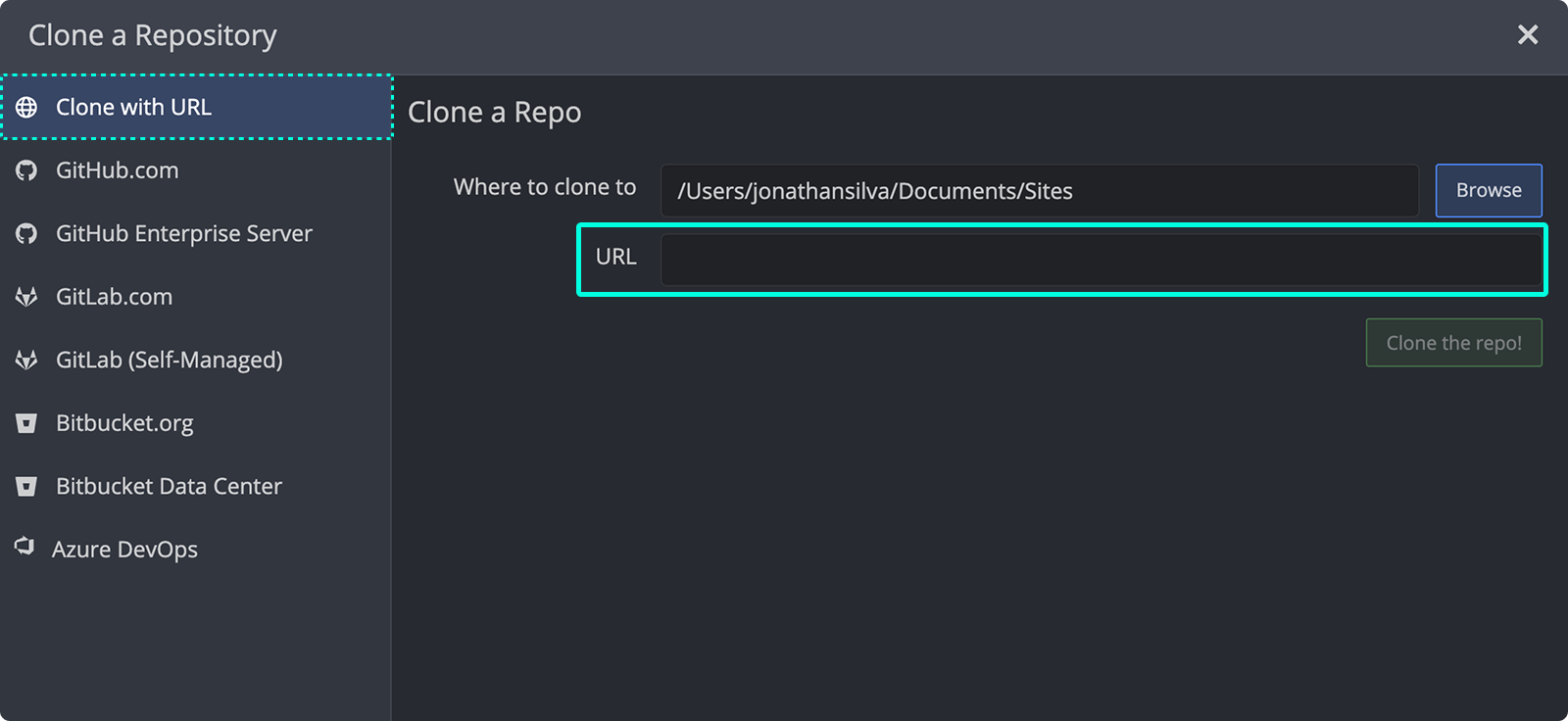
- Paste the URL, click , and open it in GitKraken.
The remote tracking at origin is automatically set using this HTTPS format.
How SSH authentication works
Before cloning via SSH, you must first set up your SSH keys in GitKraken Desktop.
Use SSH when: your host or team standard is key-based authentication and you want reusable key-based access across repositories.
How to set up SSH keys
- Navigate to Preferences > SSH.
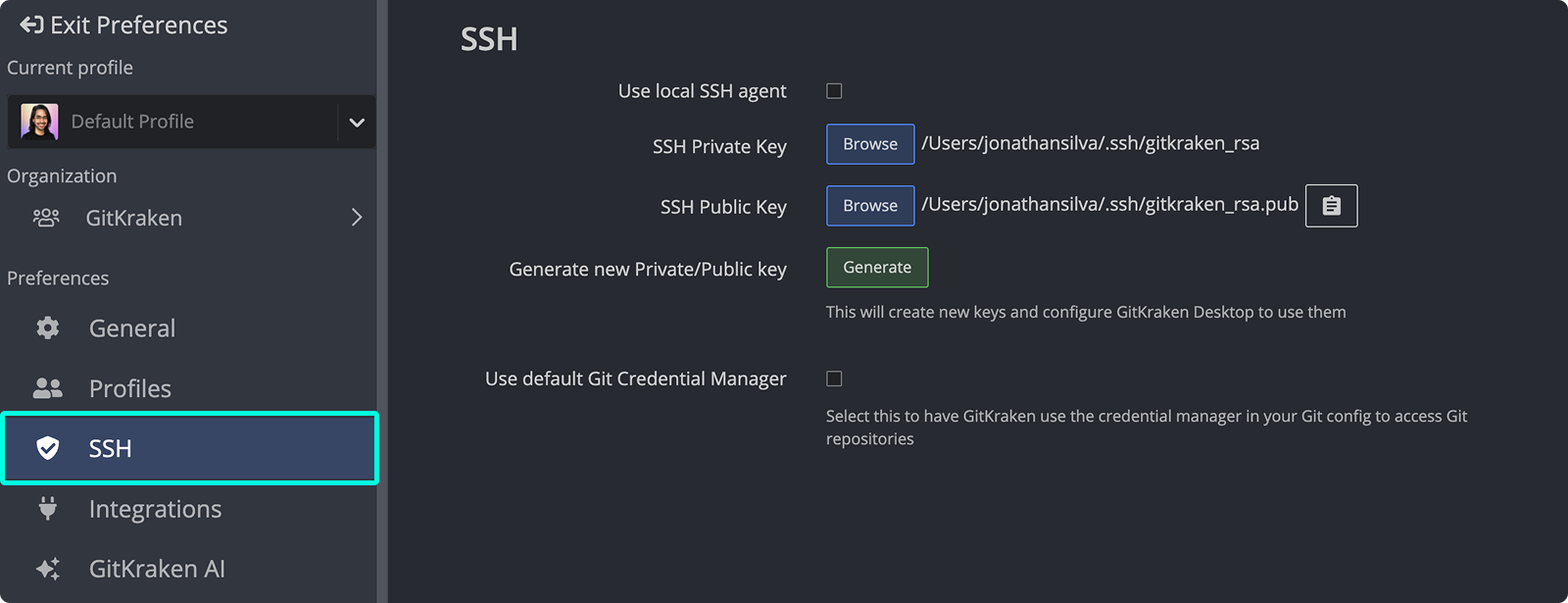
- You can browse to select an existing SSH key pair or generate a new one (recommended).
- Copy the public key to your remote hosting service.
How to clone over SSH
- Copy the SSH URL from your hosting service.
- In GitKraken Desktop, go to File Clone.
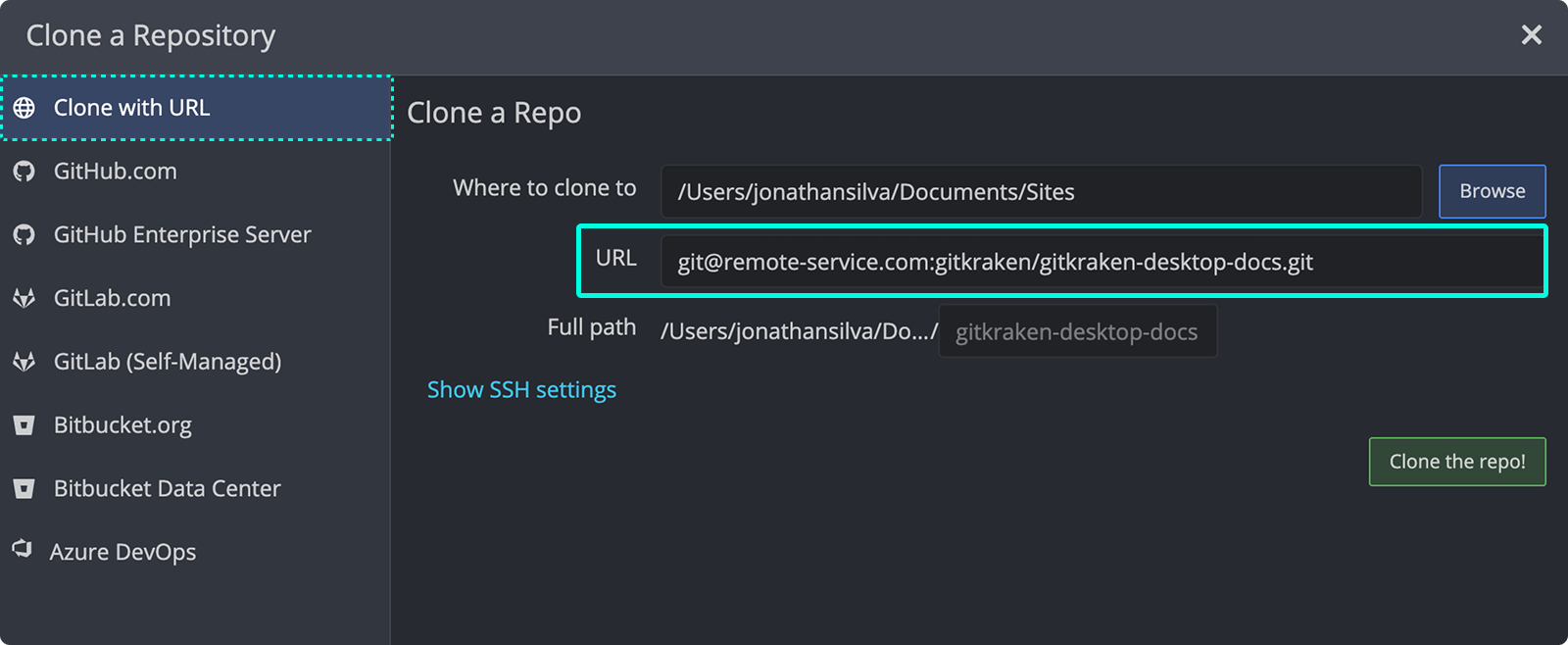
- Paste the SSH URL, click , and open the repo.
Supported SSH formats
ssh://{user}@{host}/{repo}
{user}@{host}:{repo}
Where:
{host}is the domain (e.g., example.com){user}is the username (typicallygit){repo}is the path to the repository
How to use custom SSH ports
Use this format:
ssh://{user}@{host}:{port}/{repo}How to use a local SSH agent
Using a local agent can simplify SSH management, especially across multiple profiles. From Preferences > SSH, check Use local SSH agent.
Use a local SSH agent when: your keys are already loaded and you want GitKraken Desktop to reuse them. Don’t use it when: your platform setup depends on agent behavior or alias configuration GitKraken Desktop does not support directly.
Tip: This allows automatic key usage if already loaded in your system’s agent.
How to troubleshoot SSH
- Windows: Only Pageant is supported. Download from PuTTY’s site.
- Misconfiguration: Double-check your remote URL format and SSH settings.
How to forget all credentials
Reset stored usernames and passwords from Preferences > General:
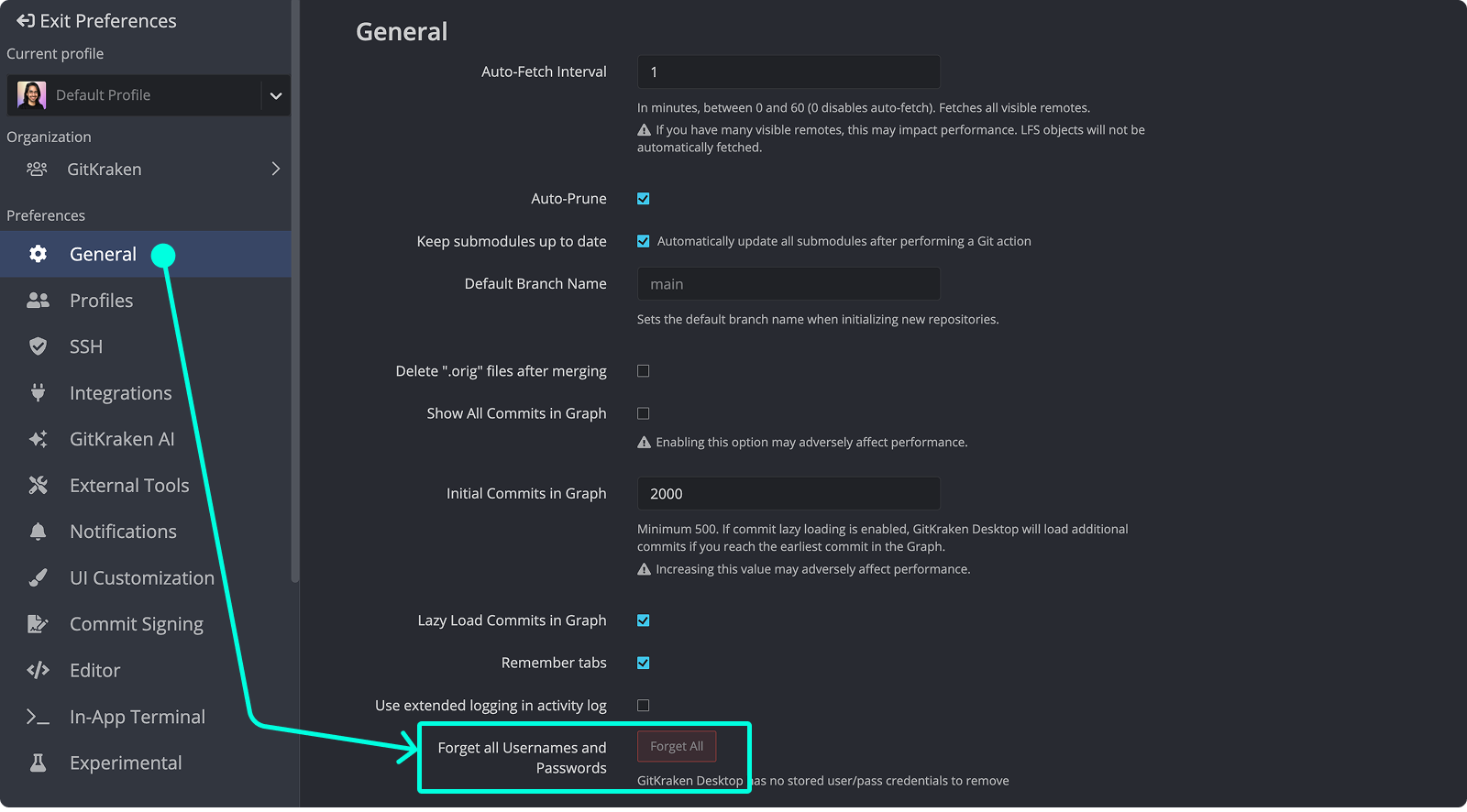
How proxy configuration works
GitKraken Desktop supports proxies for Windows, macOS, and Linux.
How proxy prompts work on Windows
Your system will prompt for proxy credentials when needed.
How proxy prompts work on macOS and Linux
GitKraken Desktop prompts for credentials directly.
On Linux, run with this flag if needed:
--proxy-server=10.200.0.1:8080How to format Google Cloud Source Repositories SSH URLs
Due to formatting, you may need to adjust SSH URLs:
Original:
ssh://[email protected]@source.developers.google.com:2021/p/test-project-12345/r/Test-Repo-1Fixed:
ssh://example%[email protected]:2021/p/test-project-12345/r/Test-Repo-1