

Last updated: September 2026
Use this page to run commands in the context of the open repository and worktree. It covers how to open and manage terminal tabs, how command and flag auto-complete works, how terminal sessions behave across worktrees, how to run coding agents manually, and where to change shell and terminal appearance settings.
Requirements and limits
- Scope: In-app terminal for the currently open repository context
- Repository context: Commands run in the active repository or worktree working directory automatically
- Supported shell note: macOS and Linux use the OS default shell; Windows supports PowerShell and Bash via Preferences
- Auto-complete limitation: Conflicting third-party auto-complete tools can disable GitKraken suggestions
- Settings location: Preferences > In-App Terminal for appearance and autocomplete behavior
- Terminal tabs: Each repository or worktree keeps its own terminal tabs. Starting an agent session in a worktree with an open terminal starts the agent in a separate tab
- Panel behavior: The embedded terminal resizes smoothly when surrounding panels change, can be minimized to keep the terminal panel header visible, and exposes a trash icon in the panel header to kill terminal sessions
- Coding agents: You can run supported or unsupported coding agent CLIs manually in the embedded terminal
To get started, open a repository and click the Terminal button in the toolbar, or search for “terminal” using the Command Palette.
Quick Start
To open the terminal: Click the Terminal icon in the toolbar or search for “terminal” in the Command Palette.
To run commands: Type any Git command such as git status, git commit -m "message", or git log --oneline. Auto-complete suggestions appear as you type, including flag suggestions for each command.
To open another terminal: Click the + button in the terminal tab bar. Select a tab to switch terminals, or close a tab you no longer need.
To run a coding agent manually: Open the terminal in the worktree you want to use, then start your coding agent CLI there.
To customize terminal appearance: Go to Preferences > In-App Terminal to change font, size, line height, cursor style, and autocomplete behavior.
To minimize the terminal panel: Use the minimize control in the terminal panel header. The panel header stays visible so you can restore the terminal when you need it.
To kill a terminal session: Click the trash icon in the terminal panel header. This ends the current terminal session for that worktree.
To set your default shell:
- macOS/Linux: Set ZSH or Bash as the default shell in your OS settings and restart your machine.
- Windows: Open Preferences > Terminal and select PowerShell or Bash.
The terminal shares context with the open repository or worktree, so commands run against the correct working directory automatically.
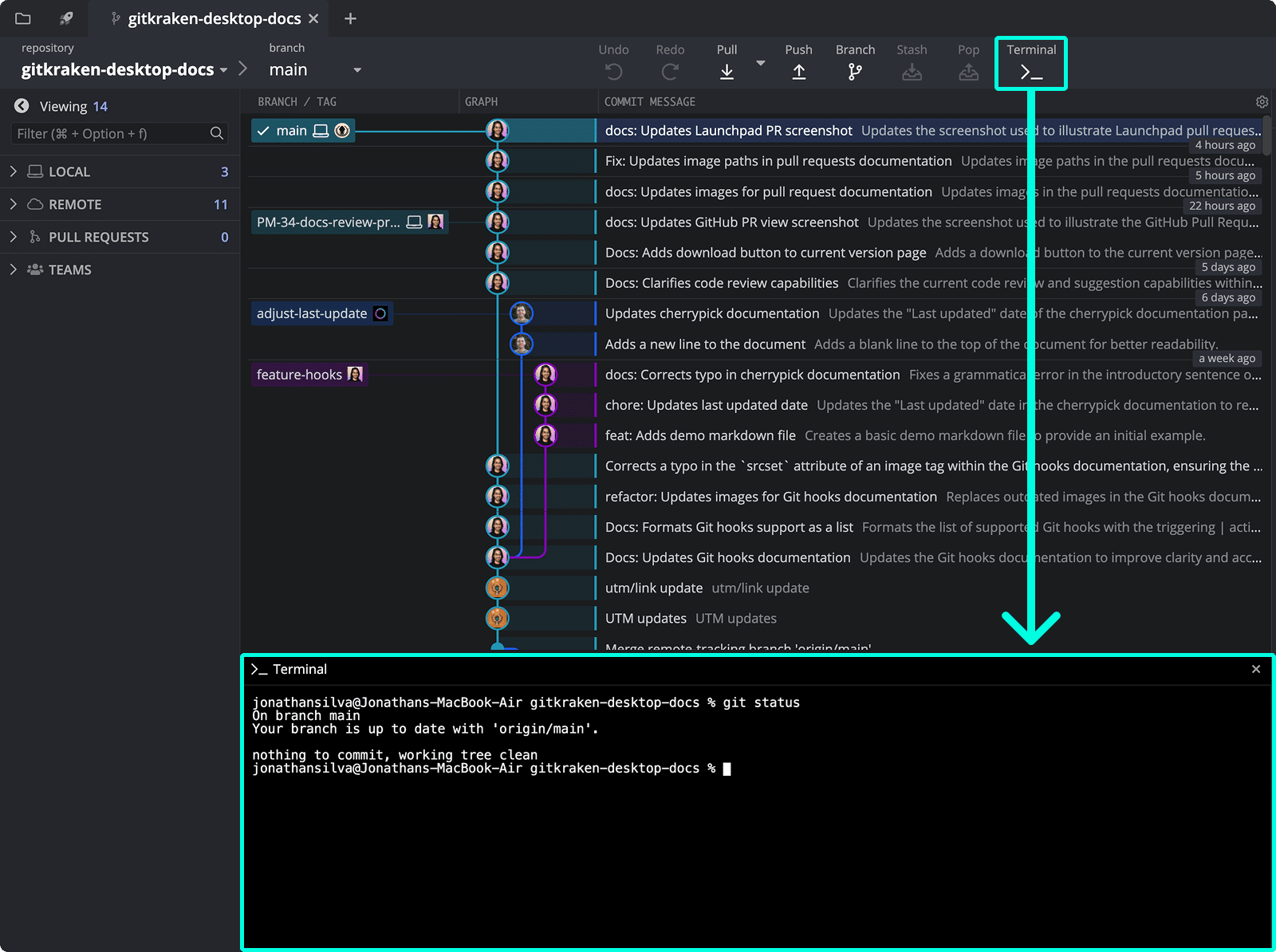
How Git commands and auto-complete work
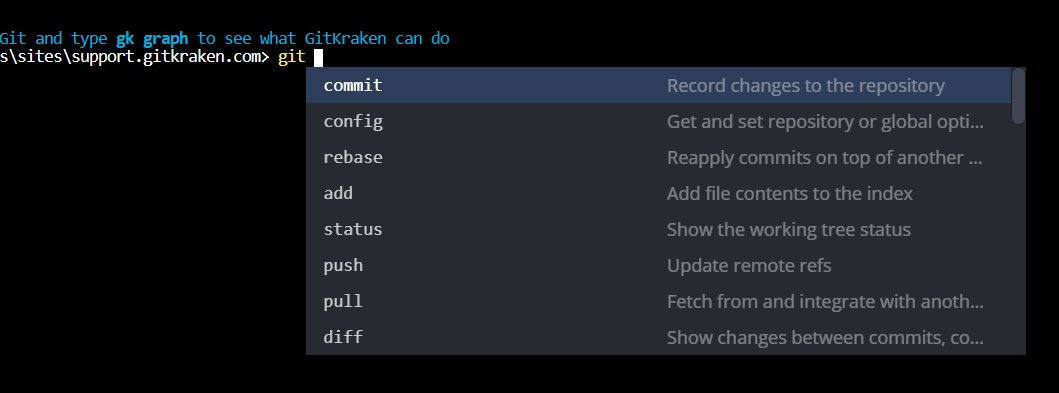
The GitKraken Terminal supports most Git commands. Start typing git to see command suggestions via auto-complete.
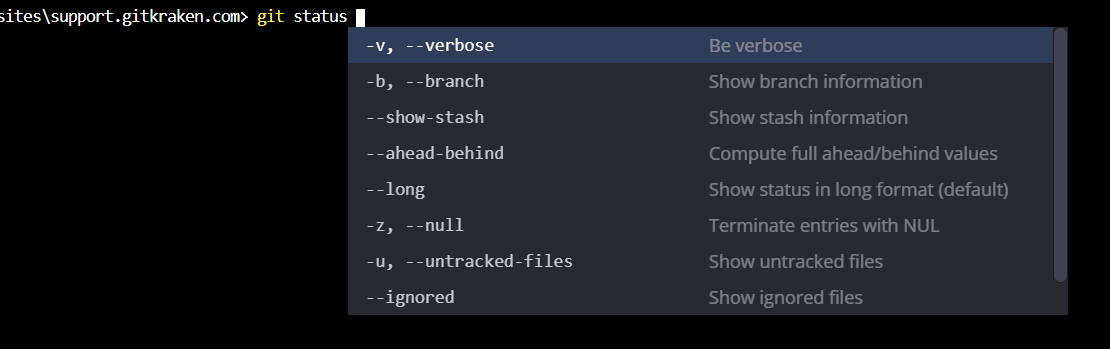
Flag suggestions are also supported:
Note: Conflicting auto-complete programs may disable suggestions. You may need to uninstall or disable such programs for GitKraken’s suggestions to work correctly.
How to customize terminal preferences
Visit Preferences > In-app Terminal to modify your terminal settings.
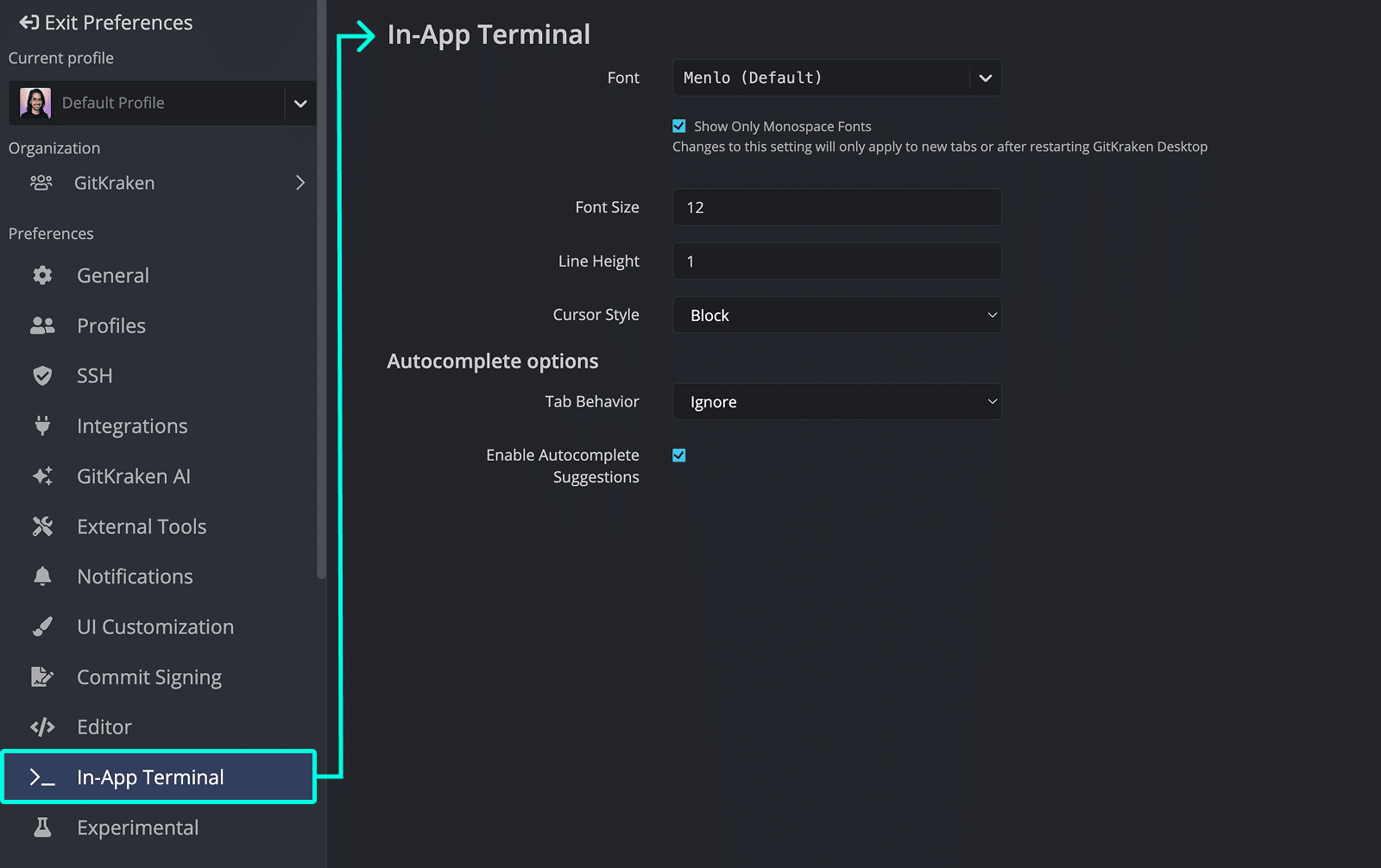
How the default terminal works on macOS and Linux
GitKraken supports ZSH and Bash. To switch shells:
- Set the preferred shell as default in your OS settings.
- Restart your machine to apply changes.
How the default terminal works on Windows
PowerShell and Bash are currently supported. To change the shell:
- Open Preferences > Terminal.
- Set the Default Terminal to your desired shell.
How terminal tabs work
The terminal panel supports multiple terminal tabs. Click + in the tab bar to open another terminal, then select a tab to switch to it. Each repository or worktree keeps its own set of terminals.

When you switch worktrees, GitKraken shows that worktree’s terminal tabs. Each terminal runs in its worktree’s working directory, and long-running commands continue while you switch to another worktree.
When you start a coding agent in a worktree that already has a terminal open, GitKraken starts the agent in a new tab instead of replacing the existing terminal.
GitKraken Desktop uses the same worktrees in both List view and Agent Sessions View. You can open a worktree from either view and use its terminal tabs.
How to run a coding agent manually in the terminal
Use this workflow when you want to run a coding agent CLI that GitKraken Desktop does not explicitly integrate with, or when you prefer to start the agent yourself.
- Open the repository or worktree you want to use.
- Open the terminal from the toolbar or Command Palette.
- Confirm that the terminal is running in the correct working directory.
- Start your coding agent CLI in the terminal.
- Continue working in GitKraken Desktop while the terminal session stays attached to that worktree.
If you want GitKraken Desktop to create and manage coding agent sessions for explicitly supported agents, see Coding Agents in GitKraken Desktop.
How to drag and drop files into the terminal
You can drag a file from your OS file manager or from the Commit Panel into the terminal to insert the file’s full path at the cursor. You can also drag text into the terminal to insert it at the cursor. This is useful when you want to paste a path or snippet into a command without retyping it.
Common Git commands to try
Use the terminal to quickly execute common Git operations:
git status– View working directory and staging statusgit commit -m "message"– Commit changes with a messagegit log --oneline– View a condensed commit history
These commands complement GitKraken’s visual graph for a comprehensive Git experience.
