

Last updated: March 2026
Use this page to connect GitKraken Desktop to Azure DevOps for repository access, pull request work, and SSH setup by using OAuth or a personal access token. The integration requires a Pro subscription or higher, and PAT authentication is the fallback when an Azure DevOps organization blocks third-party OAuth access.
Requirements and limits
- Integration covered here: Azure DevOps
- Plan: Pro subscription tier or higher
- Authentication options: OAuth or Personal Access Token (PAT)
- OAuth constraint: If the Azure DevOps organization disables third-party OAuth access, use a PAT instead
- Account limit: One Azure DevOps account per profile; multiple profiles require a paid Pro, Teams, or Enterprise plan
- SSH behavior: GitKraken uses the key in Preferences > SSH unless you configure a service-specific key or system SSH Agent
| Method | When to use | Requires | Limitation |
|---|---|---|---|
| OAuth | Standard Azure DevOps browser-based connection | Pro subscription and third-party OAuth access | Not available if the organization blocks third-party OAuth |
| Personal Access Token | OAuth is blocked or policy requires token-based access | Pro subscription, host domain, PAT | Manual token generation and paste flow |
| SSH key setup | You want SSH-based Git operations after connecting | Existing integration connection and SSH key upload | Uses GitKraken SSH settings unless overridden |
Quick Start
- Go to Preferences > Integrations in GitKraken Desktop.
- Select Azure DevOps and click Connect to Azure DevOps.
- Log in with your Azure DevOps credentials in the browser window that opens.
- Select Open GitKraken and choose your organization.
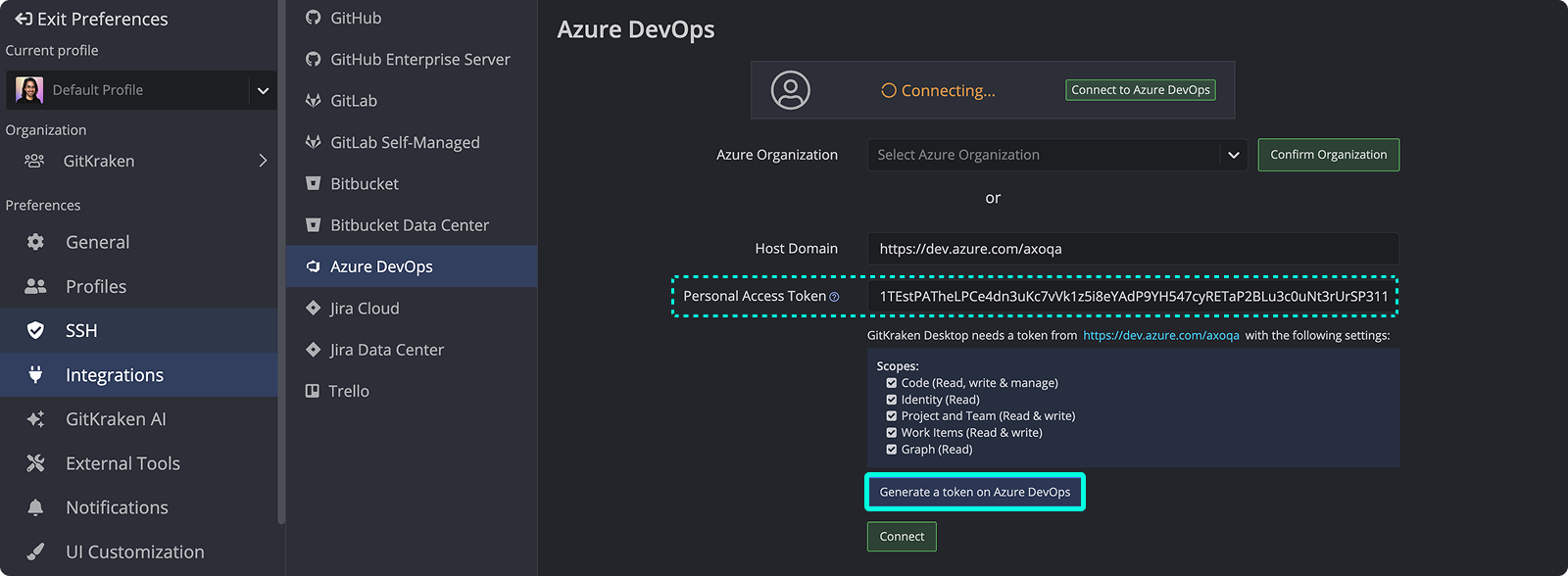
If OAuth is not available (e.g., your organization has disabled third-party access), use a Personal Access Token (PAT) instead:
- In Preferences > Integrations, enter your host domain.
- Click Generate a token on Azure DevOps to open the token creation page.
- Copy the token and paste it into GitKraken, then click Connect.
After connecting, GitKraken Desktop can browse your Azure DevOps repositories when cloning, display fork options when adding remotes, and show pull request details. To use SSH, go to Preferences > Integrations, click Generate SSH key and copy to clipboard, and add it to your Azure DevOps SSH settings.
What the Azure DevOps integration lets you do
- Create new repositories on your Azure DevOps account with optional .gitignore and license files.
- Automatically generate and copy an SSH key to Azure DevOps.
- Clone directly from your Azure DevOps repository list.
- Identify Azure DevOps repositories by remote avatars on the Commit Graph.
- Add remotes for Azure DevOps repositories.
- Create and view pull requests, including the ability to add reviewers.
Note: The Azure DevOps integration requires a Pro subscription tier or higher.
How to authenticate with Azure DevOps
To authenticate with Azure DevOps:
Use OAuth when: your Azure DevOps organization allows third-party application access and you want the simplest browser-based setup. Use a PAT when: OAuth is blocked by policy or you need token-based access that matches your organization’s security controls.
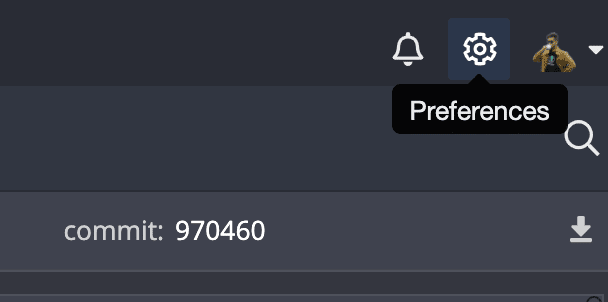
- Open Preferences > Integrations in the top-right corner.
- Choose Azure DevOps and click .

- In the browser window that opens, log in with your Azure DevOps credentials. Once successful, select Open GitKraken and choose your organization.

You can also connect using a Personal Access Token (PAT):
- Enter your host domain and click the button.

- Log in to Azure DevOps and generate a token.
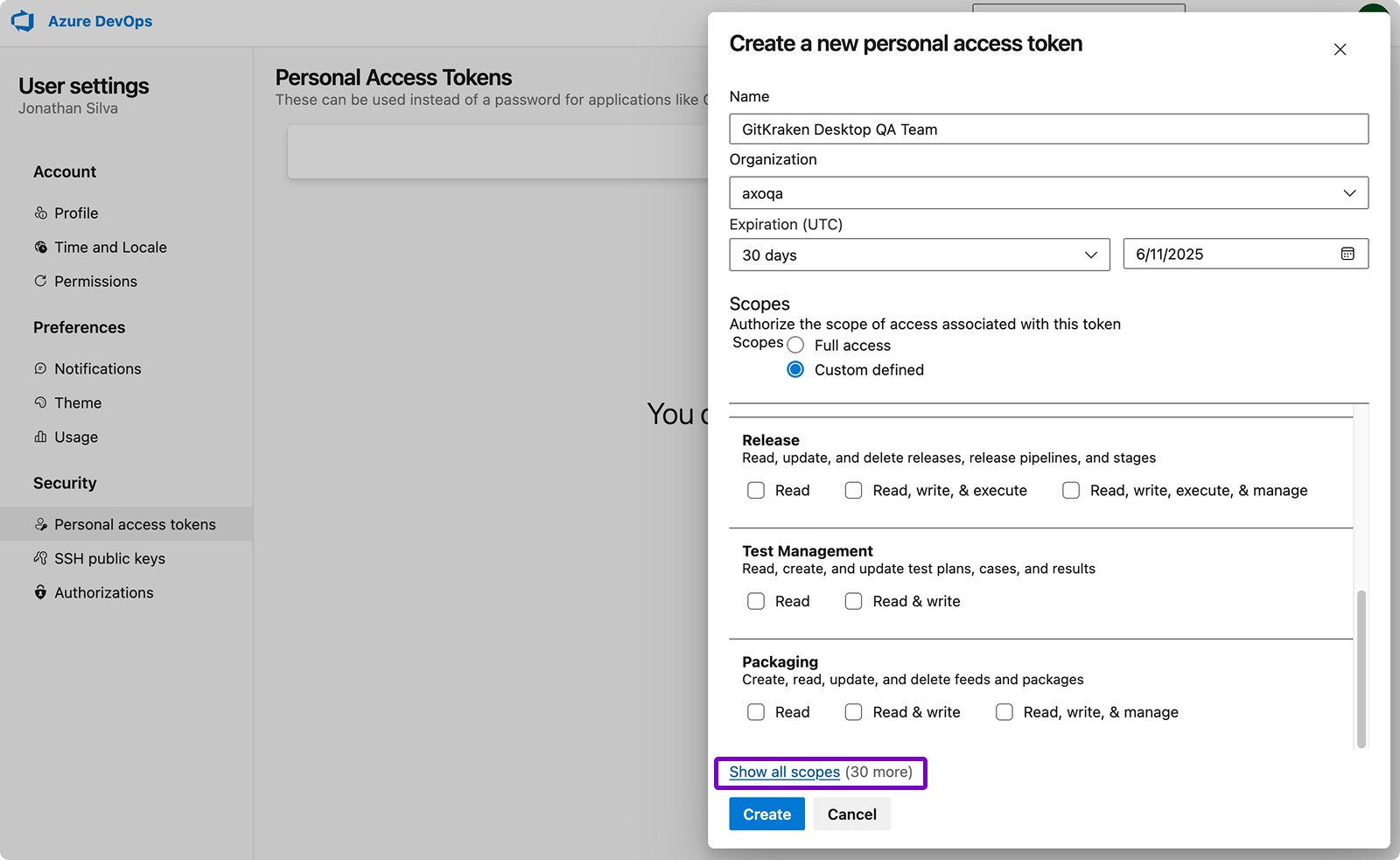
- Copy the token (you’ll only see it once) and paste it into GitKraken, then click .
How to generate an SSH key for Azure DevOps
GitKraken uses your default SSH configuration from Preferences > SSH unless you configure a specific key for Azure DevOps or enable your system SSH agent.
Once connected, you can generate a new SSH key:
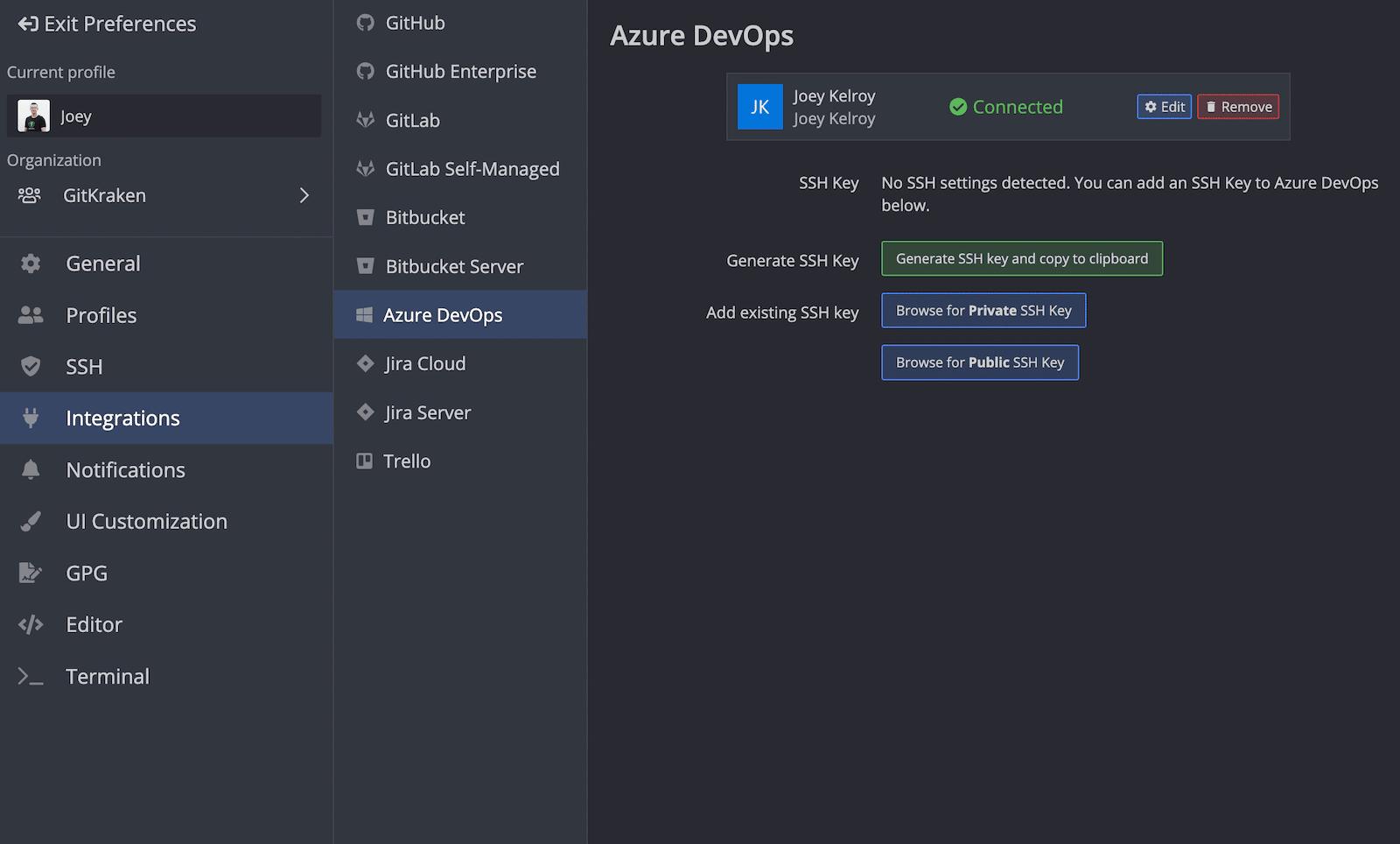
- Click .
- Paste the key into your Azure DevOps SSH settings.
What Azure DevOps OAuth enables in GitKraken Desktop
When authenticated, GitKraken enables:
Use the Azure DevOps integration when: you want repository discovery, remotes, and pull request workflows directly in GitKraken Desktop. Don’t rely on it alone when: your Azure DevOps setup requires organization-specific workflows outside the features surfaced here.
- Browsing your Azure DevOps repositories while cloning:
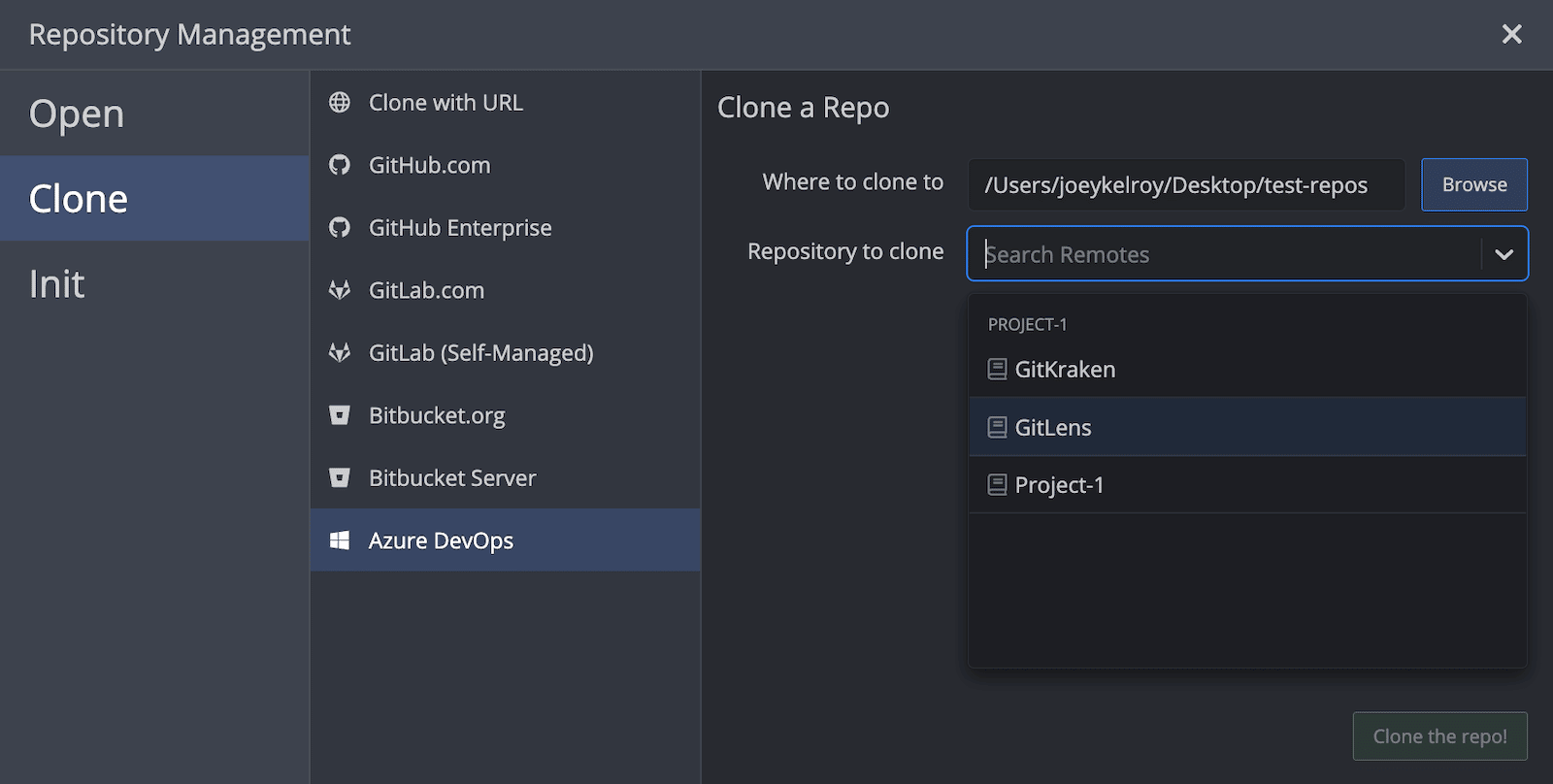
- Viewing fork options when adding remotes:
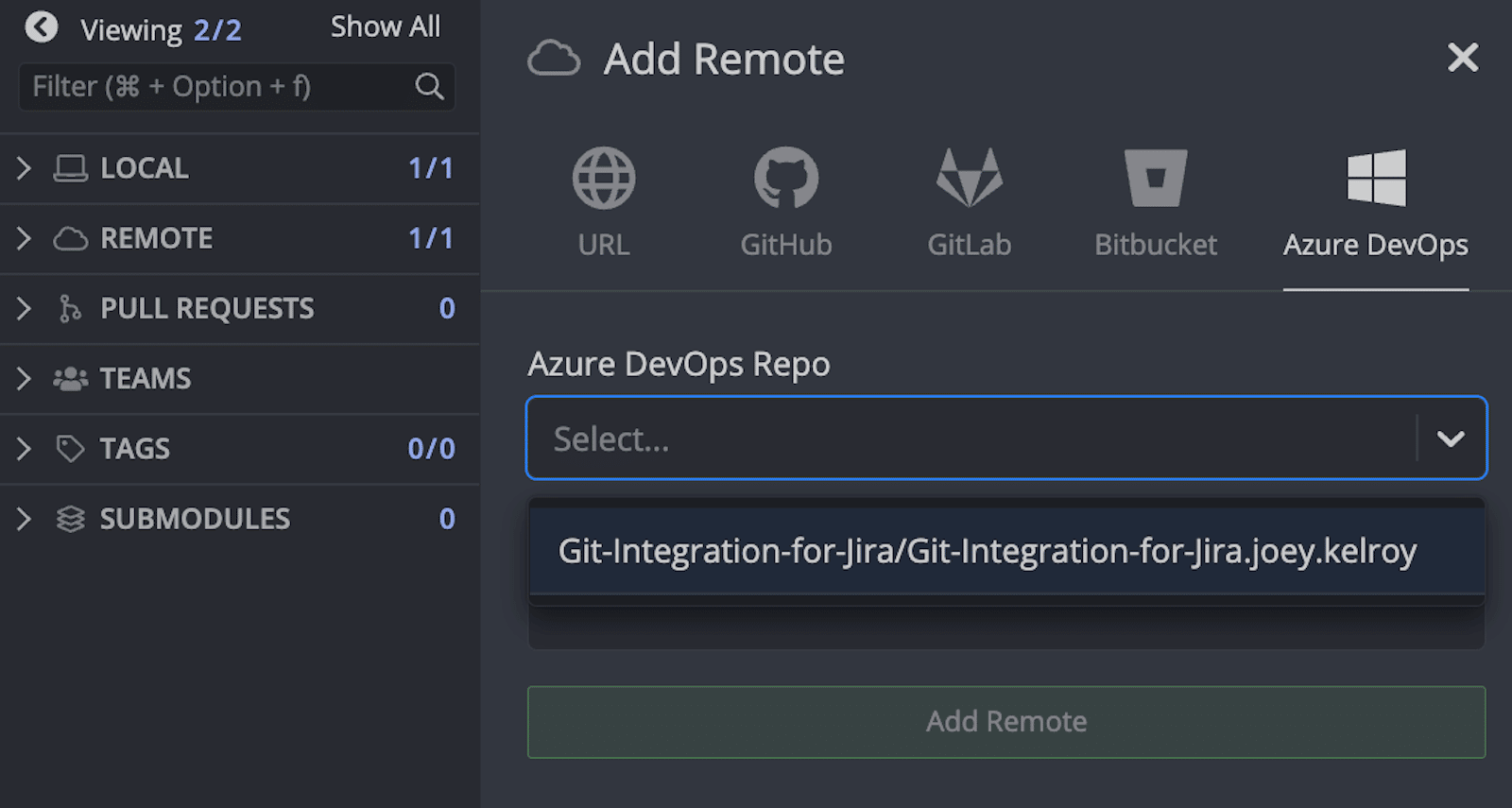
Manual URL entry is still available.
How to connect multiple Azure DevOps accounts
GitKraken supports one Azure DevOps account per profile. With a paid Pro, Teams, or Enterprise plan, use multiple profiles to switch between accounts.
Use multiple profiles when: you need to switch cleanly between separate Azure DevOps identities or organizations. Don’t use multiple profiles when: one account already covers the repos you need and profile switching would only add overhead.
How to enable Azure DevOps OAuth for GitKraken Desktop
To connect via OAuth, Azure DevOps must allow third-party applications:
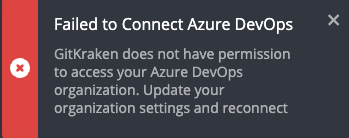
- Navigate to Organization Settings > Policies in Azure DevOps.
- Enable Third-party application access via OAuth.
For details, refer to Microsoft documentation: Change application connection & security policies for your organization.
If this setting cannot be enabled, you can connect using a Personal Access Token (PAT) instead.
Azure DevOps troubleshooting
How to fix a missing Azure DevOps pull request form
If your Azure DevOps pull request does not appear in GitKraken:
- In the Left Panel, right-click the remote (typically
origin) and select Edit. - Make sure the URL matches the domain used for your integration:
- If using a PAT: should match the Host Domain URL from Preferences > Integrations.
- If using OAuth: should match the connected domain.
- The correct format is:
dev.azure.com/[organization] - Avoid using the deprecated VSTS format:
[organization].visualstudio.com - Click Edit Remote to save changes.
