Last updated: September 2026
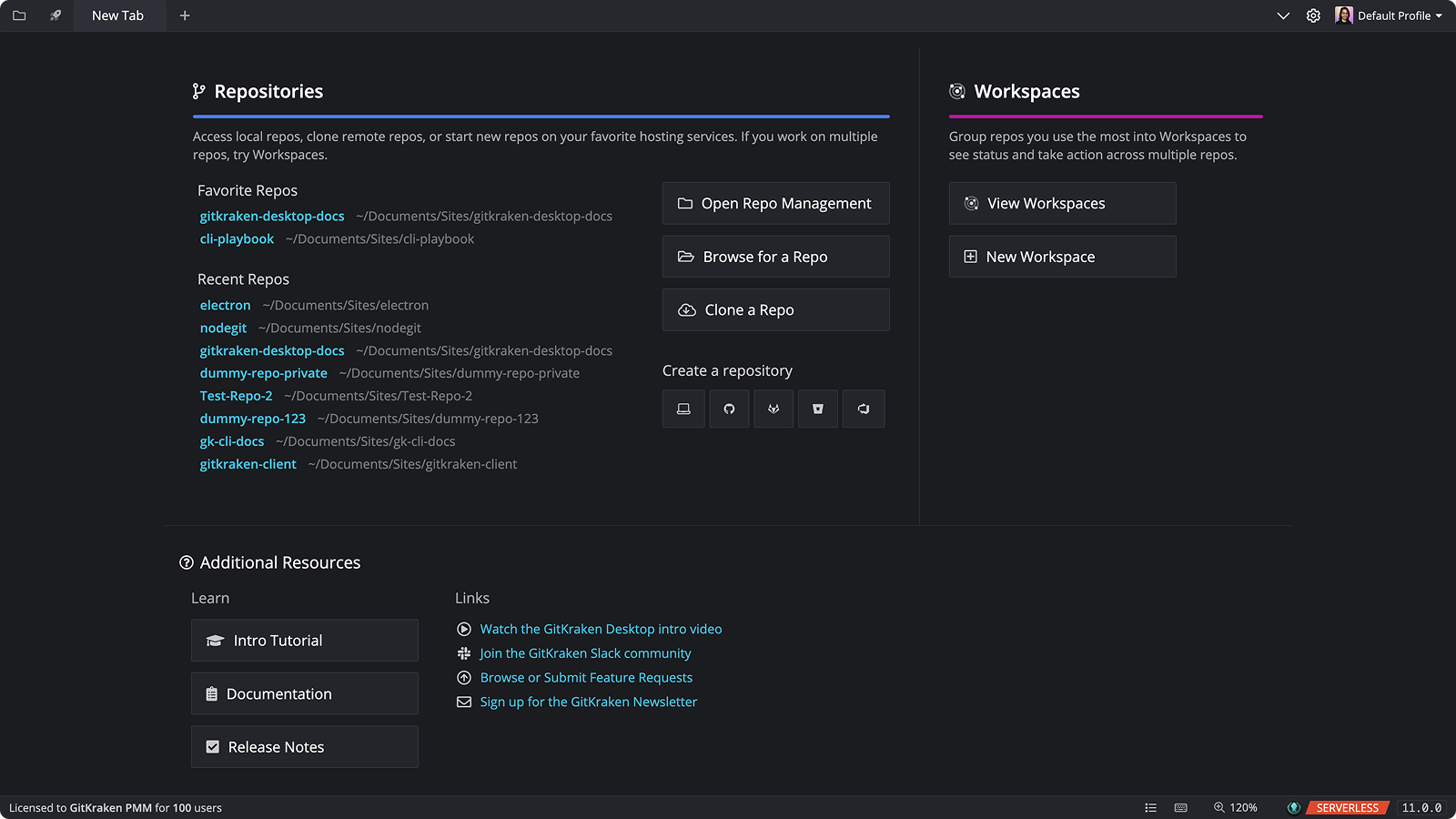
Use this page to install and license GitKraken On-Premise Serverless, also called GitKraken Stand-Alone, when your team works in offline or tightly controlled environments. It covers platform-specific installation steps, supported license file locations, and the manual license update flow required after expiration or renewal.
Requirements and limits
- Product scope: GitKraken On-Premise Serverless / Stand-Alone
- Environment fit: Offline, disconnected, or tightly controlled environments
- Account model: No internet account creation required
- Activation requirement: A
.datlicense file must be loaded at first launch - License maintenance: Expired or renewed licenses must be updated manually by replacing the
.datfile or using Update License - Commercial note: Serverless is sold separately from standard subscriptions and separately from Self-Hosted on-premise offerings
GitKraken On-Premise Serverless (also known as GitKraken Stand-Alone) is designed for teams operating in disconnected or secure environments. It includes most core GitKraken features, with additional advantages:
- Works without internet access
- Requires no account creation
- Requires no server installation
Quick Start
- Download the GitKraken Serverless installer for your operating system from the downloads page.
- Install the application:
- Windows: Double-click the
.exefile and follow the setup prompts. - macOS: Open the DMG and drag the GitKraken icon to your Applications folder.
- Linux (.deb): Run
wget https://release.gitkraken.com/linux-standalone/gitkraken-amd64.deb && dpkg -i gitkraken-amd64.deb.
- Windows: Double-click the
- At first launch, load your
.datlicense file when prompted. If you do not have the file, contact your GitKraken administrator.
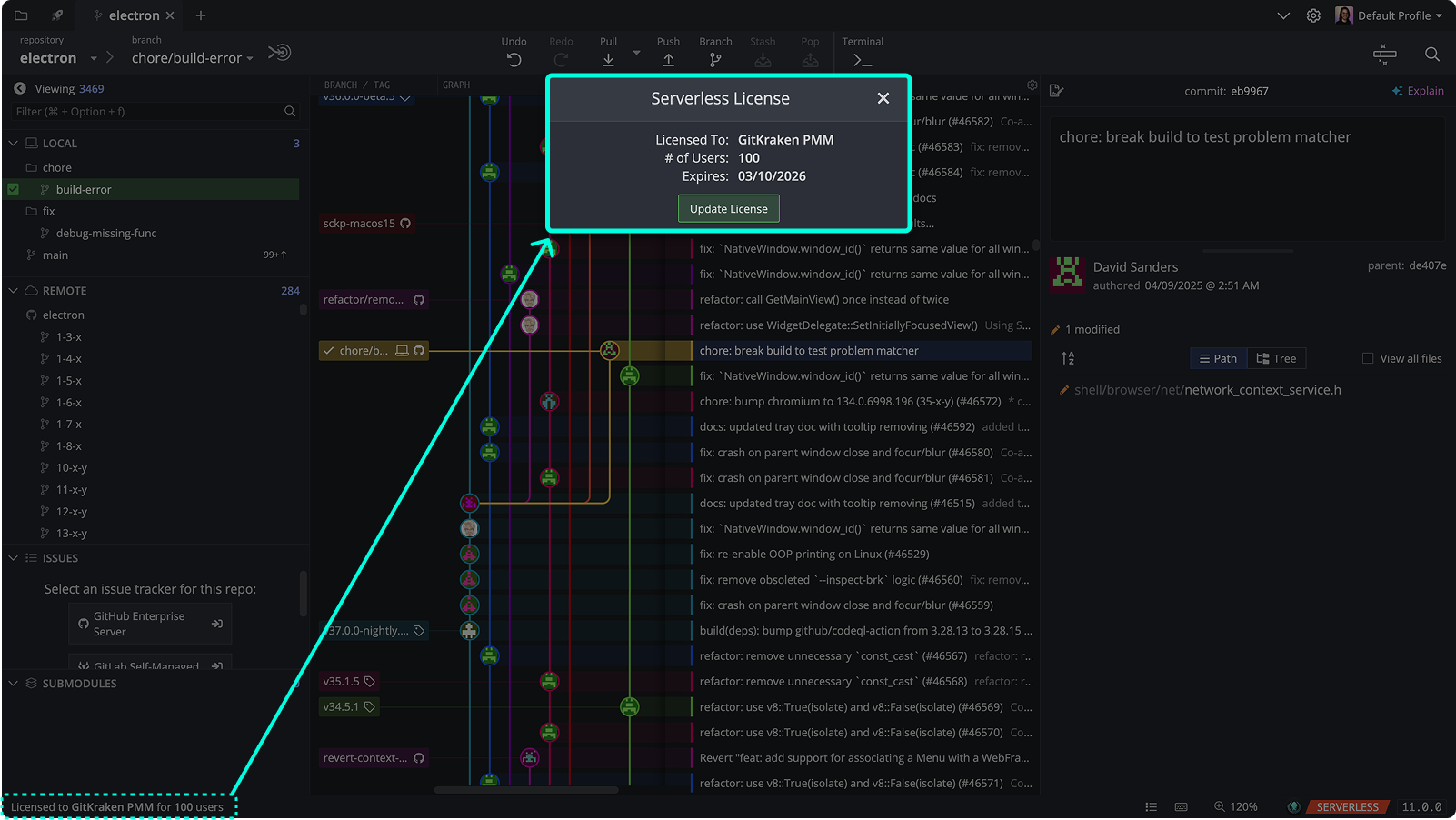
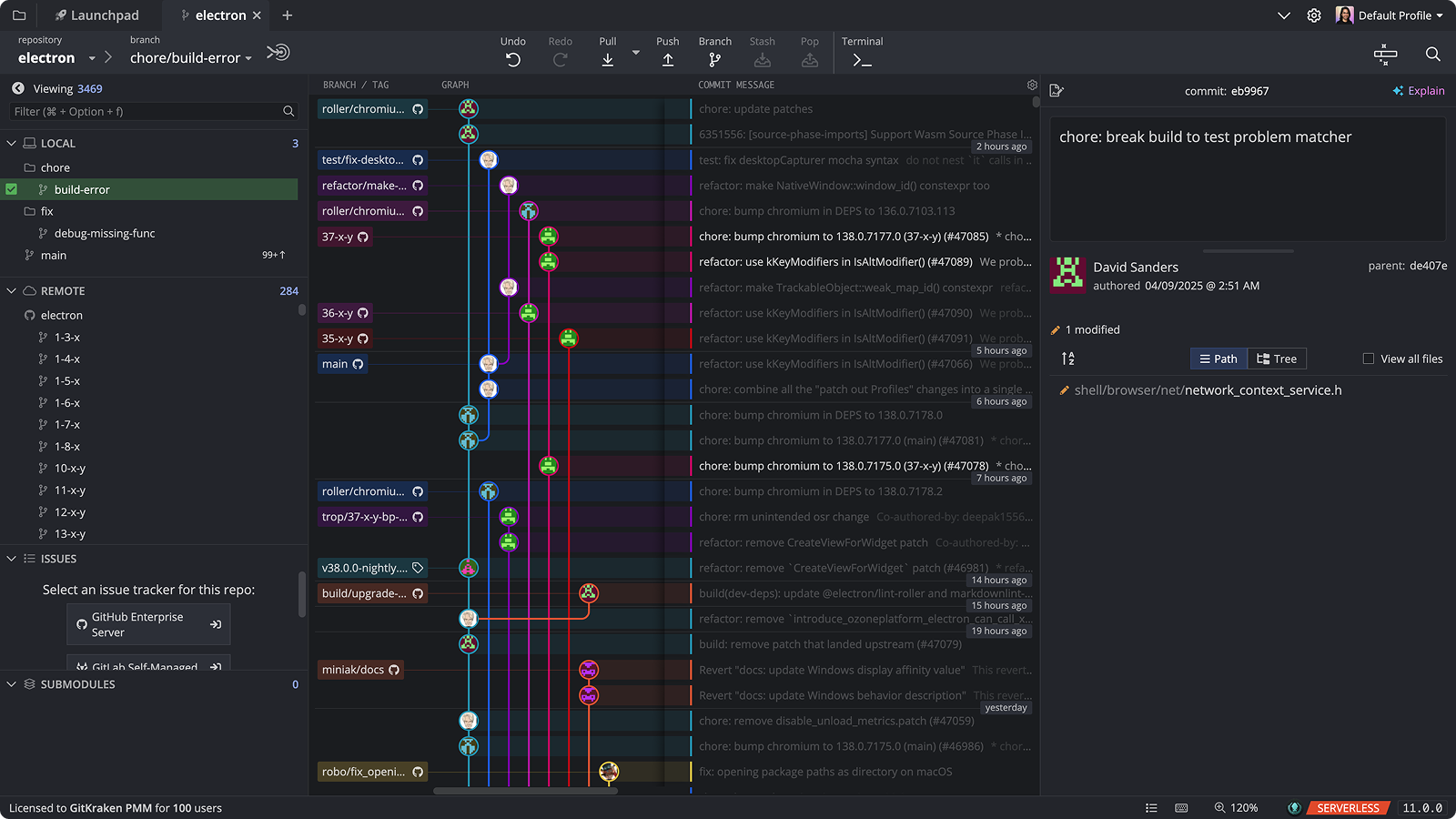
If your license expires, replace the .dat file in one of the supported directories or click the license text in the bottom-left corner of the app and select Update License. GitKraken Serverless is sold separately from standard subscriptions.
Note: GitKraken Desktop Self-Hosted and On-Premise Serverless versions are sold separately. Visit our On-Premise Pricing page to purchase.
To request a trial key, email [email protected].
Feature support
GitKraken On-Premise Serverless uses the same GitKraken Desktop client feature set as other supported on-premises deployments.
Features that require connectivity to GitKraken cloud services or to external cloud hosting providers are not available.
What is included
The following feature categories are fully supported in Serverless:
| Category | Included | Notes |
|---|---|---|
| Core Git client | All standard Git operations, including commits, branches, merges, rebases, diffs, stashing, tagging, interactive rebase, cherry pick (including multi-commit interactive cherry pick), worktrees, shallow clone, and undo or redo of rebase and cherry pick operations. | |
| Agent Sessions View and coding agent session workflows | Agent Sessions View and worktree-based coding agent session workflows are available in the on-premises Desktop client. | Available coding agents depend on your security policy, internal approvals, client version, and local environment. OpenCode and Gemini CLI can run fully air-gapped against an internal model endpoint. Claude Code, Codex CLI, Copilot CLI, and Cursor CLI are supported when internally permitted and reachable. |
| Embedded terminal for manual coding agent workflows | You can run coding agents manually in the embedded terminal, including agents that GitKraken Desktop does not explicitly integrate with. | See GitKraken Terminal Guide. |
| Launchpad | Track pull requests and issues in a single view and filter by repository, branch, milestone, or sprint. Launchpad works with the following on-premises integrations: GitHub Enterprise Server, GitLab Self-Managed, Bitbucket Server and Data Center, Azure DevOps Server, and Jira Data Center. | For a description of the differences between cloud and on-premises Launchpad, see How On-Premise Launchpad differs from Cloud Launchpad. |
| Local Workspaces | Organize multiple local Git repositories in one view. You can see the branch status of each repository and run multi-repository actions, such as fetch and pull, from a single place. | Cloud Workspaces are not available in Serverless. |
| Conflict detection | GitKraken detects potential conflicts with your target branch before you reach the merge step and alerts you when your checked-out branch has diverged from its pull request target. | |
| GitKraken AI (bring your own key) | All GitKraken AI features are available when you configure a Custom URL that points to a private or internal AI endpoint. | For setup instructions, see GitKraken AI in Serverless. |
| ARM builds | A native ARM installer is available for machines with ARM architecture. | |
| On-premises integrations | GitKraken Serverless supports integrations with self-hosted Git hosting services and issue trackers. | For the full list, see Supported on-premises integrations. |
What is not available
The following features require connectivity to GitKraken cloud services (gitkraken.dev) or to external cloud hosting providers and are not available in Serverless:
- Cloud Workspaces and features that depend on them, including Team Launchpad, Launchpad Saved Views, and Launchpad snooze and pin
- GitKraken Insights
- GitKraken AI using the default GitKraken-hosted provider
- Cloud Patch sharing
- Org Member conflict detection
- Integrations with cloud-hosted services: GitHub.com, GitLab.com, Bitbucket.org, Azure DevOps cloud, Jira Cloud, and Trello
Local Desktop workflows such as worktrees, Agent Sessions View, and terminal-based coding agent workflows remain available unless they depend on a cloud-only or otherwise unsupported external service. For coding agents, availability depends on what your organization approves and what services are reachable from the environment.
Feature support table
| Feature | Supported | Notes |
|---|---|---|
| Core Git client (commits, branches, merges, rebase, diff, stash) | Yes | |
| Interactive Rebase | Yes | |
| Multi-commit Cherry Pick | Yes | |
| Worktrees | Yes | Requires version 10.5.0 or later |
| Agent Sessions View and coding agent session workflows | Yes | Available in the on-premises Desktop client; available coding agents depend on security policy, internal approvals, client version, and local environment |
| Embedded terminal for manual coding agent workflows | Yes | You can run coding agents manually in the embedded terminal |
| Shallow Clone | Yes | |
| Undo rebases, cherry picks, and AI Commit Compose | Yes | |
| Local Workspaces | Yes | Stored on-device only; not shareable across machines |
| Cloud Workspaces | No | Requires gitkraken.dev |
| Launchpad with on-premises integrations | Yes | See supported integrations list |
| Launchpad Cloud Workspace filtering | No | |
| Launchpad Team View | No | |
| Launchpad Saved Views | No | |
| Launchpad snooze and pin | No | |
| Conflict detection (target branch) | Yes | |
| Conflict detection (Org Member awareness) | No | Requires cloud GitKraken Org |
| Cloud Patch sharing | No | |
| GitKraken AI (default hosted provider, no key required) | No | Calls GitKraken cloud endpoint |
| GitKraken AI (Custom URL or bring your own key) | Yes | Per-user opt-in; you provide the AI infrastructure |
| ARM builds | Yes | Separate ARM installer available |
| GitHub Enterprise Server integration | Yes | |
| GitLab Self-Managed integration | Yes | |
| Bitbucket Server and Data Center integration | Yes | |
| Azure DevOps Server integration | Yes | |
| Jira Data Center integration | Yes | |
| GitHub.com, GitLab.com, Bitbucket.org, Azure DevOps cloud, Jira Cloud | No | Require outbound internet access |
| GitKraken Insights | No | Requires gitkraken.dev |
GitKraken AI in Serverless
GitKraken AI is available in GitKraken Serverless when you configure a Custom URL that directs AI requests to a private or internal service. The default GitKraken-hosted AI provider is not accessible in offline or air-gapped environments.
To enable GitKraken AI in Serverless:
- Go to Preferences > GitKraken AI.
- Select Custom URL as the provider.
- Enter the endpoint URL for your internal AI service.
- If your endpoint requires authentication, enter an API key.
This is an opt-in, per-user setting. GitKraken does not validate or support the configuration of third-party or self-hosted AI endpoints.
When you configure a Custom URL, the following AI features are available:
- Commit message generation
- Commit Composer (Preview)
- Explain commits
- Explain branch changes
- Pull request title and description generation (requires a configured on-premises integration)
- Auto-resolve merge conflicts (Preview)
- Stash message generation
Supported on-premises integrations
GitKraken Serverless supports the following self-hosted integrations. These integrations communicate only within your network and do not require outbound internet access:
- GitHub Enterprise Server
- GitLab Self-Managed
- Bitbucket Server and Data Center
- Azure DevOps Server
- Jira Data Center
- or any custom remote hosting service available over HTTPS or SSH authentication
The cloud-hosted counterparts of these services (GitHub.com, GitLab.com, Bitbucket.org, Azure DevOps cloud, and Jira Cloud) are not supported in Serverless because they require outbound internet connectivity.
How to install GitKraken Serverless
Follow these steps to get started:
- Download GitKraken Serverless
- Install GitKraken Serverless
- Load your
.datlicense file
How to download GitKraken Serverless
Download the appropriate client for your operating system from our downloads page.
If the page is inaccessible, contact your GitKraken administrator for internal distribution options.
How to install GitKraken Serverless on each platform
Windows (.exe)
System Requirements: Windows 10+
Install: Double-click the downloaded .exe file and follow the setup instructions.
Data Location:
C:Users{user}AppDataRoaming%APPDATA%.gitkraken(for older versions)
macOS (.dmg)
System Requirements:
- Intel: macOS 10.15+
- Apple Silicon: macOS 11+
Install: Open the DMG file and drag the GitKraken icon into your Applications folder.
Data Location: /Users/{user}/.gitkraken (or ~/.gitkraken)
Linux (.deb, .rpm, .tar.gz)
System Requirements:
.deb: Ubuntu 18.04+ LTS, Debian 10+.rpm: RHEL 8+, Fedora 39+
Install Commands:
.deb
wget https://release.gitkraken.com/linux-standalone/gitkraken-amd64.deb
dpkg -i gitkraken-amd64.deb
.tar.gz
wget https://release.gitkraken.com/linux-standalone/gitkraken-amd64.tar.gz
tar -xvzf gitkraken-amd64.tar.gz
.rpm
wget https://release.gitkraken.com/linux-standalone/gitkraken-amd64.rpm
sudo dnf install ./gitkraken-amd64.rpm
Note: For older distros, use yum if dnf is not available.
Data Location: /home/{user}/.gitkraken (or ~/.gitkraken)
How to load the license file
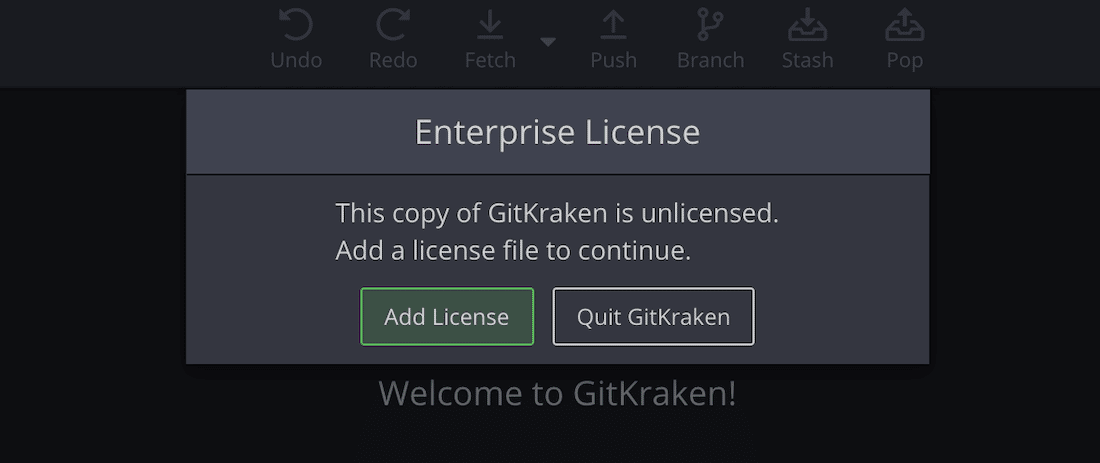
At first launch, you’ll be prompted to load the .dat license file.
If you don’t have the file, contact your GitKraken admin. Admins can retrieve it from app.gitkraken.com. For older accounts or help locating the file, contact support.
Where GitKraken checks for license files
GitKraken checks the following locations for license files:
Linux/macOS:
/usr/local/share/gitkraken/usr/share/gitkraken- Directory above application
- Application directory
~/.gitkraken
Windows:
C:ProgramDataGitKraken- Directory above the
.exe - Directory of the
.exe %APPDATA%.gitkraken
How to update the license file
If your license expires, you can:
- Replace the file in one of the directories listed above
- Or, update manually:
- In GitKraken, click the license text in the bottom-left corner
- Select Update License