

Last updated: March 2026
Use this page to change the GitKraken Desktop theme, sync the app with your system theme, and understand the current status of custom theme support. It explains where theme controls live, how built-in themes work, and why custom themes are currently disabled as of version 11.8.0.
Requirements and limits
- Scope: Built-in themes, system theme sync, and legacy custom theme behavior
- Theme settings location: Preferences > UI Customization
- Built-in theme support: Available and supported
- Custom theme status: Disabled as of GitKraken Desktop 11.8.0
- Legacy custom theme location:
~/.gitkraken/themes/ - Invalid-theme behavior: If a theme file contains invalid syntax, GitKraken falls back to the default dark theme
- Markdown on this page about custom themes is historical/reference-only until custom themes are restored
Quick Start
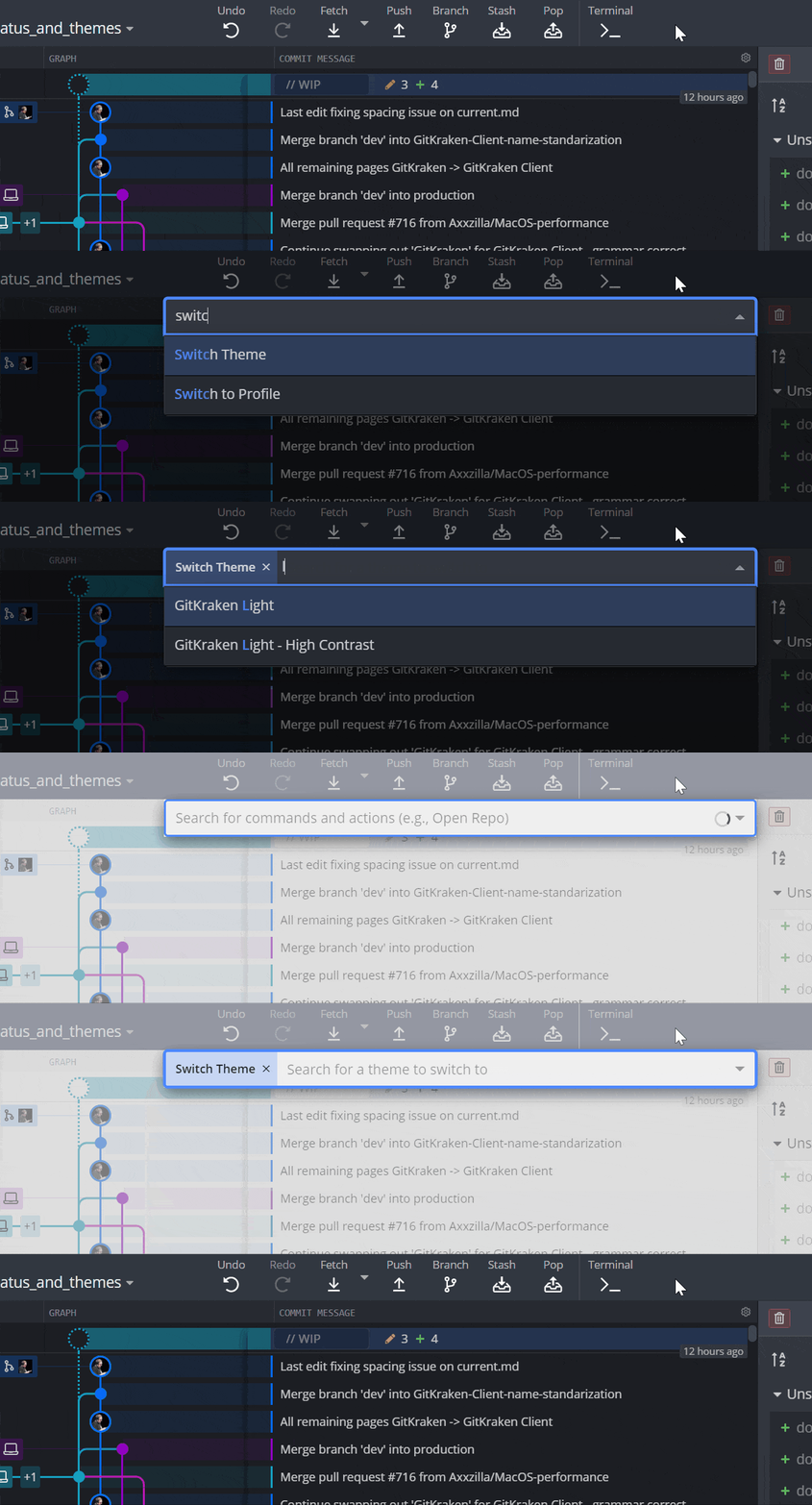
To switch themes: Go to Preferences > UI Customization and select a theme, or open the Command Palette and type switch theme.
To sync with your system theme: Enable the system theme sync option in Preferences > UI Customization. GitKraken Desktop will follow your OS light or dark setting when supported.
To create a custom theme:
- Open Preferences > UI Customization > Theme and click the folder to navigate to
~/.gitkraken/themes/. - Copy a
.jsonc-defaulttemplate file and rename it with a.jsoncextension. - Open the file in a text editor and set a unique
meta.nameand aschemevalue oflightordark. - Save the file. Your custom theme appears in the theme list immediately. Changes take effect live without restarting GitKraken Desktop.
Custom themes have been disabled as of version 11.8.0 while the UI is being modernized. Built-in themes remain available.
Note:Custom themes have been disabled in 11.8.0 as we modernize the UI for better performance and maintainability.
How built-in themes work
To change your GitKraken Desktop theme:
- Go to Preferences UI Customization
- Or open the Command Palette and type
switch theme
How sync with system theme works
If your OS supports theme switching, GitKraken Desktop can follow your system’s light/dark setting. Enable this from Preferences > UI Customization.
How custom themes work
GitKraken Desktop supports user-defined themes. To create a custom theme:
How to locate theme files
Theme files live in:
~/.gitkraken/themes/You can open this folder from Preferences > UI Customization > Theme. Each .jsonc-default file is a template.
How to create a custom theme
- Copy a
.jsonc-defaultfile you want to base your theme on. - Rename the file (e.g.,
MyCustomTheme.jsonc). - Open it in a text editor.
- Set a unique value for
meta.name. This is the theme name shown in GitKraken. - Define your theme’s
schemeas eitherlightordark. - Save your file and return to GitKraken.
Your custom theme will appear under Preferences > UI Customization > Theme.
How live theme editing works
Changes to your theme file take effect immediately—no need to restart GitKraken. If the file contains invalid syntax, GitKraken will revert to the default dark theme.
Note: Theme files must follow correct JSONC formatting. Invalid files will be skipped and replaced by the default theme until corrected.
What functions are supported in theme files
Supported CSS functions
GitKraken supports these CSS functions:
calchsl/hslamax,minrgb/rgbavar
See CSS functions for reference.
Supported LESS functions
Supported LESS functions include:
darken,lighten,fadesaturate,desaturatemix,mixLess
See LESS functions for full documentation.
Community themes
Looking for inspiration? Some users share their custom themes online, such as the collection at jonbunator.github.io/gitkraken-custom-themes.
Please note that this site is not affiliated with GitKraken, and we do not provide support for external or user-generated themes.
