

Last updated: April 2026
Use this page to run GitKraken Desktop actions from the Command Palette when you want a keyboard-first workflow for commands, files, repositories, worktrees, and settings. It explains how to open the palette, what command categories are available, and when it is faster than navigating the UI directly.
Requirements and limits
- Access methods: Cmd/Ctrl + P, the wand icon, or the Help menu
- Scope: Commands, files, repositories, branches, stashes, worktree-related navigation, settings, logs, and patches
- Search behavior: Results filter live as you type
- Execution model: Press Enter to run the selected item
- Command availability depends on the current repository state, open repo context, and configured integrations
Quick Start
- Open with Cmd + P (macOS) or Ctrl + P (Windows/Linux), or click the wand icon in the top-right toolbar.
- Start typing to filter available commands. Results update as you type.
- Press Enter to run the selected command.
Common actions available through the Command Palette:
- File management: Create File, Delete File, Open File, Stage all changes, Discard all changes
- Branch operations: Create Branch, Rename Branch, Checkout, Push, Pull, Fetch All
- Repository: Open Repo, Clone, Init, Perform Repo Maintenance
- Stash: Create, Apply, Pop
- View and settings: Toggle Theme, Toggle Left Panel, Keyboard Shortcuts, Switch to Profile
- Terminal and workflow: Open in terminal for command-line tasks and manual coding agent workflows
The Command Palette is available at any time regardless of which panel or view is currently active in GitKraken Desktop.
How to open the Command Palette
You can launch the Command Palette in three ways:
- Use the keyboard shortcut:
- Cmd + P on macOS
- Ctrl + P on Windows/Linux
- Click the icon in the top-right toolbar
- Go to the Help menu → Open Command Palette
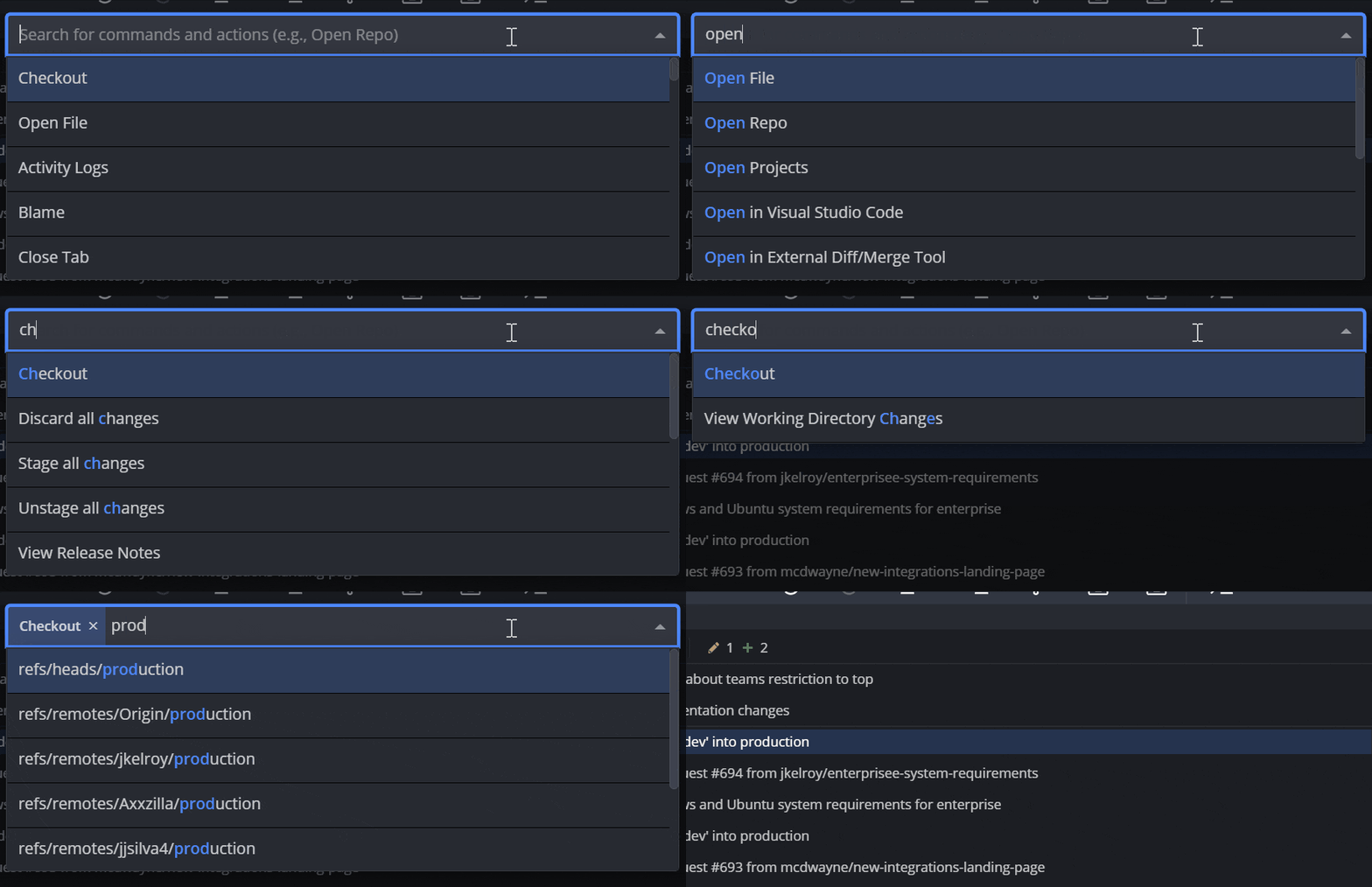
What command categories are available
Below is a list of supported commands grouped by category.
Repo
Close TabOpen RepoOpen in file managerOpen in [IDE name]Open in External EditorOpen in External Diff/Merge ToolOpen in terminalRepo Management: CloneRepo Management: InitRepo Management: OpenPerform Repo Maintenance
GitKraken Desktop detects installed IDEs and lists each one as a separate Open in… command (for example, Open in VS Code or Open in WebStorm). The available options depend on which editors are installed on your machine.
Open in terminal is especially useful when you want to start a command-line workflow in the current repository or worktree, including a manual coding agent workflow. For more information, see GitKraken Terminal Guide and Coding Agents in GitKraken Desktop.
Settings
Configure Git FlowConfigure LFSConfigure GPG SigningInitialize LFS on this repoJoin the Light side/Join the Dark sideManage AccountSettingsSwitch to Profile+profile name
View
Decrease ZoomIncrease ZoomKeyboard ShortcutsReset ZoomToggle Left PanelToggle Commit Detail PanelToggle Syntax HighlightingToggle Theme
History
Blame+filenameHistory+filenameSearch Commits+message/sha/author
Core
RedoUndo
File
Create File+filenameDelete File+filenameOpen File+filenameView File+filenameEdit File+filenameDiscard all changesStage all changesUnstage all changes
Stash
Stash: ApplyStash: CreateStash: Pop
Branch
Create BranchCreate TagCreate Annotated TagFetch AllPullPushRename BranchStart Pull RequestView Working Directory Changes
Checkout
Checkout+{branch name}
Patch
Create patch from all working directory changesApply patch
Logs
Activity logsView Error LogsView Performance LogsView Release Notes
