Last updated: March 2026
Hide and Solo help you reduce Commit Graph clutter in GitKraken Desktop without changing your repository. Use Hide to temporarily remove branches, tags, remotes, or stashes from view, and use Solo to focus only on the references you want to inspect when reviewing history or navigating a busy graph.
Requirements and limits
- Hide and Solo only change what is visible in the Commit Graph; they do not modify your repository data.
- You can hide or solo branches, tags, remotes, and stashes from the Left Panel.
- Solo mode keeps only the references you explicitly solo visible until you unsolo them.
- Bulk hide and show actions are available from the Left Panel section headers for Remotes, Tags, Branches, and Stashes.
How to hide references in the Left Panel

Hide
Hiding a branch removes it from the Commit Graph view without affecting your repository.
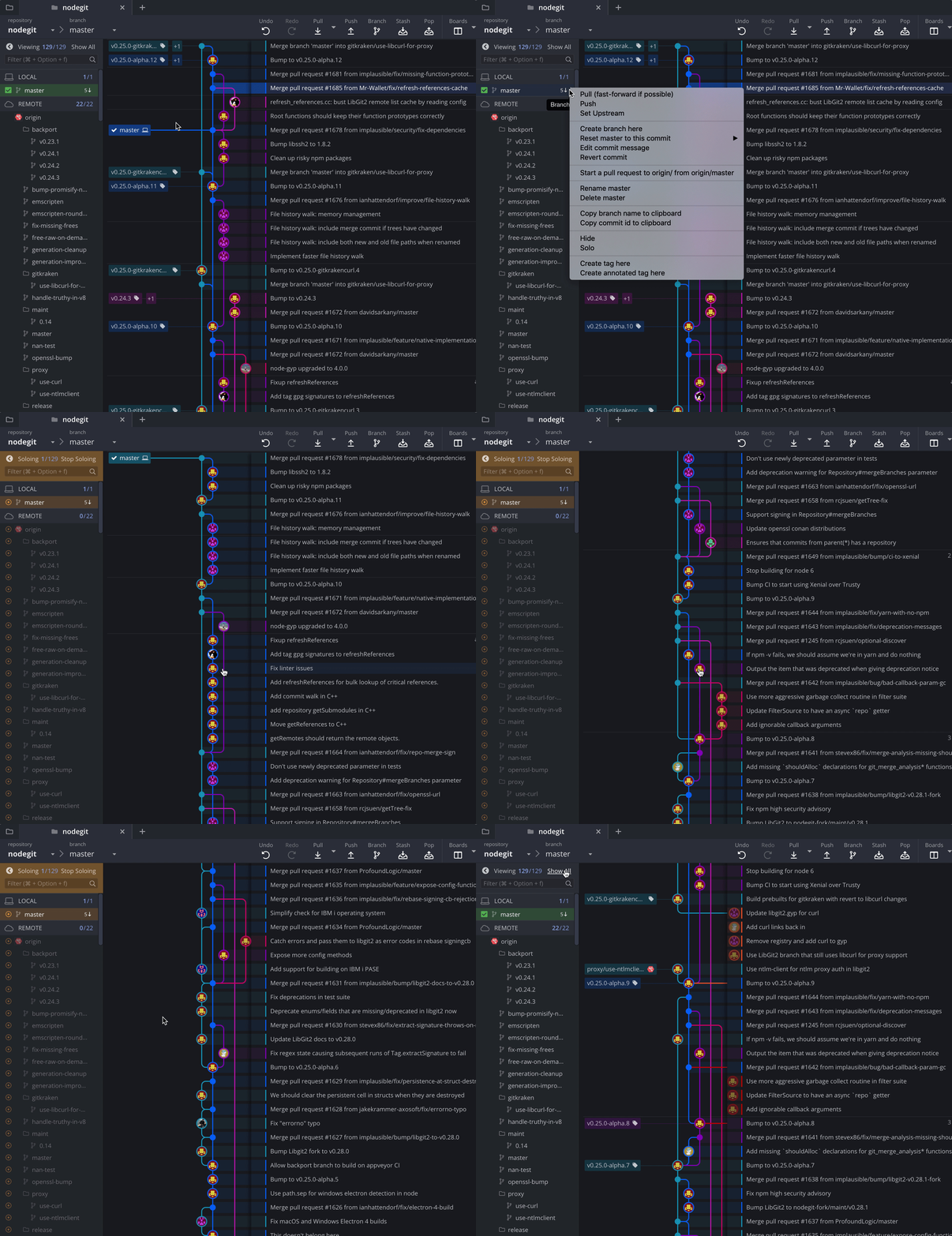
To hide a branch, hover over it in the Left Panel and click the icon that appears. Or right-click the branch and select Hide from the context menu.
Hidden branches are marked with a gray icon. Click the icon to show the branch again.
How to solo branches and remotes

Solo
Soloing a branch hides all others that haven’t been explicitly soloed. This narrows your focus to selected references.
Right-click a branch and select Solo to enter Solo Mode. Soloed branches display with an orange icon.
To solo or unsolo additional branches, click the semi-opaque icon beside each name.
You can also hide or solo entire remotes to isolate just the few branches you need.
How to hide or show all references
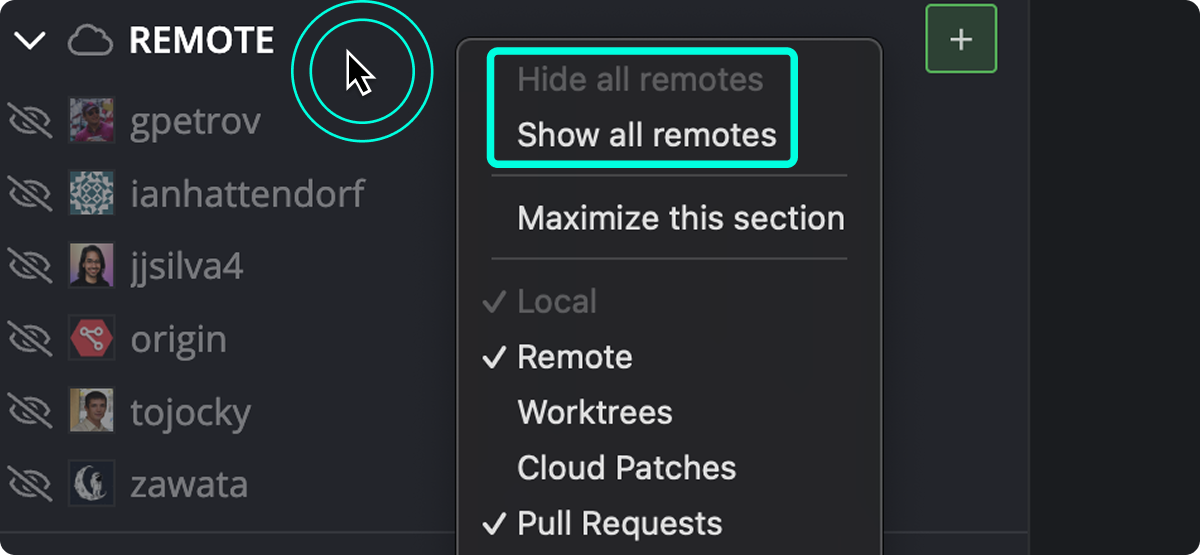
You can hide or show all Remotes, Tags, Branches, or Stashes from the Left Panel. Right-click the corresponding header to access bulk options.