Last updated: March 2026
Use this page to manage organizations and teams in GitKraken Desktop so you can invite members, assign roles, organize users into teams, and enable collaboration features such as Team View, shared Workspaces, and Cloud Patches. Team availability depends on your GitKraken subscription tier.
Requirements and limits
- This page covers organization and team management in GitKraken Desktop.
- Pro accounts are limited to 1 team.
- Advanced and Business plans support multiple teams.
- Team-based collaboration features have different plan requirements: Team View requires Advanced or higher, while shared Workspaces require Pro or higher.
- Inviting members requires available licenses, and administrators may be prompted to purchase more when seats are exhausted.
Teams can be used for:
- The Team View: View branches and files others are working on and detect potential conflicts. Advanced plan and above
- Sharing a Workspace: Manage and collaborate on a group of repositories. Pro plan and above
- Sharing a Cloud Patch: Securely send a patch file to other team members.
Note: Pro accounts are limited to 1 Team. Upgrade to an Advanced or Business plan to manage multiple Teams.
Quick Start
To manage your organization:
- Open Preferences and select your organization name in the sidebar.
- Click Invite members to add users by name, username, or email.
- Use the ellipsis menu on a member’s entry to change their role or remove them.
To create a team:
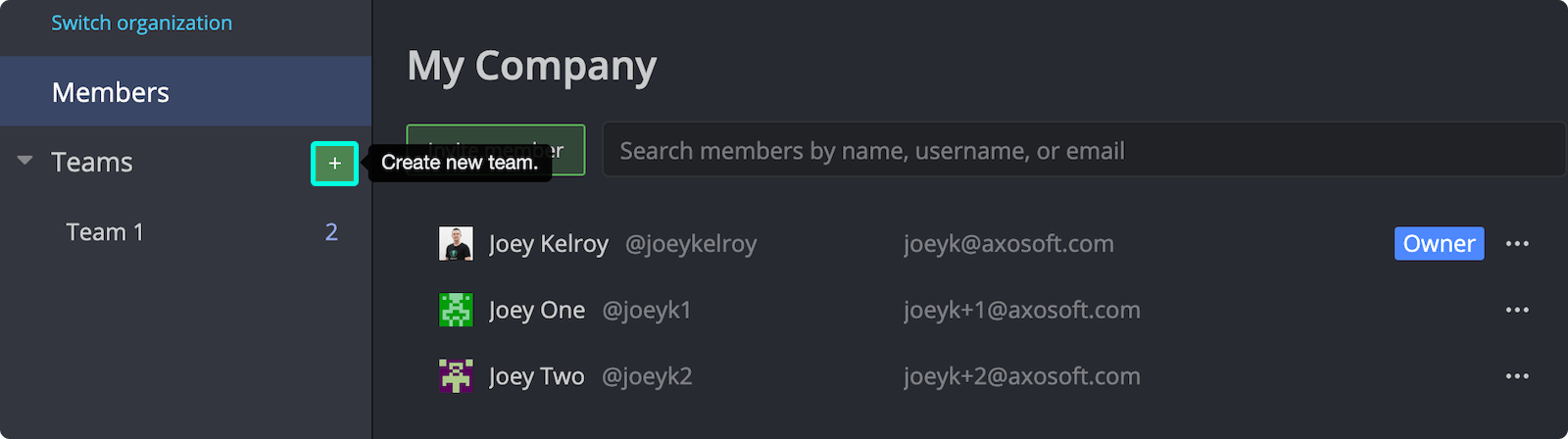
- In the Organization section, click the + icon next to Teams.
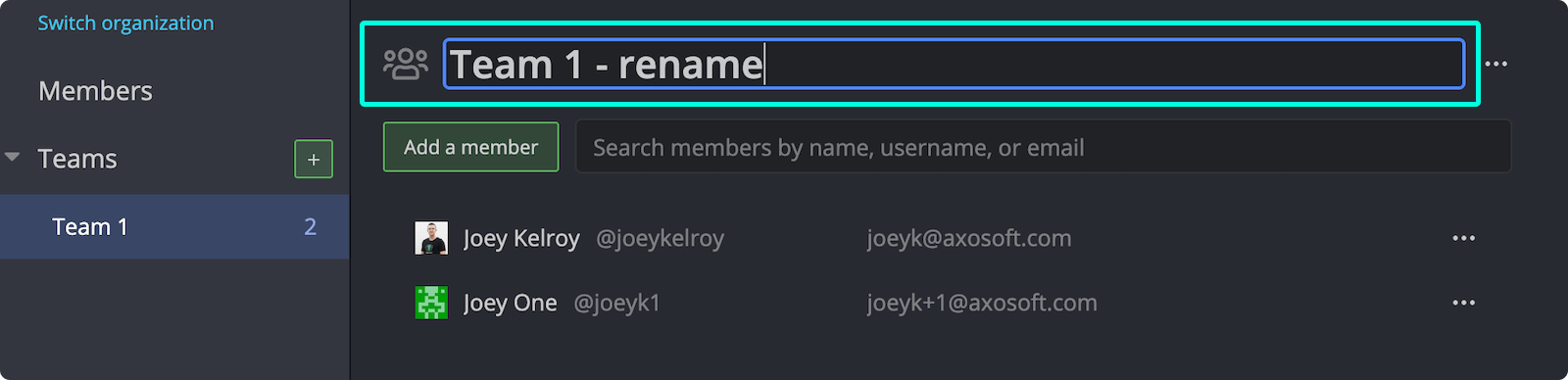
- Name your team, then add members using Add a member.
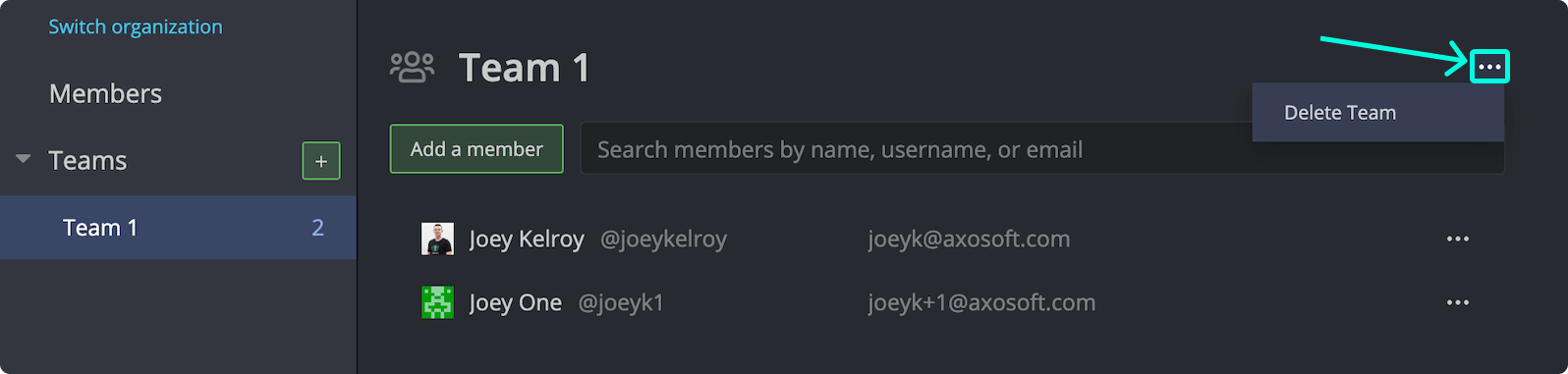
To rename or delete a team: Double-click a team name to rename it. Use the ellipsis menu to delete it.
To remove a team member: Select the team, then use the ellipsis menu on the member’s entry.
Teams are accessible under Preferences > Organization. Pro accounts support one team. Advanced and Business plans support multiple teams.
How to manage your organization
To manage team members in your Organization:
- Open Preferences
- Select your Organization name from the sidebar

You can:
- Change roles or remove users via the menu
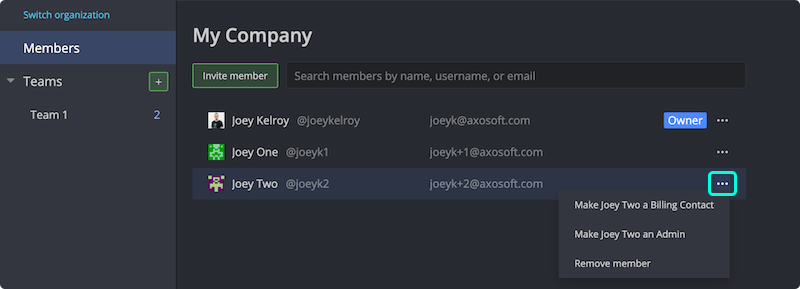
If no additional licenses are available, you’ll be prompted to purchase one when inviting a new member.
How to manage teams
Create a new Team by clicking the icon.
You can:
- Delete a team via the menu
- Rename a team by double-clicking its name
How to manage team members
To add users to a Team:
- Select the Team
- Click
Remove a user by selecting on their entry.
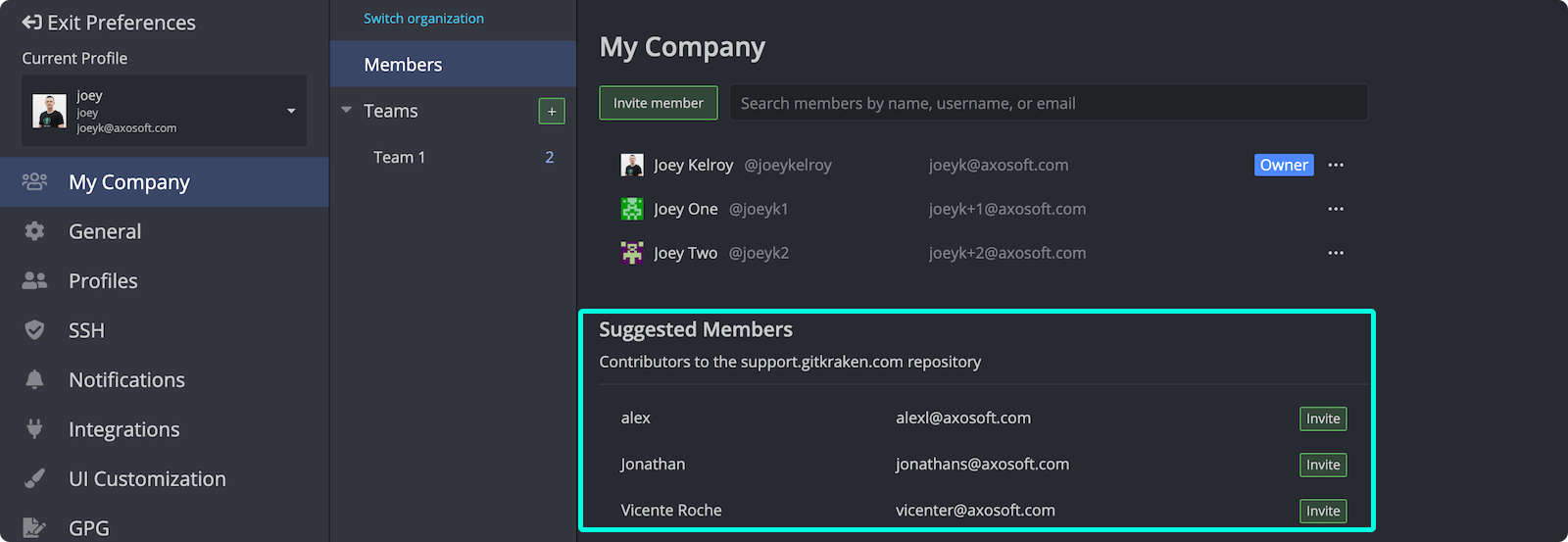
How suggested members work
GitKraken Desktop can suggest users who contribute to the current repository but aren’t in your Organization. Invite them to collaborate.