

Last updated: October 2026
Your coding agents load Model Context Protocol (MCP) servers from their own config files. Kepler reads those files and lists exactly the servers each agent will load, so you can see them, turn a server or one of its tools off where you don’t want it, add or remove a server, and sign in to a server that needs it. You don’t have to edit the agent’s config by hand.
You manage them in two places: per repository, from the composer’s Agent settings pill, and as global defaults in Settings → Agents → MCP servers.
Requirements and limits
- Works for Claude Code, Codex, GitHub Copilot, Cursor, OpenCode, Auggie, and Grok Build. Pi, Antigravity, and custom agent servers don’t expose their MCP servers to Kepler; their manager reads This agent does not expose its MCP servers to Kepler.
- The agent must be installed. Settings lists only the agents that answer.
- Kepler shows the servers the agent’s config files define. Servers that don’t live on disk, such as claude.ai connectors, aren’t listed.
Where you manage them
| Where | What a change applies to |
|---|---|
| The composer’s Agent settings pill → MCP servers → Manage | This repository (the UI calls it a project) for that agent |
| Settings → Agents → MCP servers | Every repository, as the default each one inherits |
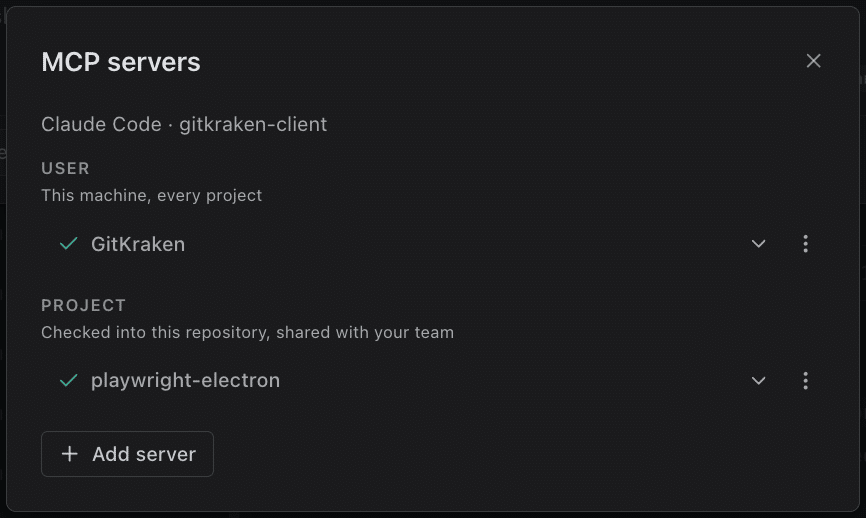
Both open the same manager. It groups servers by where they’re defined:
| Group | Where the server comes from |
|---|---|
| User | This machine, every project |
| Project | Checked into this repository, shared with your team |
| Local | This project only, not shared |
| Plugin | Installed by a plugin |
| Managed | Set by your organization |
Each row is a server: click it to turn it on or off, and use the arrow beside it to list its Tools. A row can carry badges: Signed in or Not signed in for a server that needs authentication, All projects when a change to it reaches every repository, and Locked when Kepler cannot edit this entry in the agent’s config file, such as a server your organization manages.
Per repository
In a session or in the New task composer, open the Agent settings pill. Its MCP servers row reads {enabled} of {total} enabled; Manage opens the MCP servers dialog, titled with the agent and the repository it applies to.
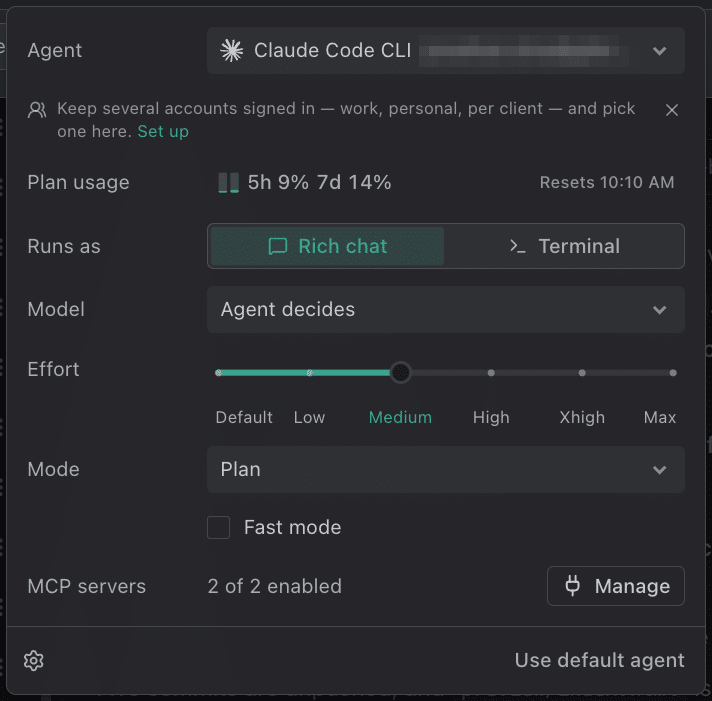
A change here applies to that repository only. Worktrees of one checkout share the setting, so a server you turn off in a repository stays off in every task’s worktree of it.
If a server is off in Settings and you haven’t turned it on here, its row says Off for all projects in Settings; turn it on to use it here., with Open Settings to go to the global default. Turning it on in the dialog turns it on for this repository only.
Single tools
Expand a server to see its tools. Kepler connects to the server to ask for them, so the list can take a moment (Asking the server for its tools…), and reads Sign in to this server to see its tools. when the server needs authentication first. Click a tool to turn it off or on.
Turning off a single tool works for Claude Code, Codex, and Grok Build. For the other agents, turn the whole server off instead.
Global defaults
Settings → Agents → MCP servers is the same manager with no repository: Each agent’s own defaults, which every project inherits. A project can turn one off for itself in its MCP servers dialog. Pick the agent at the top, and the account when that agent has more than one.
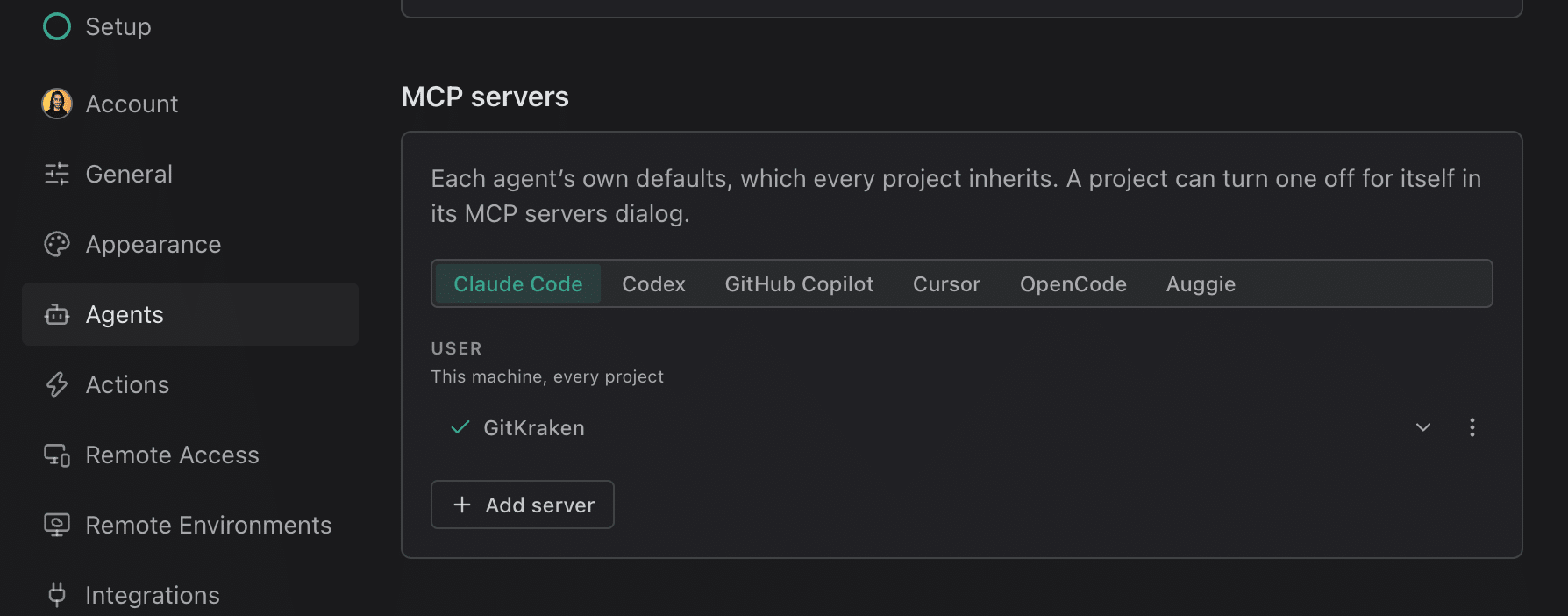
The two levels combine like this:
- A repository uses the global value until you change that server in its own dialog.
- A repository’s choice wins over the global one, in either direction: a repository can turn off a server that’s on globally, or turn on a server that’s off globally.
- Kepler stores a choice only while it differs from the level beneath it, so switching a server back to match the global default hands control back to the default.
Plugin servers show in Settings but can’t be changed there.
Adding and removing servers
Add server, at the foot of the manager, opens a form:
| Field | What it takes |
|---|---|
| Name | Letters, numbers, ., _, or -, up to 64 characters, unique within its scope |
| Scope | Which of the groups above it’s written to. The choices depend on the agent and on whether you’re in a repository |
| Transport | Command for a local server, or HTTP / SSE for a remote one |
| Command and Arguments | For a command server, for example npx -y @some/server |
| URL | For a remote server, an http:// or https:// address |
| Environment variables / Headers | Key and value pairs. Values stay hidden until you choose Show value |
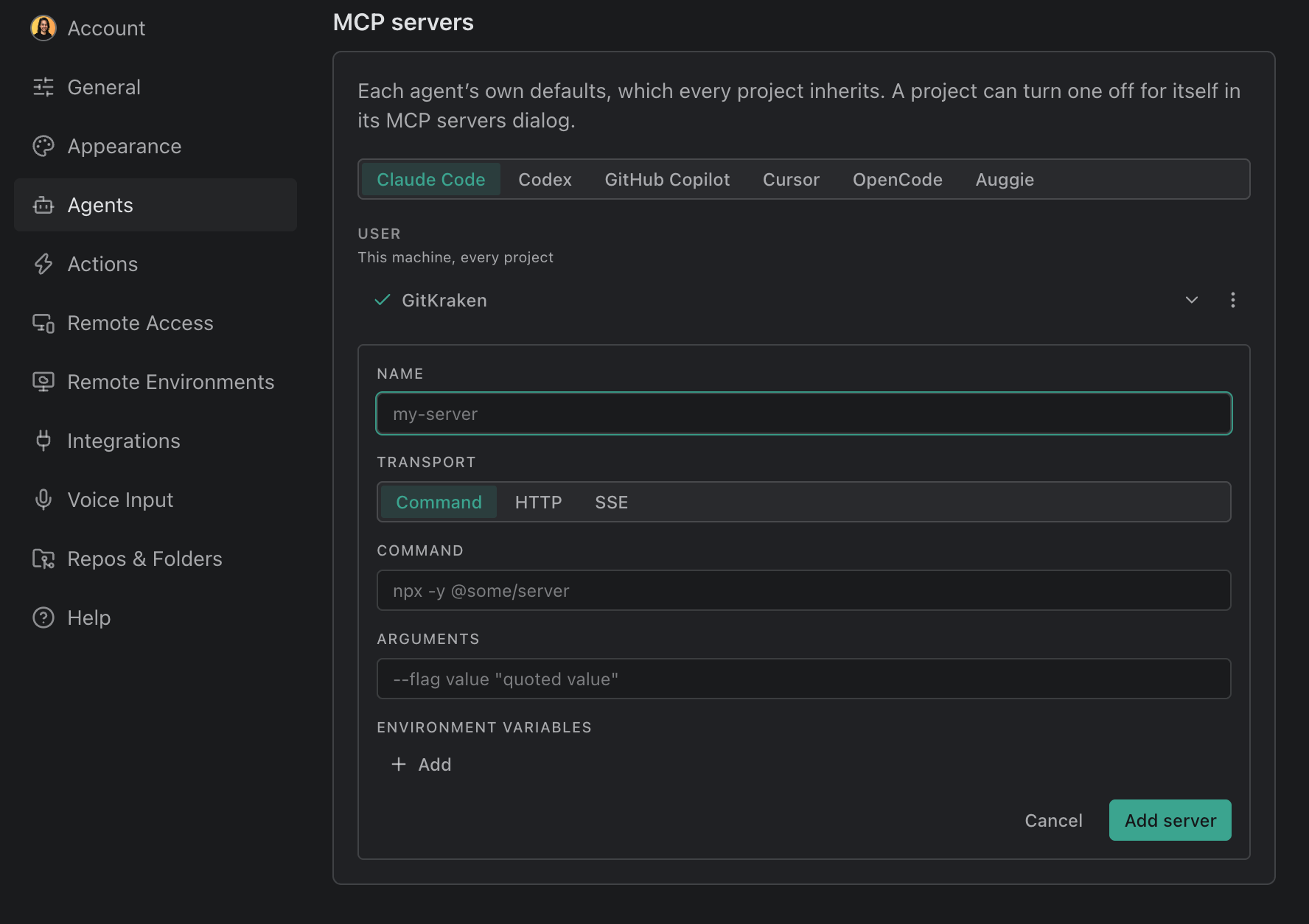
Kepler writes the new server into the agent’s own config file, in the format that agent uses, so the agent’s CLI sees it too.
To remove a server, open its row’s Server actions menu and choose Remove. Kepler deletes it from the agent’s config; this can’t be undone. Plugin and managed servers can’t be removed from Kepler.
Signing in
For a server that needs authentication, the Server actions menu offers Sign in, or Re-authenticate once you’re signed in, and Clear authentication to sign it out. Kepler runs the agent’s own CLI to do it, under the same account the session uses, so the credentials end up where the agent looks for them. Sign-in is available for Claude Code, Codex, OpenCode, and Cursor servers.
In a local window, Open sign-in page opens your browser and Kepler finishes when you’re done (Finish signing in in your browser). In a window connected to a remote environment, sign in on that page, then paste the URL you land on into Redirect URL.
When changes apply
| Where the change lands | When it takes effect |
|---|---|
| A Claude Code Rich chat session | Straight away. Kepler reconnects the session with the new servers and keeps the conversation and your model and mode picks |
| A terminal session, or any other agent’s session | On restart. The Agent settings pill and the dialog show {count} MCP changes apply when the agent restarts. with Restart agent |
| The New task composer | The session you start comes up with that state |
Turning a server or tool off doesn’t edit the agent’s config for Claude Code, Codex, OpenCode, or GitHub Copilot: Kepler keeps the choice itself and passes it to the agent when it launches, so the same agent run from your own terminal is unaffected. The one exception is turning on a Claude Code server that Claude’s own config lists as disabled, which Kepler can only do by editing that list. For Auggie, Cursor, and Grok Build, Kepler writes the change into the agent’s config file, which their CLIs also read. Adding and removing a server always edits the config file.
Each agent account keeps its own MCP setup. When Kepler launches a Claude Code account other than the default one, it first copies in the default account’s servers.
Related
- Settings: Settings → Agents, including the MCP servers section.
- Agent Integrations: the agents Kepler runs and how to set them up.
- Agent Sessions: the composer’s Agent settings pill, and restarting a session.
