

Last updated: November 2026
Kepler by GitKraken keeps track of several Claude Code and Codex sessions in 1 Dashboard, including sessions you start in your own terminal once you turn on detection. Give each piece of work its own task, so each one gets its own worktree and branch. The Dashboard then shows which session needs you, and each task’s Changes group shows what its agent changed.
Requirements and limits
- Scope: Following several agent sessions at once, seeing which one needs you, and seeing which one changed what.
- Sessions you start in your own terminal: Kepler lists them only after you turn on Show sessions started outside Kepler, which is off by default.
- Limits: Kepler follows a session running in your terminal but does not control it. To answer a question it asks, answer in your terminal, or move the session into Kepler.
- Limits: 2 sessions that share 1 worktree also share its changes. To tell their changes apart, give each session its own task.
Quick Start
- Open Settings → Integrations → Your terminal and turn on Show sessions started outside Kepler.
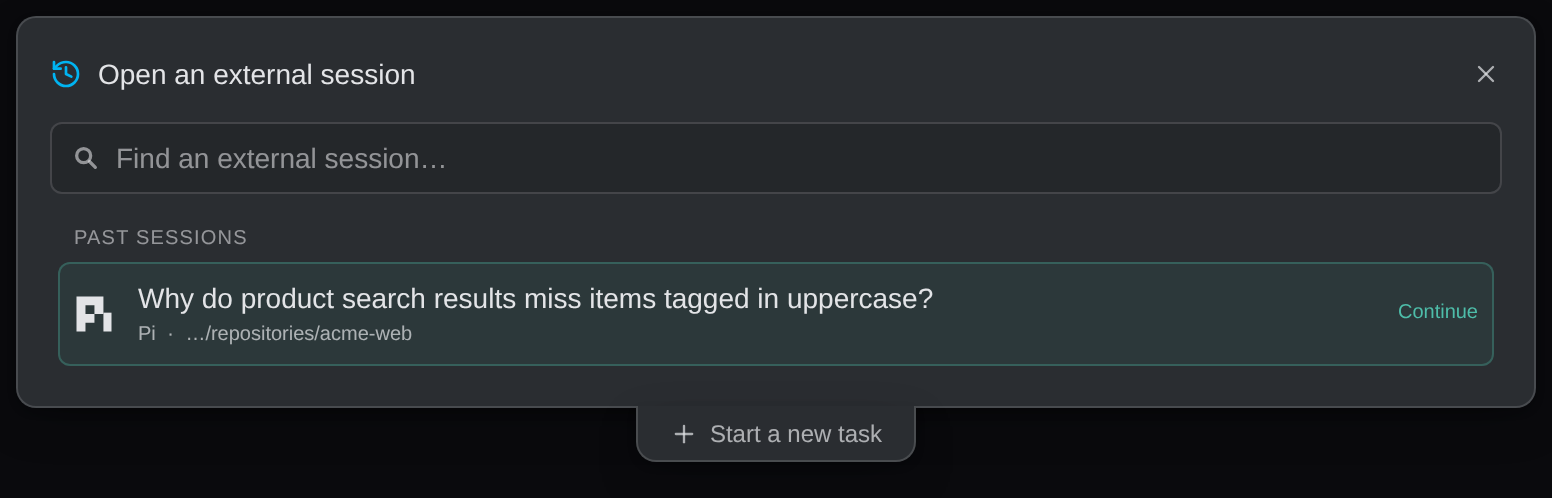
- Click New task, select Open an external session, and pick a Claude Code or Codex session you already started. Kepler puts it in a task.
- For new work, click New task, write the prompt, and pick Claude Code or Codex. Each new task gets its own worktree.
- Open the Dashboard’s Tasks view. Tasks that need you are listed first, under Needs attention.
- To see what a session changed, open its task and click the worktree under Changes.
How to follow sessions started in your terminal
Kepler can list the Claude Code and Codex sessions you run in your own terminal, so you can follow them next to the sessions Kepler starts.
- Open Settings → Integrations → Your terminal.
- Turn on Show sessions started outside Kepler. It is off by default.
The setting covers Claude Code, Codex, Cursor, GitHub Copilot, OpenCode, Auggie, Grok Build, and Pi.
To put a terminal session in a task:
- Click New task, then select Open an external session.
- Pick the session under Live now, or a past one under Past sessions. Kepler opens it in a new task.
A session still running in your terminal opens read-only, marked External, and its badge says what it is doing, such as Running or Waiting on you. When it waits on you, answer in your terminal.
Take a session over
Once the session is idle, you can carry it on in Kepler:
| Button | What it does |
|---|---|
| Fork | Copies the conversation into a new Kepler session. Your terminal keeps the original |
| Continue here | Carries on the same conversation in Kepler. Close it in your terminal first |
See Sessions started outside Kepler.
How to keep 1 task per worktree
Give each piece of work its own task. By default, each new task makes its changes in its own worktree: a separate copy of the repository on its own branch. Sessions in different tasks do not edit the same files, so you always know which session changed what.
- Name tasks by the work. A task’s name is what you see on the Dashboard. To rename one, use Rename task on its menu.
- Name sessions by their job. When a task holds more than 1 session, use Rename session on the session’s menu, for example “tests” or “review”.
- Start related work as a new task, not as a second session in the same worktree, when you want to review it separately.
To change where new tasks make their changes, open Settings → Tasks and find Where new tasks make changes. Isolated worktree is the default. See Tasks and Resources.
How to see which session needs you
The Dashboard and its Inbox
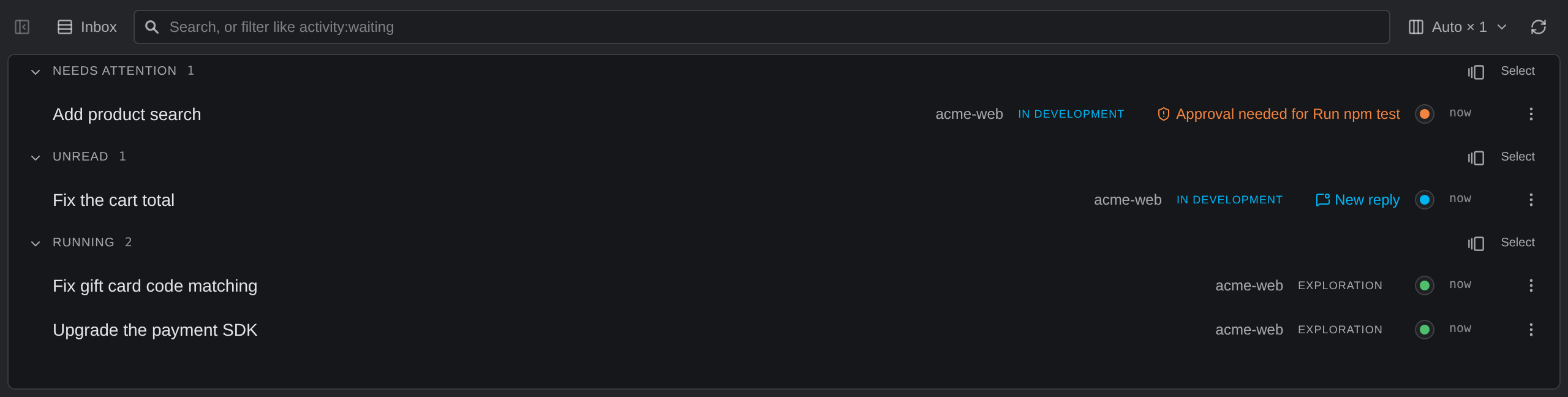
The Dashboard’s Tasks view groups tasks by what each one needs from you. This grouping, Inbox, is the default. The first 3 sections are:
| Section | What it holds |
|---|---|
| Needs attention | A session waits on you, such as a question, a permission request, or a failed turn |
| Unread | A session finished a turn you have not looked at |
| Running | An agent is working on it |
Each task row adds a line that says what its session needs, such as Approval needed for tool, Asking: question, or New reply. See Inbox.

Session status
Every session shows a colored status on its tab and rows. Waiting means it is blocked on you, and says on what, such as Permission, Question, or Plan review. See Session status.
Notifications
Kepler notifies you when a session needs you, replies, or fails. Choose which events notify you in Settings → Notifications. See Notifications.
The Agent Graph
The Dashboard’s Agent Graph view shows every task, session, turn, tool call, and file as a live graph. Its Needs attention list names everything waiting on you, most urgent first. See The Agent Graph.
Ask Kepler
Open Ask Kepler and ask What needs me right now? Kepler lists what is waiting on you. See Ask Kepler.
How to see which session changed what
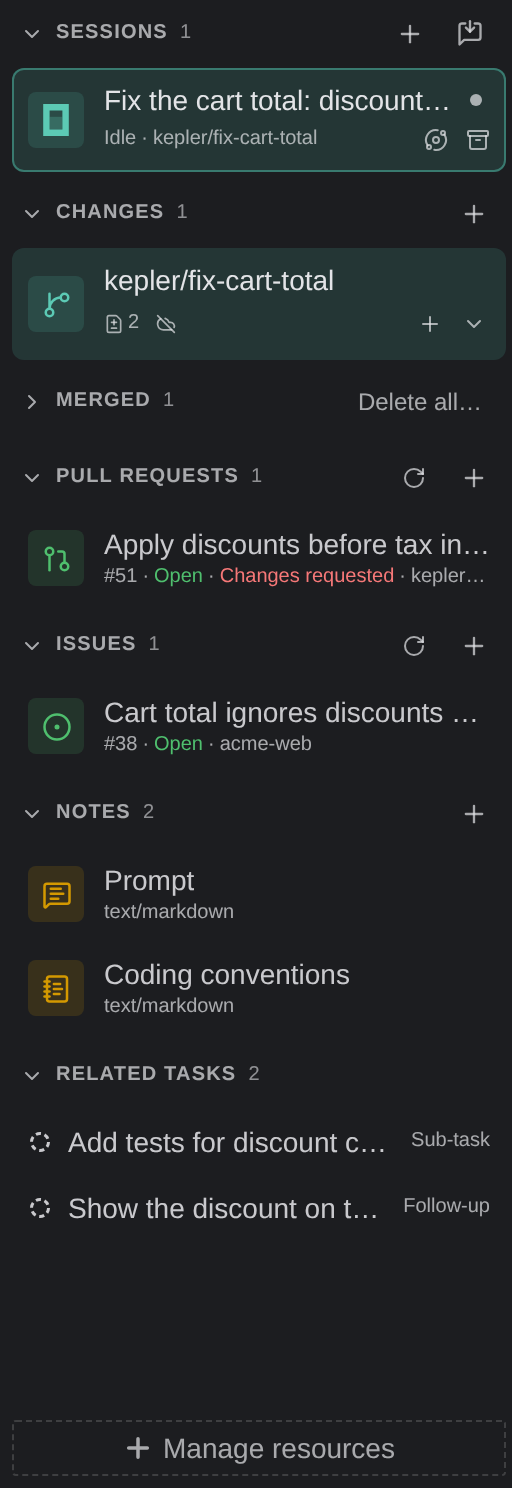
Each task lists its worktrees under Changes in the context panel, on the left of the task page. Click a worktree to open its changes: the files and lines that branch changed. Because each task has its own worktree, the changes you see belong to that task’s sessions.
On the Dashboard, a task’s preview shows each worktree with chips for its uncommitted files and commits. Click a chip to open that worktree’s changes without leaving the Dashboard.
See Review Changes to read the diff, comment on it, and commit.
Common questions
How do people manage 5 or more Claude Code and Codex sessions at once?
Give each piece of work its own task and worktree, name each task by its work, and check the Dashboard’s Needs attention section instead of each terminal. Kepler lists the sessions that wait on you first.
Can Kepler see the Claude Code session I started in my terminal?
Yes, after you turn on Settings → Integrations → Your terminal → Show sessions started outside Kepler. It is off by default.
Can I answer a terminal session’s question from Kepler?
No. Kepler follows a session that runs in your terminal but does not control it. Answer in your terminal, or once the session is idle, click Continue here to carry the conversation on in Kepler.
How do I know which session changed a file?
Open the task and click its worktree under Changes. Each task has its own worktree, so the changes there belong to that task’s sessions.
Can 2 agents work in the same repository at once?
Yes. Each task gets its own worktree, so Claude Code and Codex can each work in their own copy of the repository without editing each other’s files.
