

Last updated: November 2026
Kepler by GitKraken lets you see what your coding agents are doing and approve their requests from your phone. Turn on Remote Access in Kepler on your computer, scan its QR code with your phone, and answer each permission request from Claude Code, Codex or any other agent in your phone’s browser, with the same choices as on your desktop.
Requirements and limits
- Scope: Watching agent sessions and answering permission requests, questions, plan reviews and approval requests from a phone
- Prerequisite: Kepler running on your computer, signed in to your GitKraken account. Your agents keep running on the computer, and the phone shows its interface
- Prerequisite: A phone browser signed in to the same GitKraken account
- Limits: Kepler sends no push notifications to your phone. Requests appear on the phone only while Kepler is open there, as an alert and in the waiting task
Quick Start
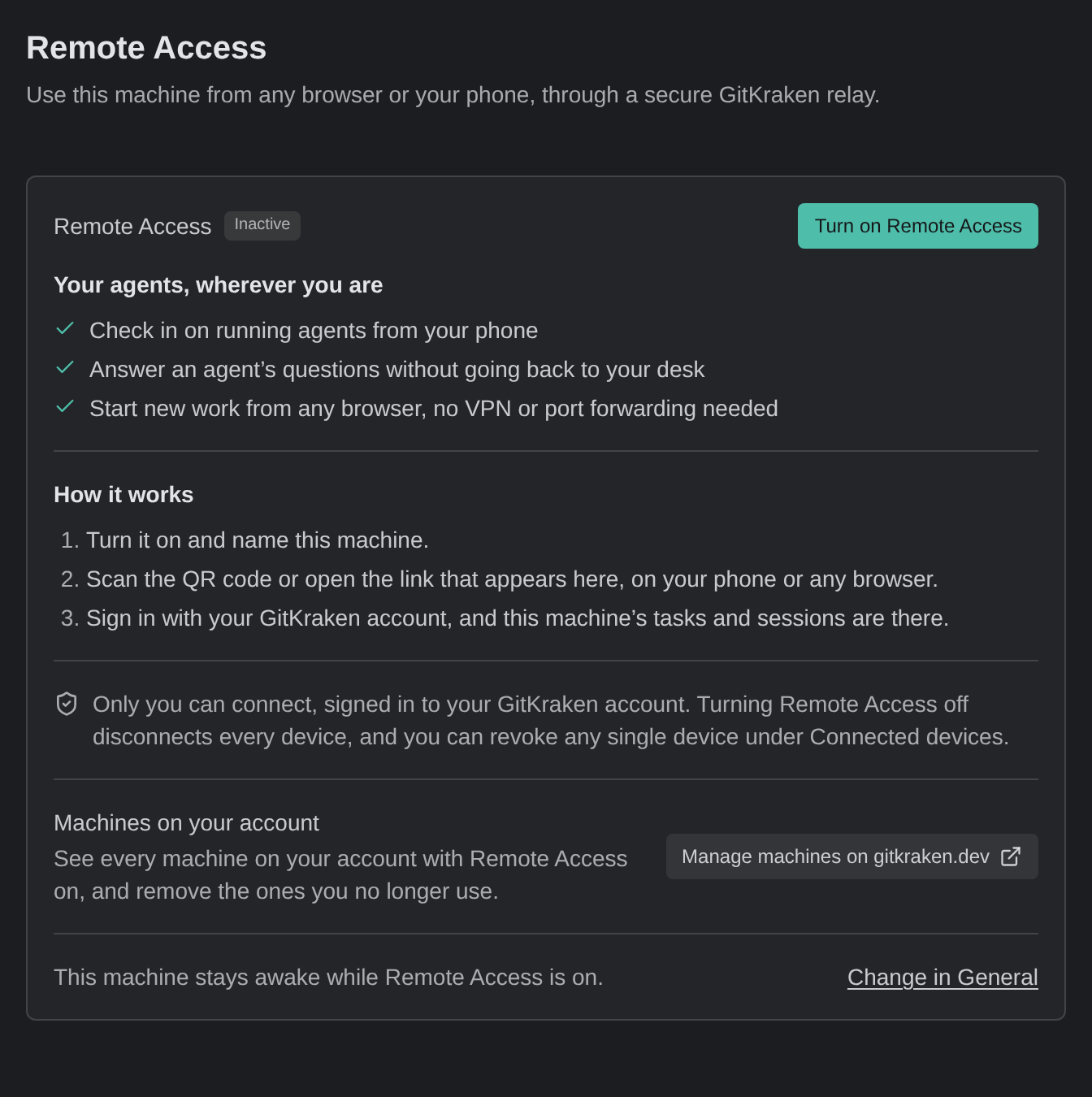
- In Kepler on your computer, open Settings → Remote Access and click Turn on Remote Access.
- In Name this machine, keep the name or enter your own, then click Turn on Remote Access in the dialog.
- Scan the QR code with your phone’s camera, and sign in with your GitKraken account.
- In your phone’s browser menu, choose the option that adds the page to your home screen, such as Add to Home Screen, to open Kepler like an app.
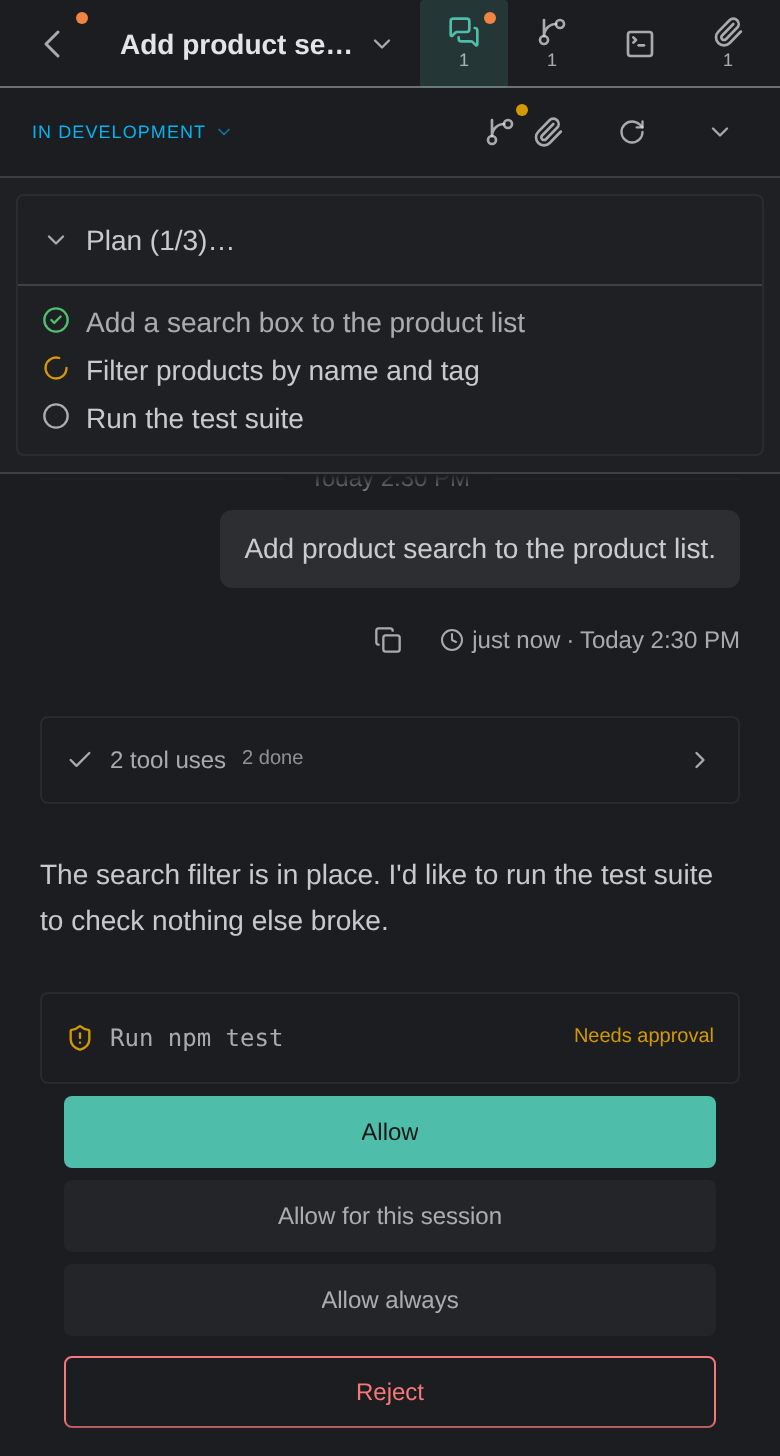
- When an agent stops to ask, open Kepler on your phone, tap the task that waits on you, and answer the request with Allow, Allow for this session, Allow always, Reject or Reject always.
How to turn on Remote Access
Remote Access opens this Kepler from another device, such as your phone, through your GitKraken account. Your agents, worktrees and terminals stay on your computer.
- On your computer, open Settings → Remote Access, or hover over the Remote Access button in the title bar.
- Click Turn on Remote Access.
- In Name this machine, keep the name Kepler fills in, or enter a name you recognize, then click Turn on Remote Access in the dialog.
Remote Access stays on until you turn it off, including after Kepler restarts. By default, Kepler keeps your computer awake while Remote Access is on, so your agents keep working while you are away. To change this, use Keep this machine awake while agents work in Settings → General. See Remote Environments.
How to pair your phone
When Remote Access is active, Kepler shows a QR code and a link in Settings → Remote Access and in the Remote Access popover.
- Scan the QR code with your phone’s camera. To pair another browser instead, click Copy link and open the link there.
- The link opens gitkraken.dev. Sign in with the GitKraken account you use in Kepler.
- Kepler opens in your phone’s browser, in a layout made for phones.
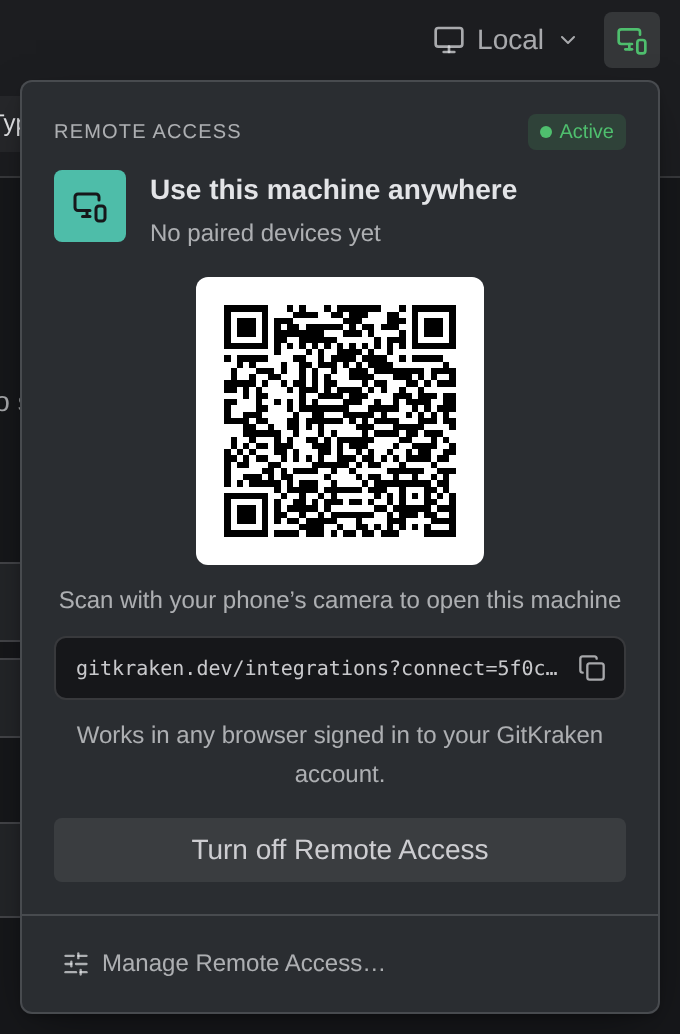
Only your GitKraken account can connect. To disconnect one device, use Connected devices in Settings → Remote Access. To disconnect every device, click Turn off Remote Access.
How to add Kepler to your home screen
To open Kepler like an app, add it to your phone’s home screen from the browser’s menu, such as Add to Home Screen. The Kepler icon then opens Kepler full screen, without the browser’s address bar and toolbars.
How to find what waits on you
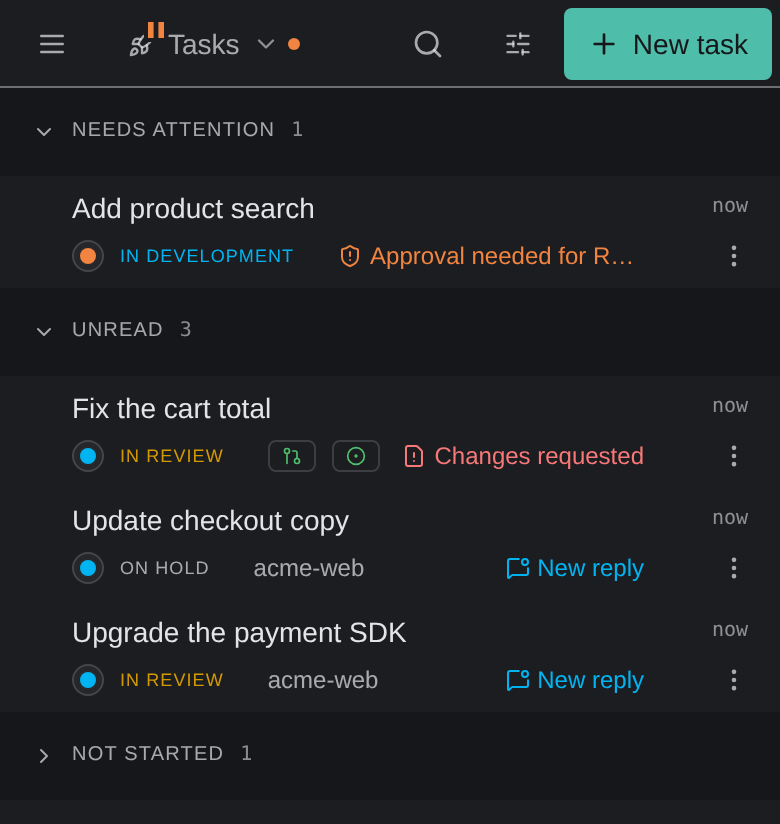
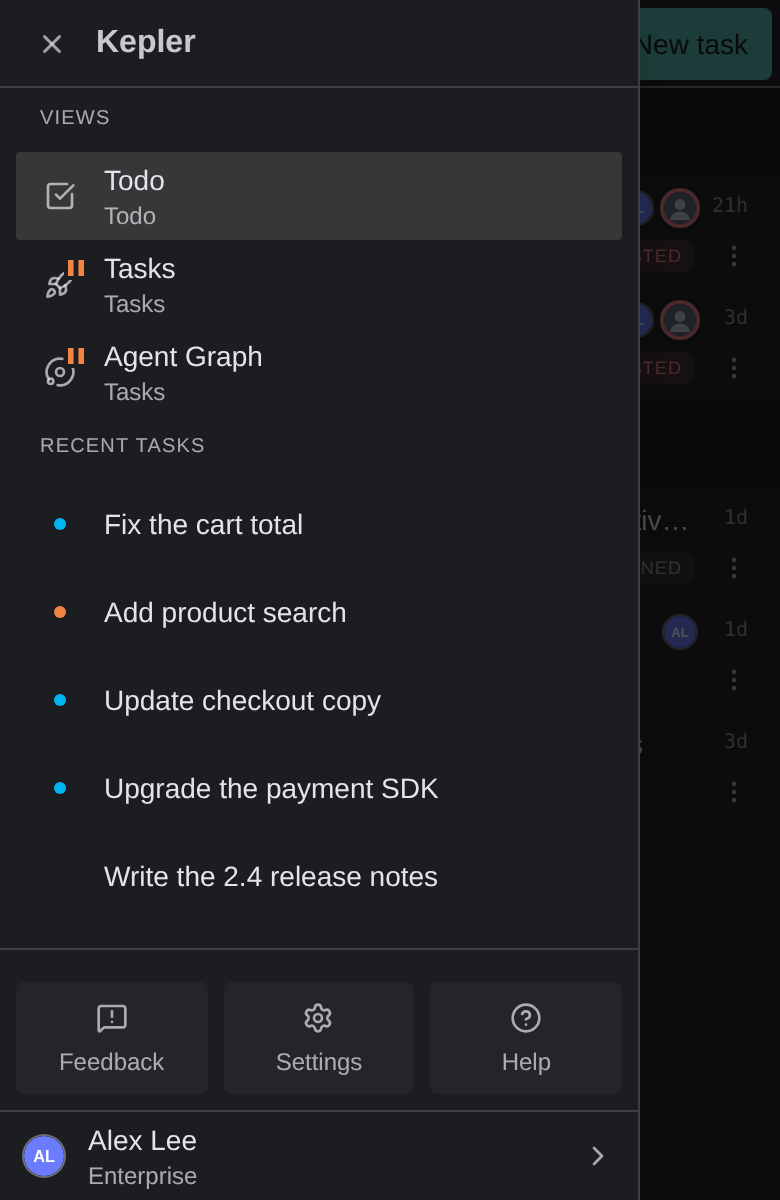
Kepler marks every task and session that waits on you, so you can find a request as soon as you open Kepler on your phone:
- An alert. While Kepler is open on the phone, a new permission request, question, plan review or approval request shows as an alert. A permission alert has Allow and Deny for a one-time answer, and View, which opens the request in its session.
- The menu. Tap Menu. Under Recent tasks, a dot marks each task that waits on you.
- The task list. On the Dashboard, a Tasks view grouped by Inbox lists the tasks that wait on you under Needs attention.
- Inside a task. Tap Sessions to go to the session that waits on you. A dot on the back arrow means another task needs you.
Note: Kepler sends no push notifications to your phone. When Kepler is closed on the phone, nothing tells you that an agent is waiting. Open Kepler on the phone to check. On your computer, Kepler’s desktop notifications still work as usual.
How to answer a permission request
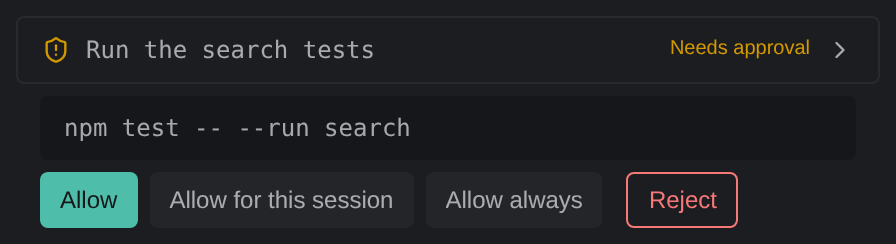
A permission request pins to the top of its session. It names the tool the agent wants to use and shows the call, such as the shell command. Tap one of the buttons:
| Button | What it does |
|---|---|
| Allow | Approves this one call |
| Allow for this session | Approves this call and matching calls for the rest of the session |
| Allow always | Gives the agent a permanent approval, stored in the agent’s own settings |
| Reject | Refuses this call |
| Reject always | Refuses it permanently |
You see only the choices the agent offers. A session in Terminal mode offers Allow once, Always allow and Deny instead. The agent continues as soon as you answer. If you already answered on another device, Kepler says Already answered. See Agent Sessions.
How to answer plans, questions and approval requests
Other requests wait in the session the same way, and you answer them on the phone as you do on your computer:
- A plan review. Read the agent’s plan, then Approve it or comment and tap Request changes (n). See Reviewing a plan.
- A question. Pick an option, or type your own answer, and submit. See Multiple-choice and multi-select questions.
- An approval request, when an agent asks Kepler itself to do something, such as delete a worktree. Tap Approve or Deny. See Approval requests.
To see what an agent did while you were away, open its session and read the conversation, or tap Changes to read the changed files.
Common questions
Will my phone notify me when an agent needs permission?
No. Kepler sends no push notifications to your phone. A request shows on the phone as an alert, and in its task, only while Kepler is open there. Add Kepler to your home screen so you can check it in one tap.
Do I need to install an app on my phone?
No. Kepler opens in your phone’s browser. To open it like an app, add it to your home screen from the browser’s menu.
Does my computer need to stay on?
Yes. Your agents run on your computer, and the phone shows that computer’s Kepler. By default, Kepler keeps the computer awake while Remote Access is on, with the setting Keep this machine awake while agents work.
Does this work with Claude Code and Codex?
Yes. In a Chat session, a permission request shows the same buttons whichever agent raised it, including Claude Code, Codex and GitHub Copilot. A session in Terminal mode offers Allow once, Always allow and Deny, and you answer those from the phone too.
Can someone else open my Kepler from their phone?
No. Only your GitKraken account can connect. You can disconnect any single device in Connected devices, or every device with Turn off Remote Access.
