

Last updated: November 2026
Kepler by GitKraken repeats your worktree setup every time it creates a worktree for an agent. You set it up once per repository: a .worktreeinclude file copies Git-ignored files such as .env into each new worktree, and repository commands set to Run on worktree creation install dependencies in the background, for Claude Code, Codex or any other agent.
Requirements and limits
- Scope: Preparing every new worktree that Kepler creates for a task: ignored files, dependency installs, and per-worktree settings such as a port or a database name
- Prerequisite: The repository is added to Kepler, in Settings → Repositories
- Limits: Kepler copies only files that Git ignores in the new worktree, and never overwrites a file that is already there
- Limits: Setup commands run one at a time, in list order. If one fails, Kepler skips the rest. Each command has a 10-minute timeout
- Limits: A worktree separates files only. Ports, databases and caches stay shared unless your setup gives each worktree its own
Quick Start
- At the root of your repository, create a file named
.worktreeincludeand list the Git-ignored files each worktree needs, such as.env, in.gitignoresyntax. - In Kepler, open Settings → Repositories and open the repository’s page.
- Under Commands, click Add command. Name it, such as Install deps, and enter the install command, such as
pnpm install. - Tick Run on worktree creation and click Add command to save it.
- Start a task with Claude Code or Codex. Kepler creates the worktree, copies the files from
.worktreeinclude, and runs your setup commands in it.
How to copy .env and other ignored files into each worktree
A new worktree is a clean checkout. It has none of the Git-ignored files in your own checkout, such as .env, local config files or certificates.
To copy them into every new worktree:
- Create a file named
.worktreeincludeat the root of the repository. - List the files and folders to copy, in the same format as
.gitignore.
For example:
.env
.env.development
config/local.json
certs/
When Kepler creates a worktree, it copies the matching files from your checkout into it, before any setup command runs and before the agent receives your prompt.
Kepler copies a file only when Git also ignores it in the new worktree, so an agent cannot commit a copied secret by mistake. Kepler never overwrites a file that is already in the worktree. You can commit .worktreeinclude, so teammates who use Kepler get the same list. See Copy ignored files into new worktrees.
How to install dependencies in each new worktree
A new worktree has no node_modules, virtual environment or build output. Save the setup steps once as repository commands:
- Open Settings → Repositories and open the repository’s page.
- Under Commands, click Add command.
- Enter a name, such as Install deps, and the command, such as
pnpm install. - Tick Run on worktree creation.
- Click Add command, or press Ctrl + Enter (⌘ Enter on macOS). The command shows a Runs on creation chip.
Add one command for each step, and drag the rows into the order they need to run. Each time Kepler creates a worktree for the repository, it runs these commands one at a time, in list order, in the new worktree’s folder.
The commands run in the background, so the agent can start while an install is still running. If a command fails, Kepler shows Worktree setup failed with the command’s name and its error, and skips the commands after it. The worktree stays. To fix it, correct the command, then right-click the worktree in the task’s context panel and choose Run command here. On Windows, Run command here runs the command in a PowerShell terminal, while setup commands run in Command Prompt.
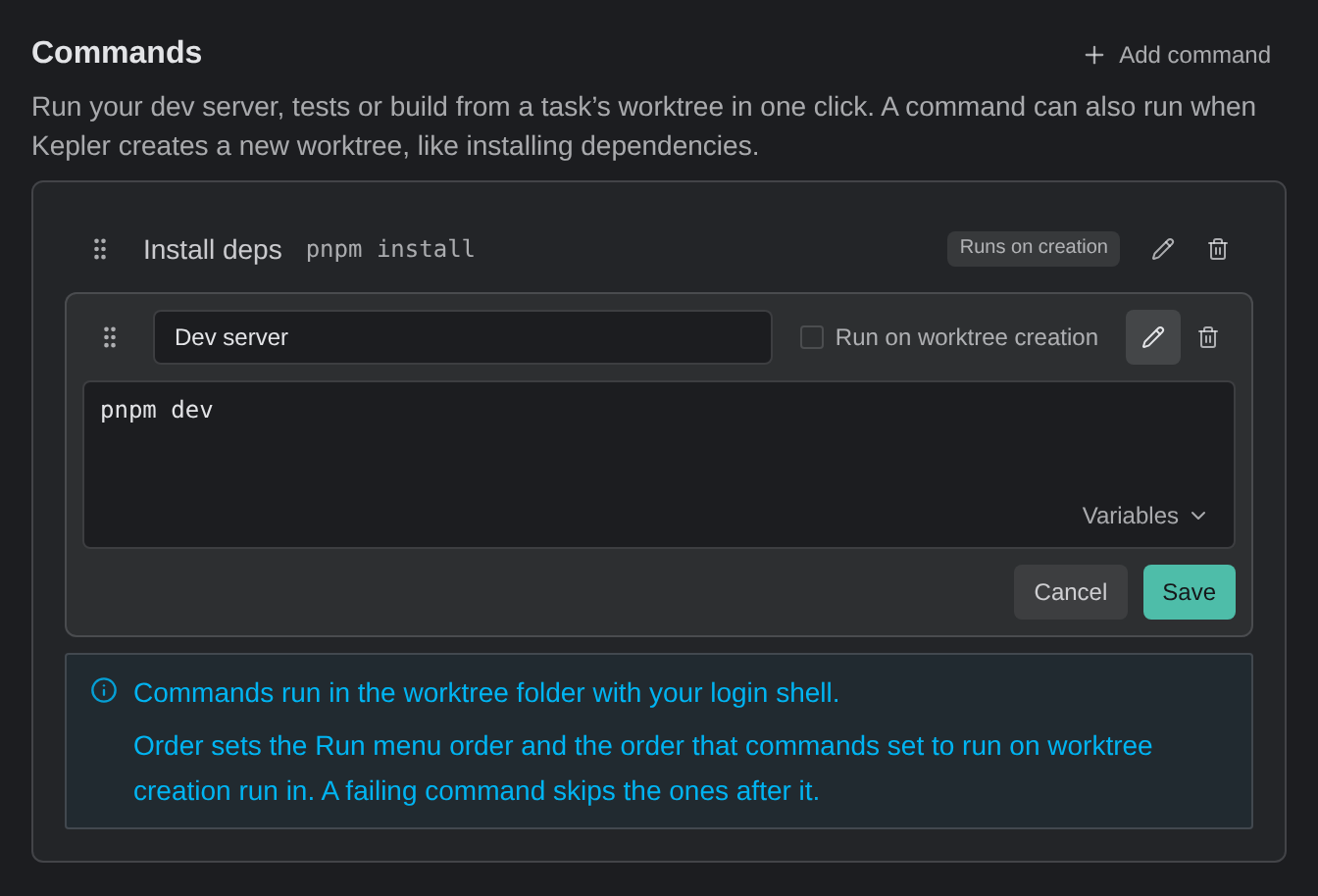
Which shell runs the commands. On macOS and Linux, each command runs through your login shell, so tools set up in your shell profile, such as nvm, are available. On Windows, each command runs in Command Prompt (cmd.exe). Write the command for the shell of the computer, or of the remote environment, where the worktree is created.
Variables. A command’s Variables menu inserts <WORKTREE_PATH> (the new worktree’s folder), <REPOSITORY_PATH> (your main repository folder), <REPOSITORY_NAME> and <SOURCE_PATH>. Kepler fills them in when the command runs. See Per-repository commands.
Give each worktree its own port or database
Worktrees separate files, and nothing else. When agents in 2 worktrees start the same dev server on the same port, the second server fails to start. When they point at the same database, they read and write the same data.
To keep them apart, add a setup command that writes per-worktree settings into a Git-ignored file in the new worktree, such as .env.local. Your app then reads its port and database name from that file.
This command works in both shells. It runs Node.js, picks a port between 3000 and 3999, and names the database after the worktree’s folder:
node -e "const p=require('path');require('fs').appendFileSync('.env.local','PORT='+(3000+Math.floor(Math.random()*1000))+'nDATABASE_NAME=app_'+p.basename(process.cwd())+'n')"Make sure .env.local is in .gitignore. Then add a later command that creates the database, using your own tool, such as pnpm db:create.
Tip: A random port can still match a port another worktree picked. If your dev server can choose a free port by itself, prefer that.
Example setup to copy
This setup prepares a Node.js repository for parallel agents. Adjust the file names and commands to your project.
.worktreeinclude at the repository’s root:
.env
config/local.json
Commands in Settings → Repositories, each with Run on worktree creation ticked, in this order:
| Name | Command |
|---|---|
| Install deps | pnpm install |
| Worktree settings | node -e "const p=require('path');require('fs').appendFileSync('.env.local','PORT='+(3000+Math.floor(Math.random()*1000))+'nDATABASE_NAME=app_'+p.basename(process.cwd())+'n')" |
| Create database | pnpm db:create |
A command such as pnpm dev that you want to run by hand stays unticked. You run it from Run command here when you need it.
What a worktree does not separate
A worktree gives each task its own copy of the repository’s files. Tasks still share everything outside the worktree’s folder:
| Shared | What happens | What to do |
|---|---|---|
| Ports | 2 dev servers on the same port collide | Write a port per worktree in a setup command |
| Databases and other local services | Agents read and write the same data | Write a database name per worktree, and create it in a setup command |
| Caches and files outside the repository | A global package cache or a file in your home folder is the same for every worktree | Keep per-task files inside the repository, in Git-ignored paths |
See What a worktree does not separate.
Common questions
How do I copy my .env file into every new worktree?
List .env in a .worktreeinclude file at the repository’s root. Kepler copies it from your checkout into each new worktree before the agent receives your prompt. Kepler copies it only while Git ignores it.
Can Kepler run npm install or pnpm install when it creates a worktree?
Yes. Add the install as a repository command in Settings → Repositories, and tick Run on worktree creation.
Does the agent wait for the install to finish?
No. Setup commands run in the background, and the agent can start before they finish. The files from .worktreeinclude are in place before the agent receives your prompt.
What happens when a setup command fails?
Kepler shows Worktree setup failed with the command and its error, and skips the commands after it. The worktree stays. Fix the command, then run it again with Run command here. On Windows, that runs it in PowerShell.
Does this work for Claude Code, Codex and other agents?
Yes. The setup belongs to the repository, so it runs for every new worktree, whichever agent the task uses.
Does this work on Windows?
Yes. On Windows, setup commands run in Command Prompt, so write them for cmd.exe, or use a command that works in both shells, such as the node -e example above.
