

Last updated: March 2026
Use this page to create commits, stage files, add co-authors, work with commit templates, amend recent history, and undo or revert changes in GitKraken Desktop. Basic local commit workflows are available in the app, while actions that rewrite pushed history require extra care because they may require a force push.
Key constraints
- Commit scope: This page covers local commit workflows in GitKraken Desktop
- History rewrite warning: Amending a commit that has already been pushed requires a force push to update the remote branch
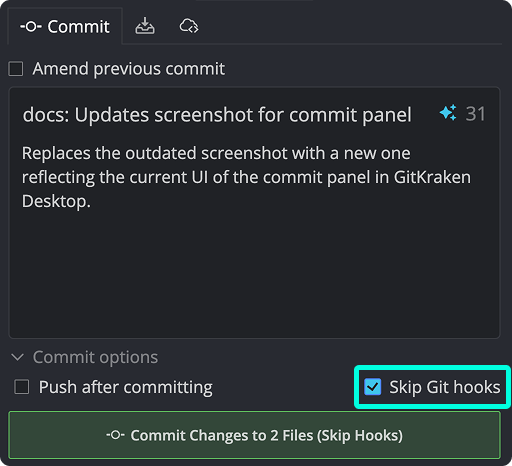
- Hook behavior: Selecting Skip Git hooks bypasses all configured Git hooks for that commit
- Commit templates: Repository-local commit templates take precedence over global templates
- Undo vs. revert: Use Undo for local history changes you have not shared yet; use Revert when you need to preserve published history with a new reversing commit
| Action | Use when | Rewrites history | Safe after push | Notes |
|---|---|---|---|---|
| Commit | You want to record staged changes as a new commit | No | Yes | Basic local commit workflow |
| Amend | You need to change the most recent commit or its message | Yes | Not usually | Requires a force push if the commit was already pushed |
| Undo | You want to remove a local commit that has not been shared yet | Yes | No | Best for local history cleanup |
| Revert | You need to preserve published history while reversing changes | No | Yes | Creates a new reversing commit |
Quick Start
- Save changes to your files. The WIP (Work in Progress) node appears at the top of the Commit Graph.
- Click the WIP node to open the Commit Panel and view changed files.
- Click a file to review its diff, then click the checkbox or the file name to stage it. To stage all files, press Cmd/Ctrl + Shift + S.
- Enter a commit message in the message field.
- Click Commit, or press Cmd/Enter (macOS) or Ctrl/Enter (Windows/Linux).
To commit and push in one step, enable the Push after committing option before clicking Commit.
To amend the most recent commit, stage any additional changes, then check Amend the previous commit in the Commit Panel. To update only the message, click the most recent commit in the graph and edit the message field directly, then click Update Message.
To undo a commit, press Cmd/Ctrl + Z or click the Undo button in the toolbar.
How to create a commit
To create a commit, select your Work in Progress (WIP) node to view file changes in the Commit Panel.
Use this workflow when: you are recording a logical set of local changes that belong together in one commit. Don’t use it when: your changes should be split into multiple commits first, or when you need to preserve published history without rewriting it.
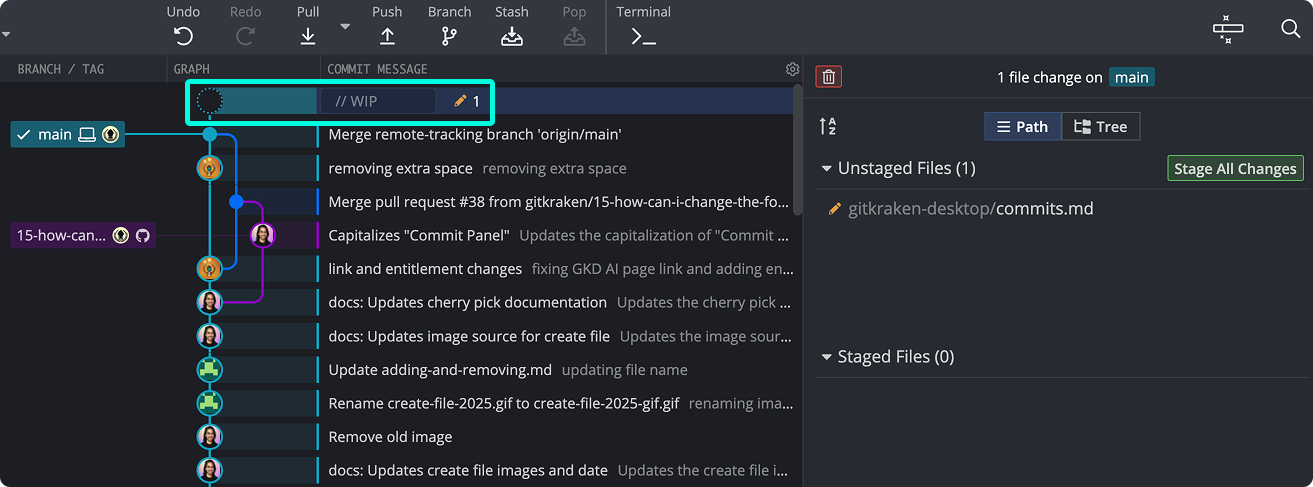
Select files to stage by clicking them individually or reviewing diffs. To stage all files:
- Mac: ⌘ShiftS
- Windows/Linux: CtrlShiftS
Type your commit message, then click Commit, or use the shortcut:
- Mac: ⌘ + Enter
- Windows/Linux: Ctrl + Enter
How to commit and push in one step
To commit and immediately push changes, stage files and enter a message. Then select the Commit and Push option.
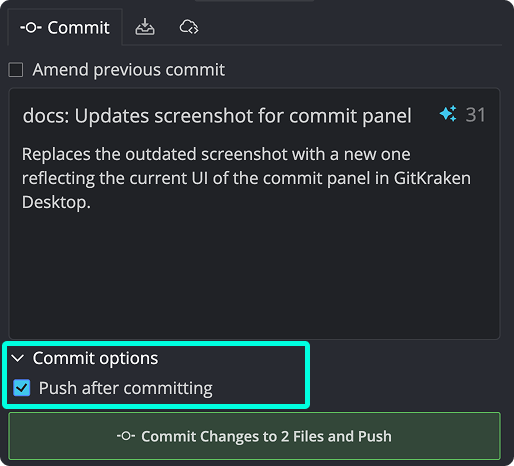
The graph updates with your commit. If needed, undo it with:
- Mac: ⌘ + Z
- Windows/Linux: Ctrl + Z
How to add co-authors to a commit
To credit co-authors in a commit, add lines to the commit message using the following format:
Co-authored-by: Name One <[email protected]>
Co-authored-by: Name Two <[email protected]>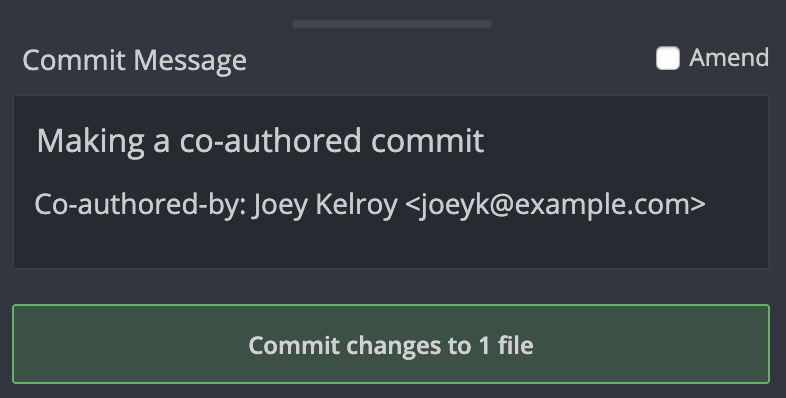
Co-authors appear in the Commit Panel history:

How to bypass Git hooks for one commit
To skip Git hooks for a specific commit, enable the Skip Git hooks checkbox in the Commit Panel.
Warning: Skipping this will bypass all configured Git hooks for the commit action.
How commit templates work
How GitKraken Desktop chooses a commit template
When you open a repository, GitKraken Desktop checks for a commit template in this order:
- The repository’s local
.git/configfile - Your global
.gitconfig - If neither contains a
commit.templatesetting, GitKraken Desktop does not load a template
How to create or update a commit template
To create or update a commit template, navigate to Preferences Commit.
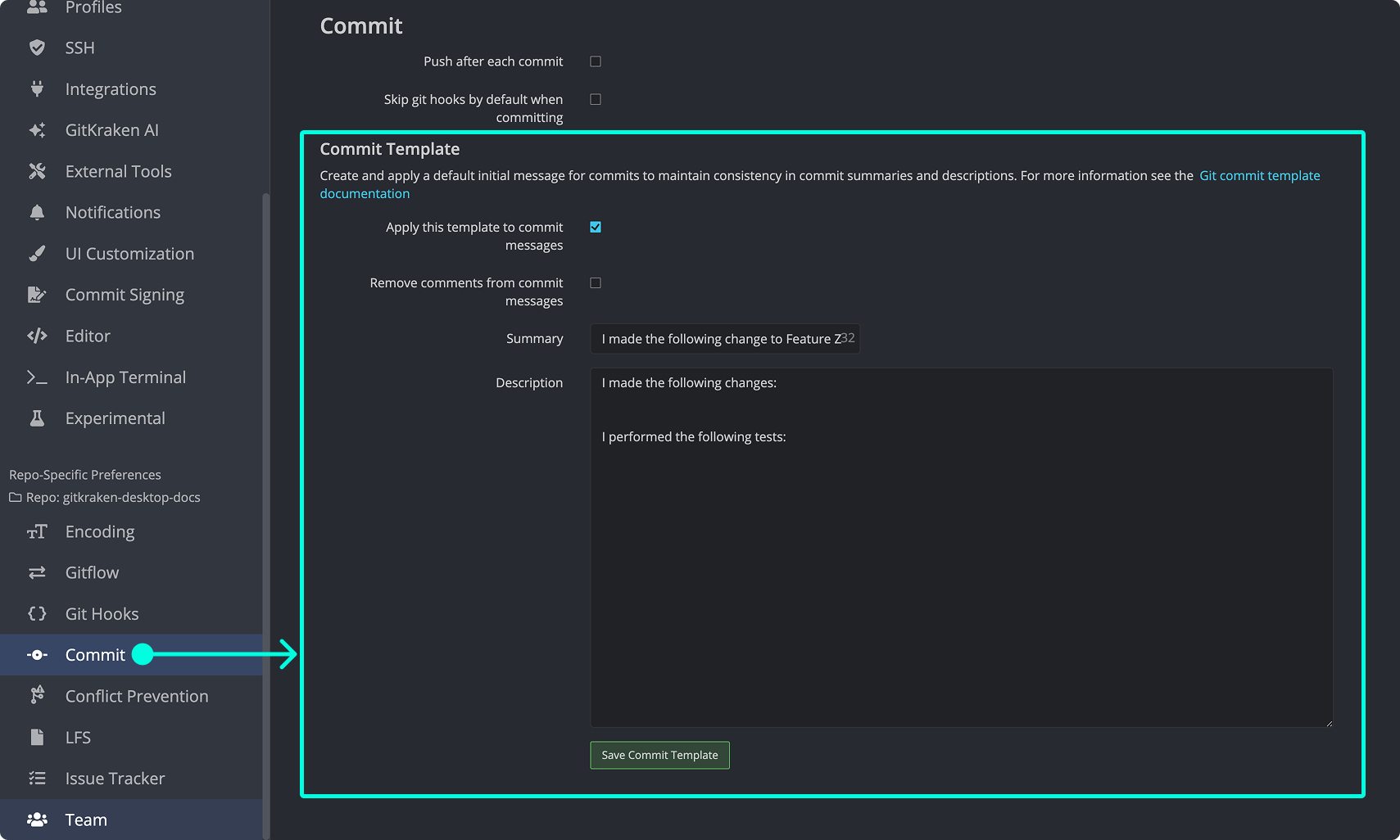
If a template is loaded from your local config, GitKraken Desktop saves changes to that file. If no template exists, your changes are saved to a new gkcommittemplate.txt file in your repo’s .git/ directory. GitKraken Desktop also updates the commit.template path in the local config.
This setup lets you maintain a local template without altering your global Git configuration.
Commit Template Options
- Apply this template to commit messages: Automatically inserts the template in the message editor.
- Remove comments from commit messages: Omits lines starting with
#when applying the template.
How to configure commit templates
There are three ways to configure commit templates:
- Create in GitKraken Desktop — Saves to
.git/gkcommittemplate.txt - Set a repo-specific template — Use:
git config commit.template <path_to_template> - Set a global template — Use:
git config --global commit.template <path_to_template>
Note: Editing a global template within GitKraken Desktop causes it to create `gkcommittemplate.txt` locally and point your repository’s config to that file.
How to amend the most recent commit
GitKraken Desktop lets you modify the last commit by updating the message, adding new changes, or both.
Use amend when: you need to fix the most recent commit before others depend on it. Don’t use amend when: the commit is already shared and you want to avoid rewriting remote history for collaborators.
Warning: If you have already pushed the commit, amending it changes history and requires a force push to update the remote branch.
To include new changes:
- Modify files in your working directory.
- Stage the changes.
- Select Amend the previous commit in the Commit Panel.
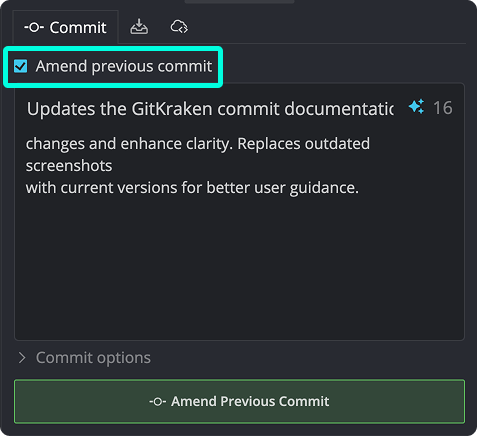
To update only the message:
- Select the most recent commit in the graph.
- Click into the message box and revise the text.
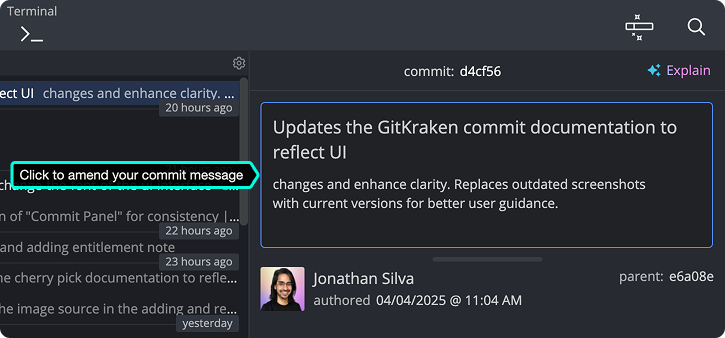
To resize the commit message field, drag the bottom edge of the editor.
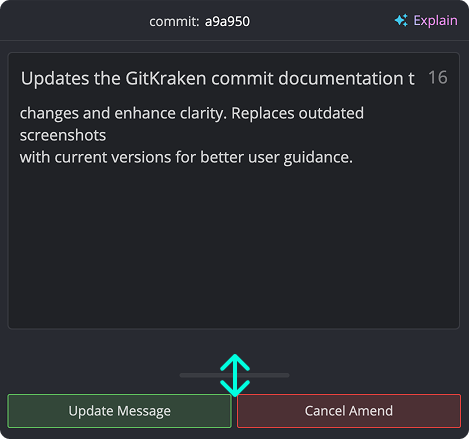
Use the Update Message button to save changes, or Cancel Amend to discard them.
Note: If you’ve already pushed a commit, amending it will require a force push to update the remote history.
How to reset commits
Git uses a pointer called HEAD to track your current commit. Resetting updates HEAD to point to a specific commit in your history. GitKraken Desktop offers three reset types:
Use reset when: you need to move local history to another commit and you understand whether you want to keep staged or working directory changes. Don’t use reset when: you need a safe, shareable reversal of changes that are already published to a remote branch.
- Soft — Moves
HEADto the selected commit and retains staged and working directory changes. - Mixed — Moves
HEAD, unstages files, but retains working directory changes. - Hard — Moves
HEAD, unstages files, and discards all changes in your working directory.
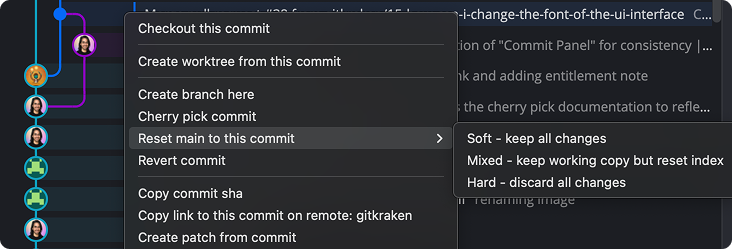
You can also drag and drop a branch onto another to initiate a reset, or use the left panel for local repository actions.
How to undo local changes before pushing
GitKraken Desktop provides an Undo button to reverse recent actions that haven’t been pushed.
Use Undo when: you want to reverse a recent local action that has not been pushed yet. Use Revert Commit when: the commit is already part of shared history and you need a new commit that reverses it safely.
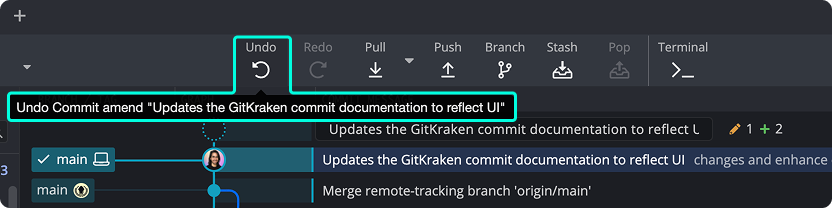
You can also use the Undo shortcut:
- Mac: ⌘ + Z
- Windows/Linux: Ctrl + Z
How to revert a commit that is already in history
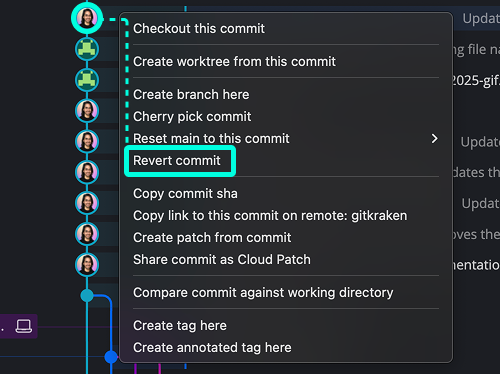
If Undo is not available, you can still reverse changes by creating a revert commit.
Right-click any commit node in the graph and choose Revert Commit. GitKraken Desktop will create a new commit that undoes the changes from the selected commit.
How to restore files from a commit
GitKraken Desktop lets you restore any file to its state at a specific commit and place it directly into your working directory (WIP). This is useful when you want to retrieve an older version of a file, resurrect a deleted file, or selectively reverse changes without affecting the rest of your working directory.
To restore a file from a commit:
- Select a commit in the Commit Graph to open it in the Commit Panel.
- Right-click any file listed in the Commit Panel.
- Select Restore file from this commit.
The file is placed into your working directory as a staged change, ready to include in your next commit.
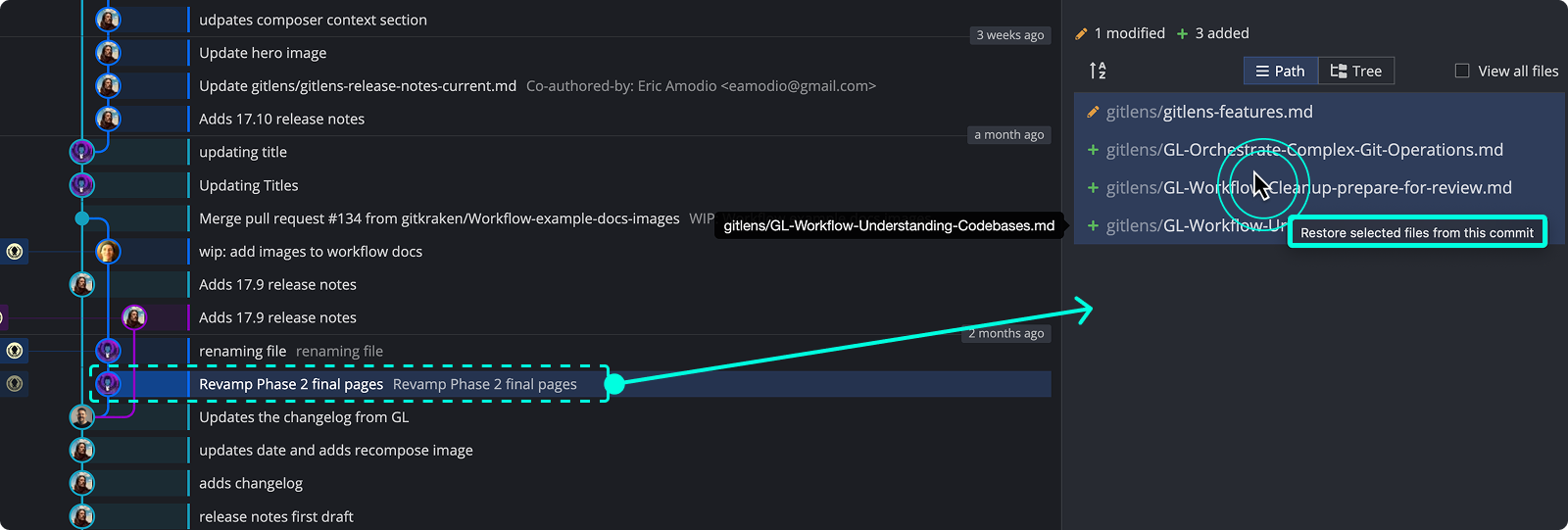
To restore multiple files at once, hold Shift or Cmd/Ctrl to multi-select files in the Commit Panel, then right-click and select Restore selected files from this commit.
