

Last updated: November 2026
Kepler by GitKraken gives you a review step between an agent’s work and your teammates. You read every changed line in the Changes overlay, send review comments back to the agent, have a second agent review the work, and only then open the pull request. The work stays in the task’s worktree, so you can review what Claude Code, Codex, or any other agent wrote before you open the pull request.
Requirements and limits
- Scope: Reviewing an agent’s uncommitted or committed work in a Kepler task before you open a pull request
- Prerequisite: A task whose agent has made changes in its worktree. See Create a task.
- Limits: Kepler has no button that creates a pull request. The agent opens it, or you open it yourself.
- Limits: Review comments you write in Kepler go to the agent. Kepler does not post them to your Git host.
- Limits: A second agent’s review is a report, not an approval. You still decide what to change.
Quick Start
| Self-review step | What you do in Kepler |
|---|---|
| 1. Restate the problem | Ask the agent for a summary of what it changed and what it did not test, with an Action you create from the Prepare for review example |
| 2. Read every changed line | Open the task’s worktree and read the diff in the Changes overlay |
| 3. Send fixes back | Comment on the lines that need work, then click Send comments (n) |
| 4. Prove it works | Ask the agent to run the tests in the session, and read the commands and results it reports |
| 5. Get a second opinion | Run the built-in Review Action with a different agent, such as Codex for work Claude Code wrote |
| 6. Open the pull request | Commit, then open the pull request yourself or with an Action you create from the Open a pull request example |
How to restate what the change does
Start from what the change is supposed to do, so you can judge the diff against it. Kepler does not ship an Action for this. The Actions page has an example, Prepare for review, that you create once and then run on any task.
To create it:
- Go to Settings → Actions and click New Action.
- For Title, type
Prepare for review. - For Prompt, paste the example prompt from Example: Prepare for review. It asks the agent what the change does, which files it changed and why, which tests it ran, and what it did not test, and tells it to change no files.
- Under Available on, tick Tasks.
- Click Save.
To run it, open the task and pick Prepare for review from the chevron on the composer’s send button. The summary is the agent’s own account. Check each point against the diff before you trust it.
How to read every changed line
The agent makes its changes in the task’s worktree. To read them:
- Open the task, and open the worktree from the Changes group in the context panel.
- Click a file, or choose Open changes from the worktree’s menu, to open the Changes overlay.
- Read each file’s diff. The file tree beside it lists every file the agent touched.
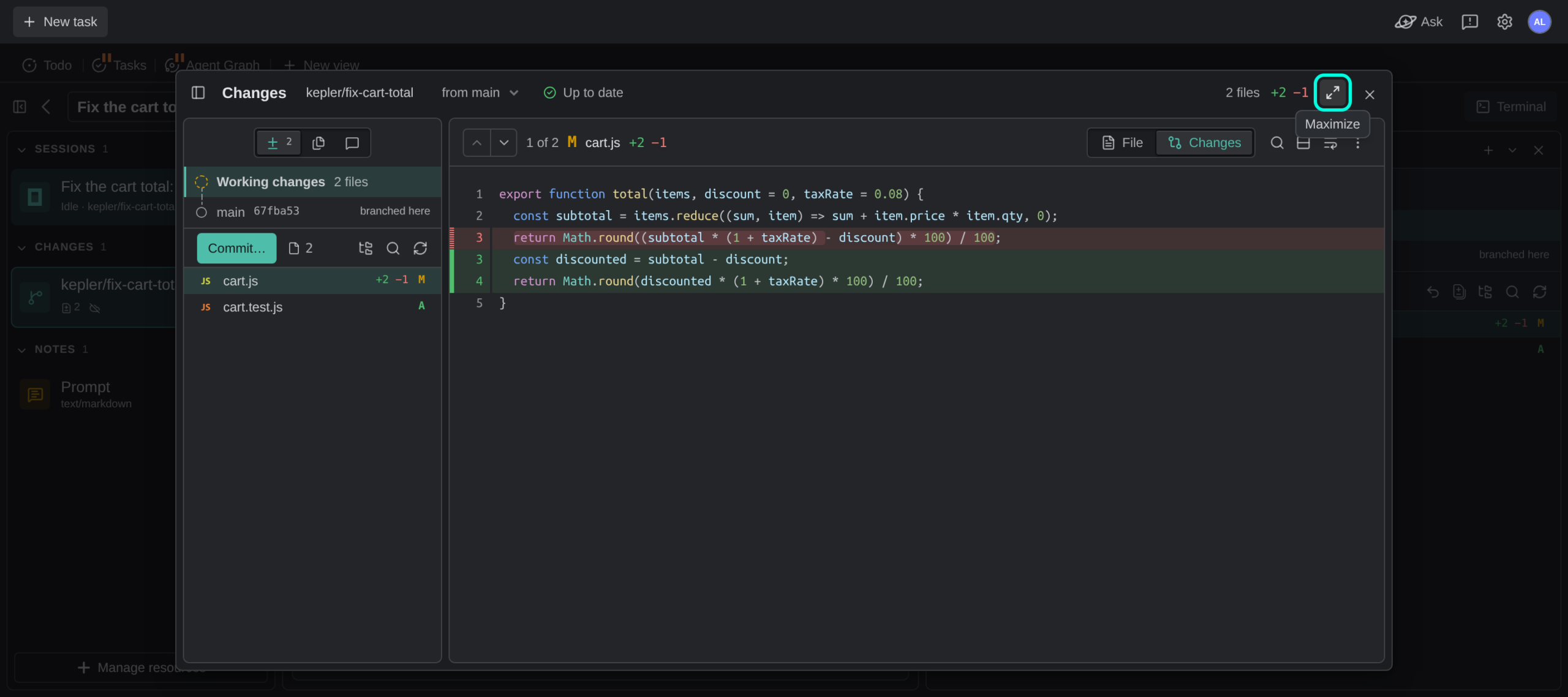
See Review Changes for the overlay’s views, layouts, and keyboard controls.
How to send fixes back to the agent
When a line needs work, comment on it instead of fixing it yourself or retyping the location in the chat.
- In the Changes overlay, hover a line and click the + beside its line number. To comment on a range, Shift-click the last line.
- Type your note.
- Click Add comment to queue it, or Send now to send it to the agent at once.
- When you finish the file, click Send comments (n) in the overlay’s header to send every queued comment.
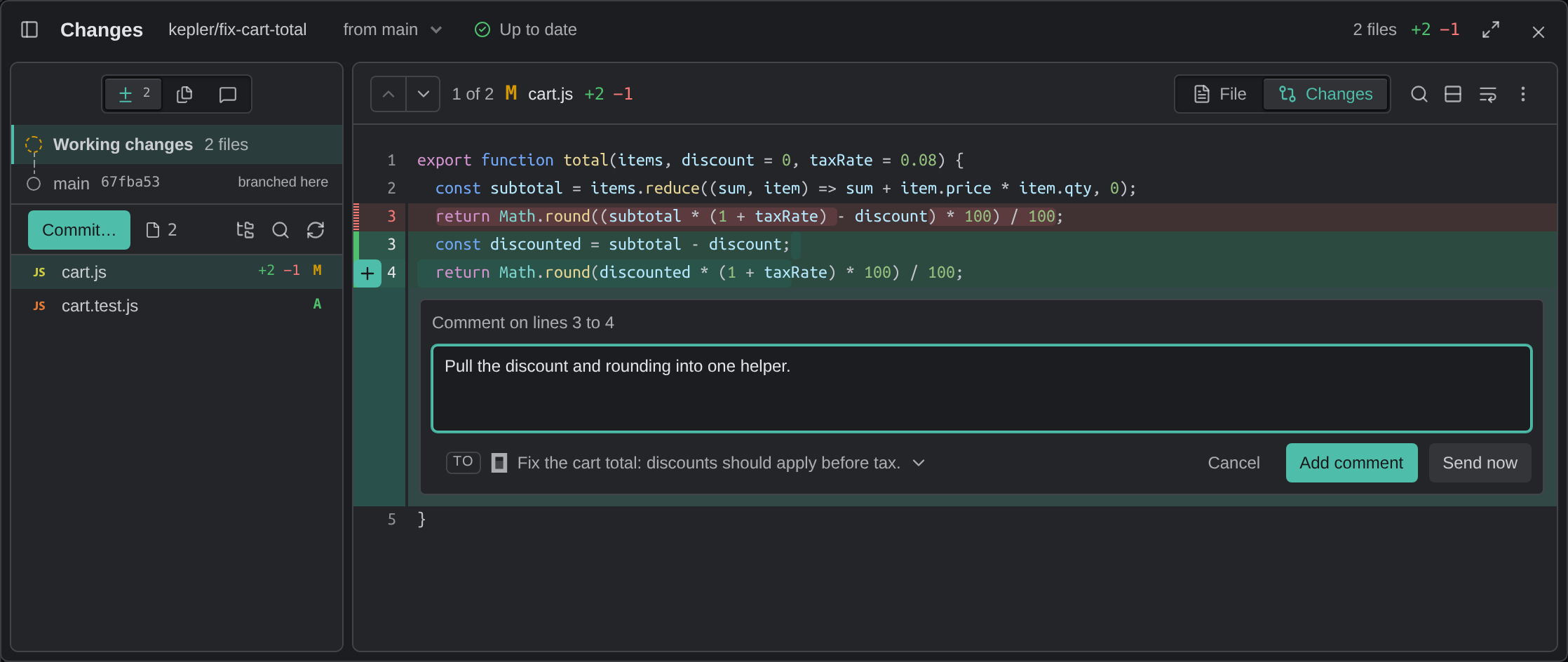
Each comment reaches the agent with its file, lines, the code, and your note. The agent can reply to each comment, and you resolve the comment when it is handled. See Review comments.
How to prove the change works
A diff that reads well can still fail. Ask the agent in the task’s session to run the tests and tell you the commands and the results. If you created Prepare for review, its summary already lists the commands the agent ran and what it did not test. Ask for tests for anything on the “not tested” list before you move on.
How to get a second agent’s review
An agent that did not write the code is less likely to repeat the author’s mistakes. Kepler ships a built-in Review Action. It reviews the uncommitted work in the worktree, or the attached pull request if there is one.
By default Review runs on your default agent. To have a different agent review, set its agent once:
- Go to Settings → Actions, and click Review under All Actions.
- In the Agent field, pick a preset for a different agent from the one that writes your code, or choose Custom agent settings and pick that agent.
- Click Save.
Then open the task and pick Review from the chevron on the composer’s send button. To use a different reviewer only once, pick the agent when you run Review. See Review with a different agent.
The review is a report. Read it in the session, and send the agent that wrote the code the changes you agree with.
How to open the pull request
When you are satisfied, commit the work. In the Changes overlay, click Commit… to stage and commit it. See Staging and committing.
Then open the pull request in one of these ways:
- Write it yourself. Push the branch and open the pull request on your Git host’s website, or with a command in the worktree’s terminal. Writing the description yourself is the last check that you understand the change.
- Have the agent open it. Kepler does not ship an Action for this. Create one from the Open a pull request example in Settings → Actions, then run it on the task. The example tells the agent to stop if the worktree has uncommitted changes, and to end the description with a line that says an AI coding agent helped write the change and a person reviewed it.
When the agent publishes the pull request, Kepler attaches it to the task. A pull request you open yourself can be attached from Manage resources. See Opening a pull request.
Common questions
How do I review an AI-written PR myself before I send it to a teammate?
In Kepler, read every changed line in the task’s Changes overlay, send review comments back to the agent, ask it to run the tests, and run the built-in Review Action with a second agent. Open the pull request only after that.
Can a different AI agent review the code that Claude Code wrote?
Yes. Set the Agent field of the built-in Review Action to Codex or another agent in Settings → Actions, or pick the agent when you run Review.
Does Kepler post my review comments to GitHub?
No. Review comments in Kepler go to the agent in the task’s session. Your teammates see only the pull request you open.
Is there a “Prepare for review” or “Open a pull request” button in Kepler?
No. Both are examples on the Actions page. You create each one once as your own Action in Settings → Actions, and then it appears in the list of Actions on every task.
Can I mark the pull request as AI-assisted?
Yes. Write it in the description yourself, or use an Action created from the Open a pull request example, which ends the description with a line that says an AI coding agent helped write the change and a person reviewed it.
