

Last updated: November 2026
A profile in Kepler by GitKraken is a separate Kepler setup on the same computer. Each profile has its own tasks, repositories, folders, settings, and themes, and its own GitKraken sign-in and agent logins. Profiles run side by side, so you can keep work, personal, and client work apart and still have them all open at once.
Requirements and limits
- Profiles are in the Kepler desktop app only.
- To add or open a profile, sign in to your GitKraken account.
- Every install starts with 1 profile, the default profile, named Default. It always stays first in the list, and you cannot delete it.
Manage your profiles
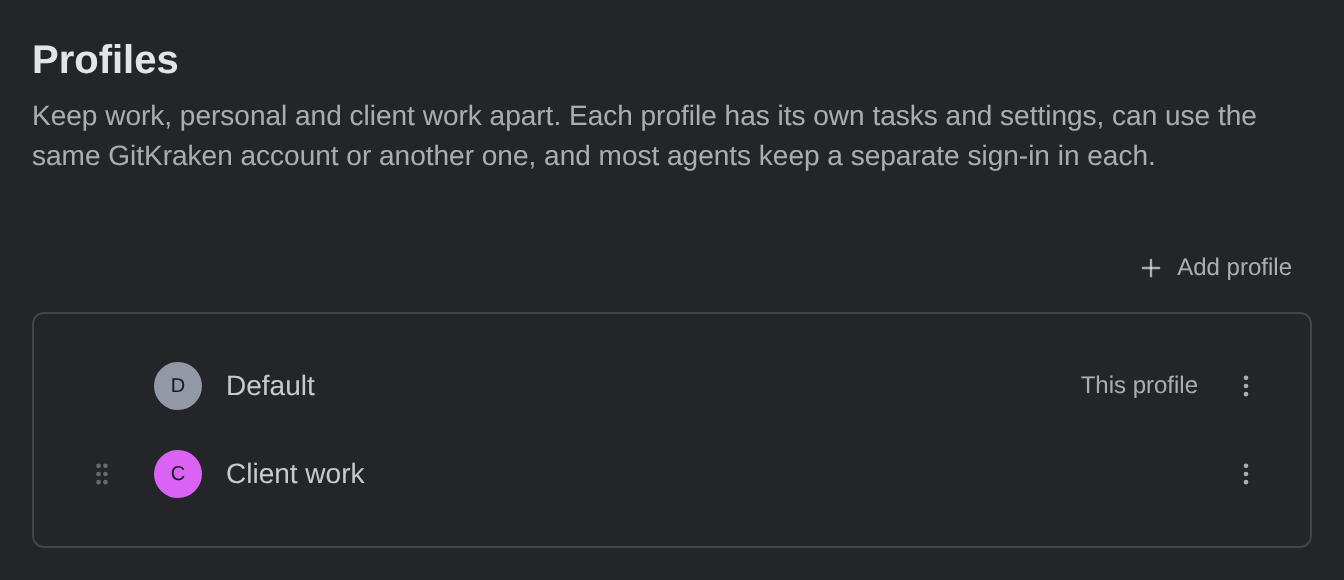
To see and manage your profiles, open Settings → Profiles, right under Account. You can also choose Manage profiles… from the account menu. The list shows each profile with its color, and marks the one this window belongs to as This profile. Each row has a menu with Edit, Open, and Delete….
Add a profile
- In Settings → Profiles, click Add profile. You can also run Add profile from the command palette, or choose Add profile… from the account menu before you have a second profile.
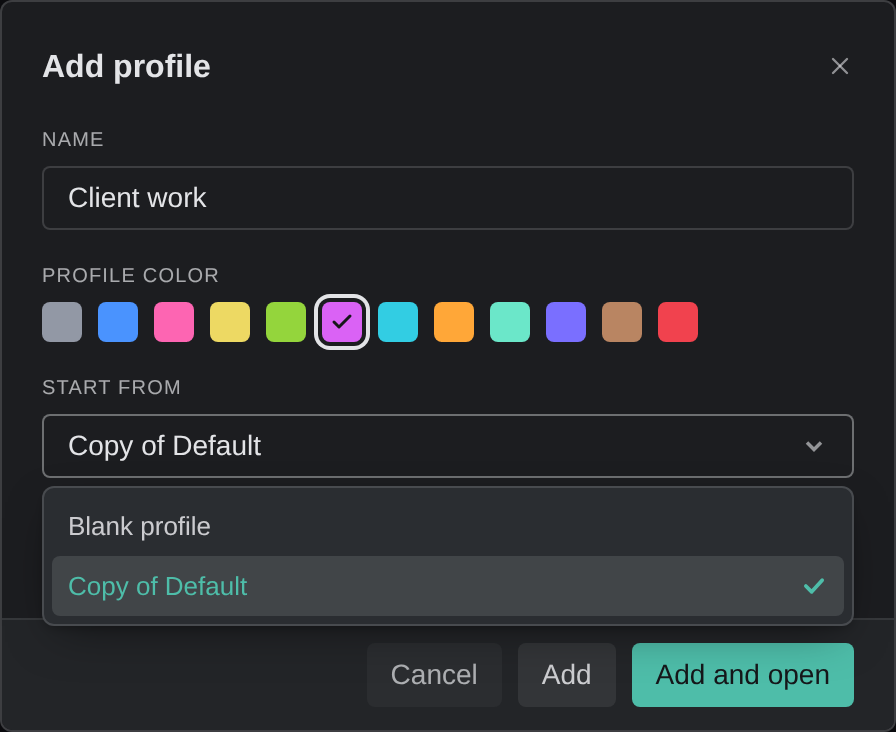
- Enter a Name and pick a Profile color.
- Under Start from, choose one of these:
- Blank profile starts like a clean install. You sign in and set it up the first time it opens.
- Copy of a profile keeps that profile’s settings, repositories, themes, and GitKraken sign-in. Its tasks and agent logins stay behind, and you can sign in to another GitKraken account after it opens.
- Click Add to add the profile, or Add and open to also open it in a new window.
Most agents keep a separate sign-in in each profile. An agent that uses your own sign-in in every profile says so on its card in Settings → Agents, and signing in or out of it changes it everywhere.
Switch between profiles
Each profile opens in its own windows. To open another profile, or bring its windows forward, use one of these:
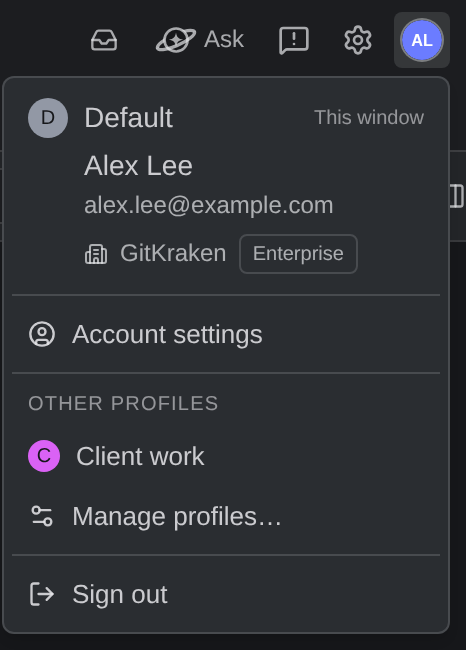
- The account menu in the top bar shows this window’s profile, marked This window. Under Other profiles, click a profile to open it.
- The tray icon’s menu lists each profile with its windows and New Window.
- The command palette has Open profile: and the name of each profile.
- In Settings → Profiles, choose Open from a profile’s row menu.
Once you have more than 1 profile, each window’s title names its profile.
Rename, recolor, or reorder a profile
To rename a profile or change its color, choose Edit from its row menu. To color the top of every window in that profile, turn on Tint this profile’s windows. A window connected to a remote machine shows that machine’s color instead.
To reorder your profiles, drag a row by its handle, use Move profile up and Move profile down in its menu, or press Alt/⌥ + ↑ or Alt/⌥ + ↓.
Quit with several profiles open
While another profile is running, the tray’s Quit reads Quit All, and each other profile has its own Quit profile item. Quitting the default profile quits every profile. Kepler asks once, and any profile with agent sessions still working asks before it quits. When Kepler installs an update, it closes and reopens every profile that was running.
Delete a profile
- Quit the profile if it is running.
- In Settings → Profiles, choose Delete… from its row menu.
- To also delete the profile’s folder in your home folder, select Also delete its folder. That folder holds the repositories the profile cloned, its worktrees, and its task folders. Work there may exist nowhere else and cannot be recovered.
- Click Delete profile to confirm.
Deleting a profile removes its tasks, conversations, settings, and repository list from this computer, and signs it out of GitKraken and its agents. On each remote machine the profile used, its server stops and is removed, which ends any agents still running there. Your accounts, your other profiles, and repositories added from elsewhere are not affected.
