

Last updated: March 2026
Use this page to connect GitKraken Desktop to Jira Data Center so you can preview, create, and manage Jira issues from the Left Panel. This integration requires an Advanced subscription tier or higher, supports Jira Data Center 8.4 or newer, and uses a Personal Access Token instead of the Jira Cloud authorization flow.
Requirements and limits
- Integration covered here: Jira Data Center
- Plan: Advanced subscription tier or higher
- Server version: Jira Data Center 8.4 or newer
- Authentication: Personal Access Token
- SSO note: Some single sign-on configurations are not supported
- Feature scope: Uses the same issue workflows documented for the Jira Cloud integration once connected
| Requirement | Value |
|---|---|
| Plan | Advanced subscription tier or higher |
| Server version | Jira Data Center 8.4 or newer |
| Authentication | Personal Access Token |
| Single sign-on | Some SSO configurations are not supported |
| Feature scope | Uses the same issue workflows documented for the Jira Cloud integration once connected |
Requirements
This integration is only available for Advanced subscription tiers or higher.
The Jira Data Center integration requires Jira version 8.4 or newer. Some SSO (single sign-on) configurations are not supported.
Quick Start
- Go to Preferences > Integrations or open the ISSUES section in the Left Panel.
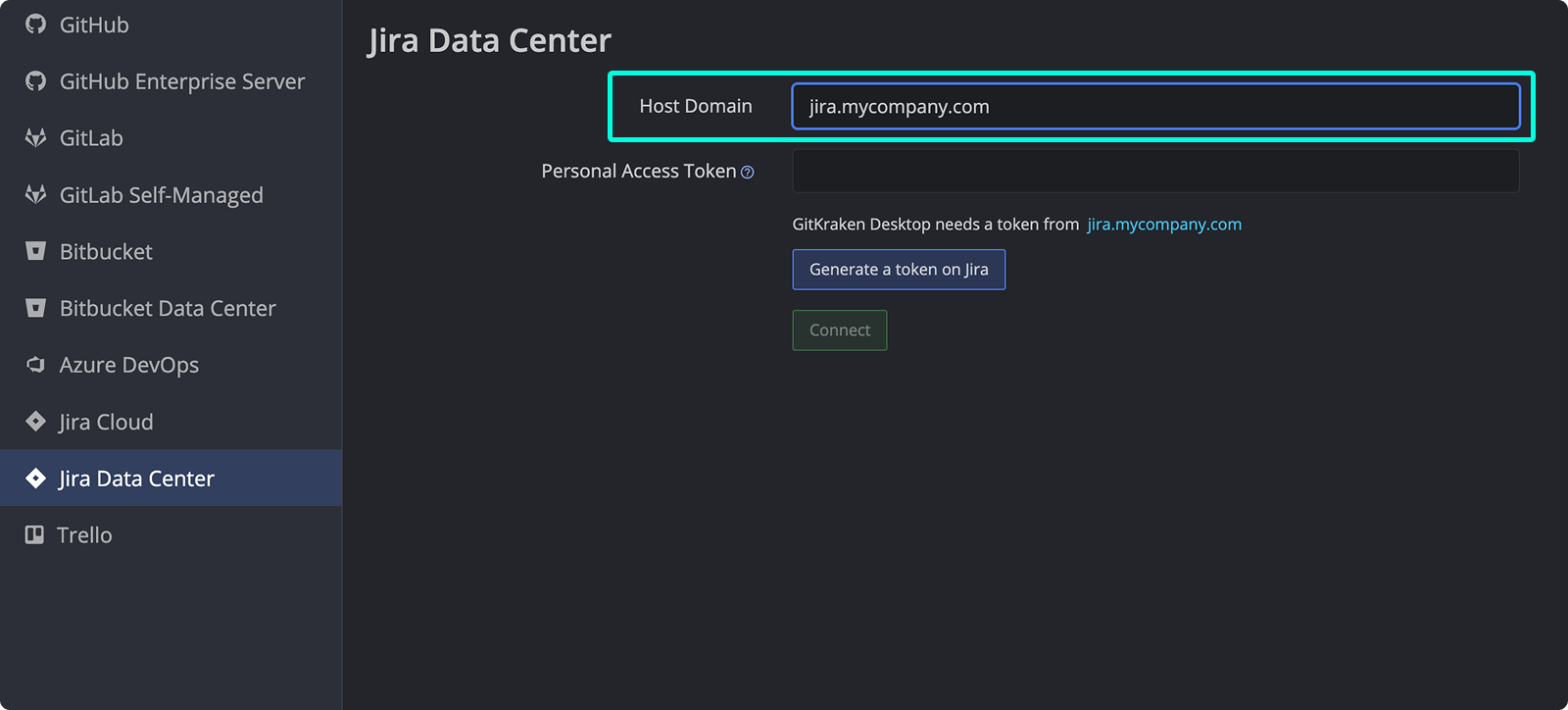
- Enter your Jira Data Center host domain and a Personal Access Token from your Jira instance.
- Once connected, preview issues, open issue details, create issues, and create issue-based branches using the same workflows documented for Jira.
How to connect Jira Data Center
Set up the integration from the ISSUES section in the Left Panel or from Preferences > Integrations. If you don’t see the ISSUES section, right-click any header in the Left Panel and enable it from the context menu.
Use Jira Data Center integration when: your organization runs self-hosted Jira Data Center and requires PAT-based setup. Don’t use the Jira Cloud flow when: your environment depends on self-hosted server versions, PAT authentication, or Data Center-specific compatibility.
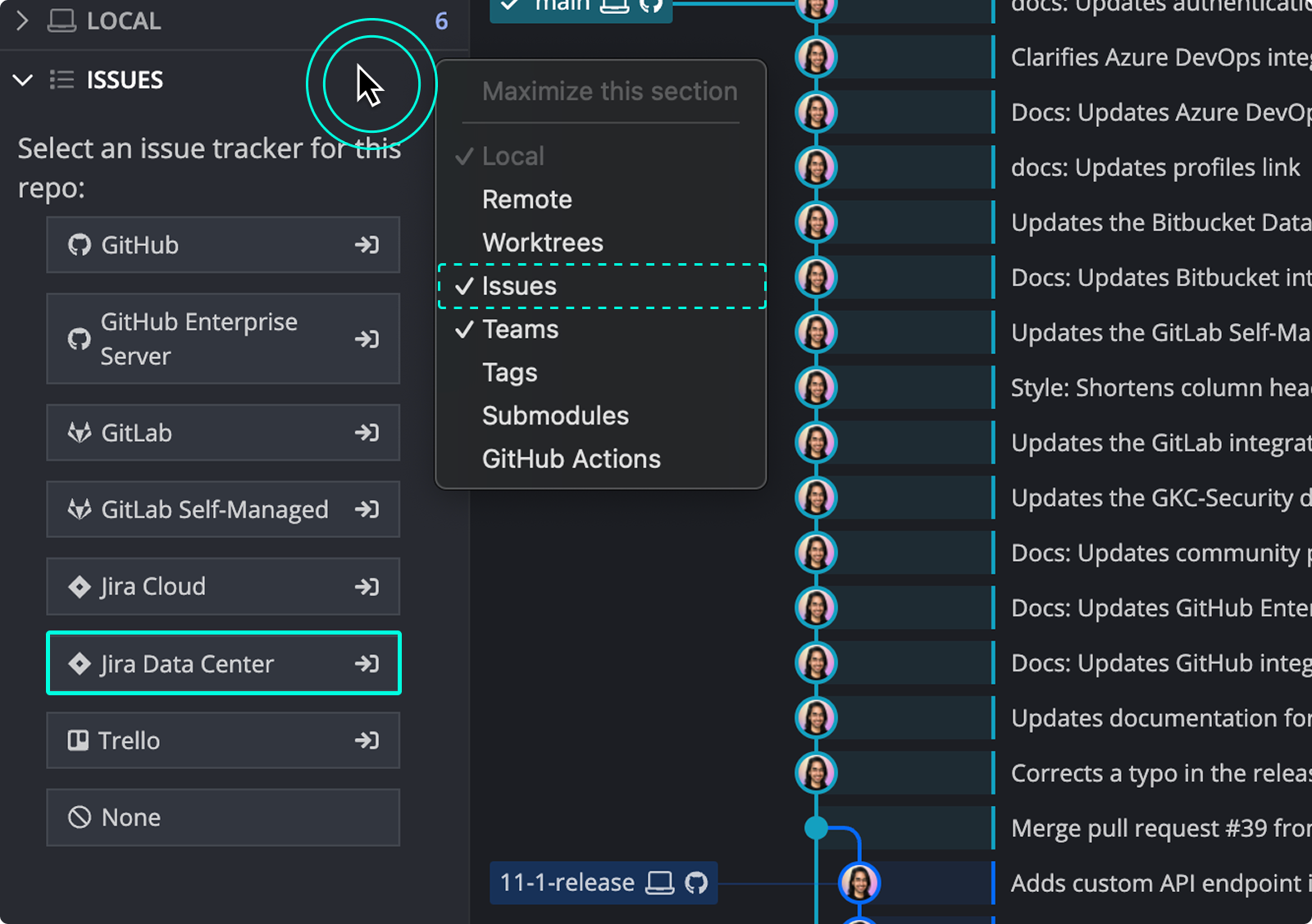
Enter your Host Domain URL and a Personal Access Token generated in your Jira Data Center instance.
Once connected, GitKraken Desktop will confirm the integration.

What the Jira Data Center integration supports
The Jira Data Center integration includes the same functionality as the Jira Cloud integration:
Use the in-app Jira workflow when: you want issue preview, issue creation, and issue-based branching inside GitKraken Desktop. Don’t rely on it alone when: you need Jira administration or broader project workflows outside the integration scope.
- Preview Jira Issues
- View Jira Issue Details
- Create New Jira Issue
- Create Filters
- Create Branch from Issue
- Copy Issue link or View in Jira
For more information on each feature, refer to the Jira Cloud integration guide.
