

Last updated: March 2026
Use this page to connect GitKraken Desktop to Jira Cloud or Jira Data Center so you can preview, create, edit, filter, and branch from Jira issues alongside your repository work. Jira is view-only for Community users, while paid GitKraken subscriptions unlock the full issue management workflow.
Requirements and limits
- Integrations covered here: Jira Cloud and Jira Data Center
- Community plan: View-only access
- Full issue workflows: Paid GitKraken subscription required for create, edit, and branch workflows
- Filter syntax: Uses JQL for custom Jira issue filters
- Data Center note: Jira Data Center uses a Personal Access Token flow instead of the Jira Cloud authorization flow
| Variant | Auth flow | Community access | Full edit support | Filter syntax |
|---|---|---|---|---|
| Jira Cloud | Atlassian browser authorization flow | View-only | Paid GitKraken subscription required | JQL |
| Jira Data Center | Personal Access Token | View-only | Paid GitKraken subscription required | JQL |
The Jira integration is view-only for Community users. To unlock full functionality, consider upgrading to a paid GitKraken subscription.
Quick Start
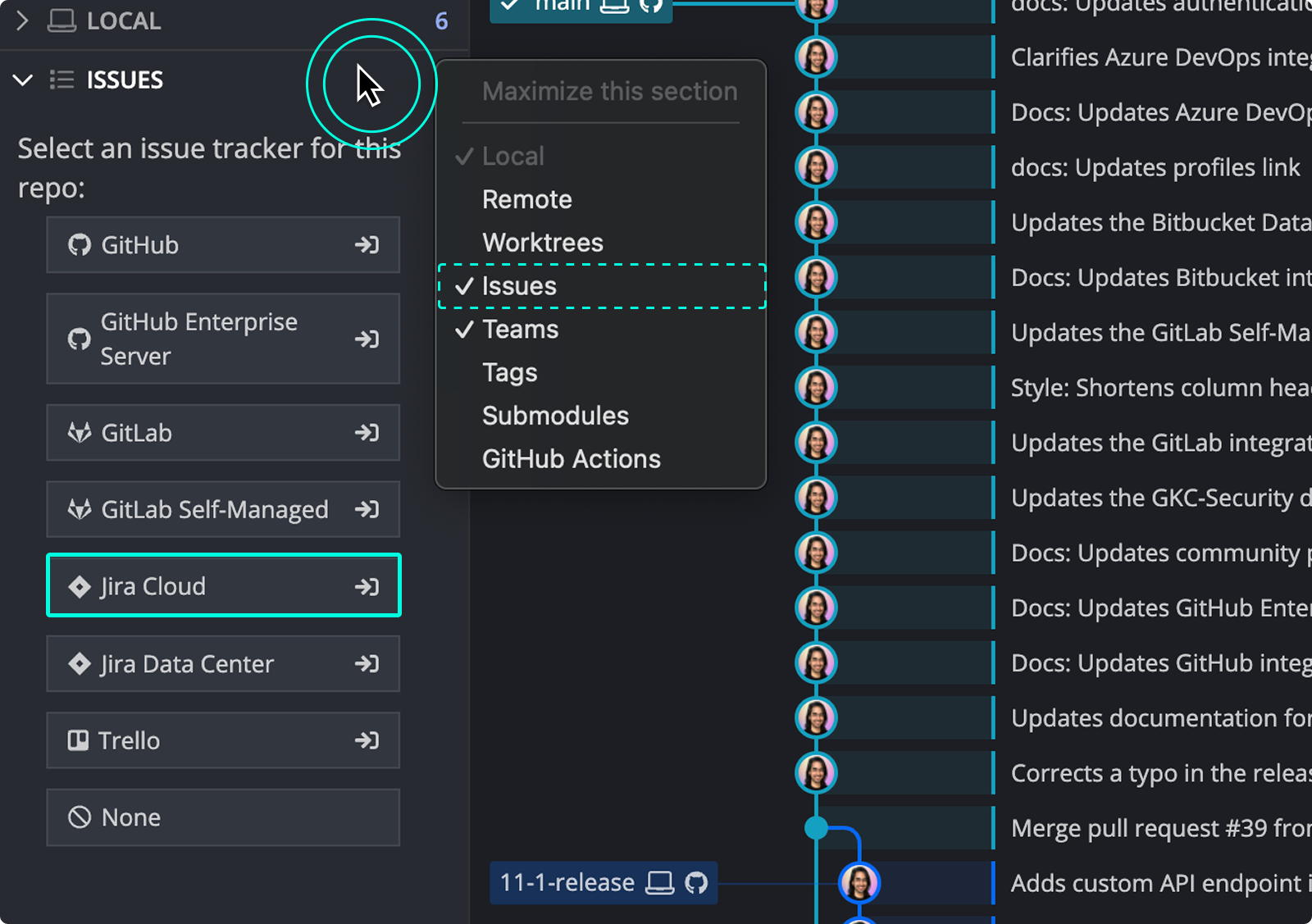
- Go to Preferences > Integrations or click the ISSUES section in the Left Panel. If the ISSUES section is not visible, right-click any Left Panel header and enable it.
- Select Jira Cloud or Jira Data Center and click to authorize. Complete the authorization in the Atlassian browser page that opens.
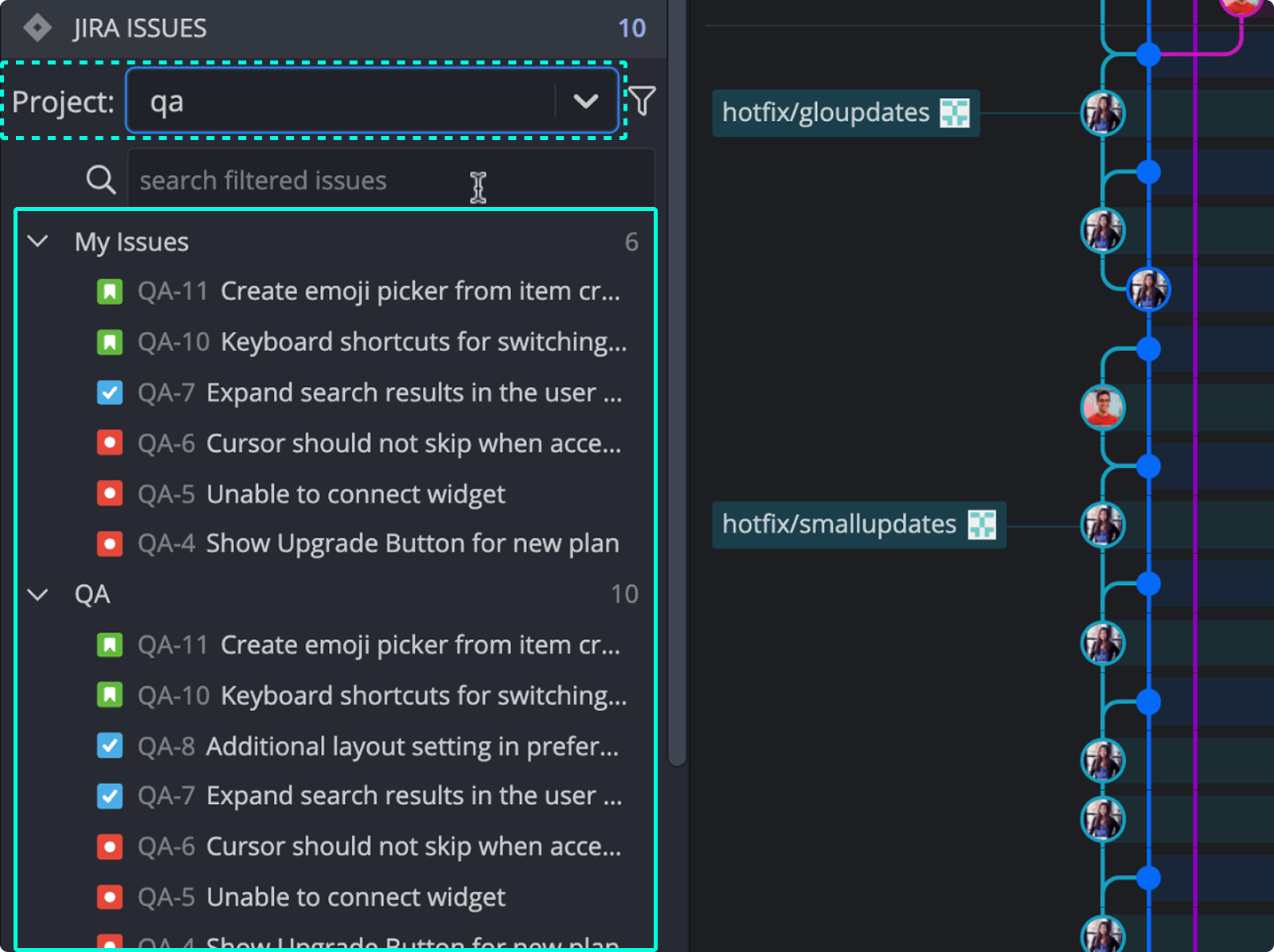
- Once connected, your Jira issues appear in the Left Panel under the My Issues filter by default.
To view and edit issue details: Click any issue to open its detail view. You can edit the title, description, status, and assignee. Changes sync with your Jira board.
To create a new issue: Click the + icon in the Left Panel, fill in the required fields, and submit. The issue syncs to Jira automatically.
To create a branch from an issue: Open the issue detail view and click Create a branch for this issue. The branch name is pre-filled from the issue title.
To use JQL filters: Use the filter syntax in the Left Panel to narrow issues by project, label, sprint, or status.
How to connect the Jira integration
Set up the integration from the ISSUES section in the Left Panel or from Preferences > Integrations. If you do not see the ISSUES section, right-click on any Left Panel header and enable it from the context menu.
Use Jira Cloud on this page when: your organization uses Atlassian’s hosted Jira authorization flow. Use Jira Data Center instead when: your team runs self-hosted Jira and needs PAT-based setup with Data Center-specific compatibility.
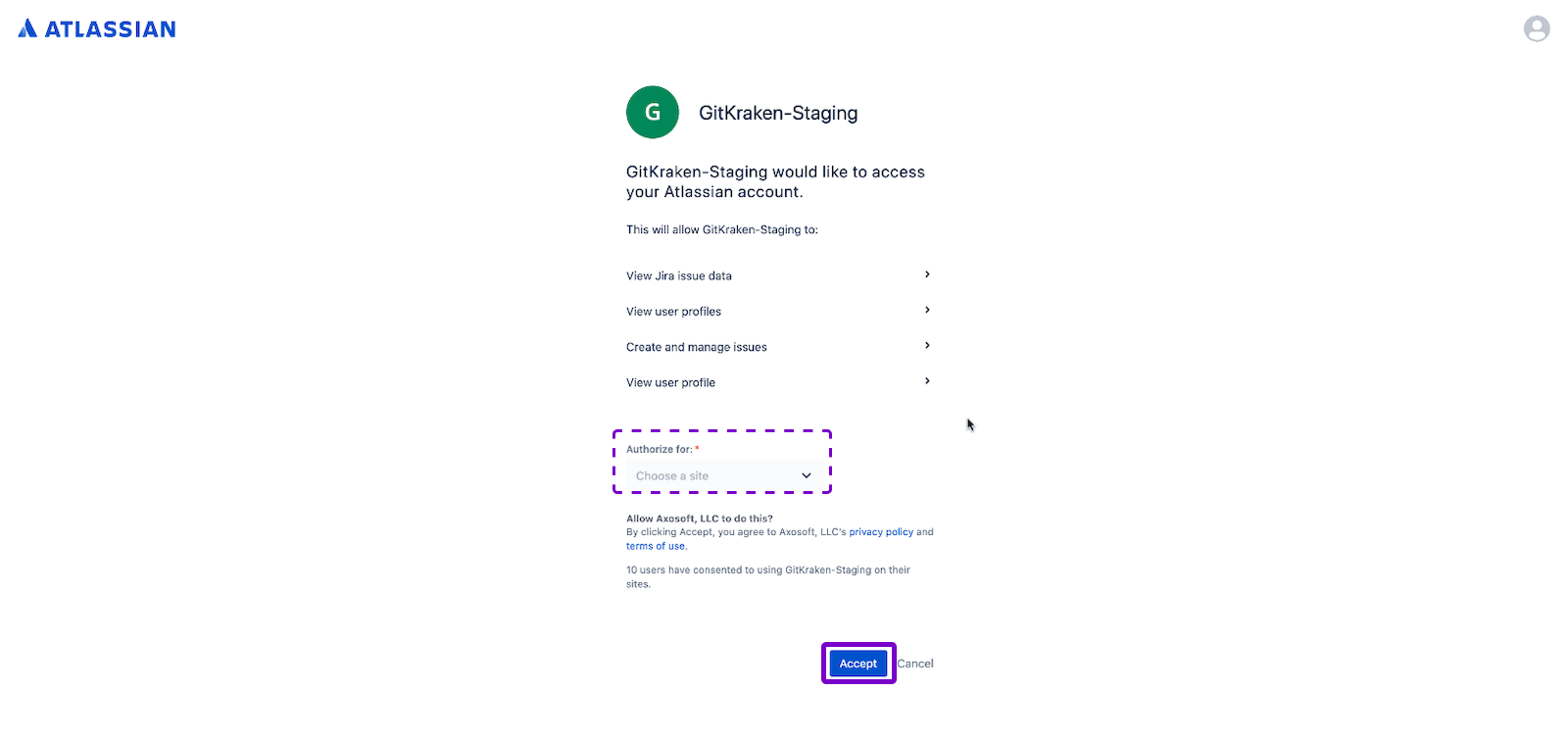
You will be redirected to an Atlassian page to authorize the connection. Click Accept to proceed.
Alternatively, you may copy the token from the Success page and paste it into the Jira Cloud integration screen in GitKraken Desktop.
How to preview Jira issues
Once connected, your Jira issues will appear in the Left Panel. By default, the app displays issues assigned to you under the My Issues filter.
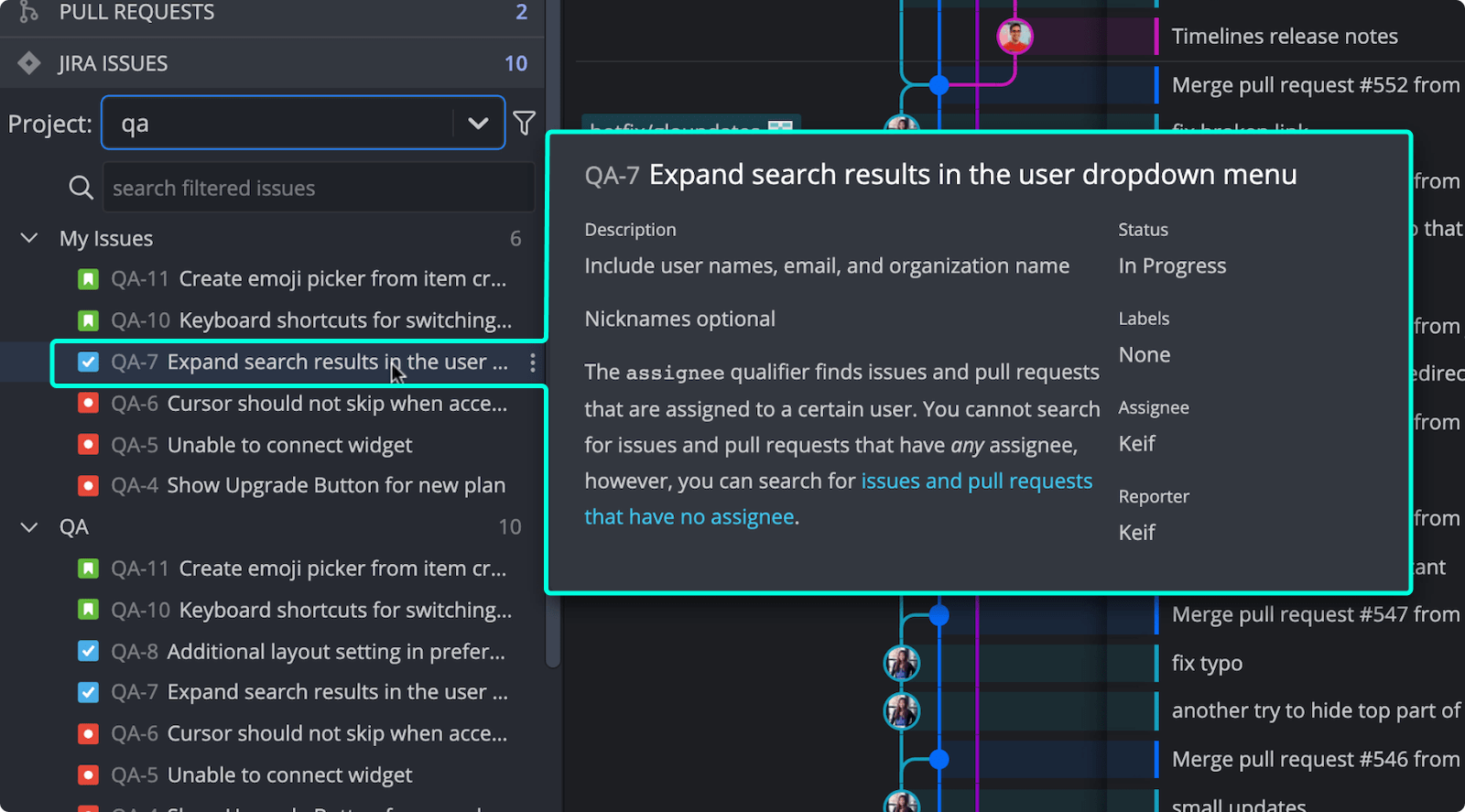
Hover over any issue to preview key details including Title, Description, Status, Assignee, and Reporter.
How to view Jira issue details
Click an issue to open its detail view.
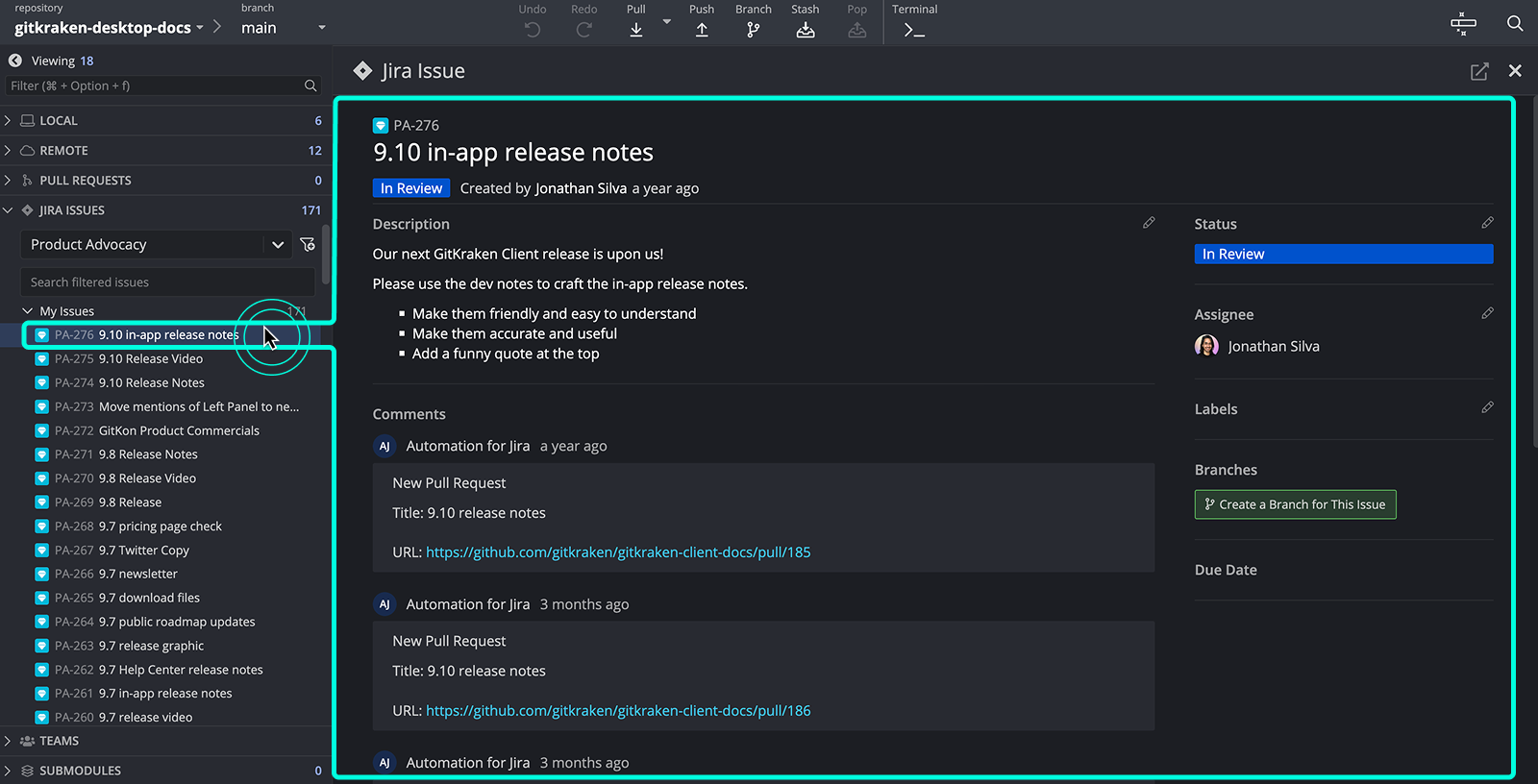
You can:
- Edit Title and Description
- Change Status
- Assign or reassign
- Add comments
These changes will sync with your Jira board.
How to create a new Jira issue
From the Left Panel, click the + icon to add a new Jira issue.
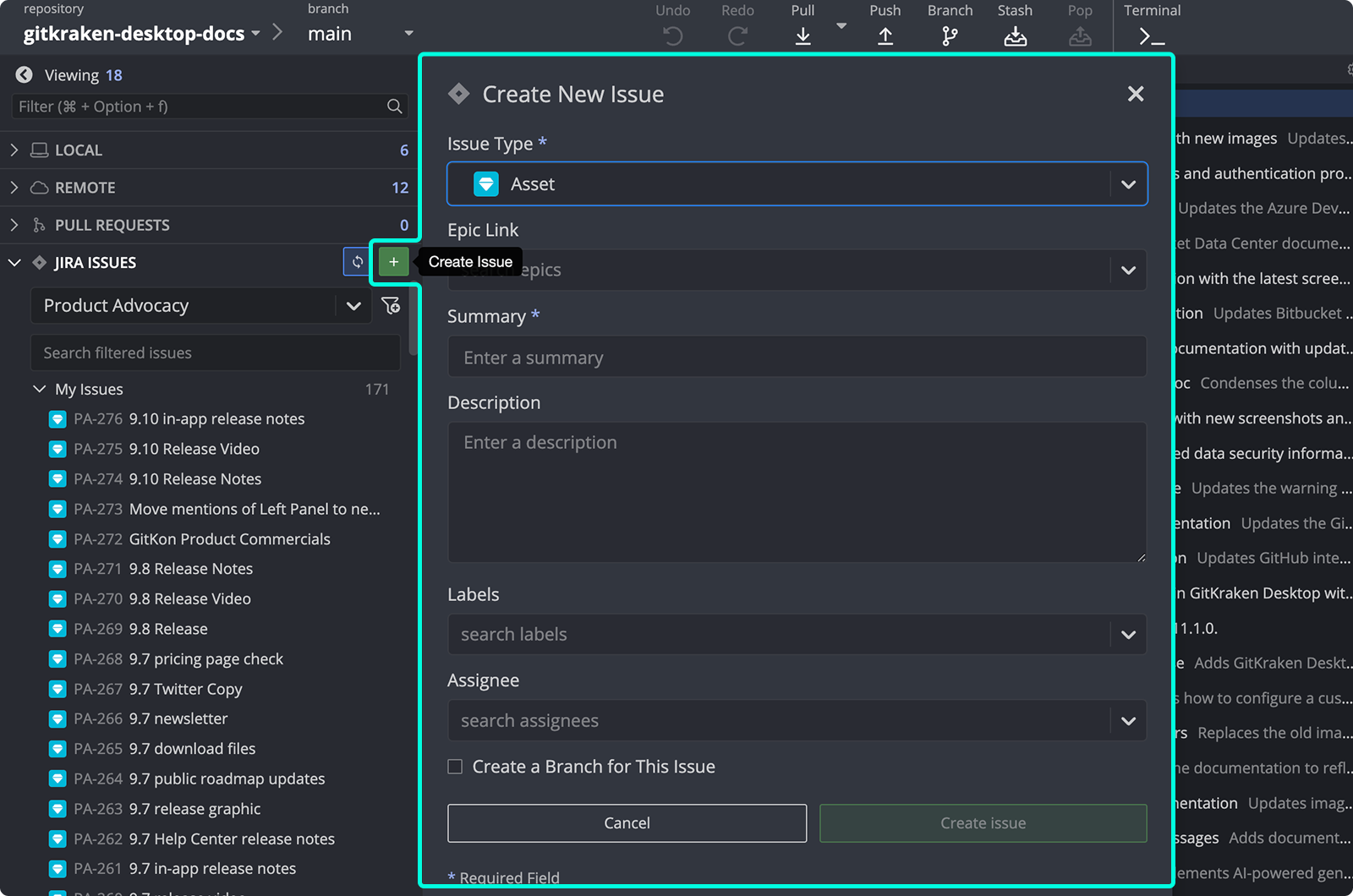
The issue will sync directly with your connected Jira project.
How to create Jira filters
You can create filters to show specific issues. The integration supports Atlassian’s JQL (Jira Query Language) and provides auto-complete for filter fields.
Use JQL filters when: you need focused issue queues by project, sprint, assignee, or status. Don’t rely only on the default My Issues view when: your workflow depends on a more specific slice of Jira work.
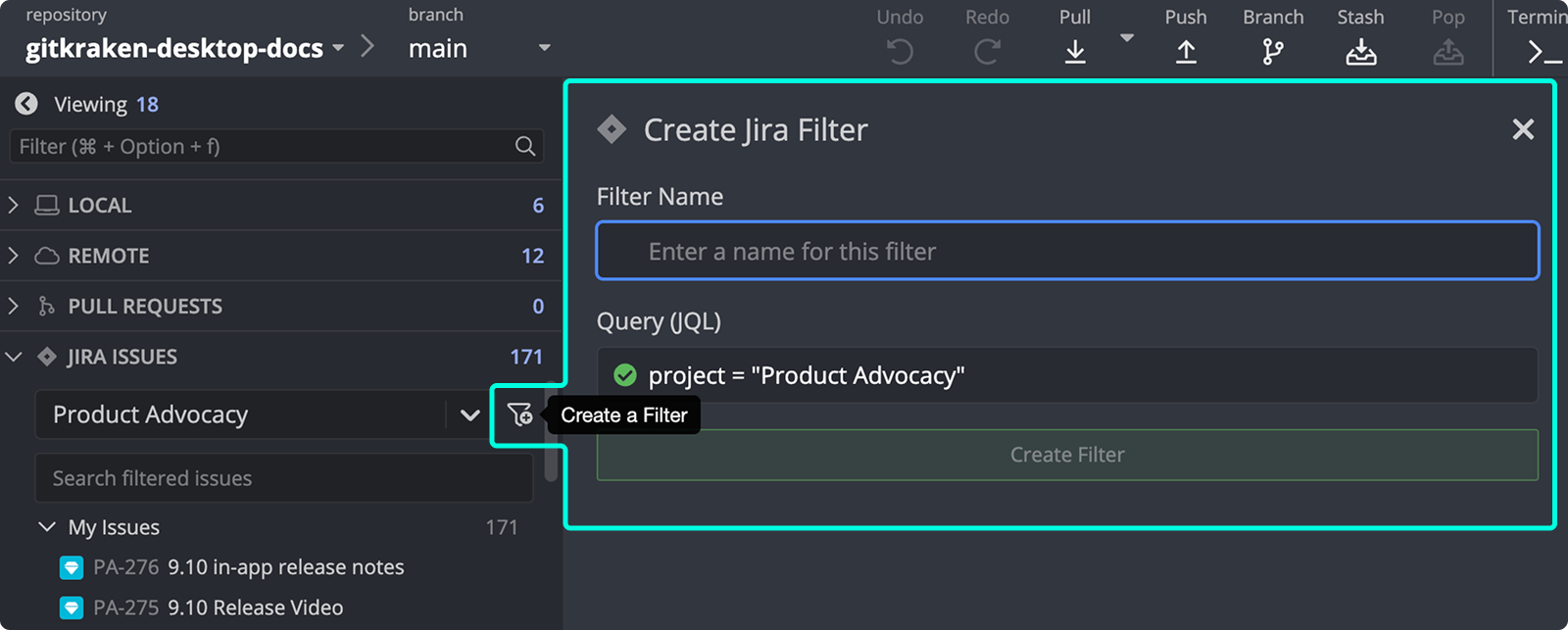
For advanced filtering tips, see Atlassian’s JQL guide.
How to create branches from Jira issues
You can create branches tied to Jira issues directly from the issue detail view.
Use issue-based branch creation when: one branch should map directly to one Jira issue. Don’t use it when: the branch spans several tickets or the auto-filled issue-based name is not the branch structure you need.
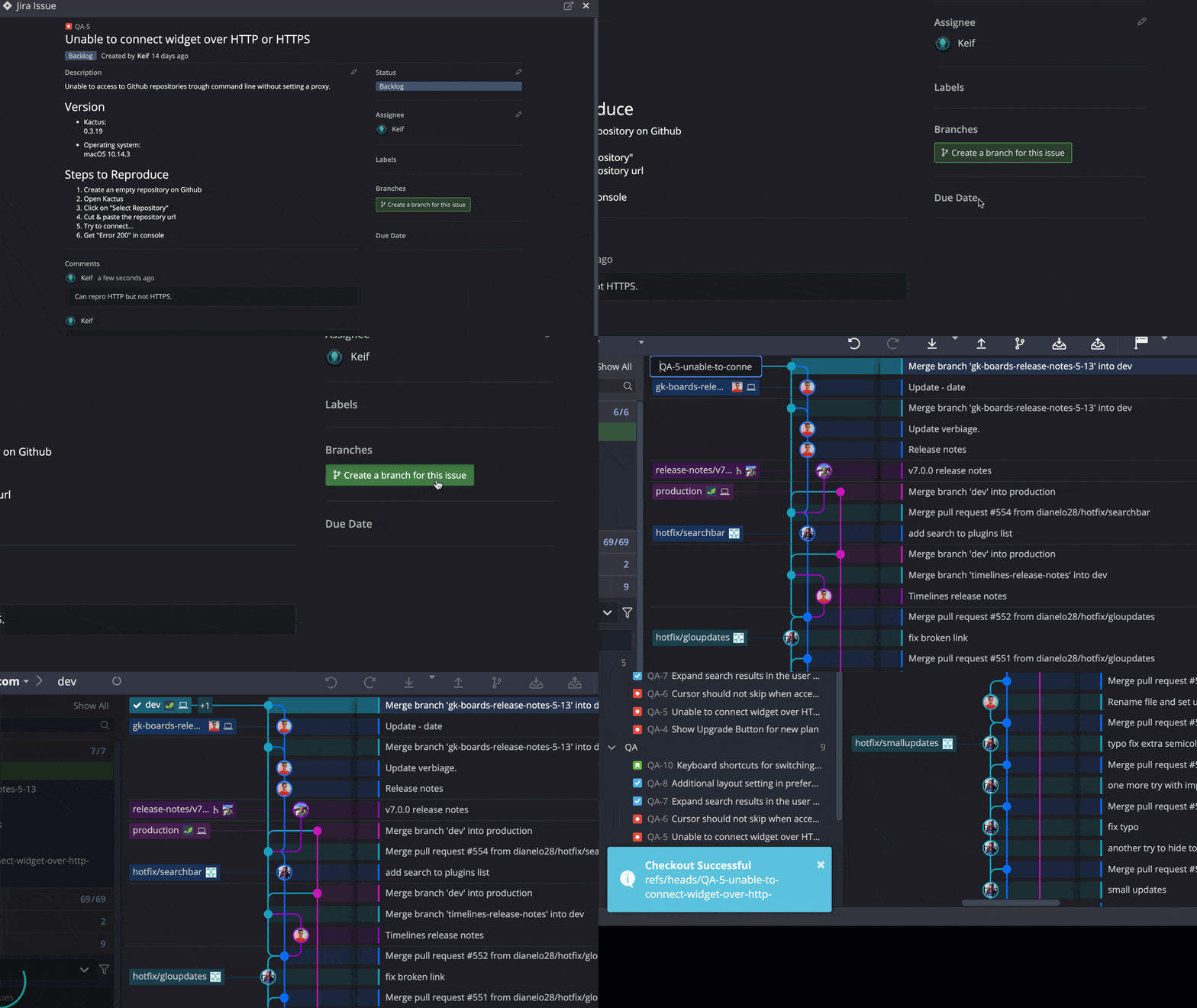
The branch name is prefilled based on the issue title. After creation, branches linked to Jira issues display the Jira icon.
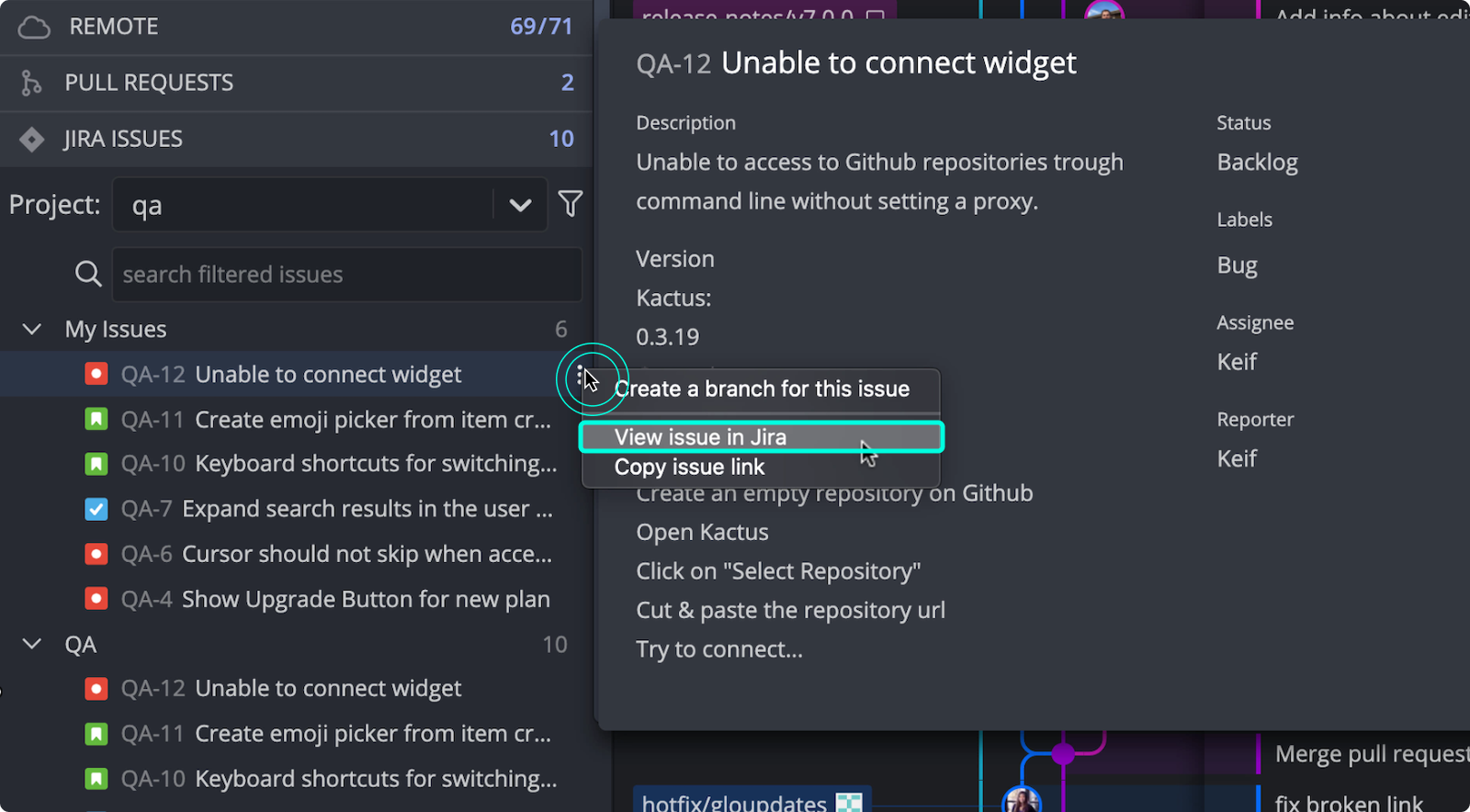
How to copy an issue link or open it in Jira
Click the icon on an issue card to copy the issue link or open it directly in Jira.
More Jira integration options
For more powerful features between GitKraken and Jira, check out Git Integration for Jira.
