

Last updated: March 2026
Use this page to fork GitHub or GitHub Enterprise Server repositories from GitKraken Desktop and add the fork as a remote without leaving the app. Forking is useful when you need your own copy of a repository to contribute changes, open pull requests, or maintain a separate version of a project.
With the GitHub integration or GitHub Enterprise Server integration, you can fork repositories directly from GitKraken Desktop.
Requirements and limits
- Supported hosts on this page: GitHub.com and GitHub Enterprise Server
- Requirement: The repository must already be open in GitKraken Desktop
- Integration requirement: Use the GitHub or GitHub Enterprise Server integration tab in the Add Remote flow
- Existing fork behavior: GitKraken Desktop can detect an existing fork and offer to add it as a remote
- Manual fallback: If needed, add the fork manually with an HTTPS or SSH remote URL
Quick Start
To fork a repository and add it as a remote:
- Open the repository you want to fork in GitKraken Desktop.
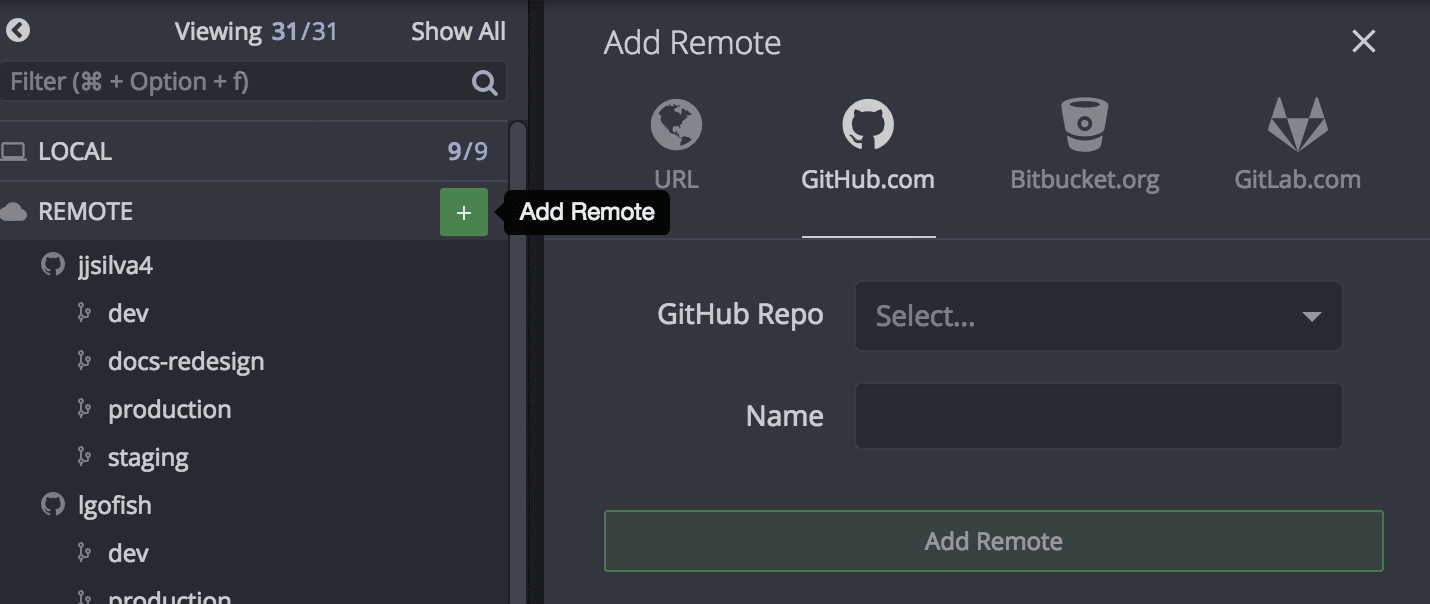
- In the Left Panel, hover over Remote and click the + icon.
- Select the GitHub.com or GitHub Enterprise Server tab.
- If no fork is linked, GitKraken Desktop offers to fork the repo. Click Fork and Add Remote.
To add an existing fork as a remote:
- Click the + icon next to Remote in the Left Panel.
- Select the GitHub.com or GitHub Enterprise Server tab.
- GitKraken Desktop detects the existing fork and offers to add it. Click Add this Remote.
The fork appears in the Left Panel under Remote and is ready to use for pushing branches and creating pull requests. If you need to add a remote manually, use an HTTPS or SSH URL from the same panel.
How to fork a repository
- Open the repository you want to fork.
- In the Left Panel, hover over
 Remote and click the icon.
 - Select the GitHub.com or GitHub Enterprise Server tab.
If no fork is currently linked, GitKraken Desktop offers to fork the repo and add it as a remote.
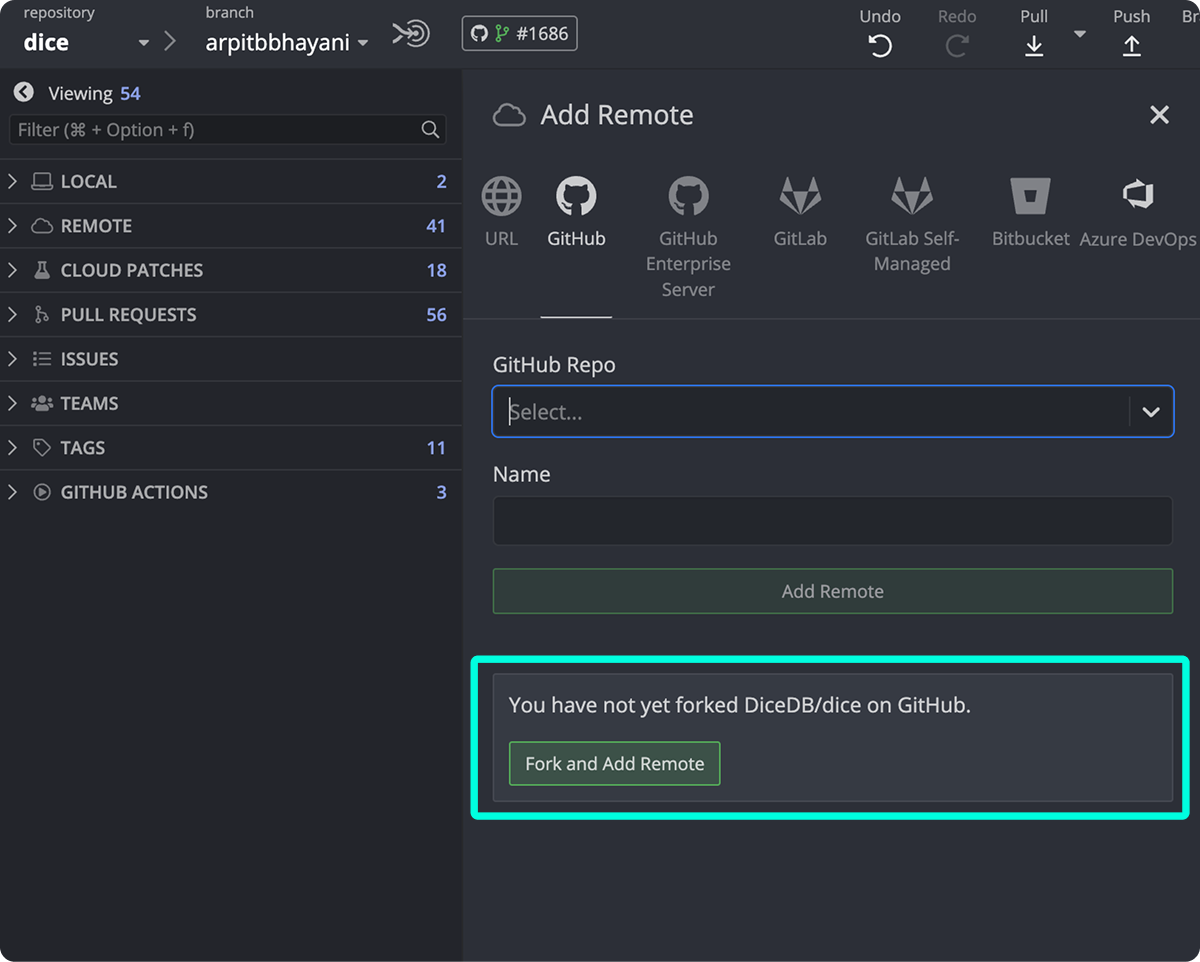
Click to fork the repository and link it.
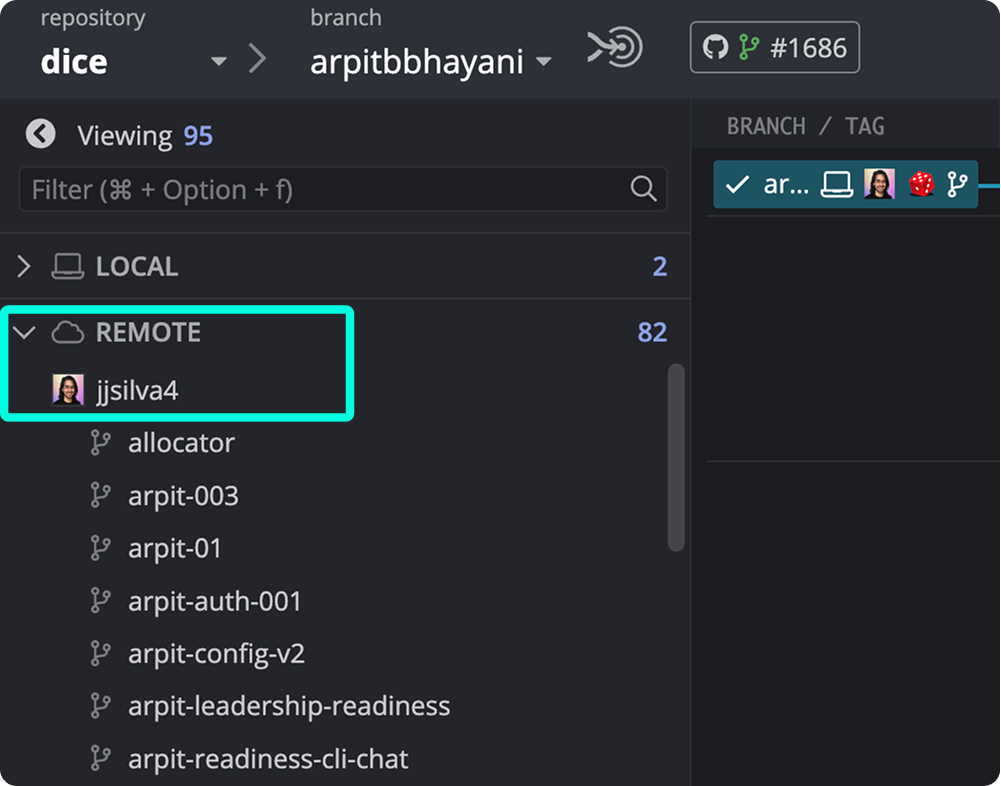
How to add an existing fork
If you’ve already forked the repo on GitHub:
- Click the icon next to Remote
- Select the GitHub.com or GitHub Enterprise Server tab
GitKraken Desktop will detect the existing fork and offer to add it.
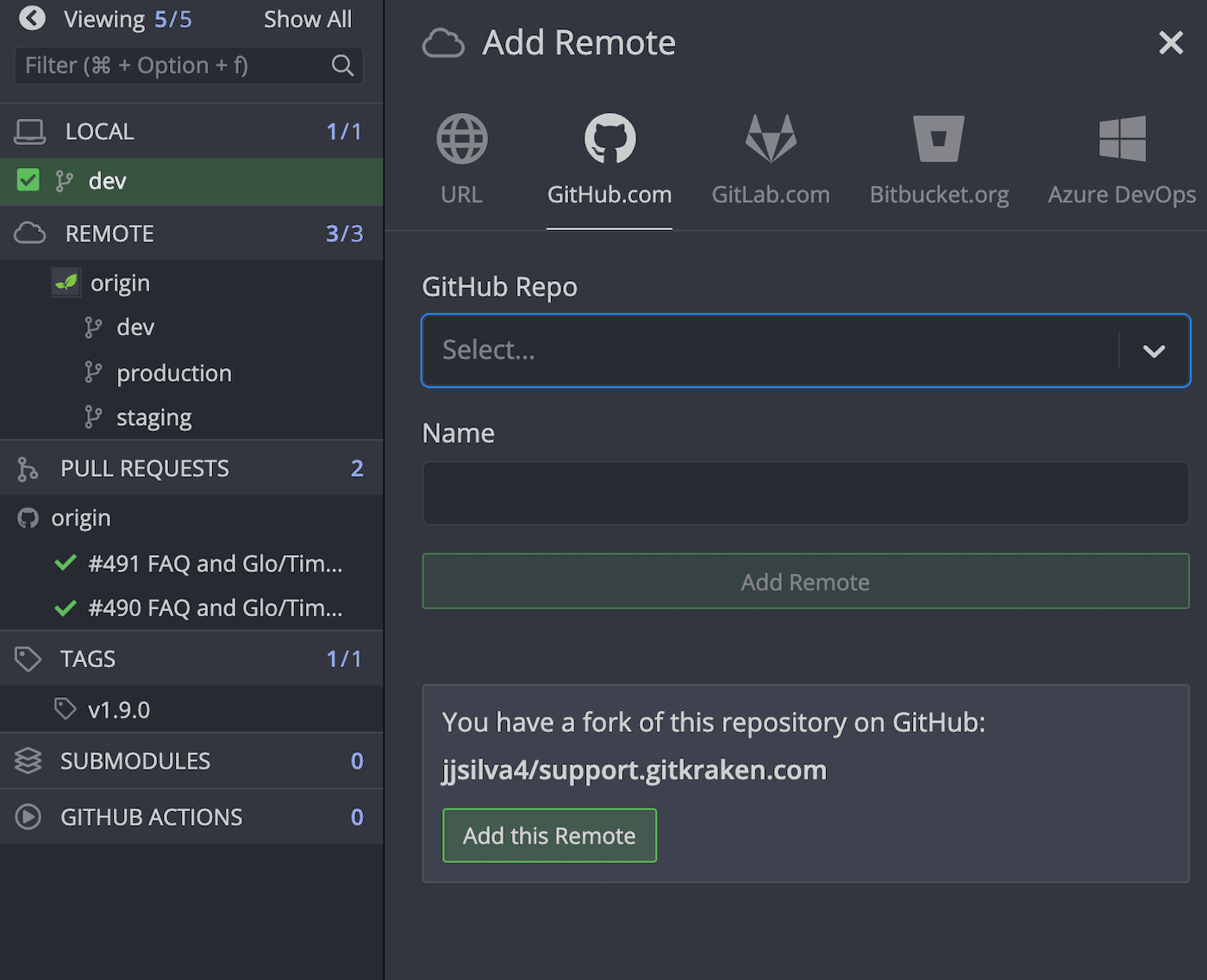
Click to link your fork.
You can also add any remote manually using an HTTPS or SSH URL.
