

Last updated: November 2026
Kepler by GitKraken manages your Claude Code and Codex sessions across several accounts and SSH hosts in 1 app. You add each account once in Settings → Agents, pick the account when you start a session, and add each remote server in Settings → Remote environments. Sessions on a server run there and keep running when you disconnect.
Requirements and limits
- Scope: Several signed-in accounts for 1 agent, choosing the account for each session, moving a conversation to another account, and running agent sessions on SSH hosts.
- Agents with several accounts: Claude Code, Codex, GitHub Copilot, Auggie, and Grok Build.
- Moving a conversation to another account: Claude Code and Codex only, and only between accounts that share history with the CLI.
- SSH hosts: Kepler installs itself on the host over SSH. The agent you want to run must also be installed and signed in on the host.
- Limits: SSH hosts and WSL distros need the Kepler desktop app. Kepler in a browser cannot connect to them.
- Limits: Each Kepler window works on 1 machine at a time. Open 1 window per machine to watch several machines side by side.
Quick Start
- Open Settings → Agents and expand Claude Code or Codex.
- Under Accounts, click Add account, name the account, and sign in. Repeat for each account.
- Open Settings → Remote environments, click Add machine, and follow the steps to add your SSH host.
- Click Connect on the host. In the window connected to the host, install and sign in to Claude Code or Codex in Settings → Agents.
- Start a task. In the Agent list, pick the agent and the account in 1 click.
- To move a running conversation to another account, use Continue as on the session’s tab menu.
How to add several accounts to 1 agent
Claude Code, Codex, GitHub Copilot, Auggie, and Grok Build can each have more than 1 signed-in account, such as a work account and a personal account.
- Open Settings → Agents and expand the agent.
- Under Accounts, click Add account.
- For Claude Code, Codex, and GitHub Copilot, choose how the account handles conversation history:
- Share with the CLI: the account reads the same conversations as the agent’s own login. Pick this to move conversations between accounts later.
- Keep separate: the account keeps its own conversations.
- Sign in.
The first row is the agent’s own login. The account badged Default is the one new sessions use. Each account keeps its own sign-in and shares your skills, commands, and settings. Give each added account a color to tell sessions apart: the color tints the agent icon on session tabs.
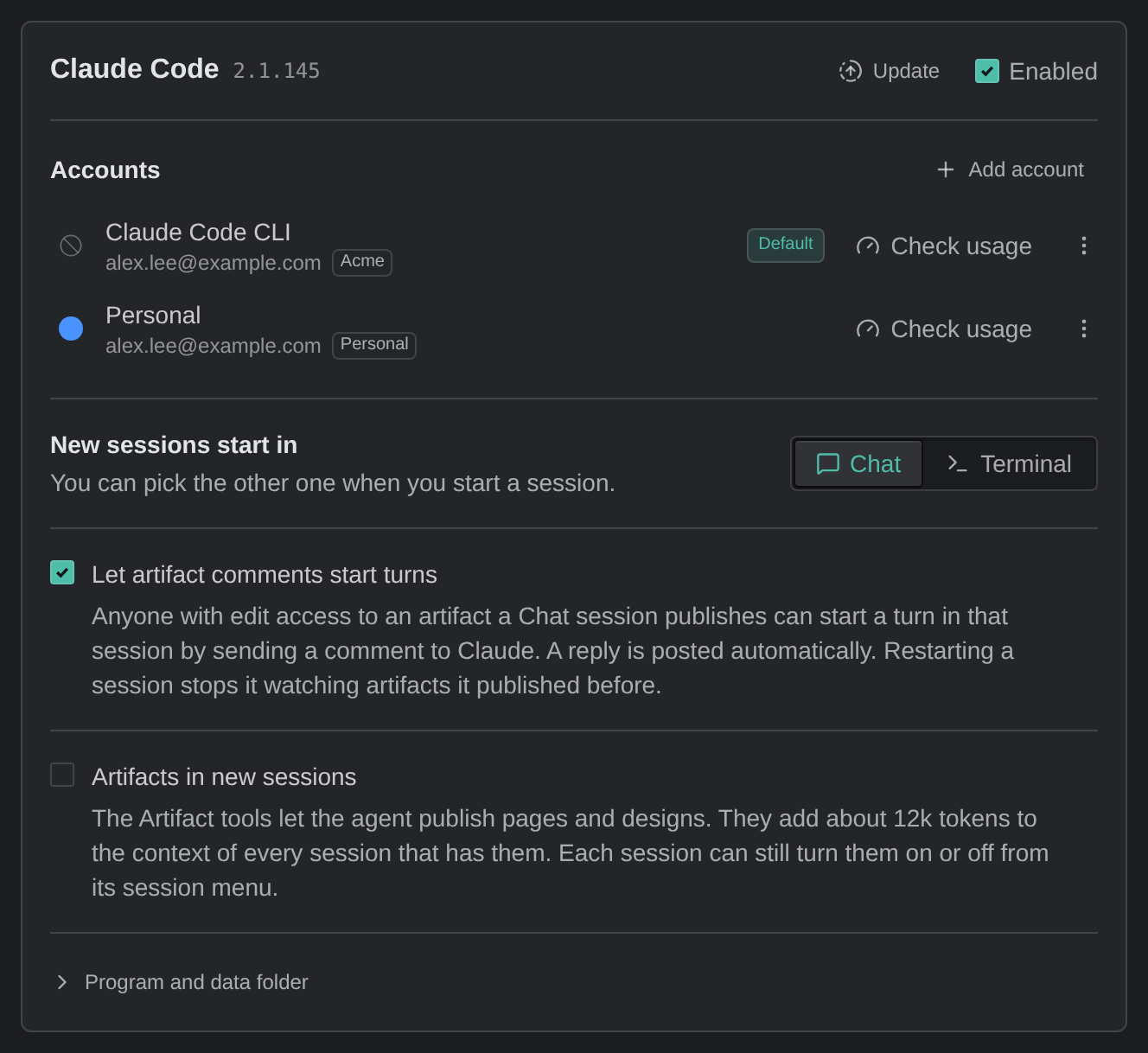
See Several accounts for one agent for every account control.
How to choose the account for a session
When an agent has 2 or more accounts, the Agent list shows 1 row per account, labeled with the account name. Pick the row in the New task window or in a new session tab, and the session runs under that account.
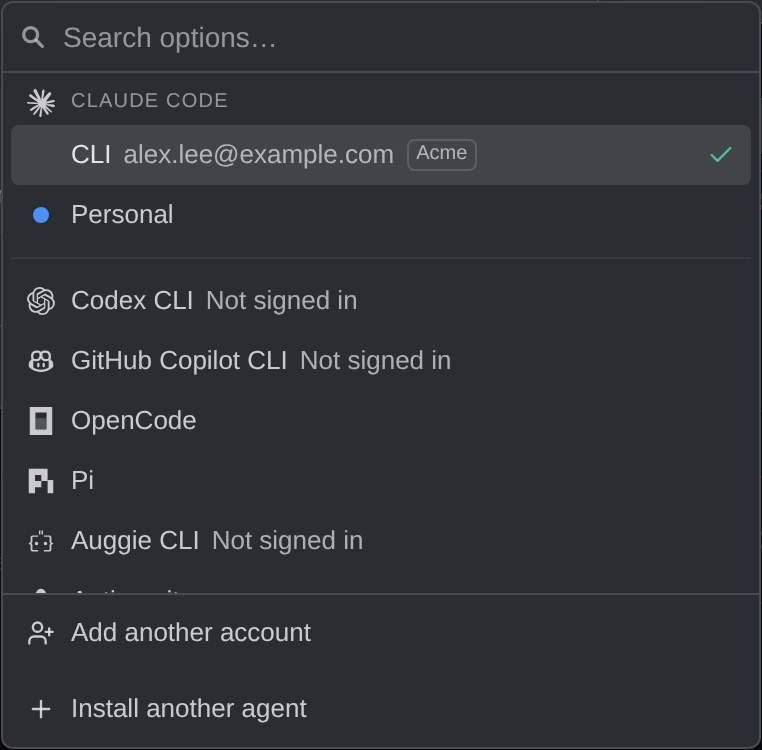
Each session runs under 1 account. Session tabs name the account, so you can see which account each session uses.
How to move a conversation to another account
Move a Claude Code or Codex conversation to another account when an account reaches its usage limit, or when you started on the wrong account. The conversation stays the same.
- Open the session’s tab menu and select Continue as.
- Pick the account. Kepler restarts the agent with the same conversation as that account and confirms Continued as account.
You can also use Continue as account on the usage-limit banner, or the Account row in the composer’s agent settings.
The move works only between accounts that share history with the CLI. An account that keeps its own history shows as Separate history in the list, because it cannot read the conversation. Sessions started outside Kepler cannot move to another account.
See Moving a session to another account.
How to add an SSH host
- Open Settings → Remote environments and click Add machine. To add a host that is already in your
~/.ssh/config, click Add next to it under Found on this machine instead. - Enter the Host, and optionally the Name, User, and Port.
- Choose how Kepler signs in: an existing key, a password, or a key Kepler generates for this host.
- Check the host’s fingerprint and click Trust and continue.
- After Kepler tests the connection, click Add, then click Connect on the host.
Kepler installs itself on the host over SSH, so you do not need to set up Kepler there first. The agent is different: Claude Code or Codex must be installed on the host. In a window connected to the host, Settings → Agents lists the host’s agents. If an agent shows Not installed, click Install to install it on the host, then sign in. The sign-in page opens in the browser on your own computer, and Kepler saves the sign-in on the host.
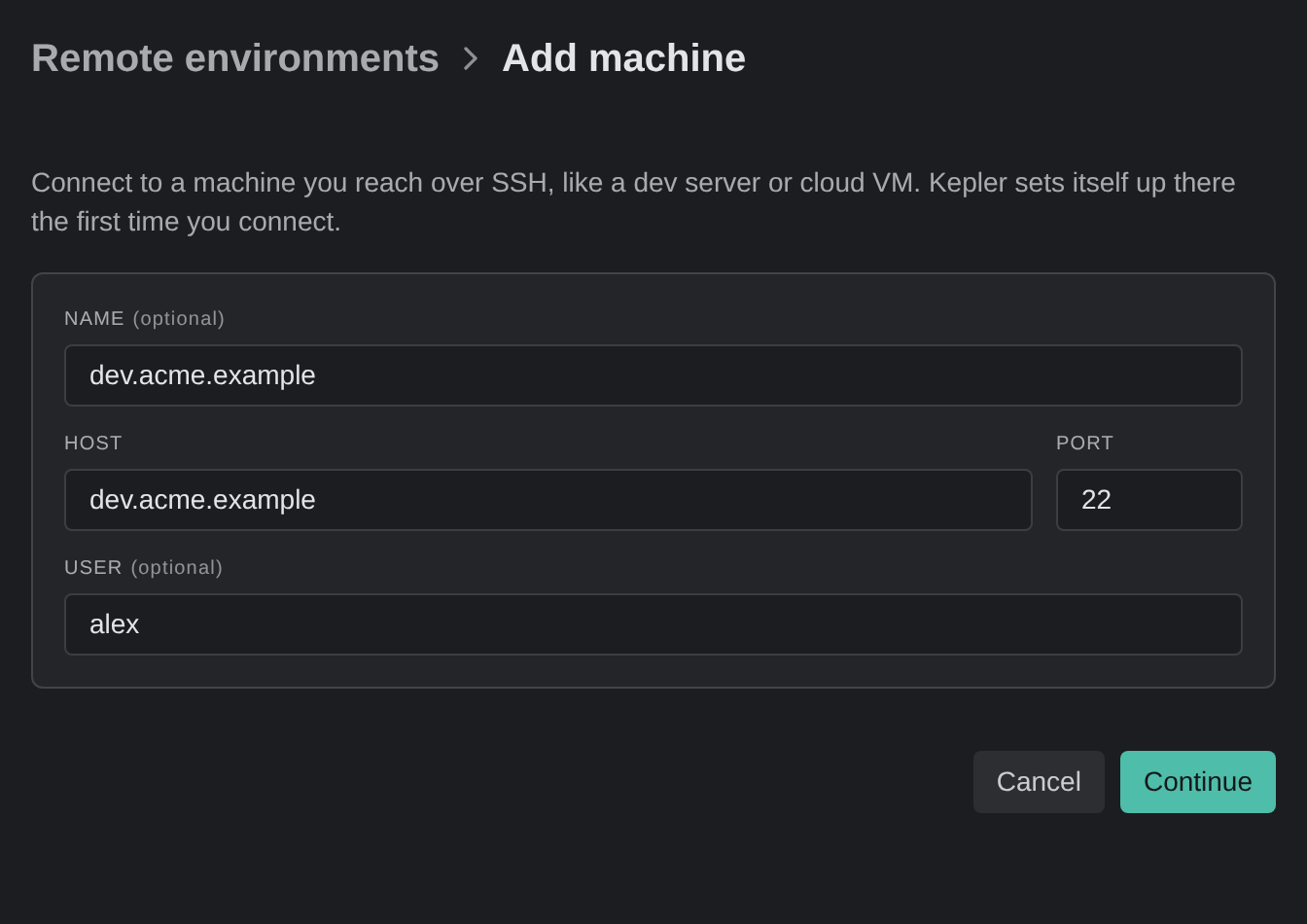
See Add an SSH host for every step and sign-in option.
Where your sessions run
In a window connected to an SSH host, the agent sessions, terminals, worktrees, and Git operations all run on the host. Your own computer runs only the Kepler window.
Sessions belong to the host, not to the window. If you close the window, lose the network, or put your laptop to sleep, the sessions keep running on the host. When you connect again, Kepler lists them, and you pick up where you left off.
See What runs where.
How to see all of it in one place
Each Kepler window shows 1 machine’s tasks and sessions on its Dashboard, including which sessions need you. Use these to cover your computer and every server:
- Switch machines from the title bar. The chip at the right of the title bar shows which machine the window works on, such as Local or a host name. Click it and pick a machine under Switch to.
- Open a window per machine. In the chip’s menu, click the window icon next to a host to open it in a new window. Keep 1 window on your computer and 1 on each server.
- Manage every machine in Settings. Settings → Remote environments lists Your machines, whether each one is connected, and how many windows use it.
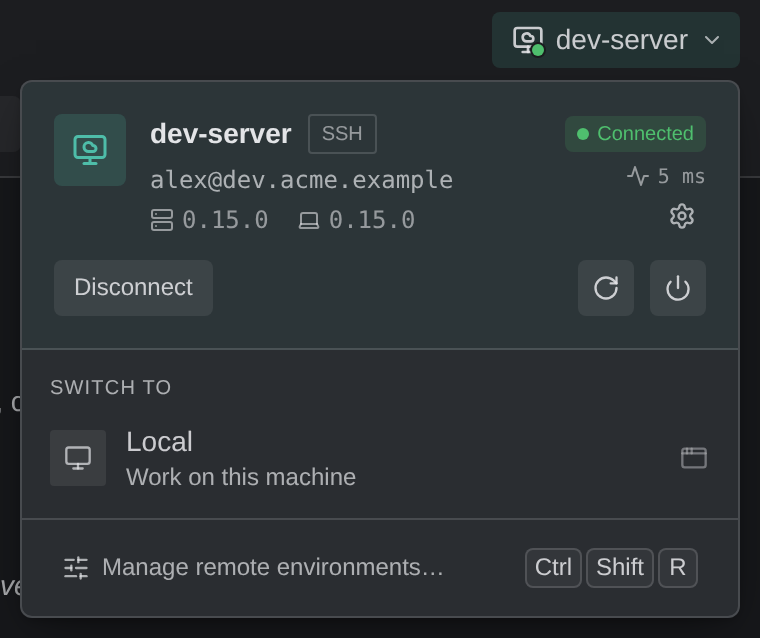
To keep track of which session needs you on each machine, see Keep Track of Several Claude Code and Codex Sessions in Kepler.
Common questions
Can I use 2 Claude Code accounts at the same time?
Yes. Add both accounts in Settings → Agents, then pick a different account for each session. Sessions on different accounts run side by side.
Can I run Claude Code on 1 account and Codex on another at the same time?
Yes. Each agent has its own accounts, and each session picks its own agent and account.
Can I switch accounts when I hit a usage limit?
Yes, for Claude Code and Codex. Use Continue as on the session’s tab menu or on the usage-limit banner. The conversation moves to the other account, as long as both accounts share history with the CLI.
Do I need to install anything on the SSH server?
Not for Kepler: it installs itself over SSH. The agent you want to run, such as Claude Code or Codex, must be installed on the server. Install it from Settings → Agents in a window connected to the server.
Do my sessions stop when I disconnect from the server?
No. Sessions run on the server and keep running after you close the window or lose the connection. Connect again to pick them up.
Does this work with WSL too?
Yes. On Windows, a WSL 2 distribution is a remote environment like an SSH host. See WSL environments.
