

Last updated: November 2026
Kepler by GitKraken installs natively on Windows, so you can run Claude Code, Codex and other coding agents in parallel without a Mac or WSL. Each task gets its own worktree, a private Git working copy, so agents that run at the same time never change each other’s files.
Requirements and limits
- Scope: Installing Kepler on Windows, installing coding agents there, and running several agents at once
- Prerequisite: Windows 10+, on 64-bit or ARM64, and a GitKraken account to sign in to Kepler
- Prerequisite: Your own account for each coding agent you use, such as a Claude or ChatGPT plan
- Limits: Auggie, Pi and OpenCode need Node.js on Windows. OpenCode installs only through npm on Windows
- Limits: A worktree separates files only. Agents still share ports, databases and other local services. See What a worktree does not separate
Quick Start
- Go to gitkraken.com/kepler/download, download the Windows installer for your computer (64-bit or ARM64), and run it.
- Launch Kepler and click Sign in with GitKraken.
- In Choose your coding agents, switch on Claude Code and Codex. To install an agent you do not have yet, click its tile.
- In Bring in your repos, check the repositories you work in, then click the button that adds them.
- Click New task or press Ctrl+N, write a prompt, attach a repository with Add repo or folder, and click Start. Kepler creates a worktree for the task and starts the agent in it.
- Start a second task the same way, and pick another agent in the New task window. Both agents now work at the same time, each in its own worktree.
How to install Kepler on Windows
Kepler has installers for 2 Windows architectures:
| Installer | For |
|---|---|
| 64-bit | Windows 10+ on an Intel or AMD processor |
| ARM64 | Windows 10+ on an ARM processor |
- Go to gitkraken.com/kepler/download and pick the Windows installer for your processor.
- Run the installer.
- Launch Kepler and sign in. A guided start then helps you set up agents and repositories.
Kepler runs directly on Windows. You do not need WSL, a virtual machine or a Mac to use it. See Getting Started with Kepler for the other platforms.
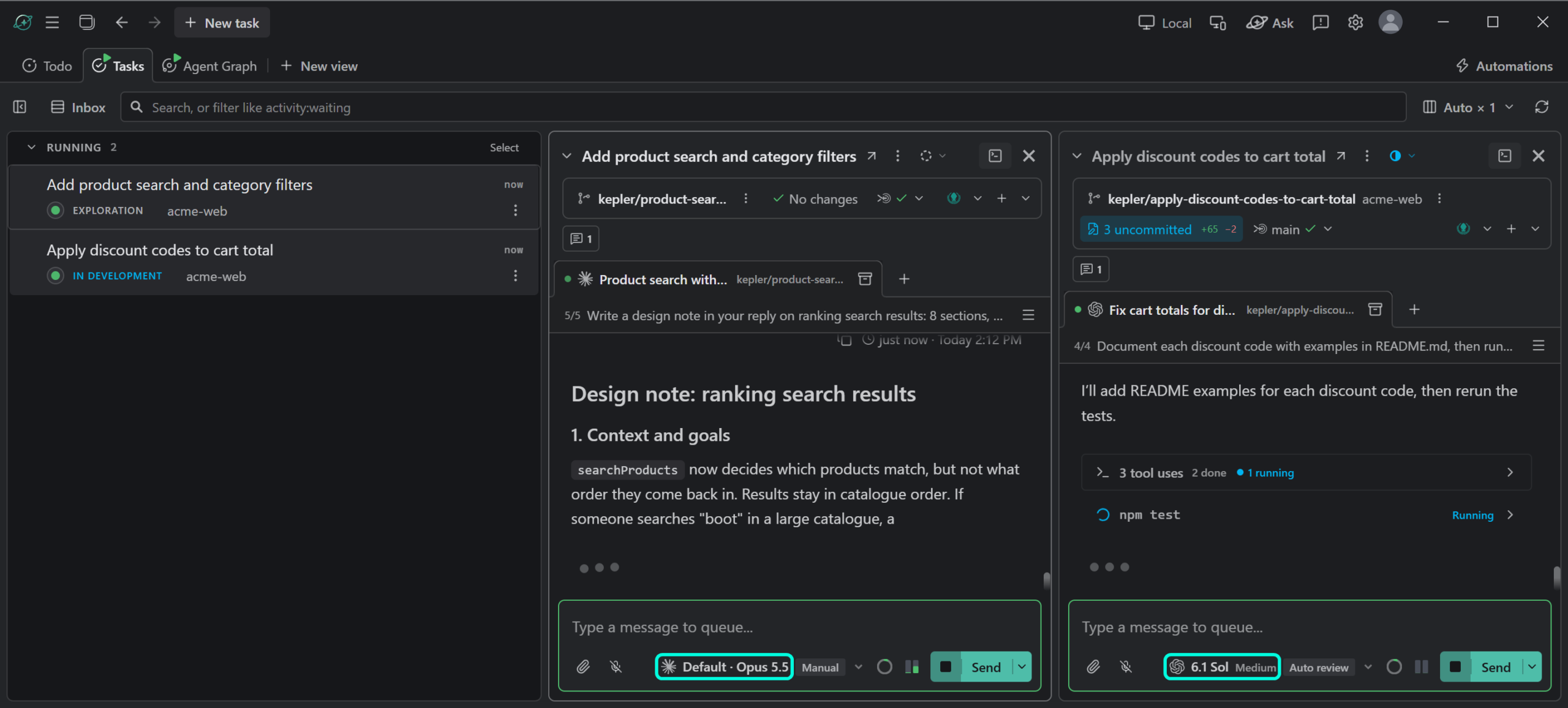
How to install coding agents on Windows
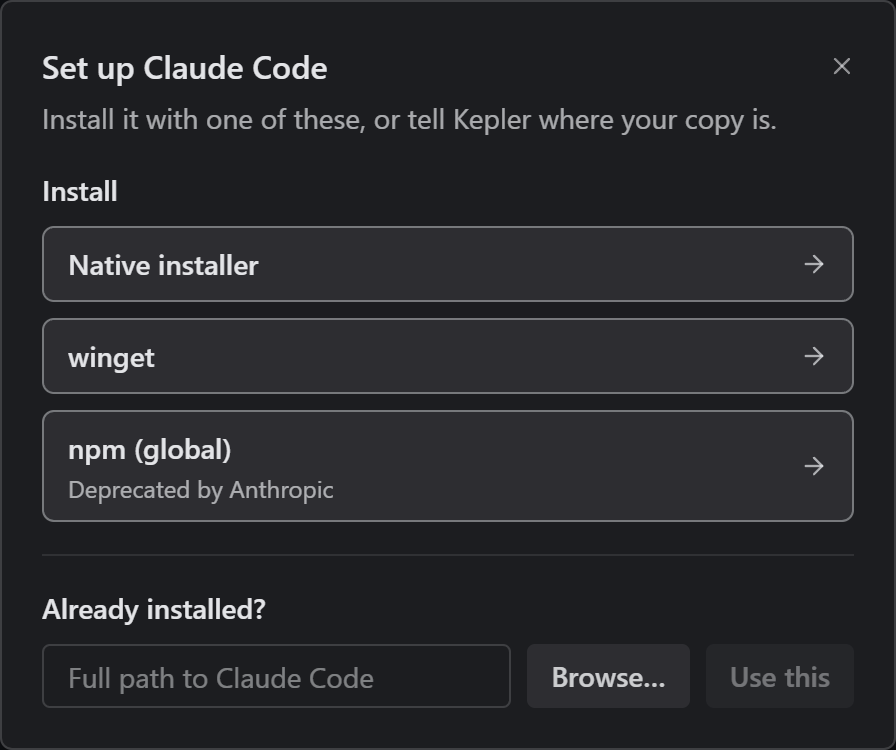
Kepler supports 9 coding agents on Windows. When an agent is missing, open Settings → Agents, click Install in its section, and pick an install method. Kepler runs the install command for you and shows its output. After the install, Kepler offers to sign you in to the agent.
| Agent | Install methods on Windows | Note for Windows |
|---|---|---|
| Claude Code | Native installer, winget, npm (global) | Kepler marks npm Deprecated by Anthropic |
| Codex | Standalone installer, npm (global) | None |
| GitHub Copilot | winget, npm (global) | None |
| Cursor | Native installer | None |
| Auggie | npm (global) | Needs Node.js |
| OpenCode | npm (global) | Needs Node.js. npm is the only Windows method |
| Grok Build | Native installer | None |
| Pi | Native installer, npm (global) | Needs Node.js for both methods. Runs in Terminal only |
| Antigravity | Native installer | Google’s agent |
Kepler offers a method only when the tool it runs, such as winget or npm, is installed. When an agent needs Node.js and it is missing, Kepler says so and offers Get Node.js. Install Node.js, then click Rescan.
If you installed an agent yourself and Kepler did not find it, open the agent’s Set up dialog, enter the program’s full path under Already installed?, and click Use this. See Agent Integrations.
How to run agents in parallel
In Kepler, the unit of work is a task. Each task holds its own sessions, and each repository you attach to it gets its own worktree. To run several agents at once, start one task per piece of work:
- Click New task or press Ctrl+N.
- Write the prompt, and attach the repository with Add repo or folder.
- Under Agent, pick the agent for this task, such as Claude Code.
- Click Start.
- Repeat for the next piece of work, with the same agent or another one, such as Codex.
You can attach the same repository to several tasks. Each task gets its own worktree on its own branch, so 2 agents can change the same repository at the same time.
To follow every agent at once, use the Dashboard. Kepler notifies you when an agent needs you, for example to answer a permission request. See Agent Sessions.

How a worktree per task keeps agents apart
A worktree is a private Git working copy for one task. Agents make their changes there, so nothing they do touches the checkout you work in, and agents in different tasks never change each other’s files. This works the same on native Windows as on macOS and Linux.
Isolated worktree is the default for new tasks. You can change the default in Settings → Tasks → Where new tasks make changes, and change it for each repository in each task. See Tasks and Resources.
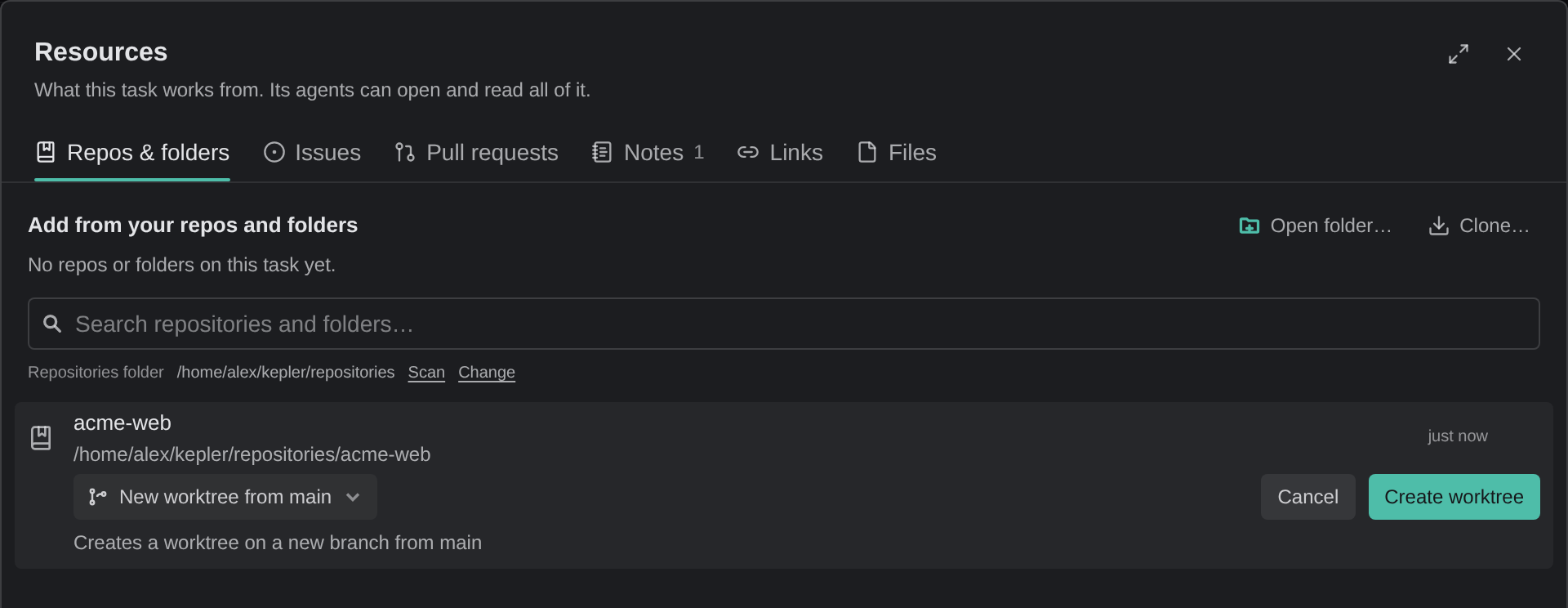
A new worktree has none of your Git-ignored files, such as .env or node_modules. To set up each new worktree automatically, see Set Up Every New Agent Worktree Automatically.
What a worktree does not separate
A worktree gives each task its own copy of the files, and nothing else. Agents in different tasks still share:
- Ports. 2 worktrees that start the same dev server on the same port collide.
- Databases and other local services. Agents that point at the same database read and write the same data.
- Caches and files outside the repository, such as a global package cache.
To give each worktree its own port or database, use a repository command that runs when Kepler creates the worktree. See Set Up Every New Agent Worktree Automatically.
When to use WSL 2 instead
Run agents natively on Windows when your project builds and runs on Windows. Use a WSL 2 distro when your project needs a Linux toolchain, such as build scripts written for bash.
In Kepler, a WSL 2 distro is a remote environment. Your agents, worktrees and terminals run inside the distro, while you work from the Kepler window on Windows. It needs no credentials and no extra setup:
- Open Settings → Remote environments.
- Find your distro under Found on this machine, and click Add.
- Connect to it from the environment chip in the title bar.
Kepler lists WSL version 2 distros only. Install each agent inside the distro, because agents in a remote environment run there. See Remote Environments.
Common questions
Does Kepler work on Windows, or is it Mac only?
Kepler works on Windows. It has a native Windows installer for Windows 10+, on 64-bit and ARM64. It also runs on macOS and Linux.
Can I run Claude Code and Codex at the same time on Windows?
Yes. Start one task for each, and pick Claude Code for one and Codex for the other. Each task gets its own worktree, so the 2 agents never change each other’s files.
Do I need WSL to run coding agents on Windows?
No. All 9 agents that Kepler supports install and run on native Windows. Use WSL 2 only when your project needs a Linux toolchain.
How do I stop parallel agents from overwriting each other’s work?
Leave Isolated worktree on, which is the default. Each task then works in its own worktree on its own branch. When the work is done, review and merge each branch on its own. See Review Changes.
Why does my second agent’s dev server fail to start?
When 2 worktrees start a dev server on the same port, the second server can fail to start. A worktree separates files only. Give each worktree its own port with a repository command. See Set Up Every New Agent Worktree Automatically.
