

Last updated: April 2026
Use GitKraken Launchpad to monitor pull requests, issues, and works in progress across a selected Workspace or team. This page explains how to open Launchpad, connect integrations, switch between Personal and Team Views, save filtered views, and understand feature differences between Cloud and On-Premise environments.
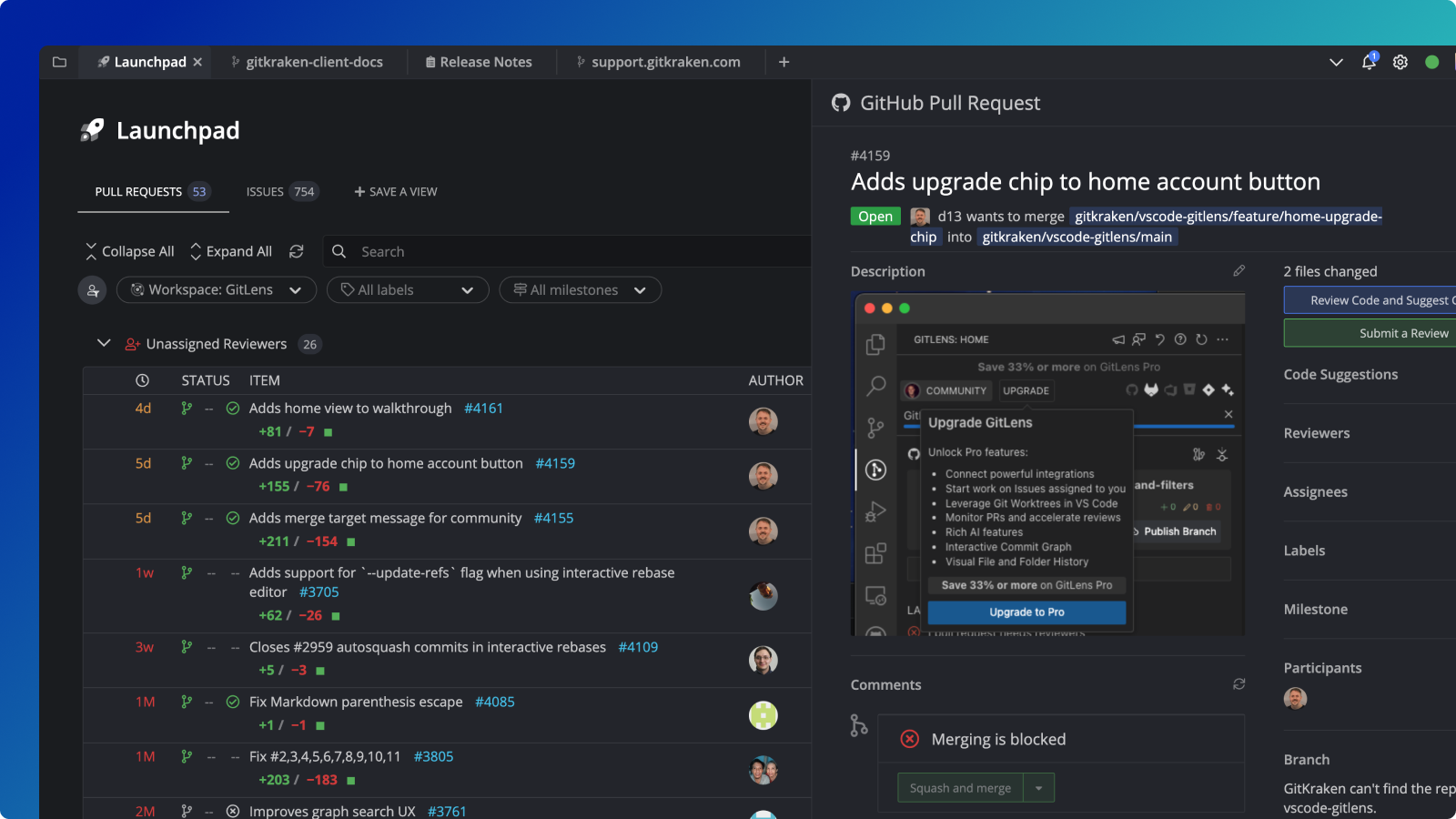
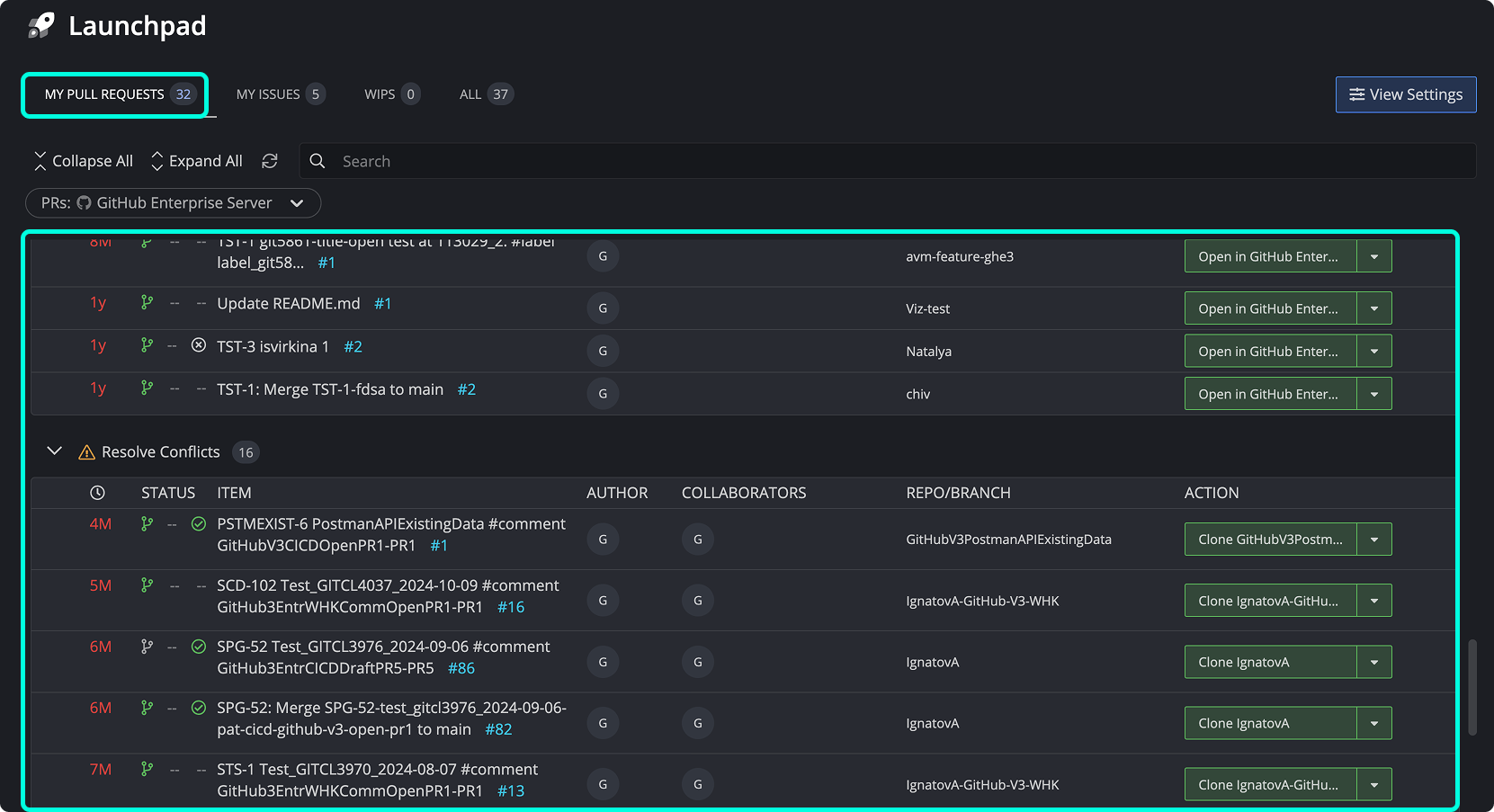
The Launchpad is also available for GitKraken On-Premise customers with some feature variations.
GitKraken On-Premise users: Step 3 below requires a Cloud Workspace, which is not available in Serverless or Self-Hosted Server deployments. Skip step 3 and connect your on-premises integrations (GitHub Enterprise Server, GitLab Self-Managed, Bitbucket Server, Azure DevOps Server, or Jira Data Center) in Preferences > Integrations instead. For a full description of Launchpad feature differences in on-premises environments, see How On-Premise Launchpad differs from Cloud Launchpad.
Quick Start
- Click the Launchpad tab in the top-left corner of GitKraken Desktop.
- Connect your integrations via Preferences > Integrations, or follow the in-app prompts.
- Select a Cloud Workspace from the dropdown to filter activity to specific repositories.
- Use the Pull Requests, Issues, WIPs, or All tabs to view relevant items.
- Toggle between Personal View (items assigned to or created by you) and Team View (items from others) using the toggle in the top-right.
To prioritize items:
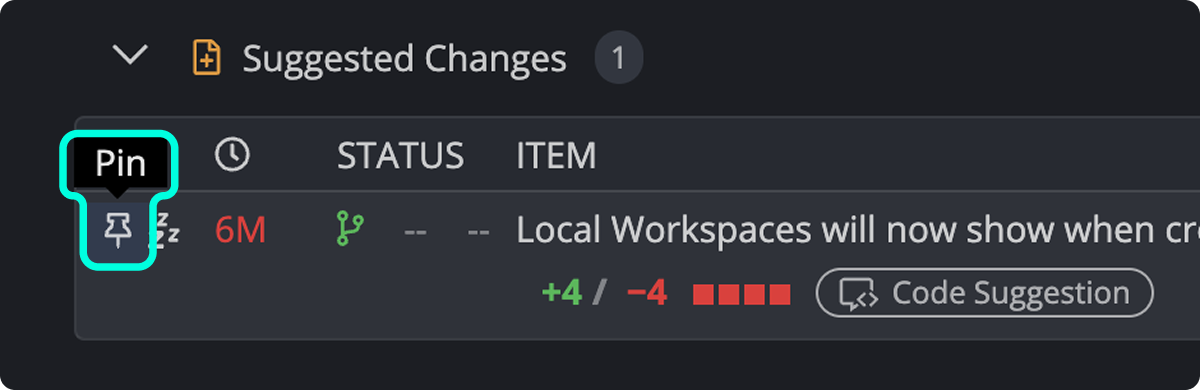
- Click the pin icon to keep a PR or issue at the top of the list.
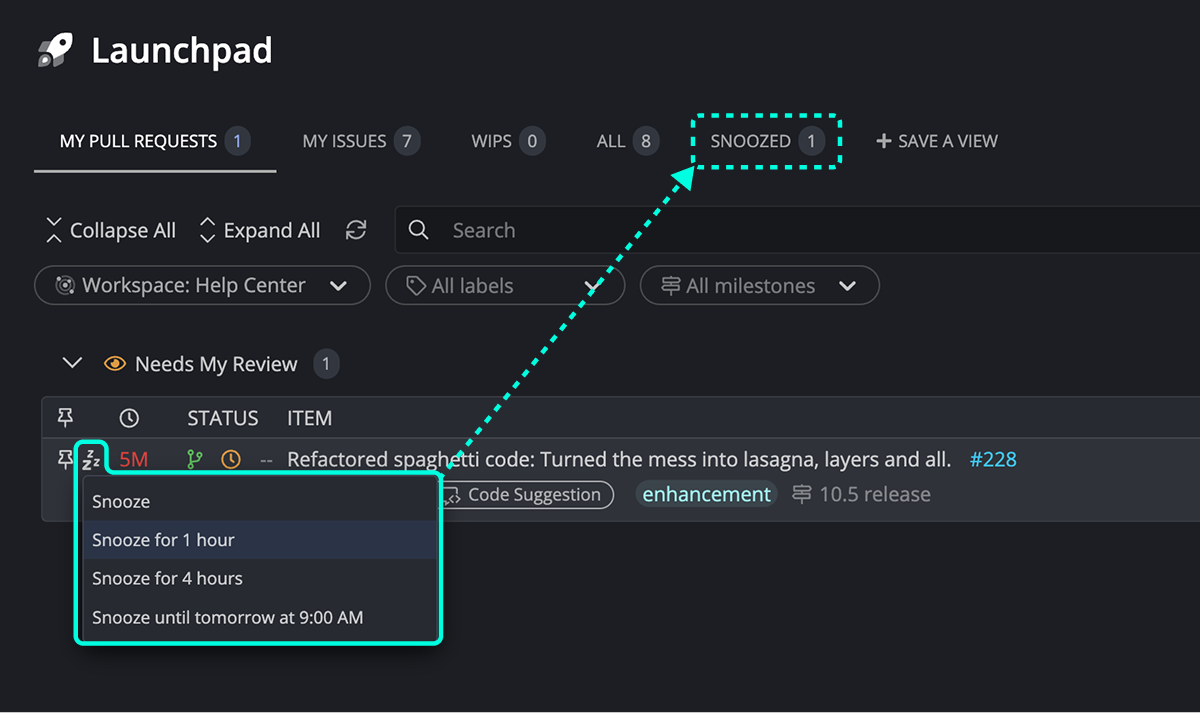
- Click the snooze icon to hide an item temporarily. Snoozed items appear in the Snoozed tab.
To save a filtered view for reuse, click the + Save View icon in the Launchpad tab bar and name it. Saved views are tied to the mode (Personal or Team) in which they were created.
How to get started with Launchpad
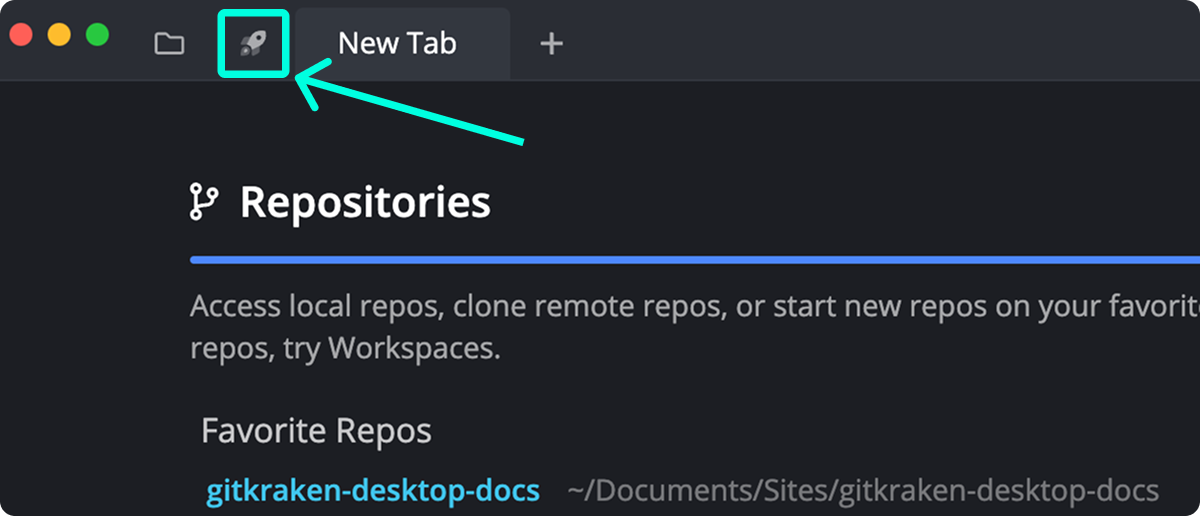
To open Launchpad:
- Click the Launchpad tab in the top-left corner of GitKraken Desktop.
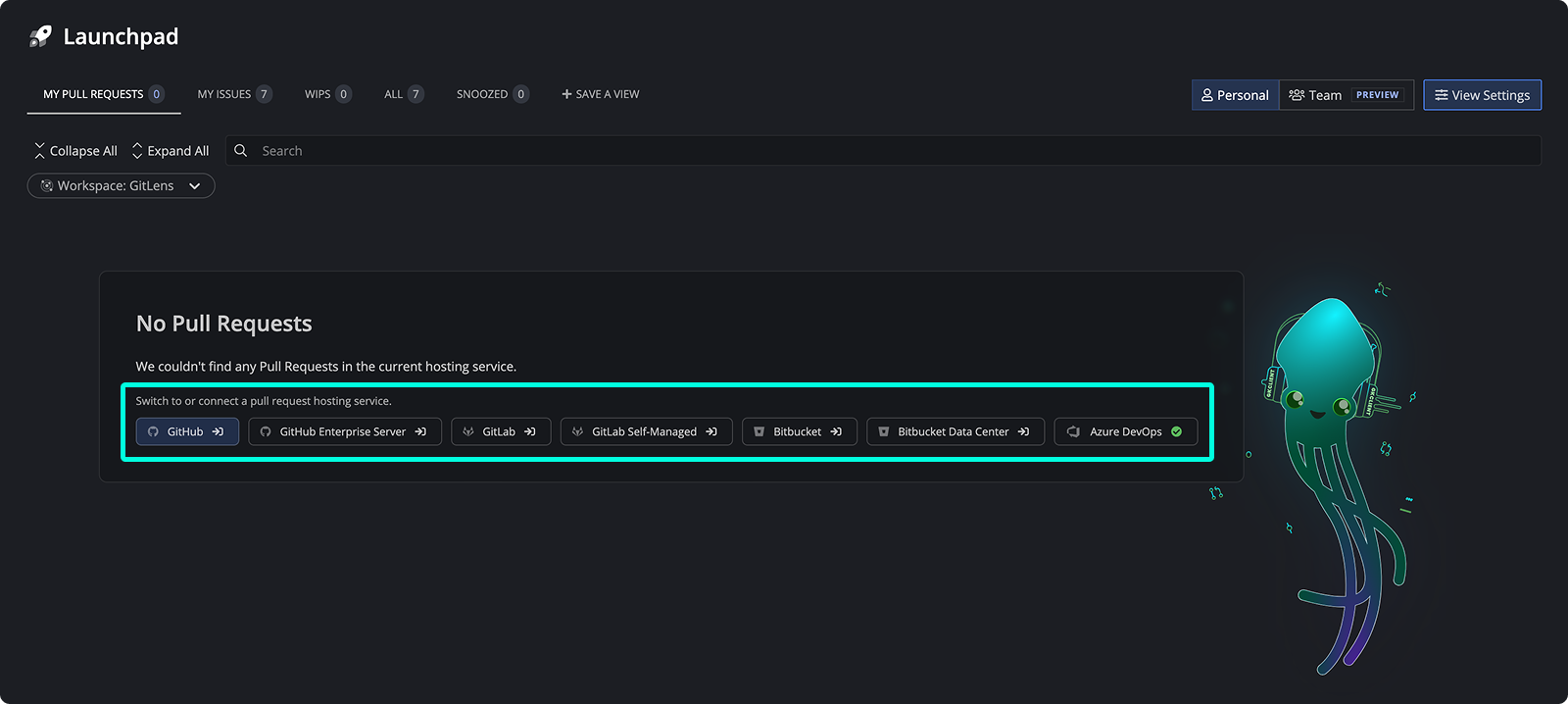
- Connect your integrations via Preferences > Integrations, or follow the in-app prompts for specific providers.
How to set up Workspaces and integrations
Launchpad works best when connected to at least one Workspace. To set this up:
- Create a Cloud Workspace
- Return to the Launchpad to view filtered WIPs, Issues, and PRs across selected repositories.
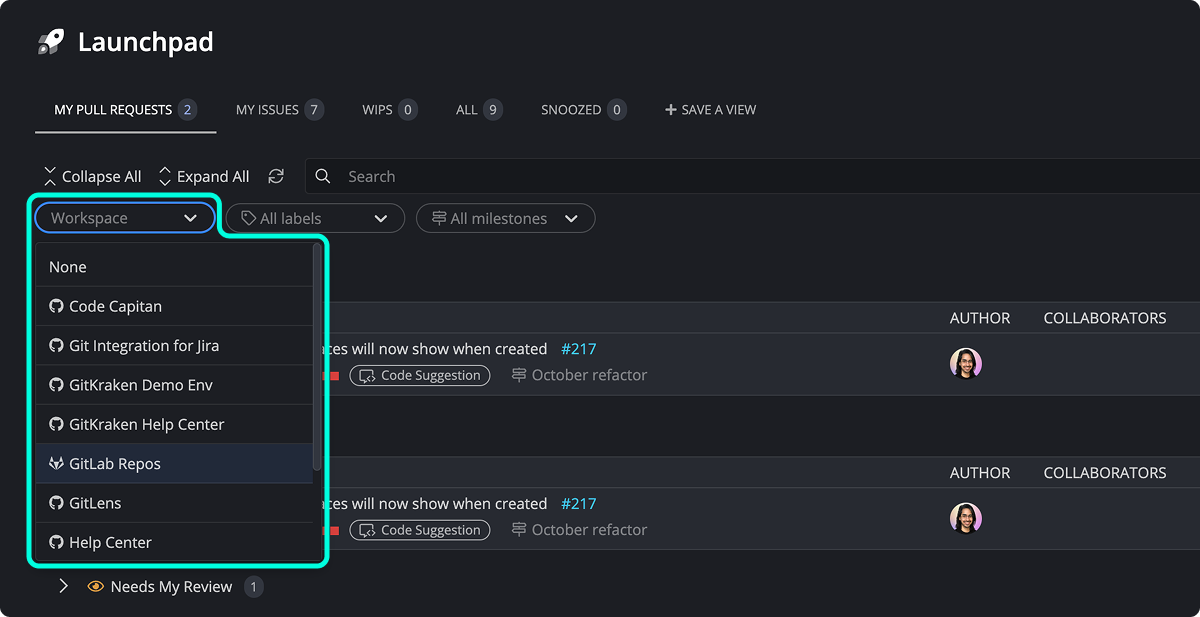
You can filter by:
- Pull Requests: Displays open PRs in selected Workspace repositories.
- Issues: Shows active issues.
- WIPs: Lists repositories with uncommitted changes.
- All: Displays a unified view of all three above.
Note: Cloud Workspaces are not available in GitKraken On-Premise. As a result, Launchpad will not show Cloud Workspace-related data in those environments. Learn more.
Pinned and snoozed items help prioritize what you see first:
- Click the icon to pin PRs or issues to the top.
- Click the icon to snooze a PR. Snoozed items are moved to the Snoozed tab.
How Personal View works
Personal View displays items where you’re directly involved:
- PRs/issues created by you
- Assigned to you
- You’re listed as a reviewer
- You are mentioned
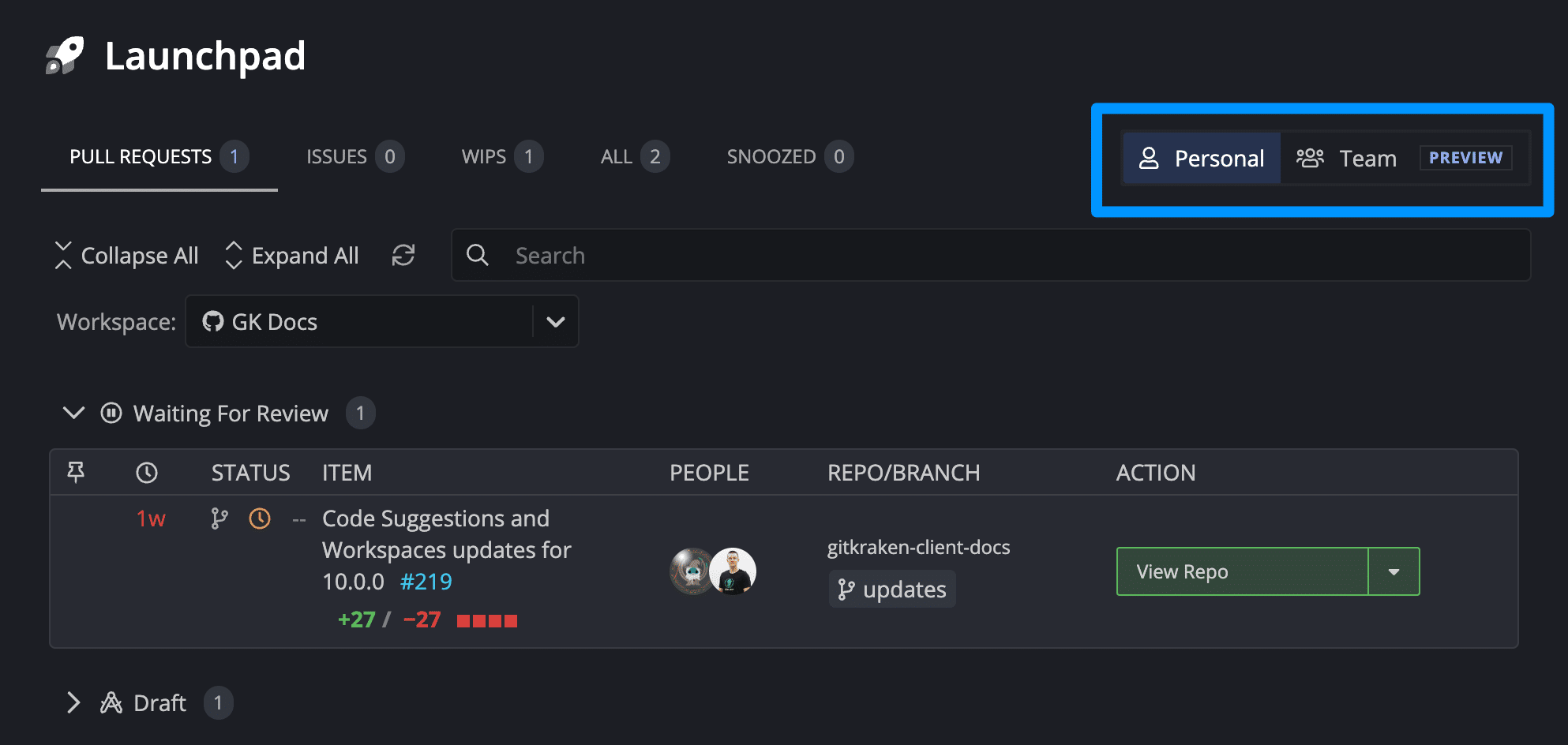
If you select “None” in the Workspace dropdown, you’ll still see items related to your user identity across all connected services.
Note: Team View is not available for GitKraken On-Premise due to its dependency on Cloud Workspaces. Team View is available for Advanced plans and above.
How Team View works
Switch to Team View using the toggle in the top-right corner of Launchpad. Team View displays items not associated with your user account:
- Created by others
- Assigned to others
- Others are listed as reviewers or mentioned
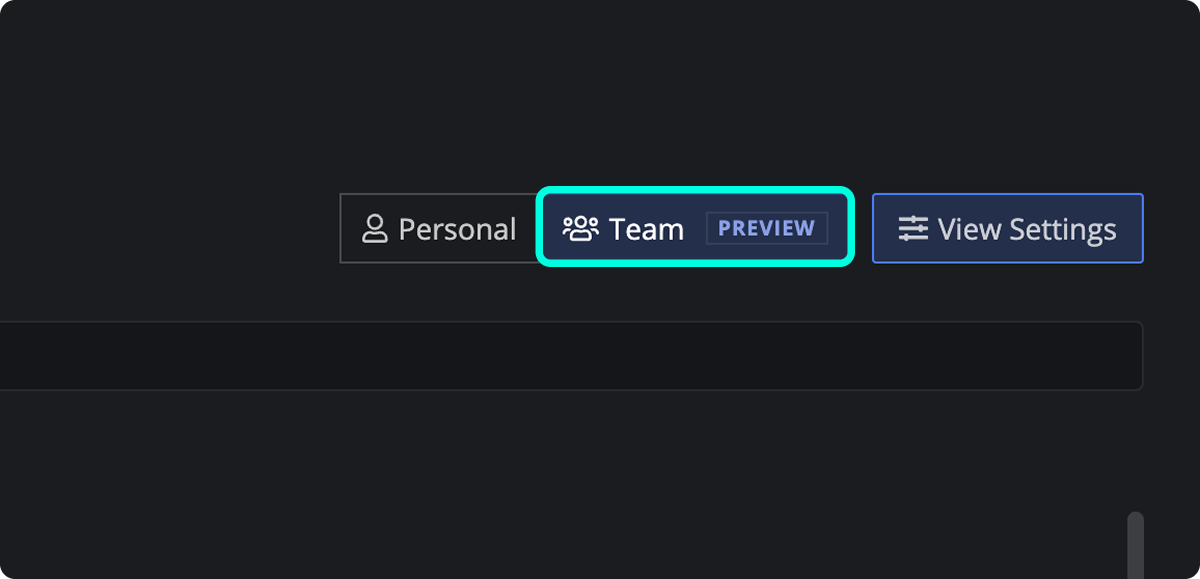
You can filter by user to focus on specific collaborators’ activity.
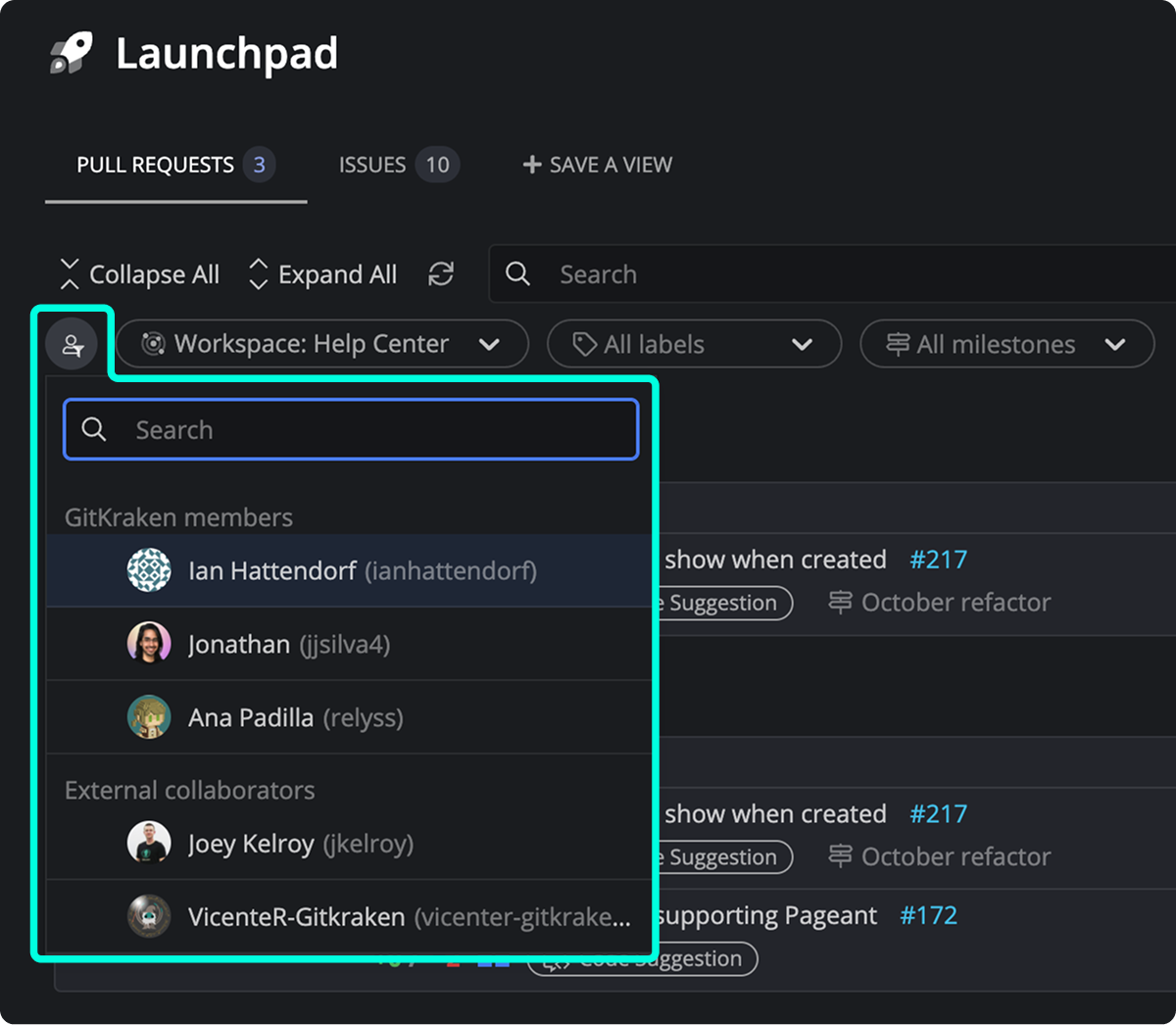
Team View provides a high-level look at your team’s current efforts across all repositories in the selected Workspace.
How to save and reuse Launchpad views
You can save customized views by clicking the Save View icon in the Launchpad tab bar.
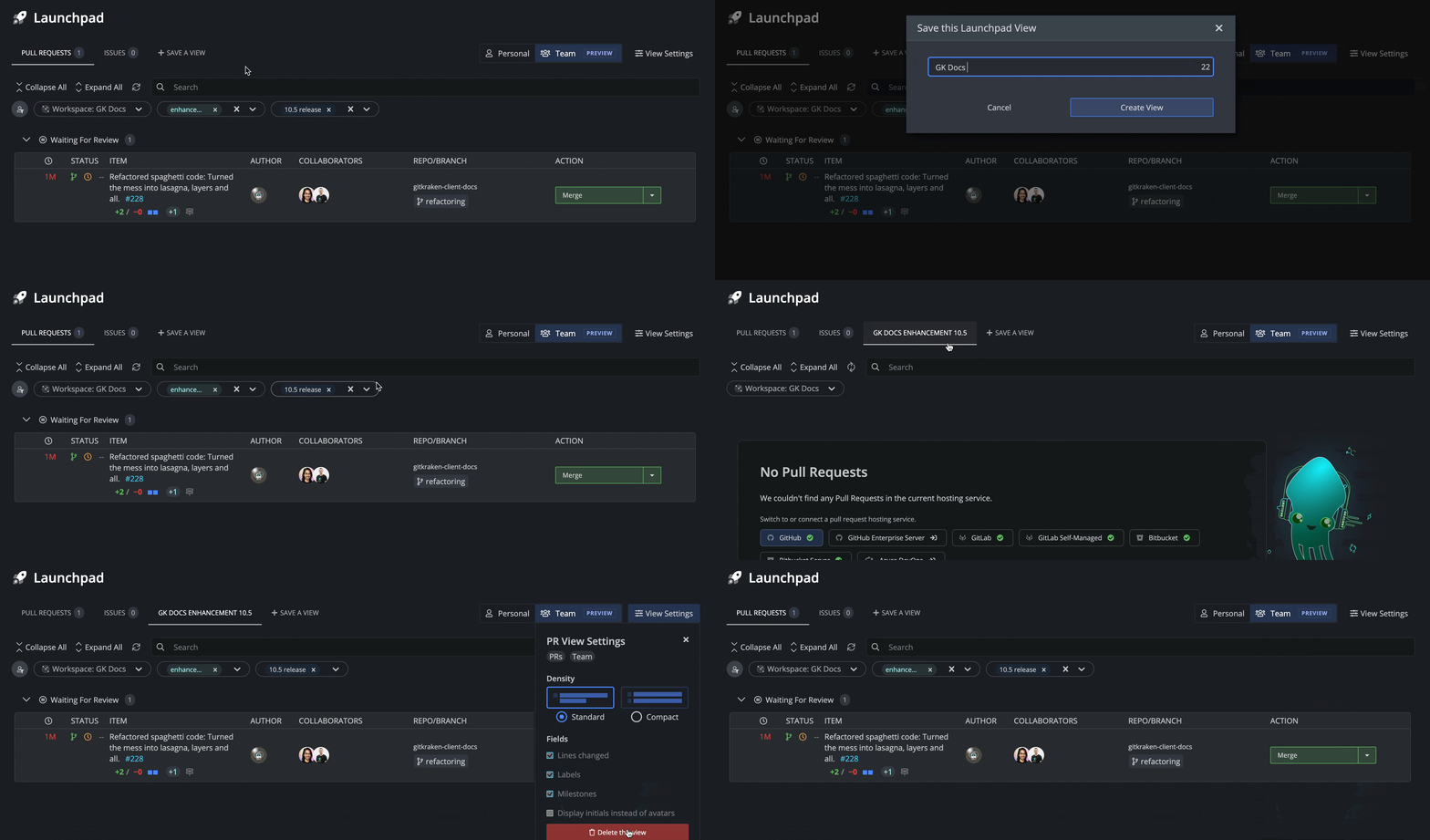
To delete a saved view:
- Select the view.
- Navigate to View Settings > Delete this view.
Note that saved views are only visible when you’re in the same mode (Team or Personal) in which they were created.
Note: Saved Views are not available in GitKraken On-Premise clients.
How to work with pull requests in Launchpad
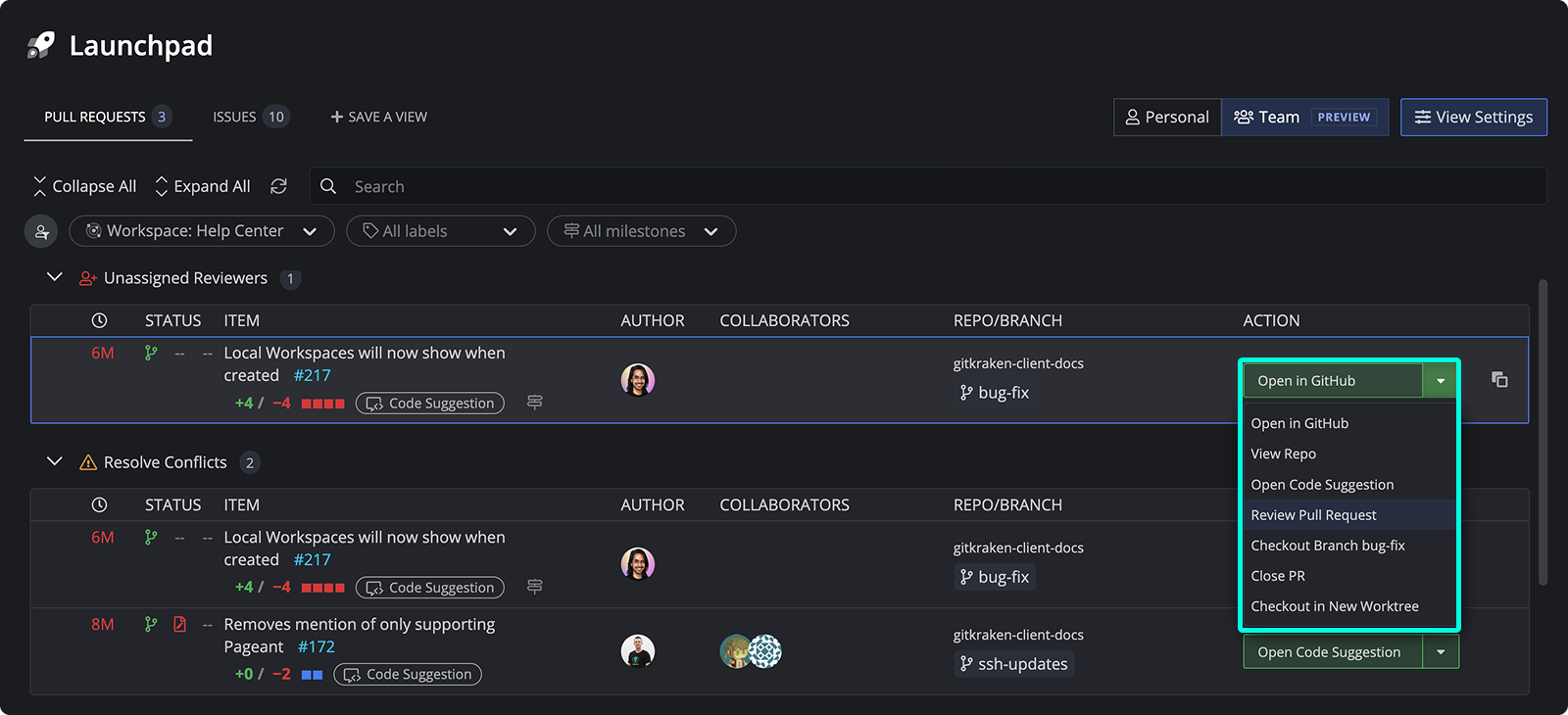
From Launchpad, you can quickly take action on pull requests:
- Open PR in the browser
- View the repository
- Open Code Suggestions (if available)
- Review pull request (GitHub only)
- Checkout PR branch
- Close PR
- Checkout in new worktree
Use Checkout in new worktree when you want to review or continue pull request work in a separate working directory. For more information, see Manage Git Worktrees in GitKraken Desktop. If you want to use coding agents in those worktrees, see Coding Agents in GitKraken Desktop.
What the pull request table columns mean
| Column | Description |
|---|---|
| Last Updated | Timestamp of the most recent activity on the pull request. |
| Status | PR status (e.g., Open, Draft, At Risk), review state, and build status. |
| PR Title | Pull request title with a link to the host, line diffs, and code suggestion indicators. |
| Author(s) | PR creators. |
| Collaborators | Contributors working on the pull request. |
| Repository and Branch | Displays the repository and branch for the pull request. |
| Actions | Links to open the repo, view in browser, review PR, and more. |
How GitHub pull requests work in Launchpad
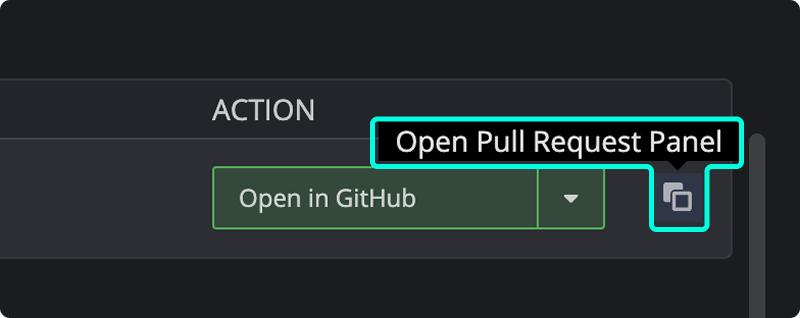
If your Workspace uses GitHub.com, you can view PRs directly in Launchpad’s GitHub pull request interface.
How to work with issues in Launchpad
Launchpad supports multiple issue trackers including Jira, GitHub Issues, Azure DevOps, and Trello.
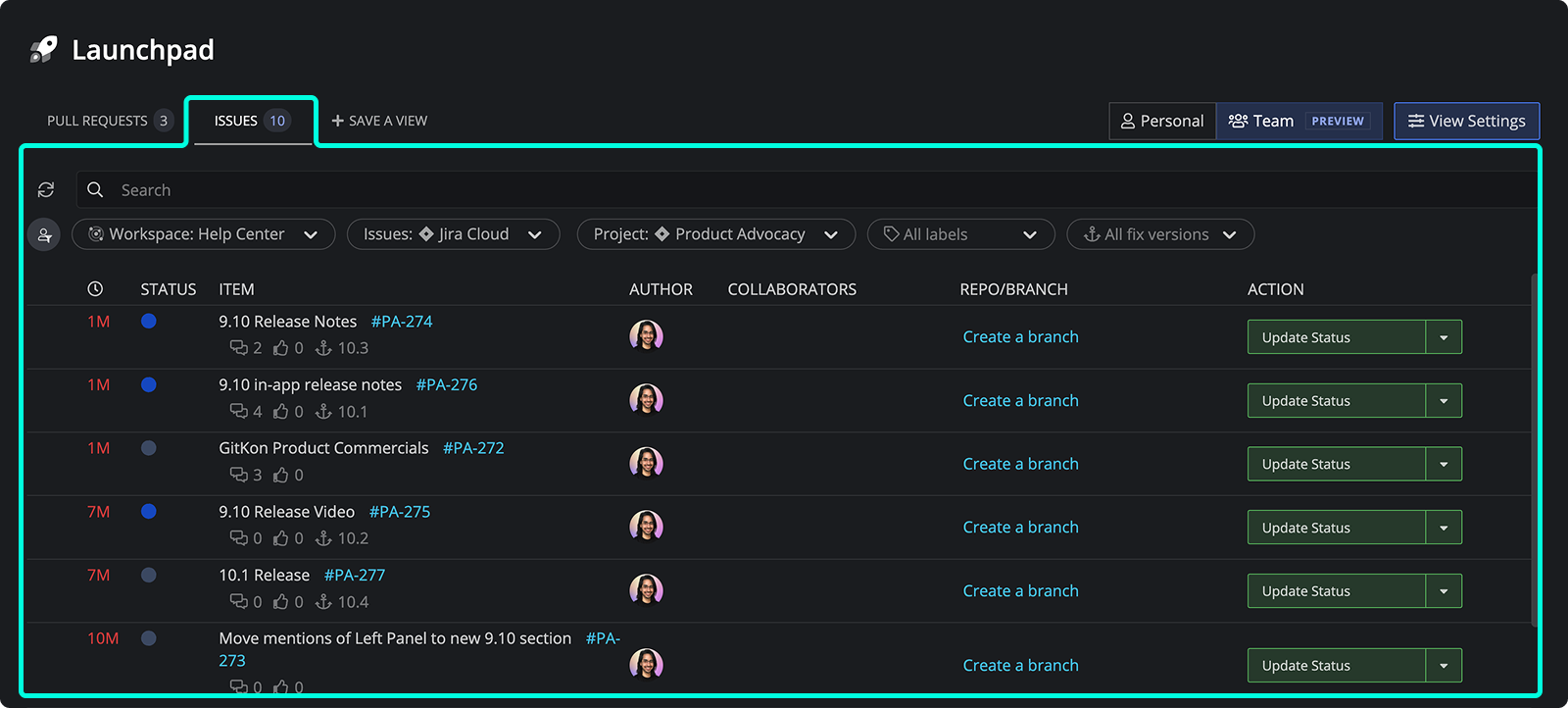
To customize your view:
- Switch providers from the Issues section dropdown.
- Connect integrations under Preferences > Integrations.
- Filter issues by creator, assignee, mentions, and labels.
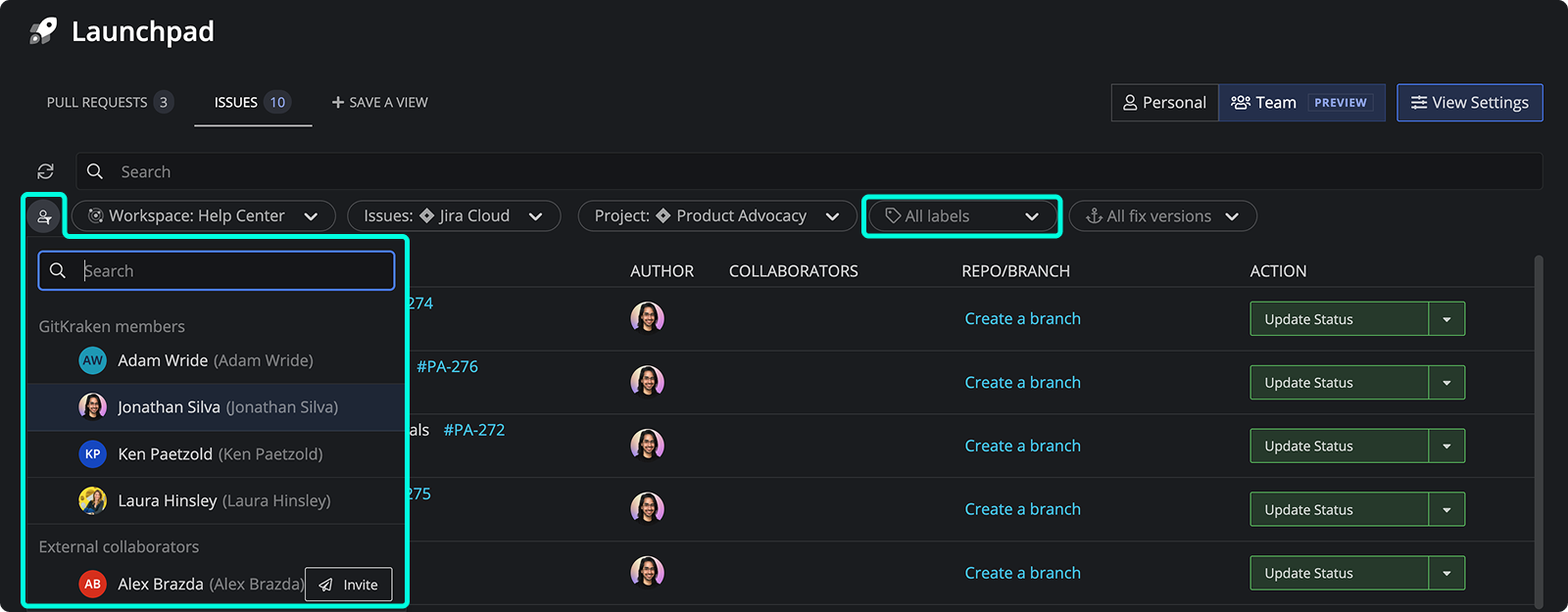
How to view works in progress in Launchpad
The WIPs section shows uncommitted changes in the repositories of your selected Workspace.
To view a repository with changes:
- Click next to the listing.
How the All tab works
The All tab combines Pull Requests, Issues, and WIPs for all repositories in the selected Workspace, giving a unified snapshot of ongoing work.
How the Snoozed tab works
The Snoozed tab lists all pull requests and issues you’ve chosen to hide temporarily.
- Click the icon again to unsnooze an item.
Note: Snoozing is available only with a paid GitKraken subscription.
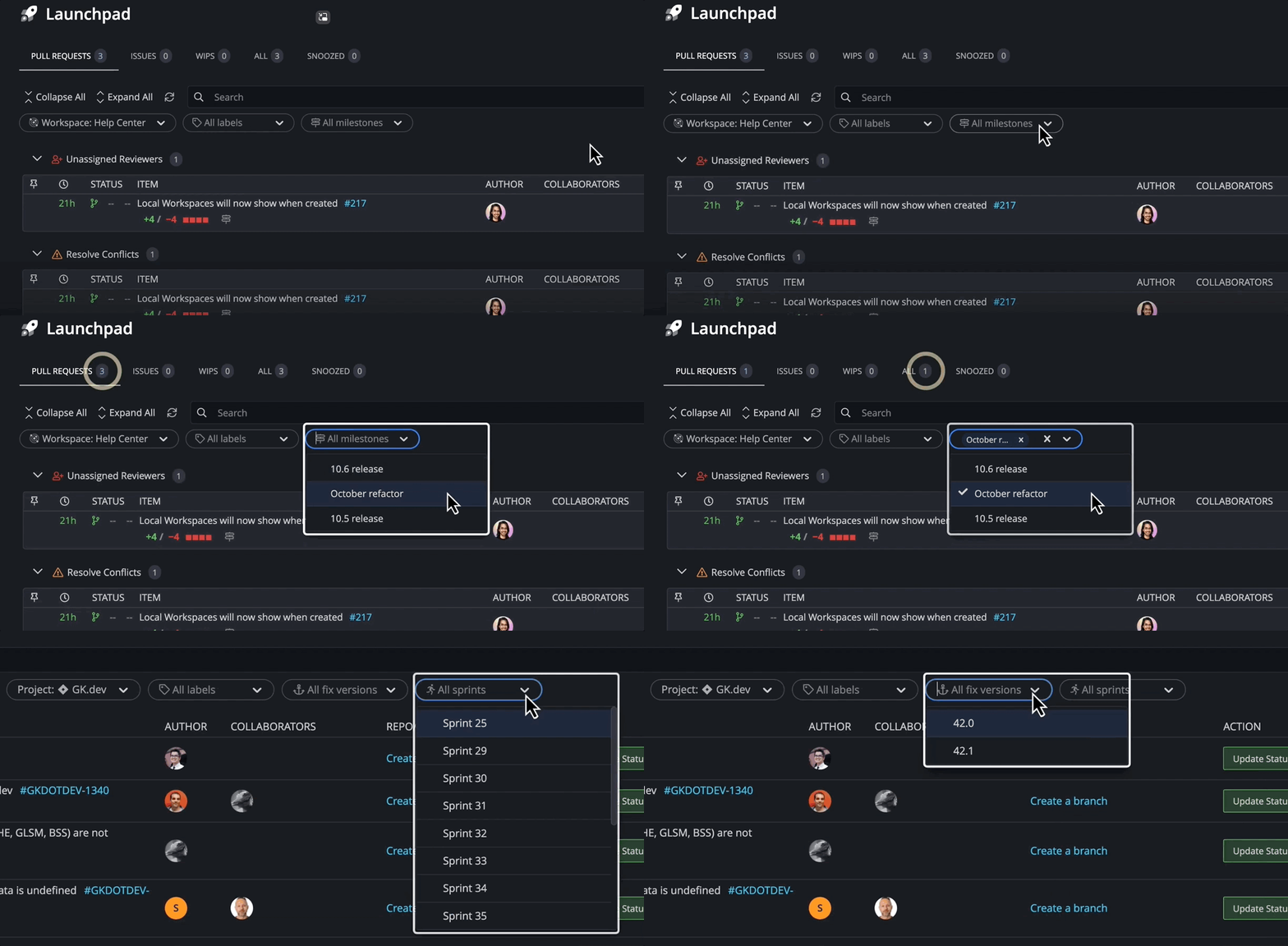
How to filter by milestones and sprints
Launchpad allows you to filter issues and pull requests by:
- Jira Fix Versions and Sprints
- GitHub and GitLab Milestones
Launchpad summary
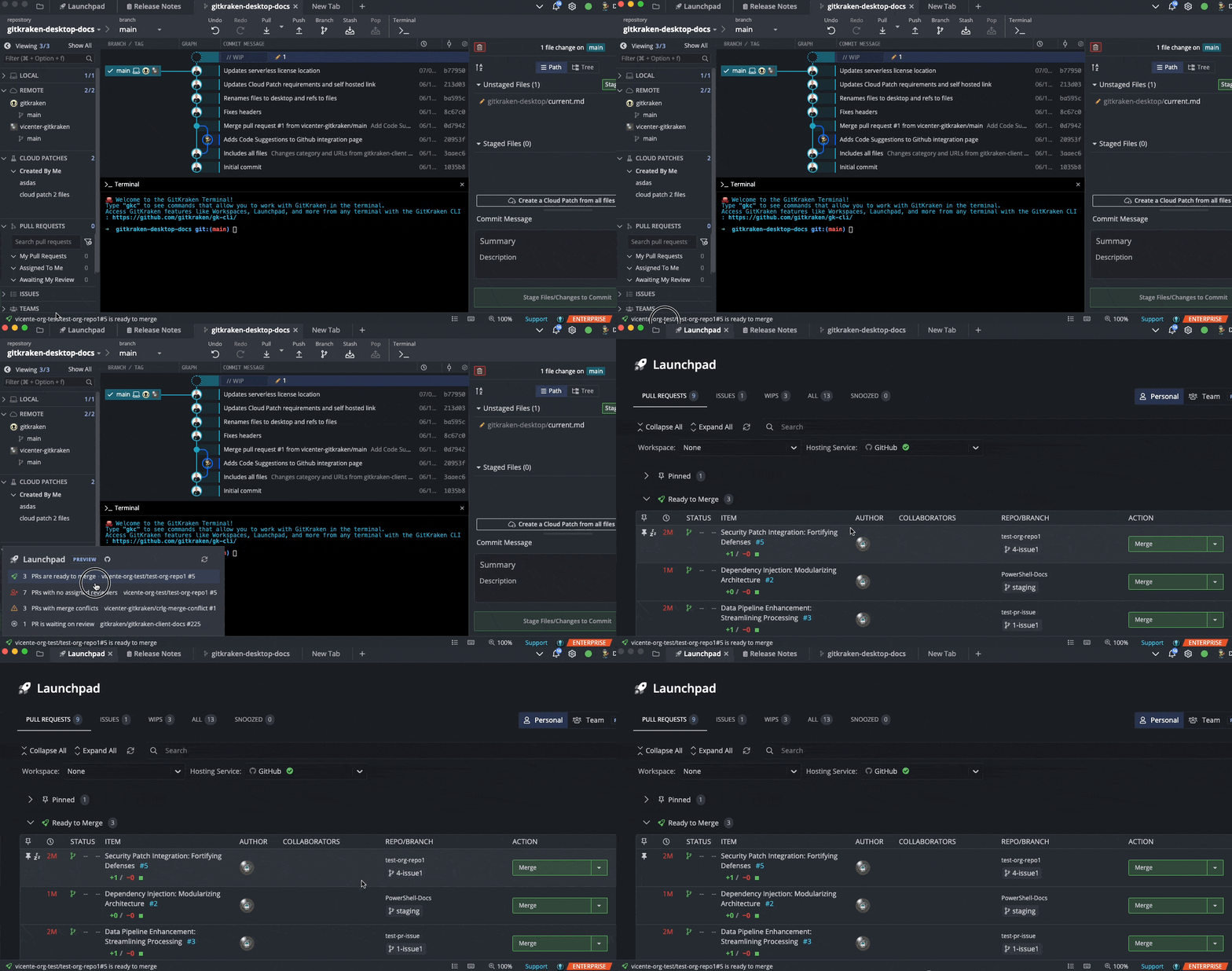
Your most important pull requests are summarized in the status bar.
- Click the summary indicator to open Launchpad with the matching status group expanded.
- Results reflect current filters set in the Launchpad tab.
How On-Premise Launchpad differs from Cloud Launchpad
GitKraken On-Premise respects network isolation, which limits certain cloud-based features.
| Feature | Cloud | On-Premise |
|---|---|---|
| Cloud Workspaces | ✅ | ❌ |
| Snoozing/Pinning | ✅ | ❌ |
| Team Launchpad | ✅ | ❌ |
| Issue/PR Filtering | ✅ | ✅ |
| View Settings | ✅ | ✅ (unsaved only) |
This local-only experience is ideal for teams requiring full network control.
Launchpad changelog
Stay up to date with recent enhancements.
| Version | Change |
|---|---|
| 10.5 | Add Saved Views |
| 10.4 | Added time-based filters |
| 10.3 | Filter Launchpad by PR and Issue labels |
| 10.2 | Add Team Launchpad (Preview) |
| 10.1 | Added Launchpad Status Bar |
| 10.0 | Focus View renamed to Launchpad |
| 9.12 | Focus View gets its own tab |
| 9.11 | Add PR actions to Focus View |
| 9.9 | Add pin and snooze support |
| 9.8 | Redesigned Focus View |
| 9.5 | Invite others to Workspace |
| 9.4 | Support Azure projects |
| 9.3 | Support Azure Issues |
| 9.2 | Start branch from issue |
| 9.0 | Added Cloud and Local Workspaces, Rename Overview to Focus View |
| 8.9 | Add Team Overview |
| 8.8 | Add Workspace Overview |
| 8.6 | Add support for Bitbucket Server |
| 8.5 | Add Workspace support for Azure DevOps |
| 8.4 | Pull Request View added to Workspaces |
| 8.2 | Workspaces introduced |
