

Last updated: November 2026
Use this page to connect GitKraken Desktop to GitLab.com for repository access, SSH setup, clone and remote workflows, and pull request activity. On the Community plan, GitLab access is limited to public repositories, and you use profiles to work with more than 1 GitLab account.
Requirements and limits
- Integration covered here: GitLab.com
- Community plan limit: Public repositories only
- Authentication: Browser-based GitLab connection through your GitKraken account (sign in to GitKraken Desktop first)
- Account limit: 1 GitLab account per profile; multiple accounts require multiple profiles and a GitKraken Pro subscription
- SSH behavior: GitKraken Desktop uses the key in Preferences > SSH unless you configure a GitLab-specific key or enable your local SSH Agent
| Workflow | Supported | Community limit | Notes |
|---|---|---|---|
| Connect GitLab.com account | Yes | None | Browser-based connection through your GitKraken account |
| Clone and browse repositories | Yes | Public repositories only | Private repository access requires a paid plan |
| SSH key generation and upload | Yes | Public repositories only | Uses GitKraken SSH settings unless overridden |
| Create and manage pull requests | Yes | Public repositories only | Supported directly in GitKraken Desktop |
| Multiple GitLab accounts | Yes | Not included | Requires separate profiles and a Pro plan |
Quick Start
- Go to Preferences > Integrations in GitKraken Desktop.
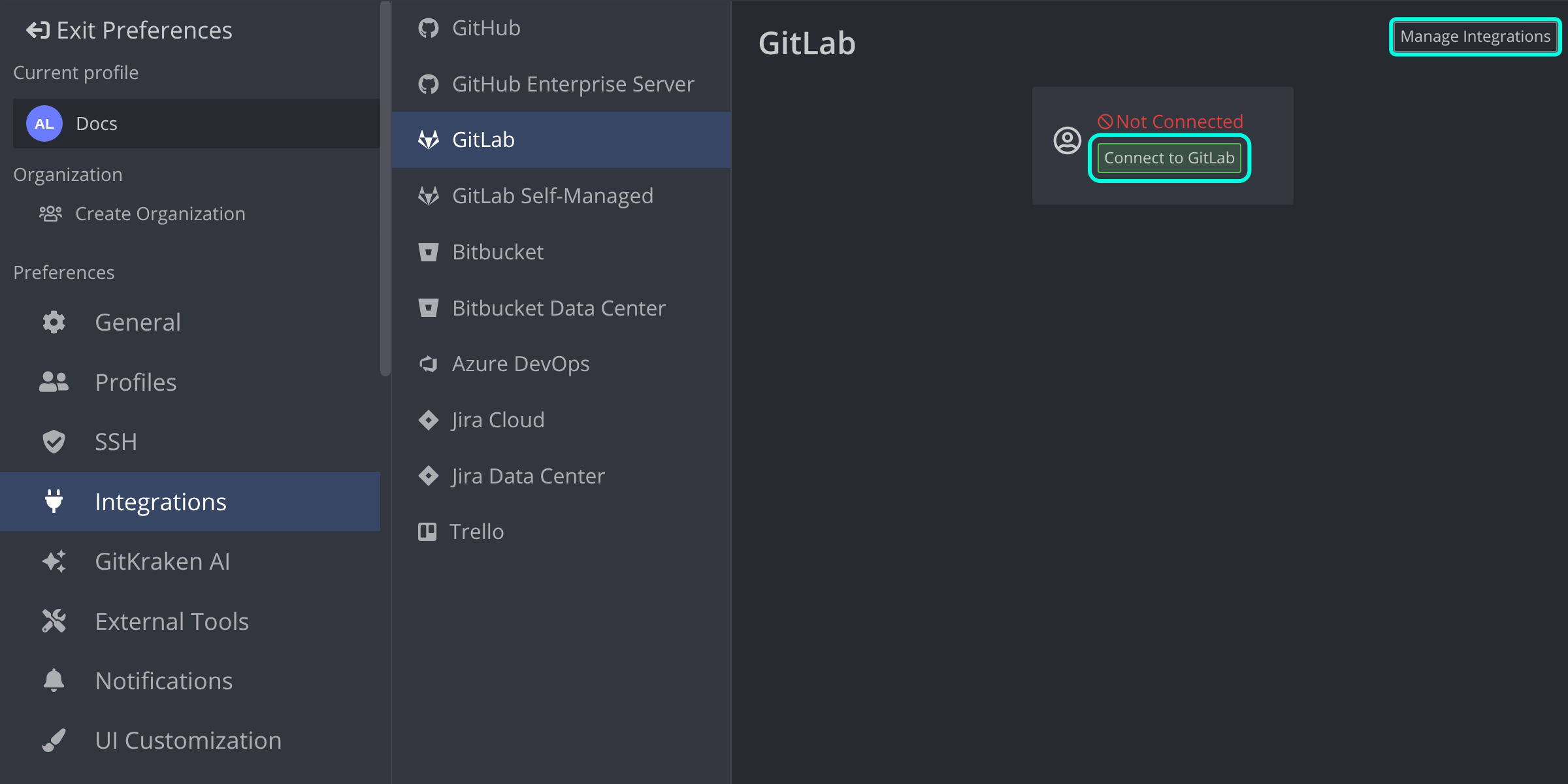
- Select GitLab and click Connect to GitLab. If you are signed out of your GitKraken account, sign in first.
- Finish connecting in your browser at gitkraken.dev. If asked, log in to GitLab.
To configure SSH access after connecting, do one of the following in Preferences > Integrations:
- Click Generate SSH key and add to GitLab to generate and upload a key automatically.
- Click Add key to GitLab to upload your existing default SSH key.
After you connect, GitKraken Desktop shows your GitLab repositories when you clone, shows forks when you add remotes, and lets you create and manage pull requests. To manage more than one GitLab account, use multiple profiles with a GitKraken Pro plan.
What the GitLab integration lets you do
- Create new repositories on your GitLab account with optional .gitignore and license templates.
- Automatically generate and upload an SSH key pair to GitLab.
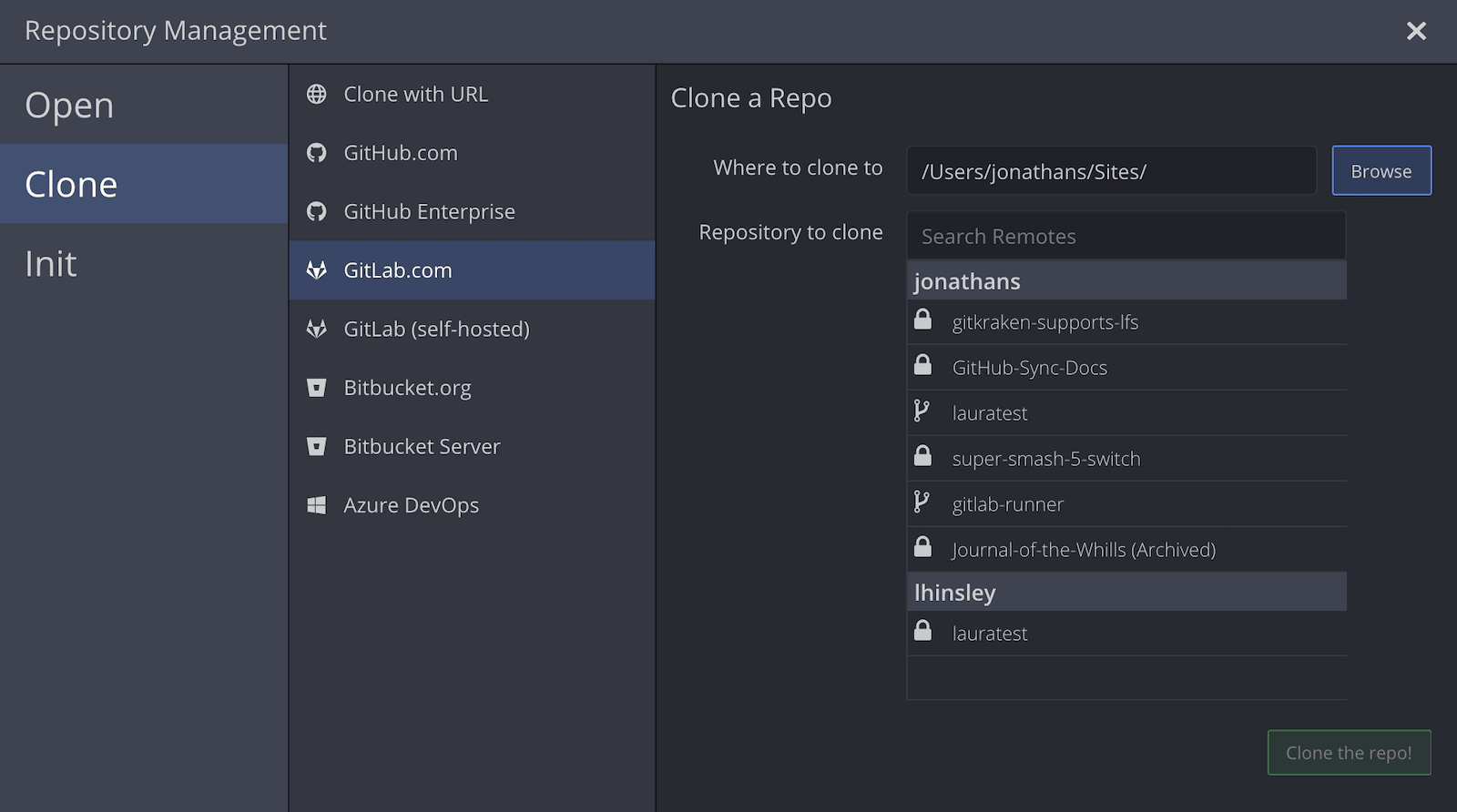
- Clone repositories directly from your GitLab repo list.
- Identify GitLab repositories by remote avatars on the Commit Graph.
- Add remotes to GitLab repositories.
- Create and manage pull requests in GitKraken Desktop.
- Work with GitLab Issues alongside your code.
Note: The GitKraken Community plan only supports public repositories.
How to connect the GitLab integration
Before you start: sign in to your GitKraken account. GitLab connects through your GitKraken account, so you can also use the connection on your other computers and profiles. See How integrations connect through your GitKraken account.
To authenticate with GitLab:
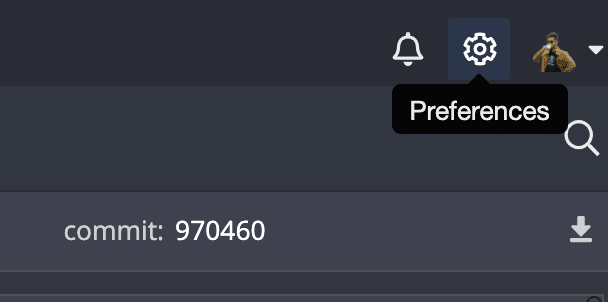
- Open Preferences > Integrations from the upper-right corner.
- Select GitLab and click .
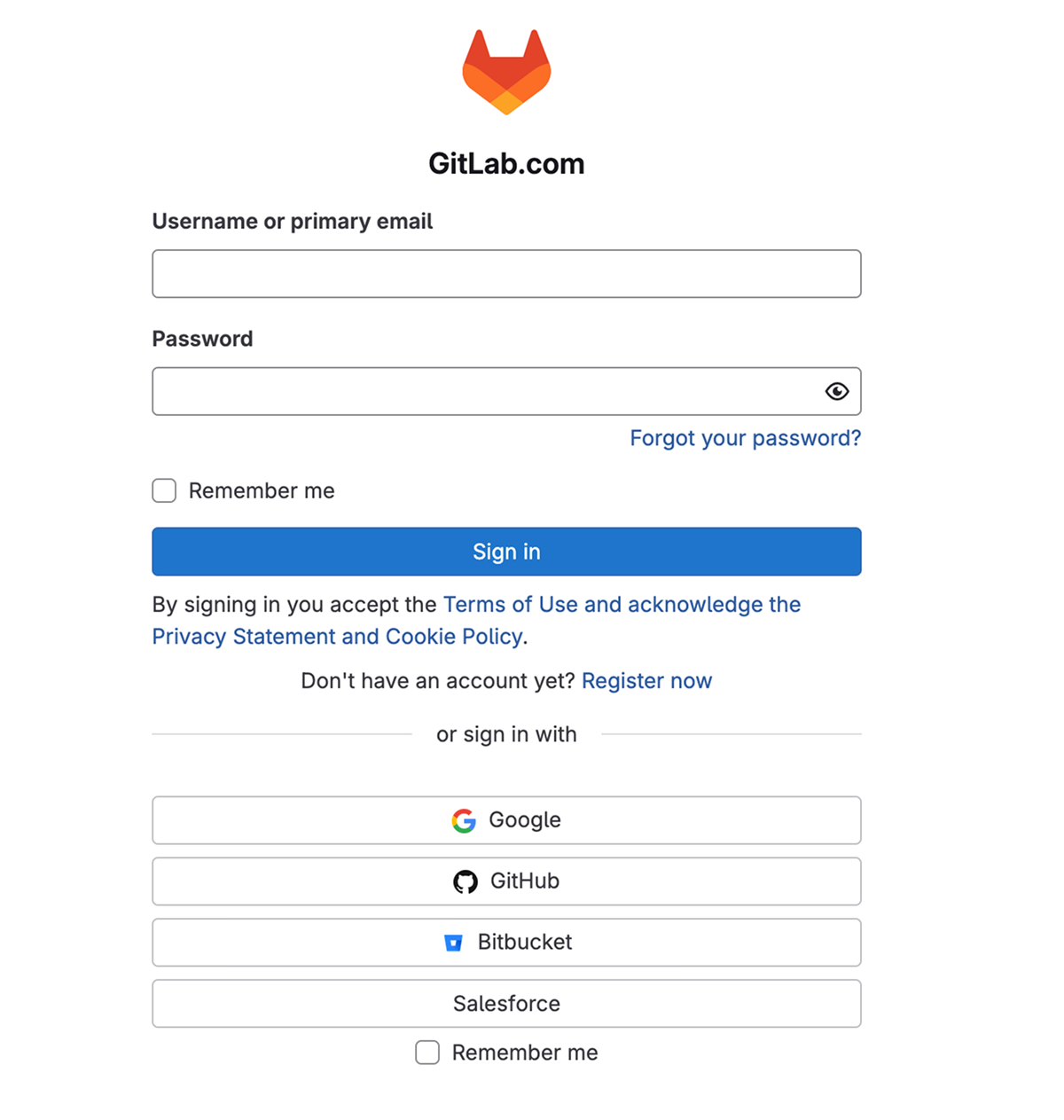
- Your default browser opens gitkraken.dev. Log in to GitLab if asked, then follow the prompts to return to GitKraken Desktop. The GitLab card then reads Connected to your GitLab integration.

How to generate an SSH key for GitLab
Note: GitKraken Desktop uses the SSH key listed in Preferences > SSH unless you configure a GitLab-specific key or enable your local SSH Agent.
After you connect GitLab, generate a new SSH key or upload an existing one:
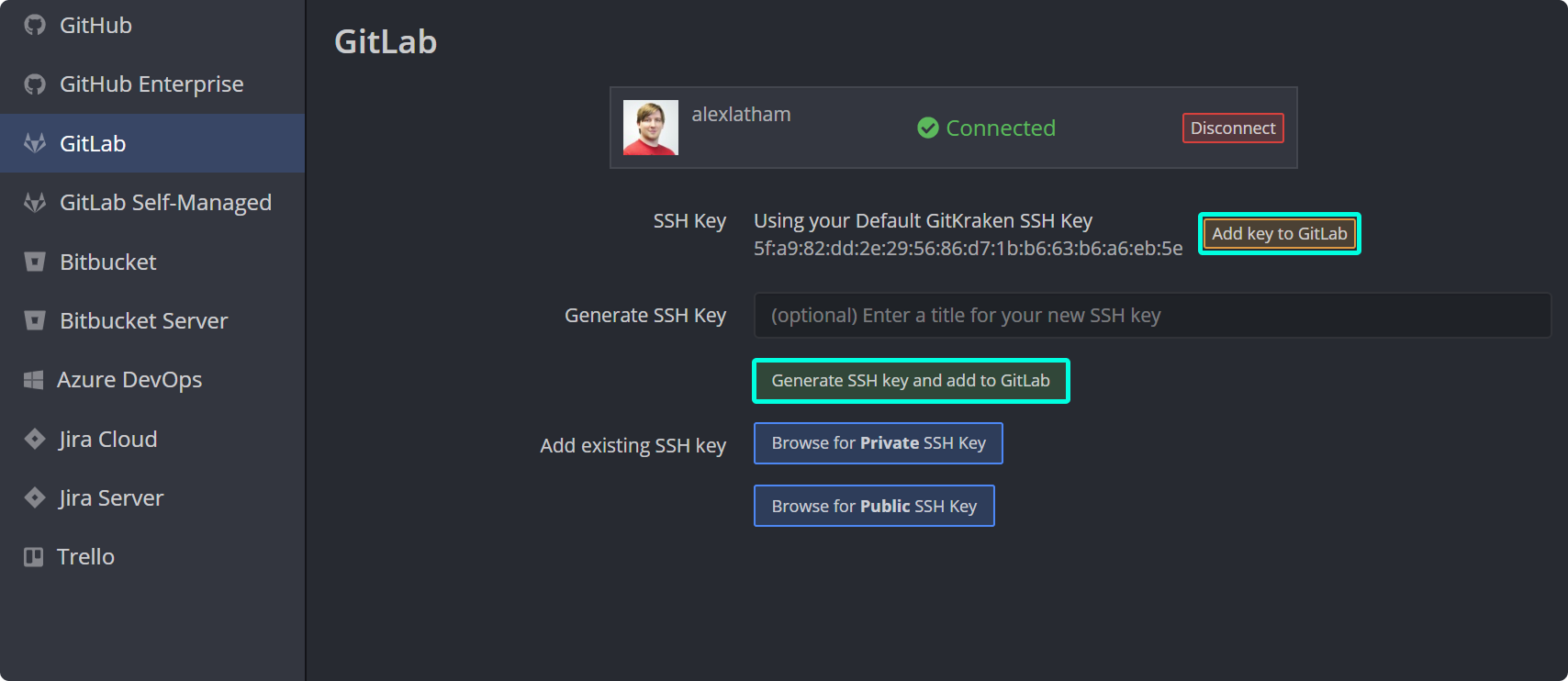
- Click to generate a key and add it to GitLab.
- Click to add your existing default SSH key.
- Click Add existing SSH key to upload your own key manually.
What GitLab OAuth enables in GitKraken Desktop
Use the GitLab integration when: you want cloning, remotes, pull requests, and issue workflows tied directly to GitLab.com inside GitKraken Desktop. For self-managed GitLab: see GitLab Self-Managed.
With GitLab connected, you can:
- Browse your GitLab repositories while cloning:
- View forks when adding remotes:
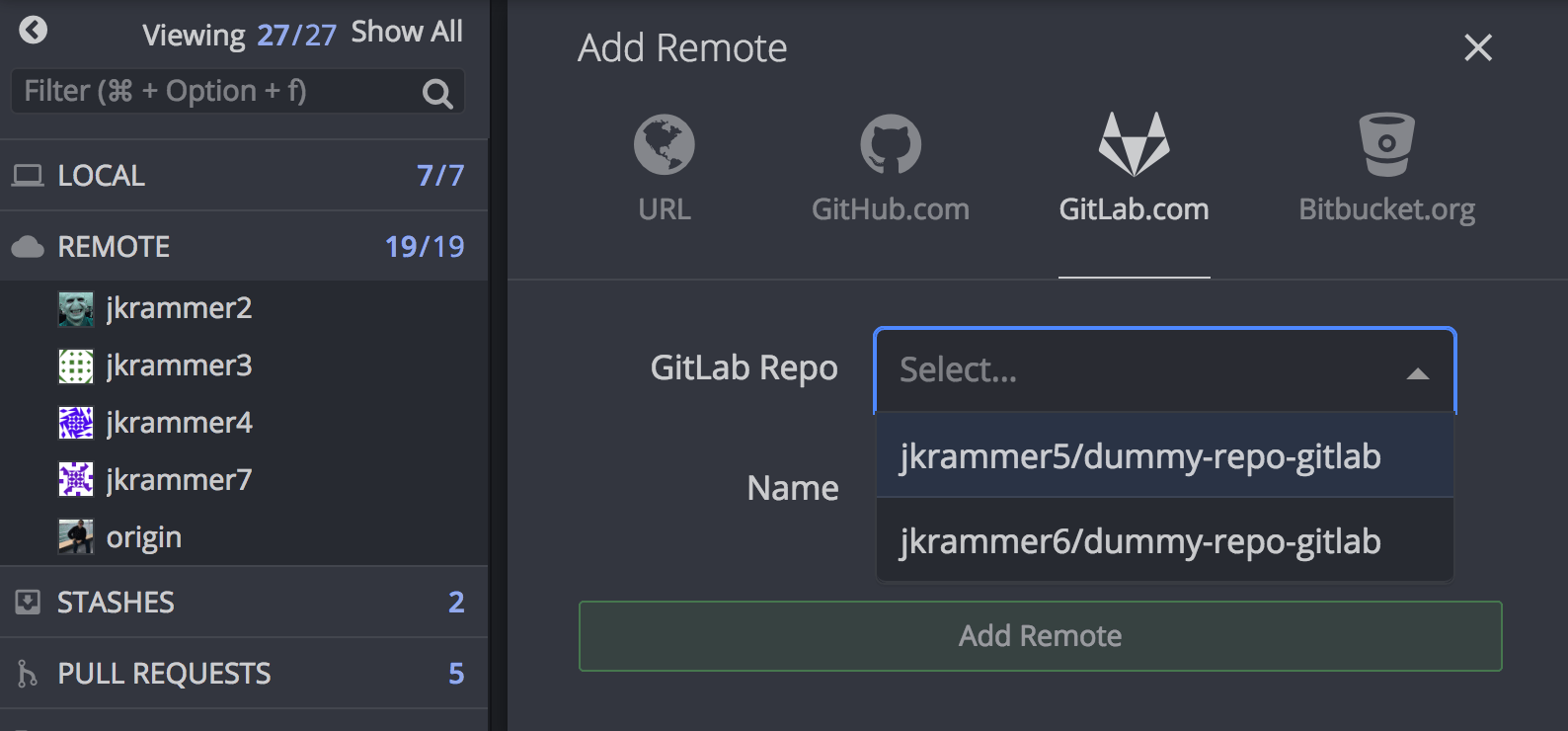
You can still enter repository URLs manually.
How to connect multiple GitLab accounts
GitKraken Desktop supports 1 GitLab account per profile. With profiles in GitKraken Pro, you can switch between multiple GitLab accounts.
Use multiple profiles when: you need to switch between separate GitLab identities or organizations cleanly. Do not use multiple profiles when: one GitLab account already covers the repositories you need and profile switching would add unnecessary overhead.
