

Last updated: October 2026
Yes, GitKraken Desktop shows all of a repository’s worktrees in one place, including the ones your coding agents created, and lets you remove them with or without their branches. Use this page to find stale agent worktrees and orphaned branches, check whether their work was merged, and clean them up without losing work you meant to keep.
Requirements and limits
- Scope: Finding, checking, and removing worktrees and branches left behind by coding agent sessions
- Prerequisite: The merged PR pill needs the branch’s remote on GitHub or GitLab, with that integration connected.
- Limits: Remove worktree and delete branch deletes the local branch even if its commits aren’t merged, and you can’t undo it.
- Limits: You can’t remove the main worktree.
Removing a worktree also deletes its folder, including uncommitted and untracked files, once you confirm. Check the worktree before you remove it.
Quick Start
Find the worktree in the Left Panel or in Agent Sessions View, right-click it, and use the row that matches what you want to keep.
| What you want | Select | What it deletes |
|---|---|---|
| Keep the branch, remove the worktree | Remove this worktree | The worktree and its folder |
| Remove the worktree and its local branch | Remove worktree and delete branch | The worktree, its folder, and the local branch, merged or not |
| Remove everything, including the pushed branch | Remove worktree and delete branch (local & remote) | The worktree, its folder, the local branch, and the remote branch |
| Clear out worktrees whose folders are already gone | Prune worktrees | Git’s records of worktrees that no longer exist on disk |
| Make sure a worktree isn’t removed by mistake | Lock this worktree | Nothing. Locked worktrees need extra confirmation to remove. |
How to see all your worktrees in one place
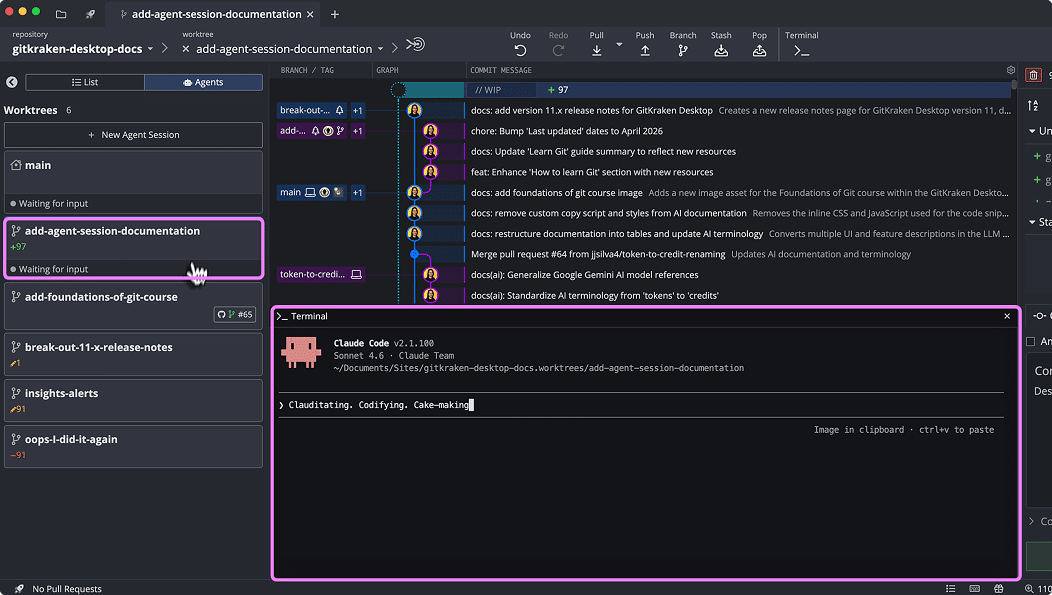
Every worktree in the repository appears in three places:
- List view in the Left Panel lists each worktree with its branch. When the folder name differs from the branch, it appears under the branch name. Hover to see the full path.
- Agent Sessions View shows a card for each worktree with its branch, uncommitted (WIP) changes, ahead and behind counts, and agent status.
- The Commit Graph shows a separate WIP node for each worktree that has pending changes.
How to check a worktree before you remove it
A clean worktree doesn’t tell you whether its work was merged. Check these first:
- Look for the merged PR pill. A merged PR pill on the worktree’s card means the branch has a merged GitHub pull request or GitLab merge request. The work has shipped, so it’s safe to remove the worktree and delete the branch.
- Check the ahead count. If the card shows the branch is ahead, it has commits that aren’t on the remote. Push them or make sure you don’t need them.
- Check for WIP changes. Uncommitted changes are deleted with the worktree. Open the worktree and commit, stash, or discard them first.
- Review the work if you’re unsure. See Review and Undo AI Coding Agent Changes.
How to remove agent worktrees
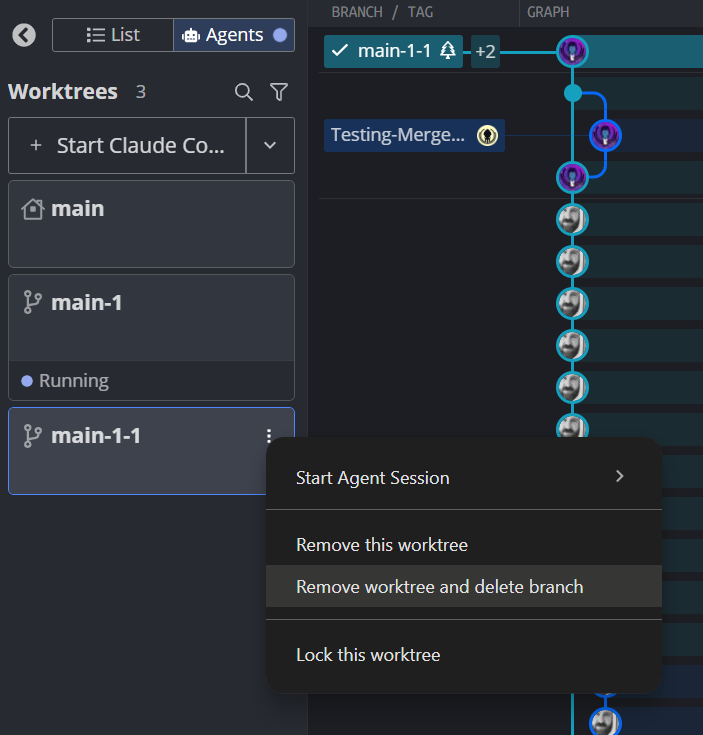
Right-click the worktree in the Left Panel, or right-click its card in Agent Sessions View, and choose one of the options below. Removing a worktree also stops any agent terminal session running in it.
Remove the worktree and keep its branch
Select Remove this worktree. GitKraken Desktop removes the worktree and its folder. The branch and its commits stay, so you can check out the branch again later.
Remove the worktree and its local branch
Select Remove worktree and delete branch, then confirm. GitKraken Desktop removes the worktree and then deletes the local branch.
It deletes the branch even if its commits aren’t merged anywhere, and you can’t undo it. Use it after the work is merged, or when you’re sure you don’t need the agent’s commits. If the branch was pushed, the remote branch stays.
Remove the worktree and the remote branch too
If the branch has a remote branch, the menu also shows Remove worktree and delete branch (local & remote). It removes the worktree first, then deletes the local and remote branches. If the worktree isn’t removed, for example because you cancel, neither branch is deleted.
Only use this when nobody else needs the remote branch.
What happens when a worktree has uncommitted changes
Git won’t remove a worktree that has modified or untracked files, that is locked, or that contains submodules. In those cases, GitKraken Desktop asks whether to complete the removal with force. Select Force Remove Worktree to delete the worktree and everything in it, or Cancel to keep it.
Force removal can’t be undone. If you’re not sure, cancel, open the worktree, and look at its WIP changes first.
How to clean up worktrees whose folders are gone
If a worktree’s folder was deleted outside GitKraken Desktop, for example by an agent or from your file manager, Git still keeps a record of it. The worktree still appears in the Left Panel, but you can’t open it.
To clean them up, right-click a prunable worktree in the Left Panel and select Prune worktrees. GitKraken Desktop runs git worktree prune for the repository, which clears every record whose folder no longer exists. Branches aren’t deleted.
How to protect a worktree from removal
Right-click the worktree and select Lock this worktree. Git won’t remove a locked worktree without force, so GitKraken Desktop asks for confirmation before it does. To unlock it, select Unlock this worktree.
Common questions
Will removing an agent’s worktree delete its commits?
Not with Remove this worktree. The commits stay on the branch. Remove worktree and delete branch deletes the branch, and any commits that exist only on that branch are lost.
Can I undo removing a worktree?
No. GitKraken Desktop warns that removing a worktree and deleting its branch can’t be undone. Check the worktree first, as described in How to check a worktree before you remove it.
Does GitKraken Desktop delete a branch that isn’t merged?
Yes, if you select Remove worktree and delete branch and confirm. It doesn’t check whether the branch is merged. Use the merged PR pill or the ahead count to check first.
How do I know which worktrees an agent created?
Worktrees from agent sessions appear as cards in Agent Sessions View, with the agent’s status. Every worktree also appears in List view, whether an agent or a person created it.
