

Last updated: October 2026
Yes, GitKraken Desktop can help when two AI coding agents worked in separate worktrees and their branches now conflict. Its Merge Tool, with optional Auto-resolve with AI, resolves the conflicts one file at a time. You merge both branches into one integration branch, resolve each conflict in the Merge Tool, with or without Auto-resolve with AI, and then test the combined result before you open a pull request.
Requirements and limits
- Scope: Combining the work of two or more agent branches and resolving the conflicts between them
- Prerequisite: Merging and choosing lines from each side work on every plan. Editing the merged output in the Merge Tool requires a paid GitKraken subscription. Auto-resolve with AI also requires GitKraken AI to be enabled.
- Limits: Auto-resolve with AI is in Preview. It suggests a resolution for each conflicted hunk, and you decide whether to keep it.
- Limits: A merge with no conflicts doesn’t prove the two agents’ changes work together. Test the combined result.
Quick Start
- Create an integration branch from your target branch, such as
main, and open it in its own worktree. - Merge the first agent’s branch into it.
- Merge the second agent’s branch. GitKraken Desktop lists any conflicted files in the Commit Panel.
- Click each conflicted file to open the Merge Tool. Resolve it by hand, or click Auto-resolve with AI and review the suggestion for each hunk.
- Commit the merge, then run both agents’ tests together.
- Push the integration branch and open one pull request from it.
How to set up an integration branch
Merging into a new branch keeps both agent branches exactly as the agents left them. If the combined result isn’t right, you can throw away the integration branch and start again without losing either agent’s work.
To set one up:
- In the Commit Graph, right-click the newest commit on your target branch, such as
main, and select Create branch here. Name it something likeintegrate/login-and-search. - In the Left Panel, right-click the new branch and select Create worktree.
- Open the new worktree.
Your own worktree and the agents’ worktrees stay untouched. See Manage Git Worktrees for more on creating, opening, and removing worktrees.
How to merge the agent branches
With the integration worktree open:
- Right-click the first agent’s branch and select Merge, or drag it onto the integration branch. If the agents only changed different files, the merge completes on its own.
- Repeat for the second agent’s branch.
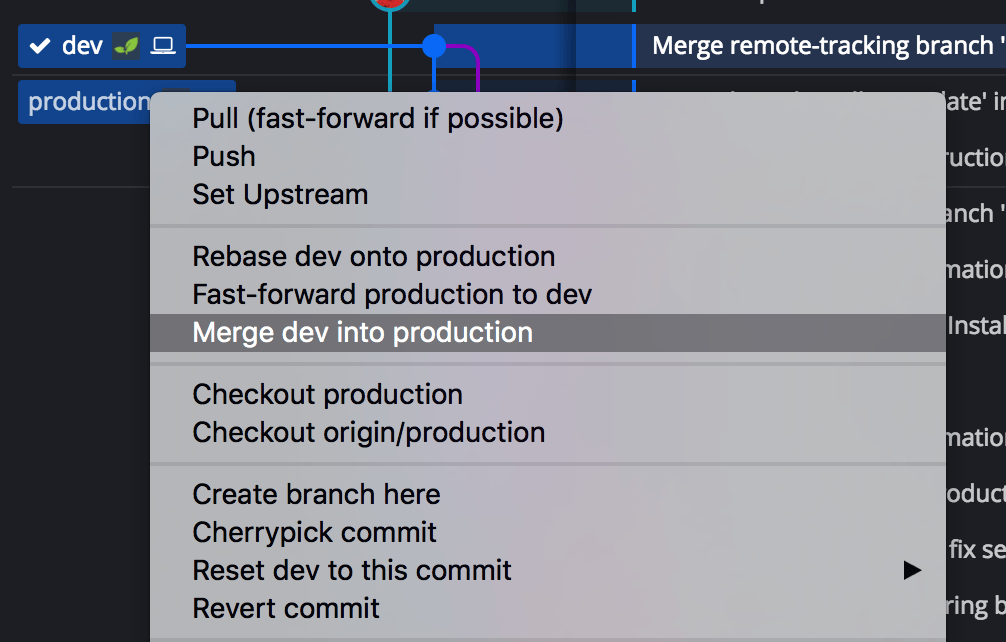
If both agents changed the same lines, GitKraken Desktop stops and lists the conflicted files in the Commit Panel.

How to resolve each conflict
Click a conflicted file to open the Merge Tool. It shows the current branch on the left, which is your integration branch, and the incoming branch on the right, which is the agent branch you’re merging. The output is at the bottom. You have four ways to resolve it.
Use Auto-resolve with AI
- In the Merge Tool, click Auto-resolve with AI.
- Read the explanation and the confidence level for each conflicted hunk.
- Accept, edit, or discard the suggestion. Look hardest at the hunks with low confidence.
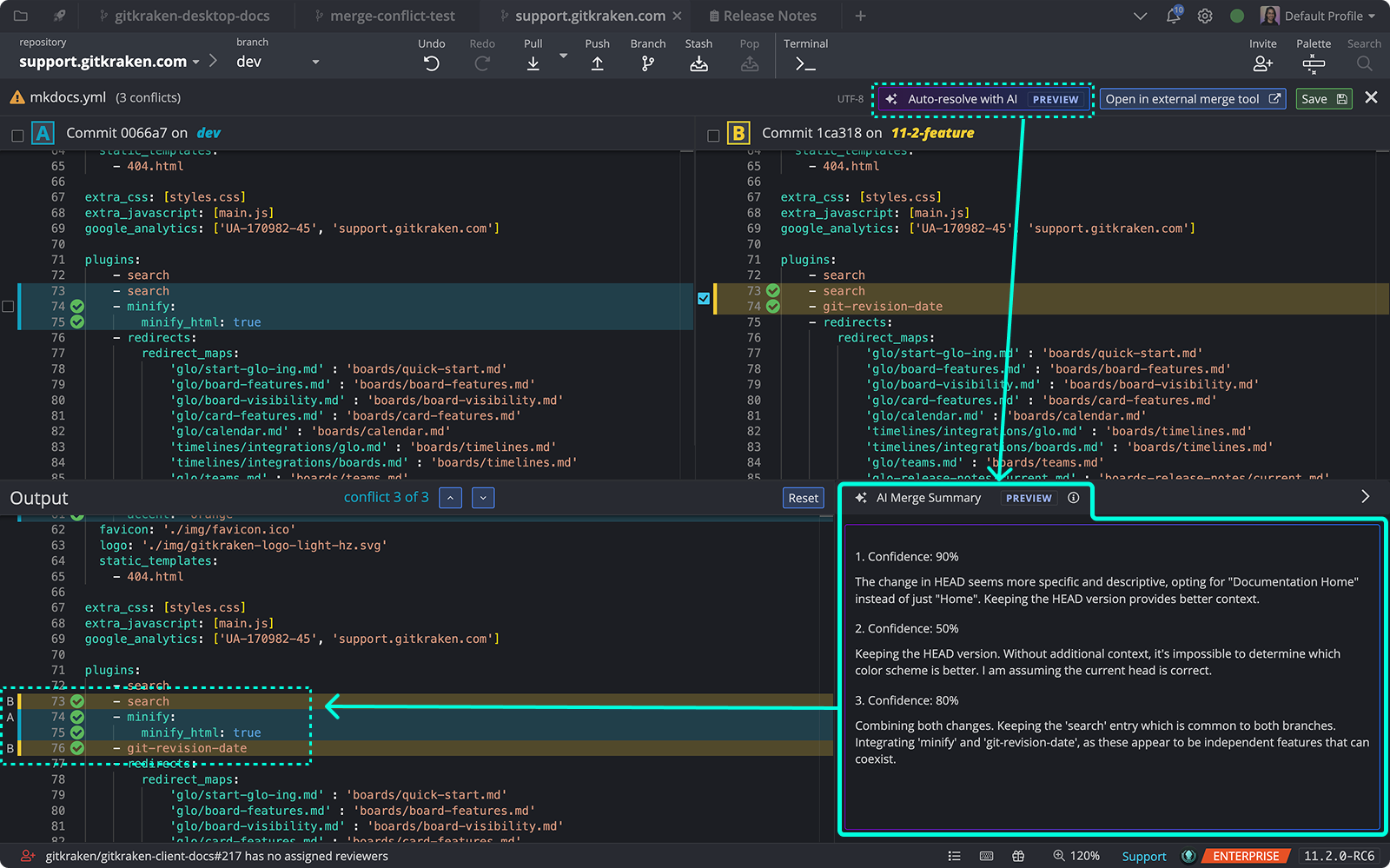
Treat the suggestion as a starting point. The AI sees the conflicting code, not what each agent was asked to do. To give it that context, add instructions in Preferences GitKraken AI Conflict Resolution, for example a sentence about what each task was meant to change.
Choose lines by hand
Use the checkboxes or the + buttons to pick lines from each side, or type in the output directly. Use the arrow keys to move between conflicts.
Take one side for the whole file
If one agent’s version of a file should win completely, right-click the file in the Commit Panel. Select Take current to keep the integration branch’s version, or Take incoming to keep the version from the agent branch you’re merging.
Use an external merge tool
If your team uses a supported external tool, set it under Preferences General. See Branch, Merge, and Rebase for the supported tools.
When every file is resolved, save the output, stage the files, and commit the merge.
How to check the combined result
Resolving every conflict means Git can combine the files. It doesn’t mean the two agents’ changes work together.
- Run the tests for both tasks in the integration worktree, from the embedded terminal. A change from one agent can break the other agent’s feature without causing a conflict.
- Review everything the integration branch adds. With the integration worktree open and nothing left uncommitted, right-click your target branch, such as
main, and select Compare commit against working directory. See Review and Undo AI Coding Agent Changes for more ways to inspect the work. - Push and open one pull request from the integration branch. See Pull Requests. The agent branches don’t need their own pull requests. Remove their worktrees and branches after the integration branch merges.
If the result isn’t right, remove the integration worktree and its branch and start again. Both agent branches are unchanged. See Manage Git Worktrees for how to remove a worktree.
How to keep conflicts small next time
- Merge each agent’s branch as soon as it finishes, instead of waiting for every agent. Smaller merges produce smaller conflicts.
- Give agents tasks that touch different files when you can. Parallel agents conflict most when they edit the same files.
- Check for overlap early. Conflict Prevention warns when your work overlaps with your target branch or with Org Members’ work.
Common questions
Can GitKraken Desktop resolve the conflicts automatically?
It can suggest a resolution. Auto-resolve with AI proposes a fix for each conflicted hunk, with an explanation and a confidence level, and you accept, edit, or discard each one. Nothing is committed until you commit the merge.
Does a merge with no conflicts mean the agents’ work fits together?
No. Git only checks whether lines overlap. Run both agents’ tests on the combined branch before you open a pull request.
Should I rebase one agent branch onto the other instead?
You can. Rebase gives a straight-line history but rewrites the rebased branch’s commits. See Branch, Merge, and Rebase for when to use merge or rebase. If you rebase, you resolve the same conflicts one commit at a time.
Does this work with any coding agent?
Yes. Merging works on Git branches, so it doesn’t matter which agent made the changes. See Coding Agents in GitKraken Desktop for the agents GitKraken Desktop integrates with.
