

Last updated: October 2026
Use this page when an AI coding agent leaves you with one giant commit, or with a long run of small “fix stuff” commits, and you need a history a reviewer can follow. Commit Composer in GitKraken Desktop groups the agent’s changes into logical commits with clear messages. It only reorganizes the changes and never changes the code itself. You review and adjust the result before anything on your branch changes.
Requirements and limits
- Scope: Regrouping an agent’s uncommitted changes or existing commits into a reviewable history before you open a pull request
- Prerequisite: A paid GitKraken subscription with GitKraken AI enabled. On-premises deployments need a custom AI endpoint (see GitKraken AI).
- Limits: Commit Composer is in Preview.
- Limits: To recompose existing commits, they must be contiguous, on the current branch, and have no merge commits between the branch head and the oldest selected commit.
- Limits: Recomposing commits you already pushed rewrites shared history.
Quick Start
Before you start, open the agent’s worktree: in Agent Sessions View, right-click the session card and select Open this worktree. Then pick the row that matches what the agent left you.
| Where the changes are | What to use | How | Notes |
|---|---|---|---|
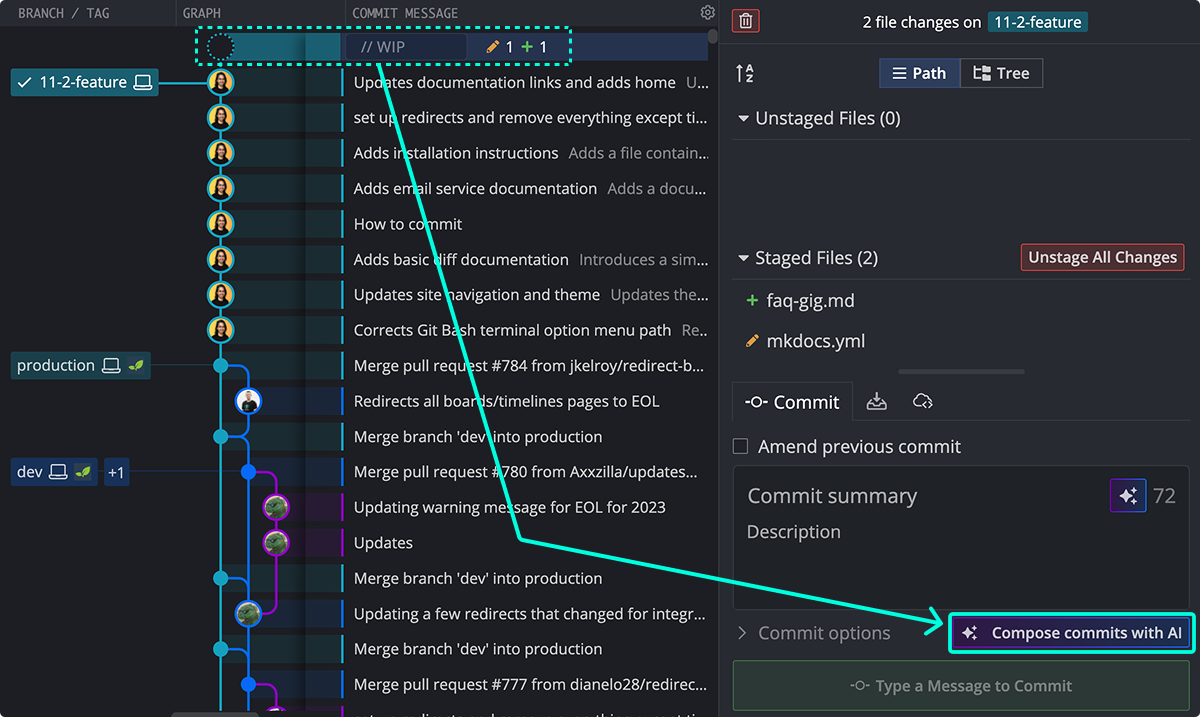
| Uncommitted, in the agent’s worktree | Compose Commit with AI | Stage the changes, then click Compose Commit with AI in the Commit Panel | |
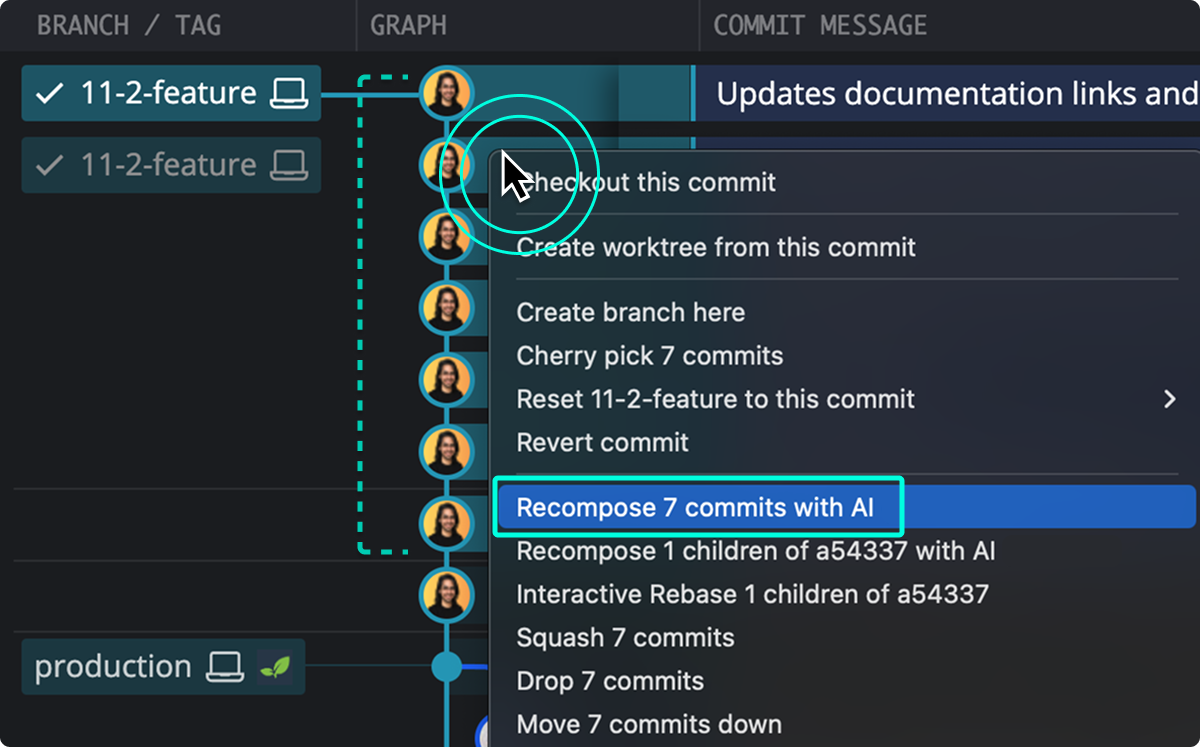
| Committed on the agent’s branch, not pushed | Recompose Commits with AI | Shift + click the agent’s first and last commits, right-click, and select Recompose Commits with AI | The commits must be next to each other, with no merge commits in between |
| Committed and pushed | Recompose Commits with AI, then force push | Recompose as above, then force push the branch | Only if nobody else has pulled or built on the branch |
In every case, GitKraken Desktop shows the proposed commits first. Your branch doesn’t change until you click Create commits.
How to split an agent’s uncommitted changes into commits
Use this when the agent changed files but didn’t commit anything.
-
Select the agent’s WIP node and stage the changes you want to commit.
-
In the Commit Panel, click Compose Commit with AI.
-
Review the proposed commits. Reorder them, squash related ones together, or edit the messages.
-
Click Create commits to apply them, Reset to undo your edits to the proposal, or Cancel to stop without changing anything.
How to recompose commits the agent already made
Use this when the agent committed everything at once, or in many small steps that don’t tell a clear story.
-
In the Commit Graph, hold Shift and click the agent’s first and last commits to select the range.
-
Right-click the selection and select Recompose Commits with AI, or click the button in the Commit Panel.
-
Review the proposed structure. Reorder, squash, or edit messages until each commit does one thing and its message says what and why.
-
Click Create commits.

Recomposing keeps the original commit authors and adds co-authors when a new commit combines work from several people.
How to check the new commits
Commit Composer doesn’t change any code, so the final state of your branch is the same before and after. What changes is how the work is split up and described. Check that part before you share it:
- Read each new commit. Click each commit and read its diff and message. A reviewer should be able to follow the change one commit at a time.
- Test each commit if your team needs every commit to build. The newest commit has the same code as before, so this check is about the commits in between. Right-click each new commit, select Checkout this commit, and run your tests from the embedded terminal. Check out the agent’s branch again when you’re done. Your CI may also run this check for you.
If you don’t like the result, click Undo in the toolbar right away. Undo reverses a Compose or Recompose action as long as you haven’t pushed the branch.
How to share the cleaned-up branch
- If you never pushed the branch, push it as usual and open a pull request.
- If you already pushed it, recomposing rewrote commits that are on the remote, so a normal push is rejected. GitKraken Desktop tells you the branch is behind the remote and offers Pull, Force Push, and Cancel. Select Force Push, then confirm. GitKraken Desktop uses a safe force push (force-with-lease), which stops if someone pushed to the branch since your last fetch. Use it only if nobody else has pulled or built on the branch. See Push, Pull, and Fetch.
To write the pull request description, click the AI icon in the description field when you create the pull request to generate a draft, or right-click the branch and select Explain Branch Changes for a summary to start from. Edit either one so it says what you checked and what you didn’t.
Common questions
Does Commit Composer change my code?
No. It only reorganizes the changes into new commits and rewrites their messages. The final code on your branch is the same before and after.
Can I recompose commits from more than one agent session?
Not across a merge. Recompose only works on commits that are next to each other on the branch you have checked out, with no merge commits in the range. Clean up each agent’s branch on its own first, then combine them. See Resolve Merge Conflicts Between AI Agent Branches.
Can I clean up commits without AI?
Yes. Use interactive rebase to reorder, squash, and reword commits by hand.
How do I see what the agent changed before I clean it up?
See Review and Undo AI Coding Agent Changes.
