

Last updated: November 2026
Use this page to stash, apply, pop, rename, and partially restore uncommitted changes in GitKraken Desktop when you need to switch context without creating a commit. You can stash all your changes or only selected files, and manage your stashes from the Commit Graph or the Left Panel.
Requirements and limits
- Workflow scope: Uncommitted local changes only
- Submodule limitation: Changes inside a submodule, a submodule checked out at another commit, and folders that hold their own Git repository are not stashed. Commit or stash those changes from the submodule itself
- Apply vs. pop: Apply Stash keeps the stash; Pop Stash applies it and removes it
- Partial stash behavior: Applying a single file from a partial stash does not remove the stash
- Naming option: Name the stash before creating it in the WIP node’s
// WIPfield or the Stash title field in the Commit Panel - GitKraken AI note: AI-generated stash messages require GitKraken AI to be enabled
- Stash visibility: Stashes can be hidden from the graph without being deleted
| Action | What it does | Keeps stash entry | Notes |
|---|---|---|---|
| Stash | Saves current uncommitted changes | Yes | Creates a new stash entry |
| Apply Stash | Restores stashed changes | Yes | Keeps the stash for reuse |
| Pop Stash | Restores stashed changes | No | Applies and removes the stash |
| Partial stash | Saves selected files only | Yes | Created from staged or unstaged files in the Commit Panel |
| Apply partial stash file | Restores one file from a partial stash | Yes | Does not remove the stash |
| Hide stash | Removes stash from graph view only | Yes | Does not delete the stash |
Quick Start
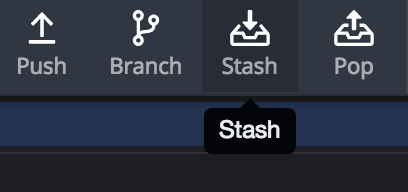
To stash all changes: Click the Stash icon in the top toolbar. Your stash appears in the Commit Graph.
To manage a stash: Right-click the stash node in the graph to apply, pop, delete, or hide it. Right-click a stash in the Left Panel for the same options.
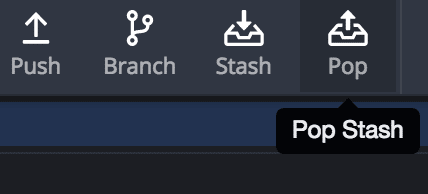
To pop the latest stash: Click the Pop Stash button in the toolbar to apply changes and delete the stash in one step.
To name a stash: Type a name in the WIP node’s // WIP field in the Commit Graph, then click Stash.
To stash specific files (partial stash): In the Commit Panel, right-click a staged or unstaged file and select Stash file.
To apply a partial stash file by file: Select the stash in the graph, then right-click a file in the Commit Panel and select Apply stashed file. Applying a single file does not remove the stash.
How to stash changes from the top toolbar
Click the Stash icon in the top toolbar to create a new stash.
If your only changes are inside submodules or in folders that hold their own Git repository, GitKraken Desktop shows Nothing to stash and does not create a stash. Open the submodule to commit or stash its changes there.
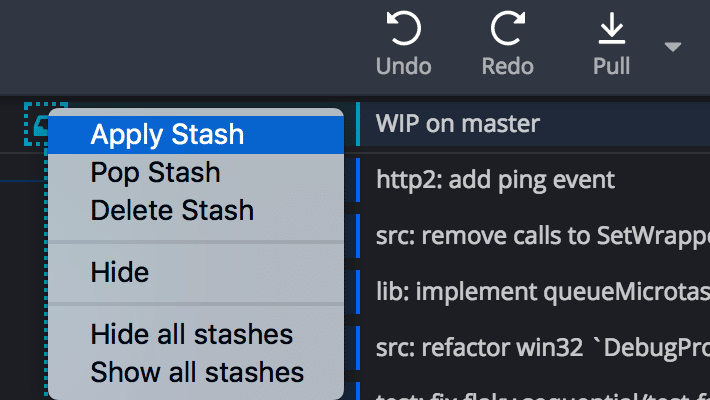
Your stash appears in the Commit Graph. Right-click the stash node to see these options:
- Apply Stash: Apply changes to your working directory and keep the stash.
- Pop Stash: Apply changes and remove the stash.
- Delete Stash: Permanently remove the stash.
- Hide: Hide the stash from the graph.
To hide or show every stash at once, right-click the STASHES header in the Left Panel and select Hide all stashes or Show all stashes.
To quickly pop the latest stash, use the Pop Stash button:
How to stash changes from the Commit Panel
To stash from the Commit Panel:
- Click the Stash tab icon in the Commit Panel.
- Stage the files you want to stash.
- Type a Stash title.
- Click Stash Changes to N Files.
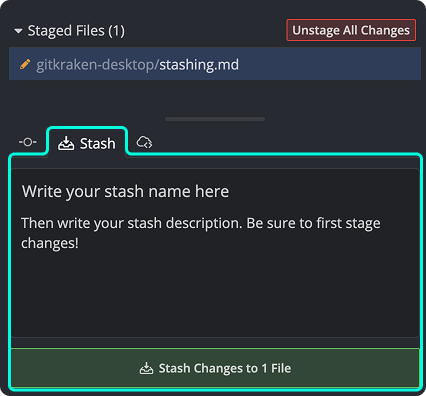
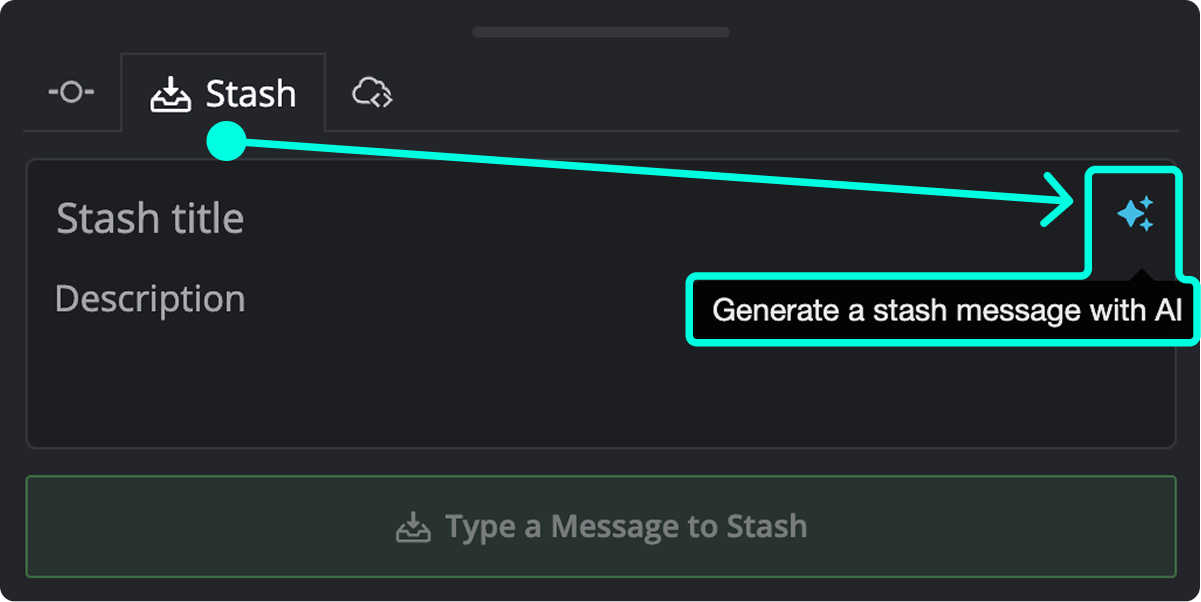
If you use GitKraken AI, click the sparkle icon, Generate a stash message with AI, to write a stash message from your staged changes.
How to view and manage stashes from the Left Panel
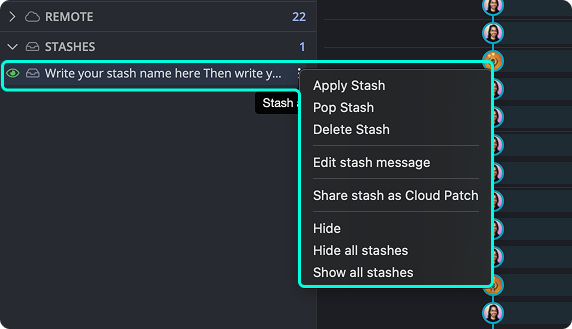
The Left Panel lists all your stashes. Right-click a stash to apply, pop, delete, hide, or show it.
How to name a stash
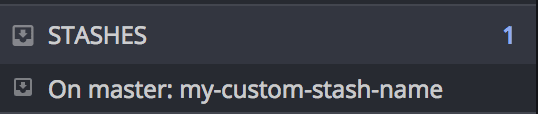
To name a stash, type the name in the WIP node’s // WIP field in the Commit Graph before you stash.

The name identifies the stash in the Left Panel and the Commit Graph.

How to edit a stash message
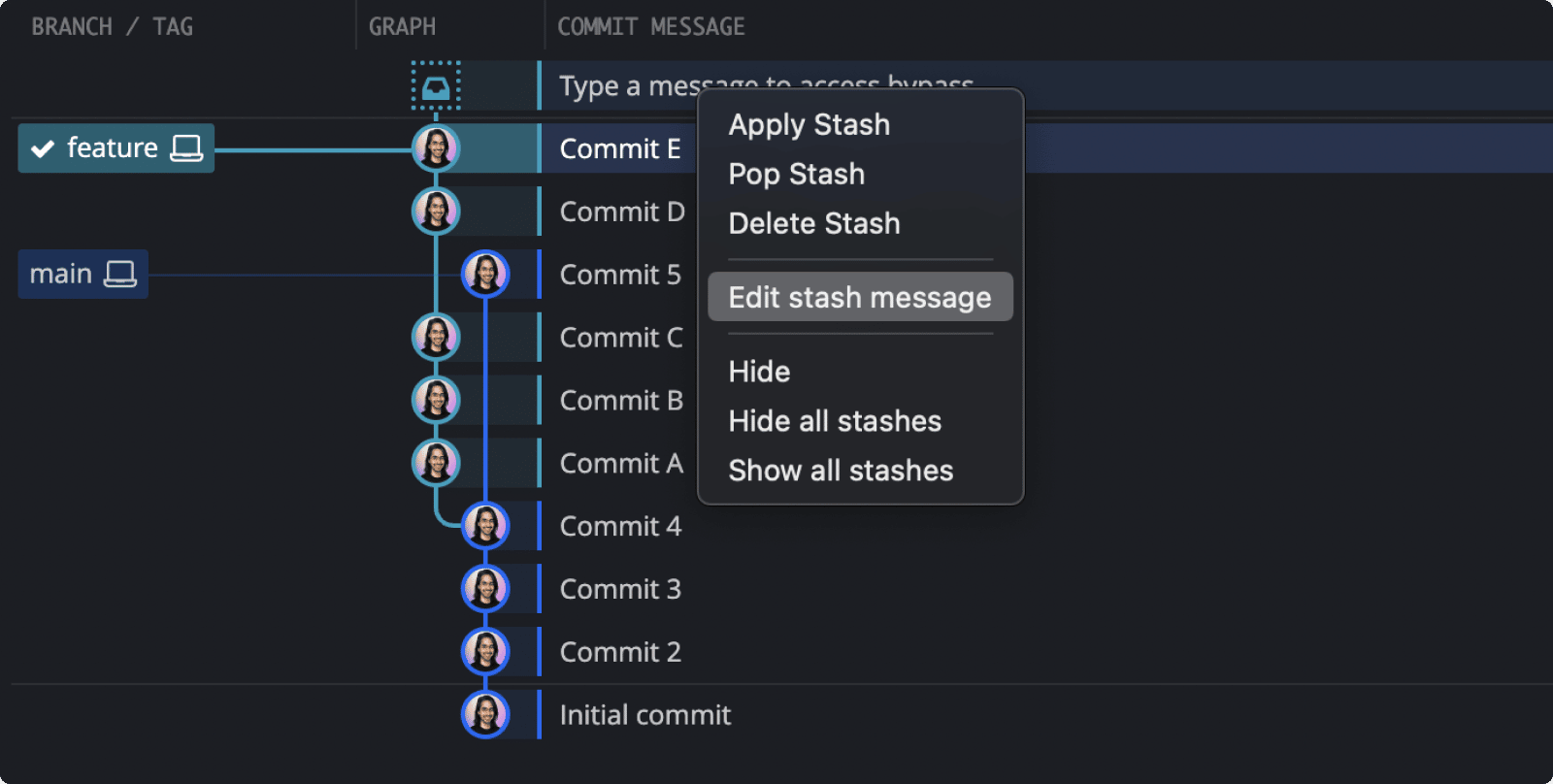
To update a stash description, right-click the stash in the graph or the Left Panel, then select Edit stash message.
How to create and apply a partial stash
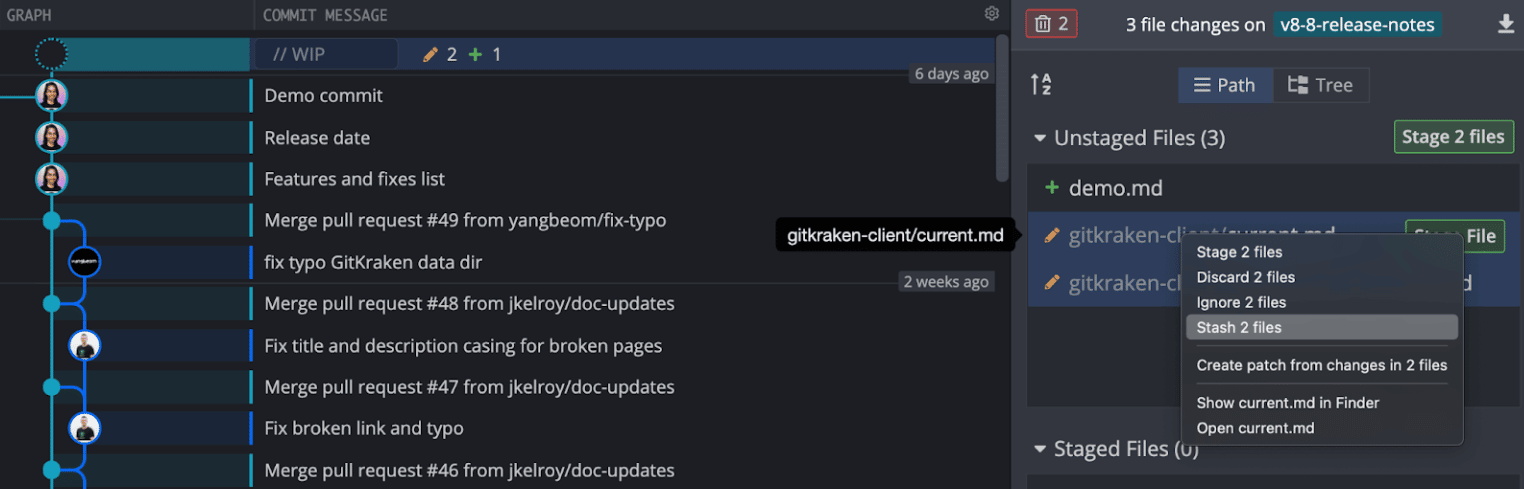
To stash specific files, right-click them in the Commit Panel, staged or unstaged, and select Stash file (or Stash N files for a multiple selection). GitKraken Desktop removes their changes from your working directory and saves them in a partial stash.
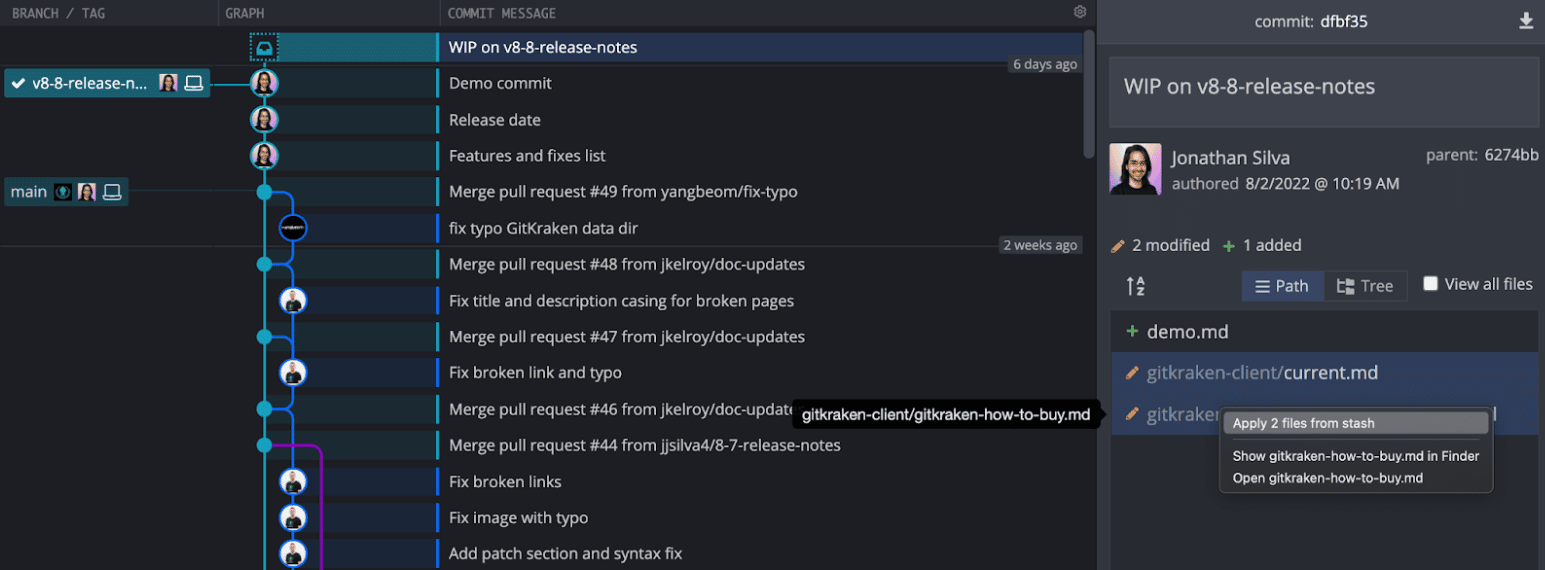
You can also apply changes from a stash one file at a time. Select the stash, right-click a file in the Commit Panel, and select Apply stashed file (or Apply N files from stash).
Tips for partial stashes
- Name a partial stash in the WIP node’s
// WIPfield before stashing. - Hold Shift or Ctrl to select multiple files.
- Applying a file from a stash does not remove the file from the stash.
