

Last updated: November 2026
Use this page to add, update, initialize, and manage Git submodules in GitKraken Desktop when one repository needs to reference another repository at a fixed commit. You can also change the commit the parent repository points to and turn on automatic submodule updates.
Requirements and limits
- Workflow scope: Git submodules, not Git subtree workflows
- Pane access: Enable the Submodules pane from the Left Panel header menu
- Add workflow: Requires an HTTPS or SSH repository URL and a target path
- Clone behavior: GitKraken Desktop prompts you to initialize submodules when cloning a parent repository that includes them
- Pointer behavior: Changing the tracked commit changes the parent repository’s pointer to the submodule commit, which you then commit in the parent repository
- Auto-update settings: Configure globally in Preferences > General or per repository in Preferences > Submodules
- Limitation: GitKraken Desktop does not support subtree workflows in-app
| Workflow | Supported in app | Notes |
|---|---|---|
| Show Submodules pane | Yes | Enable it from the Left Panel header menu |
| Add submodule | Yes | Requires repository URL and target path |
| Initialize submodules after clone | Yes | GitKraken Desktop prompts you when needed |
| Update submodule | Yes | Checks out the commit the parent repository records |
| Configure auto-update | Yes | Available globally or per repository |
| Git subtree workflow | No | Not supported in-app |
Quick Start
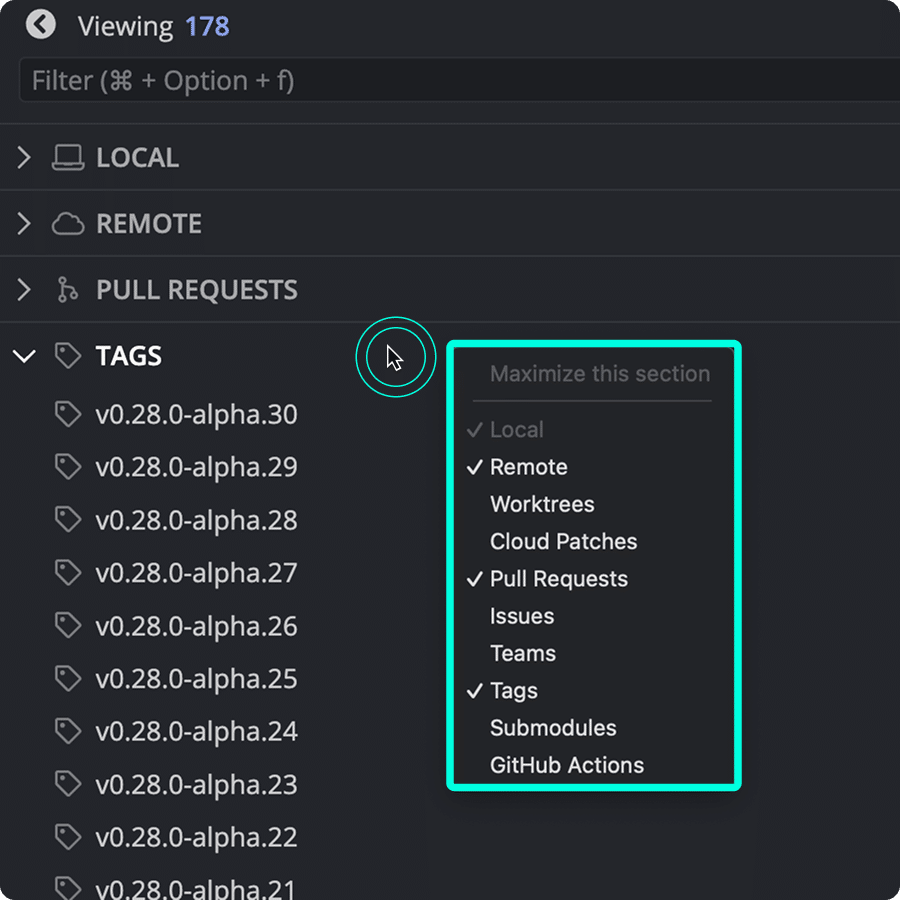
To show the Submodules pane: Right-click any Left Panel header and check Submodules.
To add a submodule:
- Hover over Submodules in the Left Panel and click the + icon.
- Paste the HTTPS or SSH repository URL in Remote URL and enter the path in Name/Path.
- Click Add Submodule. GitKraken Desktop updates
.gitmodulesand references the submodule commit.
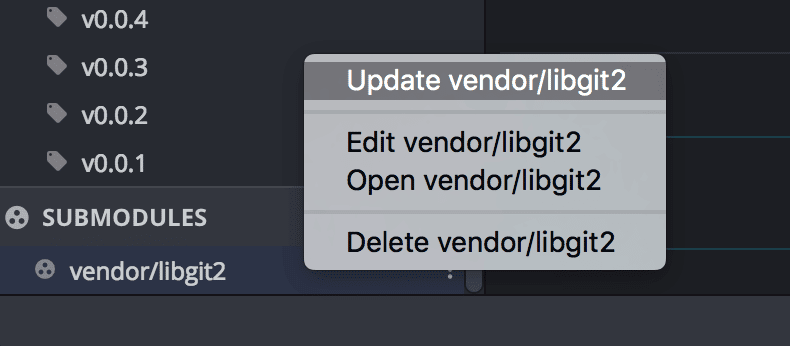
To update a submodule: Open the Submodules pane, right-click the submodule, and select Update [submodule] to fetch and check out the commit the parent repository records.
To change the tracked commit: Open the submodule in GitKraken Desktop, check out a new commit or branch, then close the submodule. In the parent repository, right-click the submodule and select Commit Changes to save the updated pointer.
To enable automatic updates: Go to Preferences > General to update all repos globally, or Preferences > Submodules for per-repository settings.
When you clone a parent repository that includes submodules, GitKraken Desktop asks whether to initialize them.
How to enable the Submodules pane
To toggle the Submodules pane:
- Right-click any pane header in the Left Panel.
- Check or uncheck Submodules to show or hide the pane.
How to add a submodule
To add a submodule:
- Hover over Submodules in the Left Panel.
- Click the icon.
- Paste the HTTPS or SSH repository URL in Remote URL.
- Enter the path in Name/Path.
- Click Add Submodule.
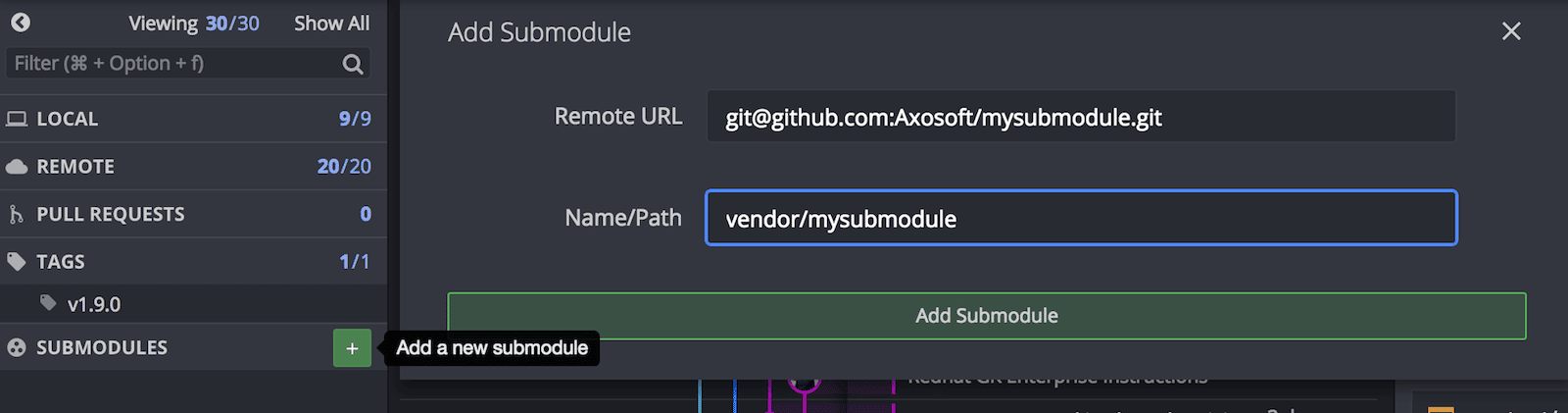
Adding a submodule updates the .gitmodules file and references the submodule commit.
When you clone the parent repository, GitKraken Desktop asks whether to initialize its submodules, which fetches and checks out each submodule’s commit.
How to update a submodule
To update a submodule:
- Open the Submodules pane.
- Right-click the submodule.
- Select Update [submodule]. GitKraken Desktop fetches the submodule if needed and checks out the commit the parent repository records.
How to change the pointer commit
To update the tracked commit:
- Open the submodule in GitKraken Desktop.
- Check out a new commit or branch.
- Click Close Submodule in the toolbar to return to the parent repository.
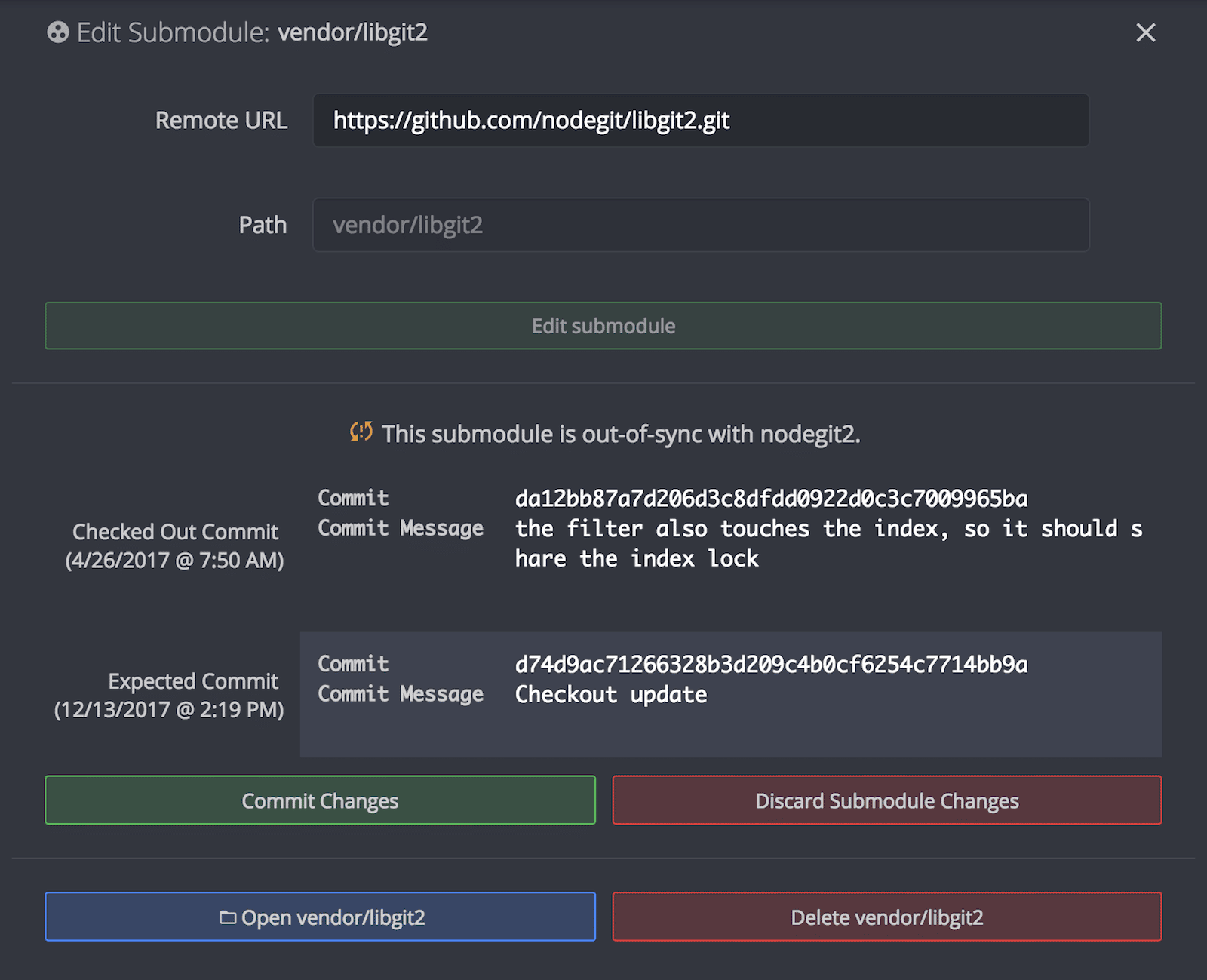
- In the Submodules pane, double-click the submodule to see its out-of-sync status.
- Click Commit Changes to save the updated pointer commit, or Discard Submodule Changes to go back to the recorded commit.
Both actions are also in the submodule’s right-click menu.
What submodule statuses mean
Possible submodule states and how to resolve them:
- Out of sync: The pointer commit changed. Commit or discard the change. A stash does not save a submodule’s pointer or the changes inside it.
- Added but not initialized: Right-click the submodule and select Initialize [submodule].
- Added and initialized but not committed: Commit the submodule folder and update
.gitmodules.
Before an action that can move or reset your submodules, such as a checkout, rebase, reset, or undo, GitKraken Desktop checks them and asks first:
- A submodule is checked out at a commit that is not staged: The action can move the submodule back to the commit the repository records, which leaves a commit made only in the submodule on no branch. Click Stage and Continue to stage the submodule’s commit first, Continue to go on without staging, or Cancel. If the action would move the submodule back even after staging, only Continue and Cancel appear.
- A submodule has changes that will be lost: With Keep submodules up to date on, Discard all changes, a hard reset, and some undo and redo actions throw away edits inside a submodule. GitKraken Desktop names each affected submodule. Click Continue to go on or Cancel to keep the edits. Undo cannot bring them back.
- A submodule has a merge conflict: GitKraken Desktop cannot stash your changes and stops the action with Error Creating Stash. Resolve the conflict, then try again.
How to keep submodules up to date
Turn on Keep submodules up to date to update all submodules automatically after each Git action. You can set it in 2 places:
- Globally: Preferences > General
- Per repository: Preferences > Submodules, where you can also choose Use global setting
Subtree support
GitKraken Desktop does not support subtree workflows in-app.
