

Last updated: October 2026
Use this page to see exactly what an AI coding agent changed in your repository and to undo those changes safely if something went wrong. It works with any agent that edits files in a Git repository. GitKraken Desktop reads the changes from Git, so it doesn’t matter which agent made them.
Requirements and limits
- Scope: Reviewing and reversing an agent’s changes, whether they are uncommitted, committed on your machine, or pushed
- Prerequisite: The repository the agent worked in is open in GitKraken Desktop. The steps work for sessions started from Agent Sessions View and for agents you run yourself.
- Limits: Git doesn’t record whether a person or an agent wrote a change, so give each agent its own session or branch.
- Limits: AI summaries require a paid GitKraken subscription. Reviewing diffs and undoing changes don’t.
Discarding changes and hard resets remove work from the worktree you have open, including uncommitted changes that aren’t the agent’s. Review the diff first.
Quick Start
Before you undo anything, open the agent’s worktree: in Agent Sessions View, right-click the session card and select Open this worktree. Discard, restore, reset, and revert all act on the worktree you have open.
Then find where the agent’s changes are and use the matching row.
| Where the changes are | How to see them | How to undo them | Safe after you push? | Notes |
|---|---|---|---|---|
| Uncommitted, in the agent’s worktree | Click the agent’s WIP node, then click a file | Discard all or selected files, or revert one hunk | Not applicable | Discarded changes leave the worktree |
| Committed on the agent’s branch, not pushed | Shift + click the agent’s first and last commits for a combined diff | Reset the branch to the last good commit | No | Reset rewrites the branch’s history |
| Committed and pushed | Select the agent’s commits in the Commit Graph | Revert Commit on each one, then push | Yes | Revert adds new commits and keeps existing history |
| Only one or two files are damaged | Open the file’s History | Restore file from this commit | Yes | The restored file arrives as a staged change |
| Anywhere in a session you don’t want | Check the session card in Agent Sessions View | Remove worktree and delete branch | No | Deletes the branch even if its commits aren’t merged |
Before the agent starts: give it its own branch
The easiest changes to review are changes that are isolated. When you start a session from Agent Sessions View, GitKraken Desktop creates a new branch in its own worktree, so the agent’s work stays separate from yours.
If you run an agent outside Agent Sessions View, create a branch or worktree for it first. Then everything on that branch is the agent’s work, and undoing it never touches your own changes.
How to see what an agent changed
See uncommitted changes
GitKraken Desktop shows a separate WIP node in the Commit Graph for each worktree that has pending changes. Each agent session gets its own.
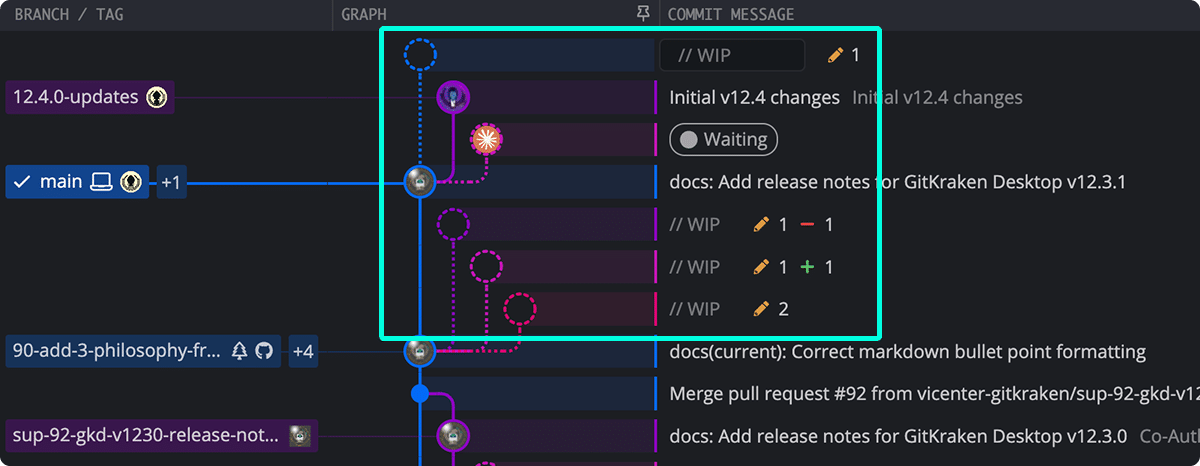
- In Agent Sessions View, check the session card for the branch, WIP changes, and ahead and behind counts.
- Click the session’s WIP node in the Commit Graph. The Commit Panel lists every file the agent changed.
- Click a file to open its diff. Use Hunk view to step through each changed block, or Split view to see the old and new versions side by side.
See commits the agent made
- Click a commit on the agent’s branch, then click any file in the Commit Panel to see what that commit changed.
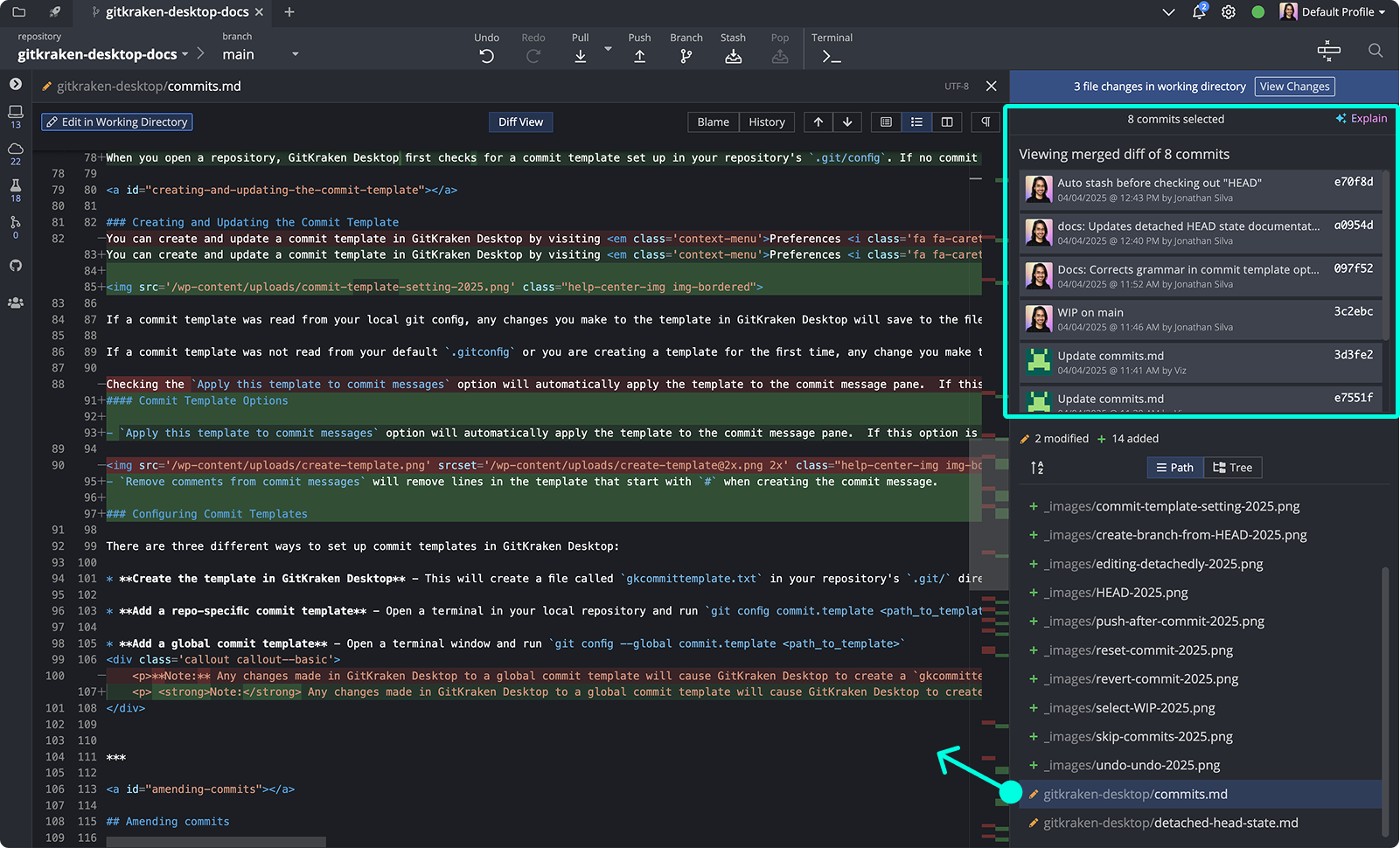
- To see everything the agent committed at once, hold Shift and click the first and last of its commits. To pick specific commits instead of a range, hold Cmd (Mac) or Ctrl (Windows/Linux) and click each one. Either way, the Commit Panel shows the combined diff, the files changed across those commits, and the list of selected commits.
To compare the agent’s uncommitted work with another branch, open the agent’s worktree. Then right-click main, or whichever branch you want to compare against, in the Commit Graph and select Compare commit against working directory.
Trace a single line
Open a file’s diff and click Blame to see which commit last changed each line, or History to see every commit that touched the file. This helps when an agent changed a file several times during one session.
Get a summary with GitKraken AI
Right-click the agent’s branch and select Explain Branch Changes to get a plain-language summary of everything on the branch. To explain specific commits, select them and click Explain in the top-right corner of the Commit Panel.
A summary helps you decide where to look first, but it isn’t a review. Read the diff before you keep or undo anything. See GitKraken AI for details.
How to undo an agent’s changes
Pick the method based on where the changes are. The further the changes have traveled, from uncommitted to committed to pushed, the more careful the undo needs to be.
Undo uncommitted changes
To throw away everything the agent changed but didn’t commit:
- Open the agent’s worktree.
- Select the agent’s WIP node.
- Click the trash icon to discard all changes, or select specific files, right-click, and select Discard selected.
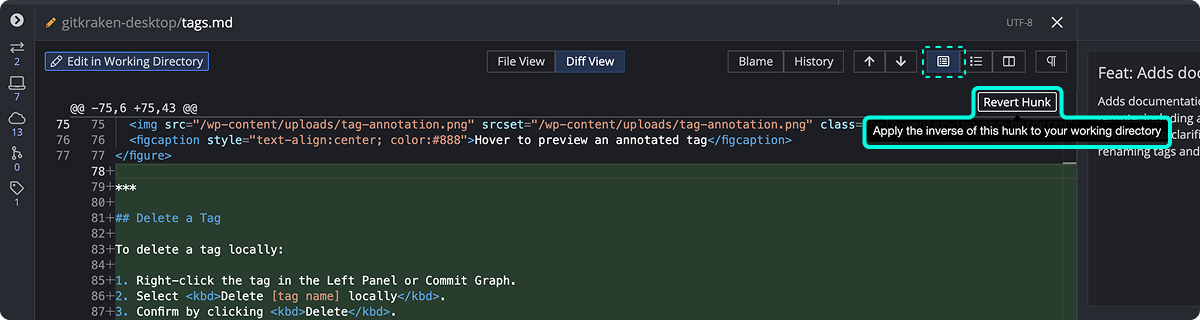
To keep most of the agent’s work and undo one block, open the file’s diff in Hunk view and click Revert next to that hunk. GitKraken Desktop applies the opposite change to your working directory. Reverting a hunk changes uncommitted files only. It’s different from Revert Commit, which adds a new commit that reverses an earlier one.
See Stage, Unstage, and Ignore Files for line-level options.
Bring back an earlier version of a file
If the agent damaged one or two files, restore them instead of undoing everything:
- Open the agent’s worktree.
- Open the file’s diff and click History. Find the last commit that changed the file before the agent started.
- Select that commit in the Commit Graph.
- In the Commit Panel, right-click the file and select Restore file from this commit.
The file arrives in your working directory as a staged change, ready to commit. If you already have uncommitted changes to that file, GitKraken Desktop asks before it overwrites them.
Undo commits that are only on your machine
If the agent committed work you haven’t pushed, reset its branch to the last good commit:
- Open the agent’s worktree.
- Right-click the last commit you want to keep.
- Select Reset [branch] to this commit, then choose a reset type:
- Soft keeps the agent’s changes staged, so you can review them and recommit only what you want.
- Mixed keeps the changes in your working directory, unstaged.
- Hard removes the agent’s commits and every uncommitted change in the worktree.
Hard also deletes uncommitted changes in that worktree that the agent didn’t make. If you might want to keep any part of the work, start with Soft or Mixed.
See How to reset commits for more on reset types.
Undo commits you already pushed
Once the agent’s commits are on a shared branch, don’t reset. Reverse them with new commits instead, so nobody else’s history changes:
- Open the agent’s worktree.
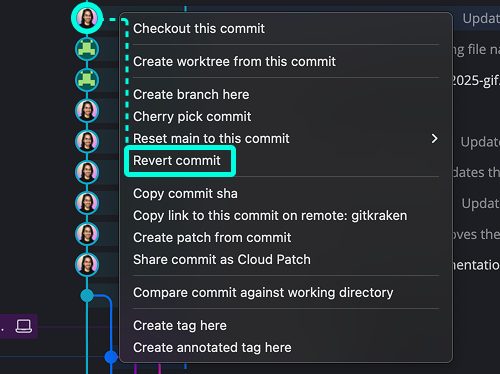
- Right-click the agent’s newest commit in the Commit Graph and select Revert Commit. GitKraken Desktop creates a new commit that undoes it.
- Repeat for each commit you want to reverse, from newest to oldest.
- Push the branch to share the revert commits.
Throw away a whole agent session
If you don’t want any of the session’s work, right-click the session card in Agent Sessions View and select Remove worktree and delete branch, then confirm. GitKraken Desktop stops the agent’s terminal session and deletes the worktree, its working directory, and the local branch. It deletes the branch even if its commits aren’t merged anywhere, and you can’t undo this.
If the worktree still has uncommitted changes, GitKraken Desktop asks you to confirm again with Force Remove Worktree. The remote branch stays unless you choose Remove worktree and delete branch (local & remote) instead. If other people use the pushed branch, revert its commits instead of deleting it.
See Clean Up AI Coding Agent Worktrees and Branches for more on removing worktrees.
How to recover from a cleanup mistake
If you discard or reset the wrong thing while cleaning up after an agent, click Undo in the toolbar or press Cmd + Z (Mac) or Ctrl + Z (Windows/Linux) right away. Undo reverses the most recent supported action, such as a commit, a discard, or a branch reset, as long as it happened on your machine and hasn’t been pushed. That includes commits and resets an agent made from its terminal, as long as you have the agent’s worktree open. Undo isn’t available while a merge or rebase is in progress.
Undo reverses one action at a time, starting with the most recent. To reverse a series of agent commits, or commits you already pushed, use reset or revert as described above. See Undo and Redo for the full list of supported actions.
Common questions
Can GitKraken Desktop tell which changes an agent made?
No. Git doesn’t record whether a person or an agent wrote a change. GitKraken Desktop shows changes by branch and worktree, so when each agent works in its own session, its branch and WIP node show only that agent’s work.
Which agents does this work with?
Any agent that edits files in a Git repository. Agent Sessions View integrates with Claude Code, Codex CLI, Copilot CLI, Cursor CLI, Gemini CLI, and OpenCode, and you can run other agents in the embedded terminal. Reviewing and undoing work the same way for all of them.
Should I use a hard reset to undo an agent?
Only for commits that exist on your machine alone, and only after you’ve reviewed the diff. A hard reset also deletes every uncommitted change in the worktree. For anything already pushed, use Revert Commit.
Can I keep some of the agent’s work and undo the rest?
Yes. Revert individual hunks, restore individual files, or use a Soft reset to put the agent’s changes back in staging so you can commit only the parts you want.
