

Last updated: November 2026
Use this page to troubleshoot common GitKraken Desktop problems related to licensing, integrations, SSH, WSL, platform-specific behavior, and known error messages. For the most frequent fixes, start with the Quick Start checklist.
Requirements and limits
- Integration recovery: Signing out in your browser, clearing its cache, and reconnecting from Preferences > Integrations resolves many 1000-series errors
- WSL limitation: Do not run GitKraken Desktop as root, and prefer native WSL2 GUI support over XServer-based setups
- Experimental Git note: Some issues may be tied to the Git Executable setting in Preferences > Experimental
- Escalation path: Contact GitKraken Support if the matching section does not resolve the problem
Quick Start
- Account or license not recognized: Verify you are signed in with the email address linked to your subscription, and that the correct organization is selected in GitKraken Desktop and on gitkraken.dev.
- Integration errors (1002, 1003, 1005, 1007): Sign out of your browser, clear its cache, and reconnect your integration from Preferences > Integrations.
- Clone always uses HTTPS instead of SSH: Add or generate an SSH key under Preferences > Integrations > [Integration], then restart GitKraken Desktop.
- Commit Details panel missing: Go to View > Show Commit Details Panel to restore it.
- Performance problems: See the Performance Issues guide, or try running Perform Repo Maintenance from the Command Palette.
- Push failed with
Cannot read property 'fullName' of undefined: Rename your local branch to match the remote branch name exactly. - WSL issues: Avoid running GitKraken Desktop as root; use native WSL2 GUI support instead of XServer.
- Coding agent sessions fail in WSL: Make sure the coding agent CLI you want to use is installed and available in WSL, not only on Windows. See Use GitKraken Desktop with Windows Subsystem for Linux (WSL 2) and Coding Agents in GitKraken Desktop.
If these steps do not resolve your issue, contact GitKraken Support.
How to fix account, license, and entitlement issues
If GitKraken Desktop shows the wrong plan or no AI credits, check which account and organization you are using.
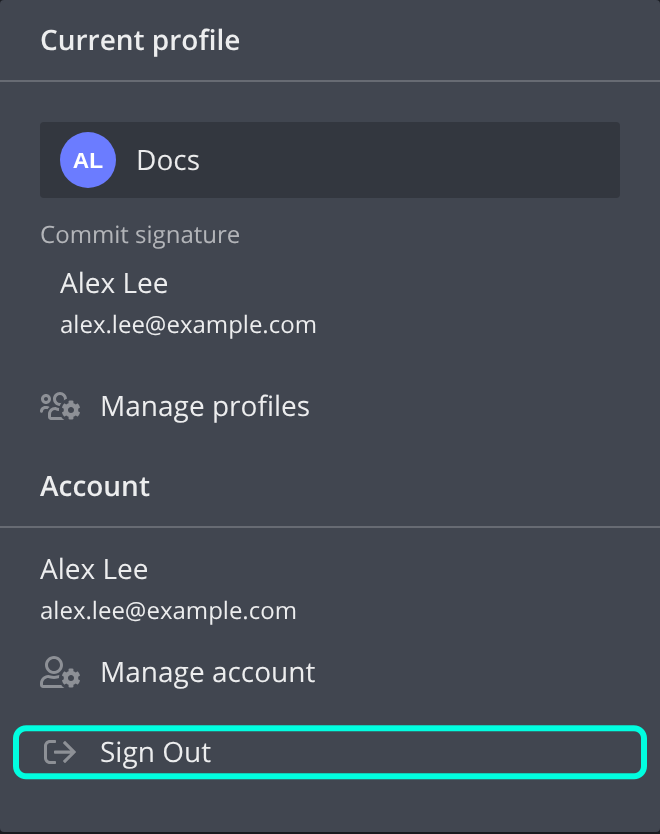
My account shows Trial/Free/Community despite being a paid customer
In GitKraken Desktop, click your profile icon and check the name and email address under Account. If it is the wrong account, click Sign Out, then sign in again with the account linked to your subscription:
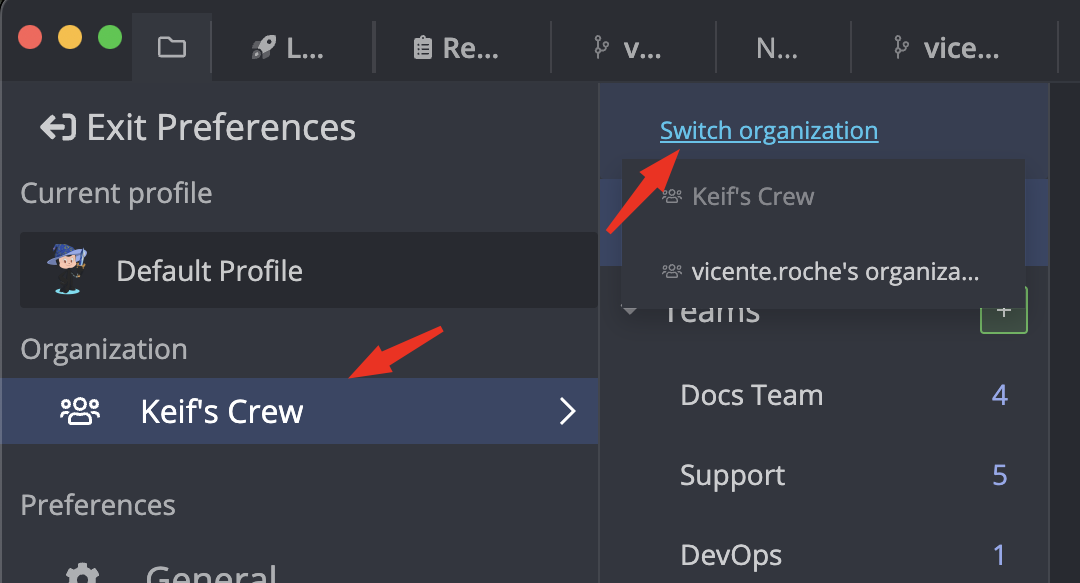
The account is correct but it says I don’t have AI credits
Make sure the correct organization is selected:
If the organization is correct, you may have used this week’s AI credits. To check, go to Preferences > GitKraken AI and look at the Usage Details card:
- Your credits used this week, and the date they reset.
- Shared Organization Pool: the organization’s credits this week, split into Your usage, Rest of organization and Remaining.
When you reach your own weekly limit, the card shows You’ve reached your weekly credit limit. GitKraken AI then uses your organization’s shared credit pool, which resets weekly. On a paid plan, organization owners and admins can click Get more AI credits; trial users see Upgrade to get more credits.
If a request goes above the weekly usage included in your plan or trial, GitKraken Desktop shows GitKraken AI Weekly Limit Reached:
- Trial or free users: Click Upgrade GitKraken to purchase a GitKraken plan.
- Paid organization owners and admins: Click Purchase more AI credits.
- Paid organization members: Contact your organization admin or owner to request more AI credits.
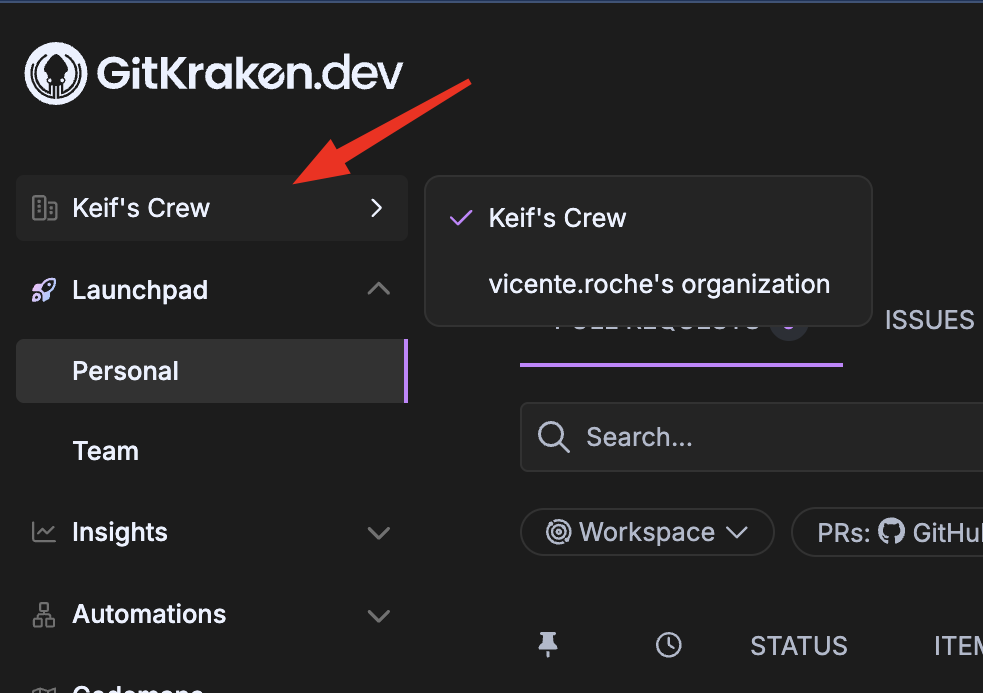
GitKraken.dev shows my account as TRIAL / COMMUNITY
Select the correct organization:
How to fix common GitKraken Desktop issues
These fixes apply to GitKraken Desktop on every platform.
Clone repo always uses HTTPS instead of SSH
GitKraken Desktop defaults to HTTPS. To use SSH:
- Go to Preferences > Integrations > [Integration].
- Add or generate an SSH key.
- Restart GitKraken Desktop.
Issue tracker error appears on repo startup or tab switch
This error appears when a disconnected issue tracker is set as the default. To fix it:
- Go to Preferences > Issue Tracker.
- Select None.
- Select Use this as the default for all repositories.
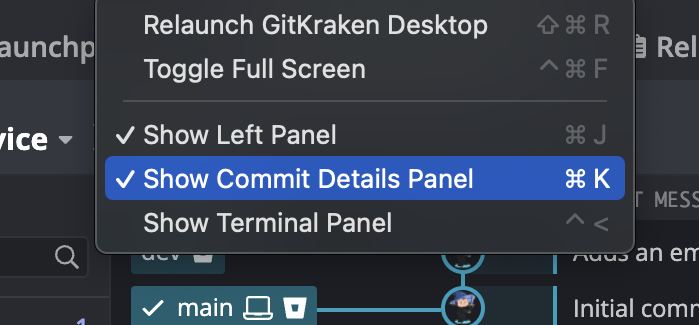
Commit details panel is missing
To show the panel again, select View > Show Commit Details Panel.
Interface is too large or too small
Use the zoom options in the View menu:
- Increase Zoom: Ctrl/Cmd + =
- Decrease Zoom: Ctrl/Cmd + -
- Reset Zoom: Ctrl/Cmd + 0 returns to 100%
You can also pick a zoom level from 80% to 300% in the zoom selector in the status bar.
File watching is not working
If GitKraken Desktop shows File watching is not working after you open a repository, GitKraken Desktop is not receiving file change events from your operating system, so it does not detect changes you make outside the app. Restart your computer to fix this.
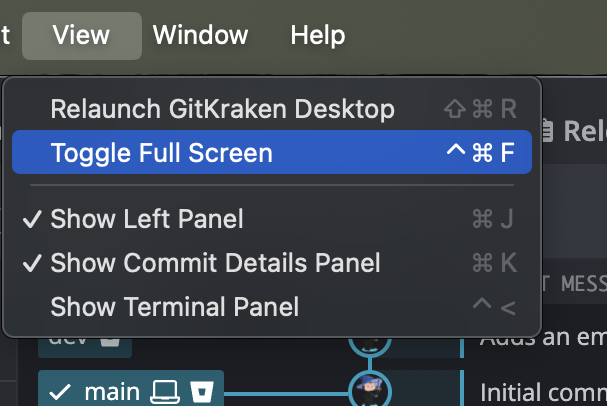
Can’t minimize/maximize or exit full-screen mode
To toggle full-screen mode, press F11 on Windows and Linux, or Ctrl + Cmd + F on macOS.
Diff shows entire file instead of changes
Differences in line endings or encoding can cause this. To check:
- Enable Ignore Leading/Trailing Whitespace.
- If the message changes to File contents are unchanged., the files are identical.
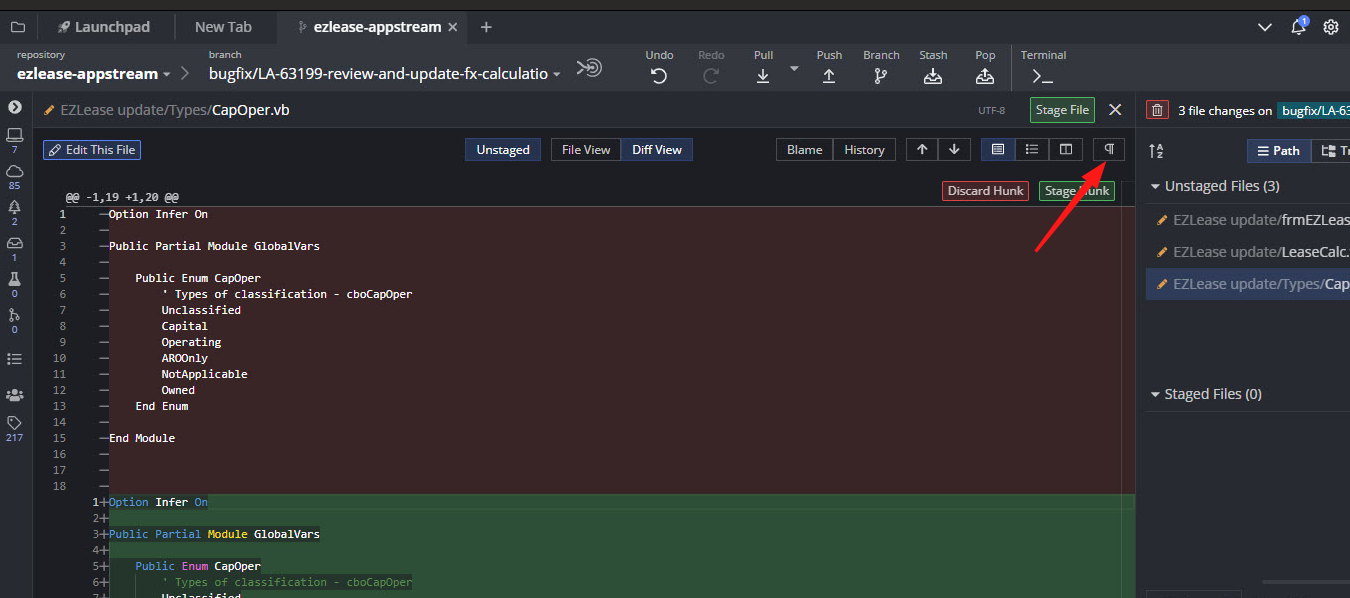
Line ending or whitespace differences may cause misleading diffs.
Private organization repositories not visible (GitHub)
Make sure GitKraken Desktop has access to the organization in your GitHub application settings:
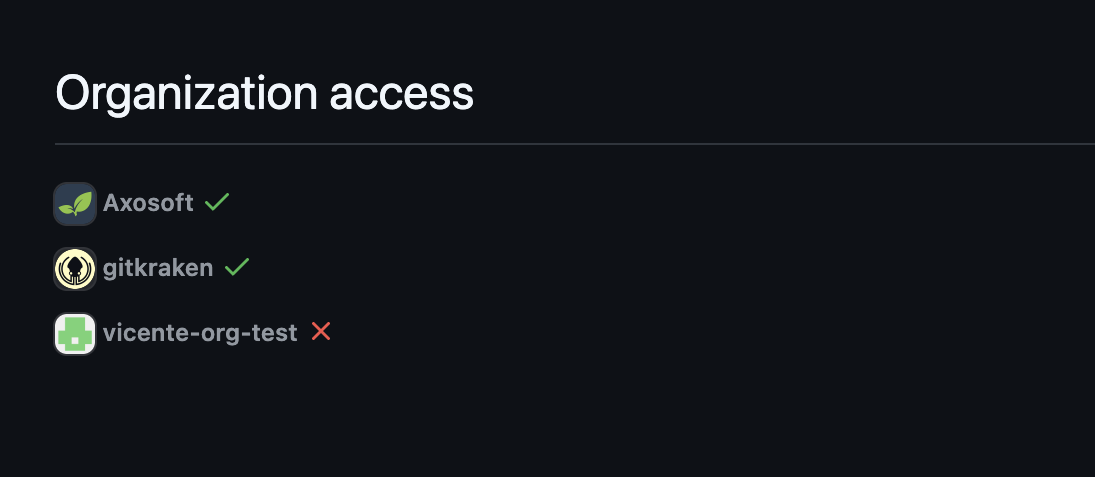
To check, open GitHub Application Access Settings.
How to fix WSL issues
These fixes apply when you run GitKraken Desktop in Windows Subsystem for Linux (WSL).
GitKraken window is too small
GitKraken Desktop may not follow Windows DPI scaling when it runs in WSL. As a workaround, launch it with gitkraken --force-device-scale-factor=1.5.
GitKraken doesn’t launch from the console
Do not run GitKraken Desktop as root. Switch to a regular user.
GitKraken closes suddenly and won’t reopen
Network changes can trigger this known WSL issue. To recover:
- Close GitKraken Desktop:
pkill -f gitkraken - Launch another GUI app, such as
gedit, to restore GUI functionality.
GitKraken GUI does not launch or scales incorrectly under WSL2 with XServer
GitKraken Desktop does not need XServer. Use native WSL2 GUI support instead.
Coding agent sessions fail to start in WSL
Windows-installed coding agent CLIs can take precedence over WSL-installed CLIs.
- Make sure the coding agent CLI you want to use is installed in your WSL environment.
- Avoid relying on a Windows-installed coding agent when GitKraken Desktop is running inside WSL.
- For more information, see Use GitKraken Desktop with Windows Subsystem for Linux (WSL 2) and Coding Agents in GitKraken Desktop.
How to fix Linux issues on Ubuntu
These fixes apply to GitKraken Desktop on Ubuntu.
File explorer does not open
The file explorer window may open hidden behind GitKraken Desktop. Minimize GitKraken Desktop or press Alt + Tab to find it.
GitKraken does not load my environment variables
GitKraken Desktop loads environment variables from .bashrc or .zshrc, so define them in one of those files.
File watching failed to start
Increase the file watcher limits in /etc/sysctl.conf:
fs.inotify.max_user_instances=8192
fs.inotify.max_user_watches=524288
How to fix Windows-specific issues
These fixes apply to GitKraken Desktop on Windows.
Use GitKraken Desktop with PuTTY/Plink
To use Plink for SSH:
- Set
GIT_SSHorGIT_SSH_COMMANDto the path of Plink, or setcore.sshCommandin.gitconfig. - Update the Git Executable setting in Preferences > Experimental > Git Executable.
How to fix macOS-specific issues
These fixes apply to GitKraken Desktop on macOS.
Git hooks fail with command not found
GUI apps on macOS do not inherit shell environment variables.
- Launch GitKraken Desktop from the terminal.
- Use
launchctl setenv YOURVAR valueto set environment variables that GUI apps can read.
How to troubleshoot GitKraken Desktop 9.4.0 and later
The Git Executable option may affect Git behavior. To change which Git version GitKraken Desktop uses:
- If needed, download Git.
- Go to Preferences > Experimental.
- Under Git Executable, choose your system Git instead of the bundled one.
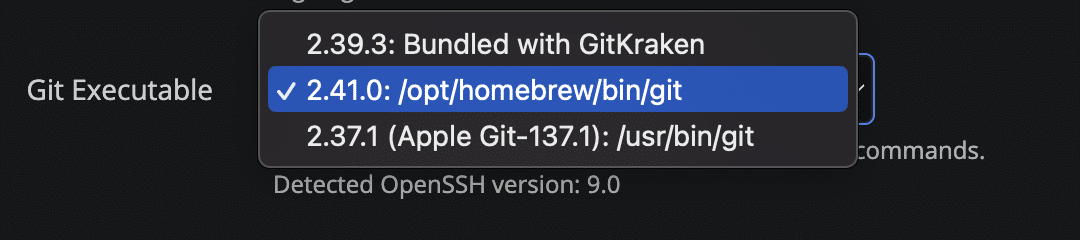
If problems continue, clear Use Git Executable:

If the problem persists, report it to GitKraken Support.
How to fix 1000-series integration errors
These integration errors have the following codes:
- 1002
- 1003
- 1005
- 1007
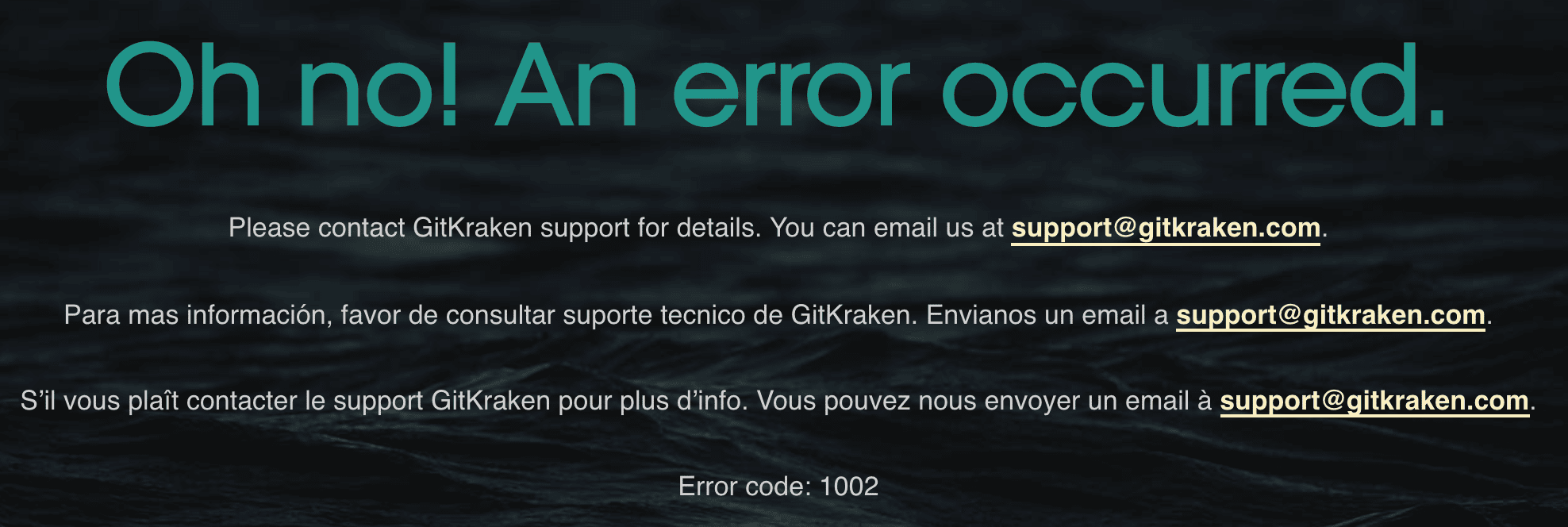
To fix these errors:
- Check your credentials.
- Sign out in your browser, then try again in GitKraken Desktop.
- Clear your browser cache.
- Try a different default browser.
If the error continues, contact GitKraken Support.
How to fix the Cannot read property 'fullName' of undefined push error
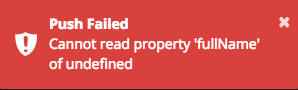
This push error appears when your local branch name differs from the remote branch name only by case. To fix it, rename the local branch to match the remote branch exactly. If needed, use an intermediate name:
git branch -m Test-branch temp-branch
git branch -m temp-branch test-branch
How to fix missing branches or files caused by capitalization issues
On case-insensitive file systems, such as the one Windows uses, branches or files whose names differ only by case may not appear correctly.
How to delete the GitKraken CLI after uninstalling GitKraken
GitLens and GitKraken MCP also use the GitKraken CLI. If you still use either of them, do not uninstall the GitKraken CLI.
If you have uninstalled GitKraken Desktop but the GitKraken CLI is still installed, you can remove it manually.
Uninstall GitKraken CLI on MacOS(Homebrew)
- Run the uninstall command:
gk uninstall - Remove the Homebrew cask:
brew uninstall --cask gitkraken-cli
Uninstall GitKraken CLI on Windows(winget)
- Run the uninstall command:
gk uninstall - Remove the winget package:
winget uninstall gitkraken.cli
Uninstall the GitKraken CLI on Linux
- Run the uninstall command:
gk uninstall - Remove the binary.
If you installed with Snap:
sudo snap remove gitkraken-cli If you installed manually:
sudo rm /usr/local/bin/gk