

Last updated: March 2026
Use this page to open, edit, save, discard, stage, and preview files in GitKraken Desktop’s built-in editor. It covers the different ways to enter edit mode, what the editor indicators mean, how save-and-stage behaves, and how to review or override file encoding when UTF-8 is not enough.
Requirements and limits
- Workflow scope: Built-in file editing inside GitKraken Desktop
- Entry points: Context menu, Command Palette, or the file diff view
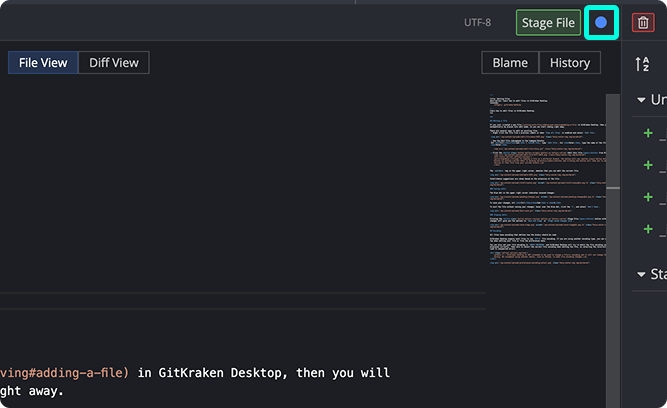
- Unsaved-change indicator: A blue dot marks unsaved edits in the editor
- Stage behavior: Choose between Save and stage or Stage saved changes only
- Branch-context limitation:
Edit in working directoryopens the version from your current branch, not the branch currently being inspected - Encoding limitation: GitKraken Desktop can read and label encodings, but it does not convert file encodings on save
- Markdown preview: Available for
.mdfiles only
Quick Start
To open a file for editing:
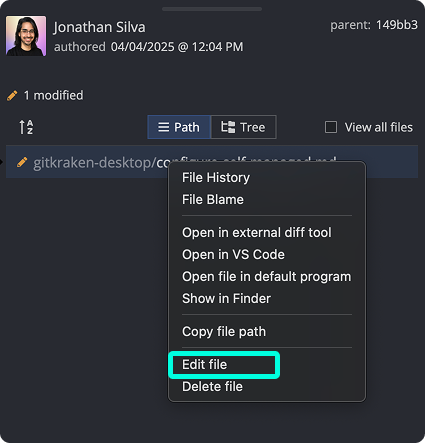
- Right-click any file in the Commit Panel or via View all files and select Edit file.
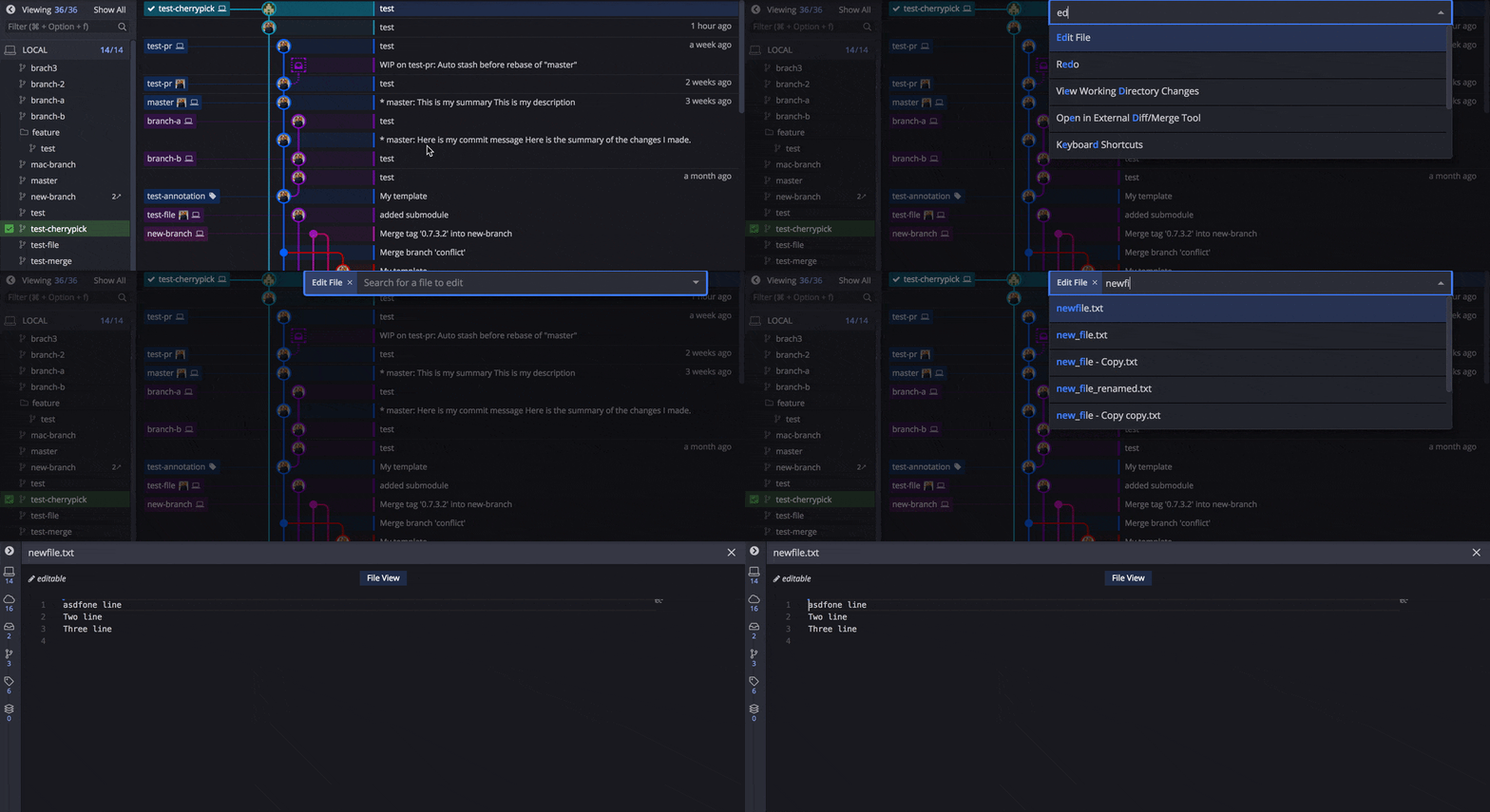
- Or open the Command Palette (Ctrl/Cmd + P), type
Edit File, and enter the filename. - Or click the Edit this file button from any file diff view.
To save changes:
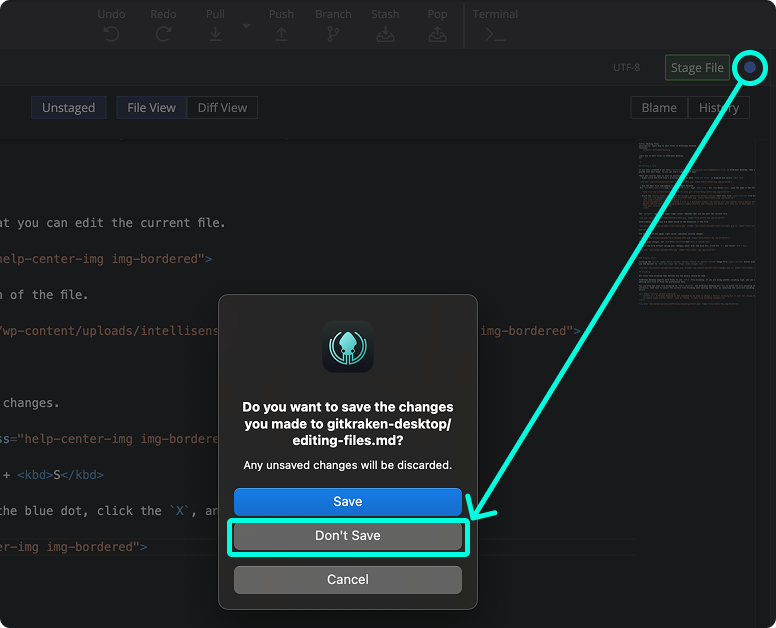
- Press Ctrl/Cmd + S. A blue dot in the editor indicates unsaved changes.
To discard unsaved changes:
- Hover over the blue dot in the editor tab and click the X, then confirm with Don’t Save.
To stage your edits:
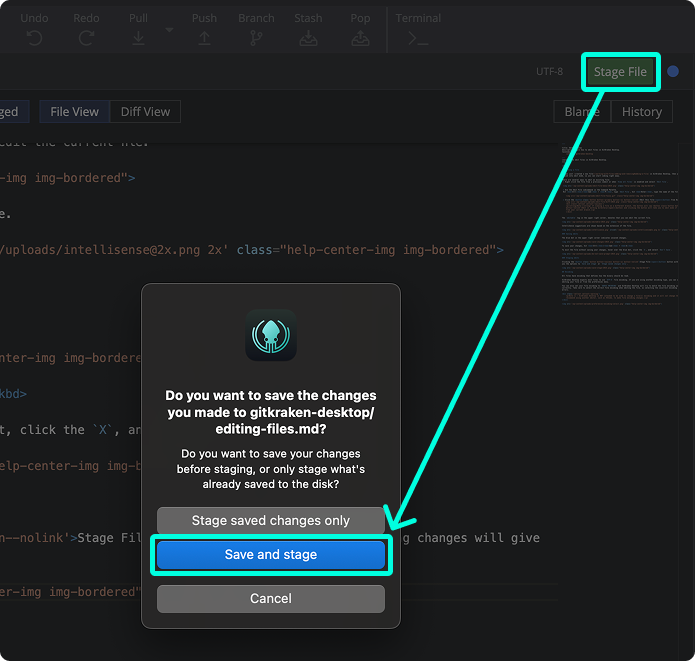
- Click Stage File in the Commit Panel. Choose Save and stage to save and stage together, or Stage saved changes only to stage only what was already saved.
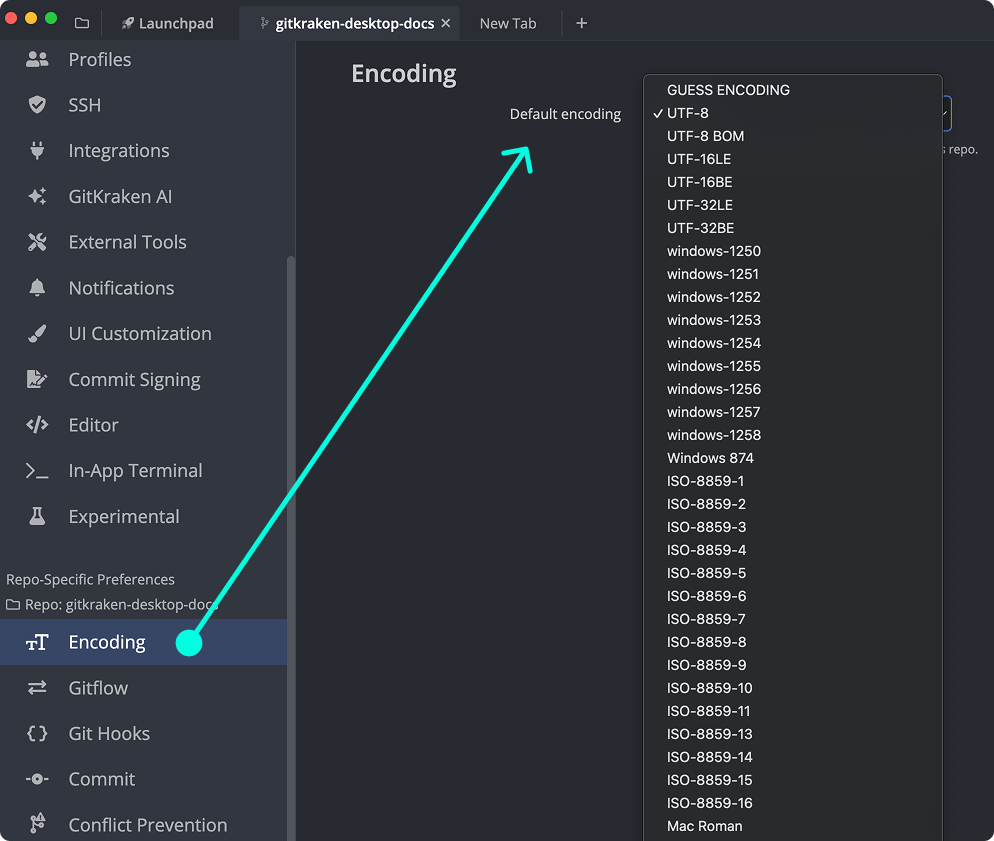
For .md files, click Preview in the editor toolbar to toggle a rendered Markdown preview alongside the editor. GitKraken Desktop expects UTF-8 encoding by default; adjust the encoding setting from the dropdown in the editor or under Preferences > Encoding.
How edit mode starts automatically for new files
If you create a new file, GitKraken Desktop opens the file immediately in edit mode so you can begin editing right away.
How to edit an existing file
How to edit a file from the context menu
Right-click a file (from a previous commit or via View all files) and select Edit file.
How to edit a file from the Command Palette
- Press Ctrl/Cmd + P
- Type
Edit Fileand press Enter - Type the filename and press Enter
How to edit a file from Diff or File View
Click the button from a file diff.
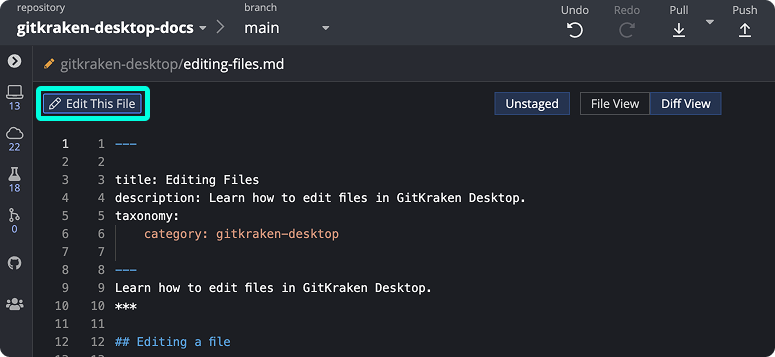
Note: If viewing a file on a different branch, the button will read Edit in working directory. It opens the file version from your current branch.
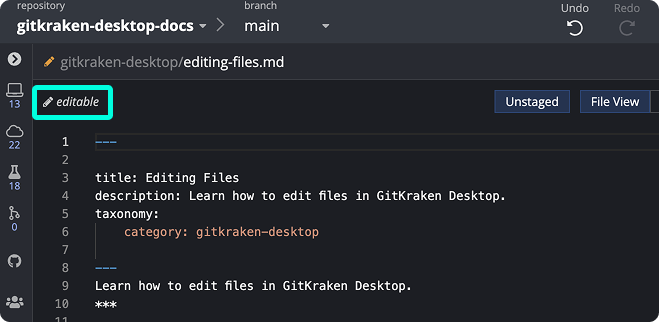
What the file edit indicators mean
The upper-left corner of the file editor shows:
- editable tag: Indicates the file can be modified
- blue dot: Indicates unsaved changes
How to save or discard changes
- Press Ctrl/Cmd + S to save
- To discard unsaved changes:
- Hover over the blue dot
- Click the X
- Select Don't Save
How to stage file edits
After editing, click to commit your changes. Options include:
- Save and stage
- Stage saved changes only
How file encoding works
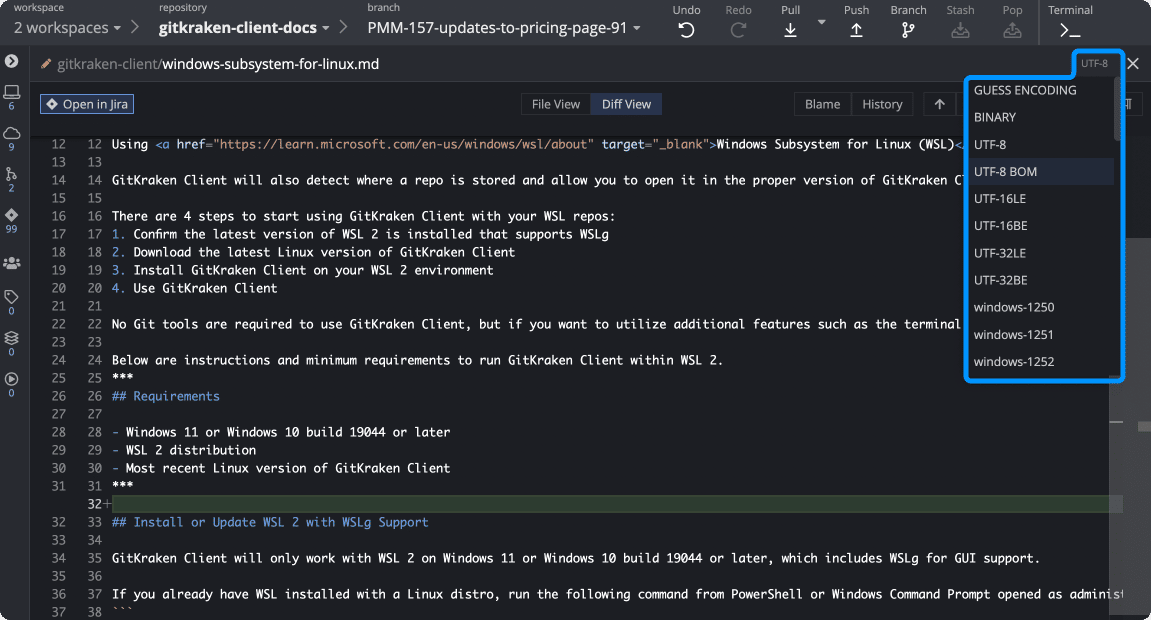
GitKraken Desktop expects most files to use UTF-8 encoding. To review or adjust encoding:
- Use the dropdown at the top of the editor
- Visit Preferences > Encoding
- Or select Guess Encoding to let GitKraken match it automatically
Note: GitKraken Desktop does not change a file’s encoding upon save. Use an external editor like VS Code if you need to convert encodings.
How Markdown preview works
GitKraken Desktop includes a built-in markdown preview for .md files. To access the option, first click to edit a file in the upper left of the file diff.
From here, toggle the preview pane by clicking the button in the top of the editor.
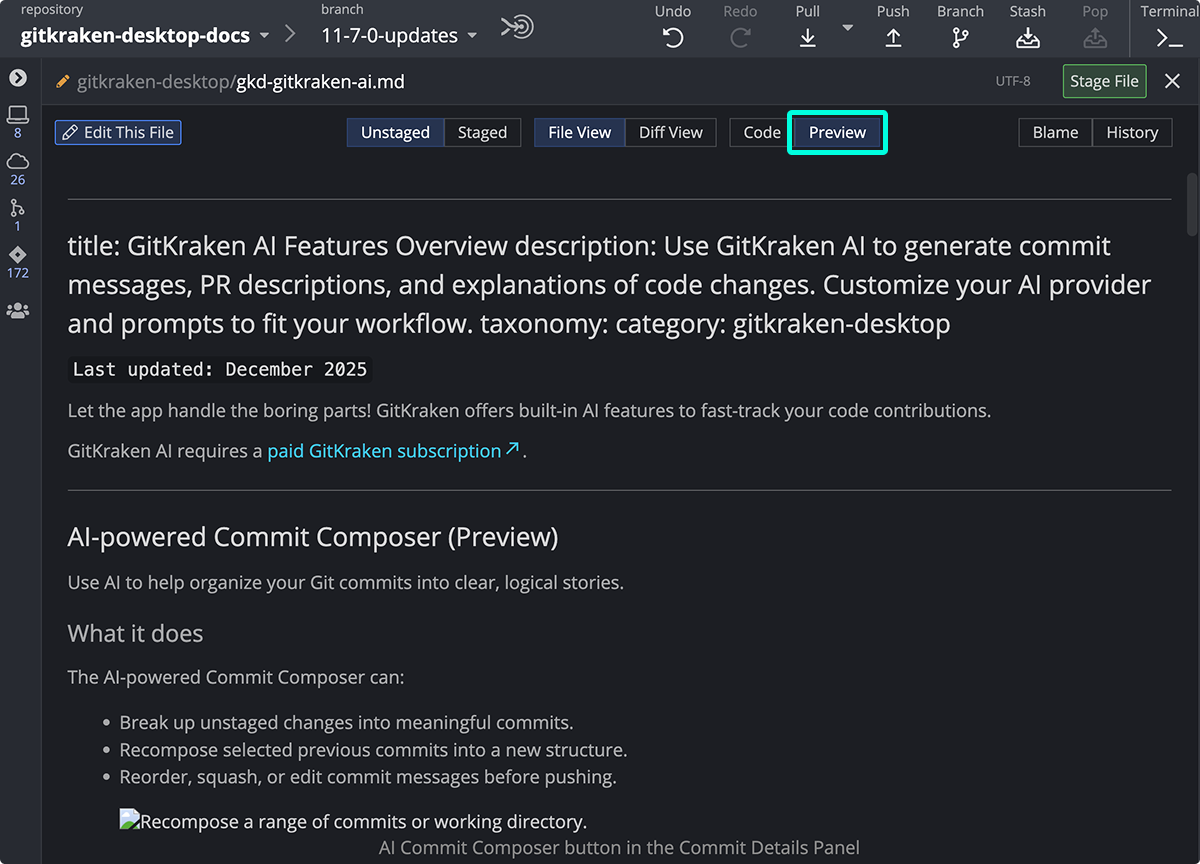
You can switch between editing and previewing the markdown content.
