

Last updated: March 2026
NEW FEATURE
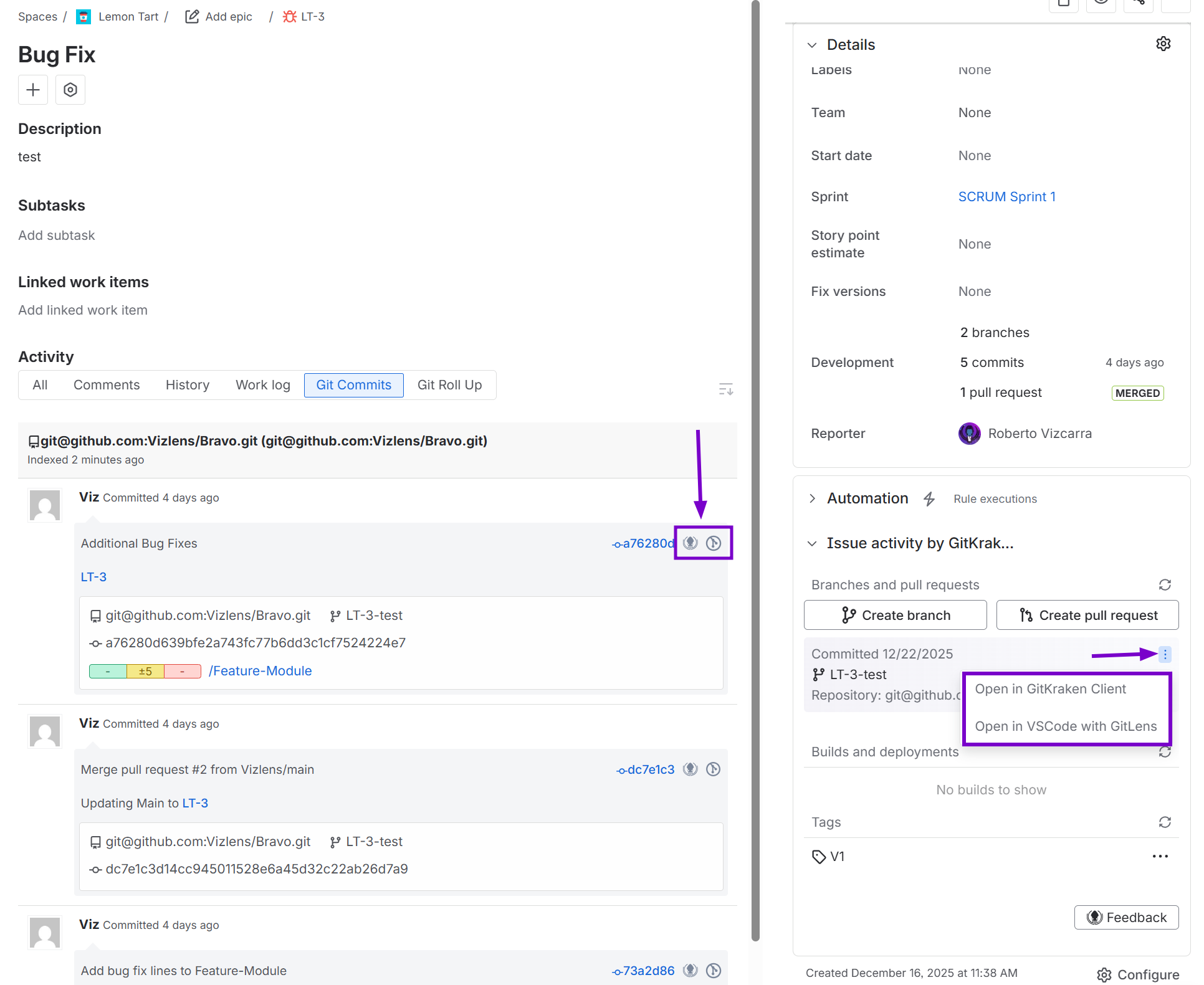
Deep linking allows you to move quickly between Jira and your Git source code.
Git Integration for Jira supports deep linking from repositories, commits, branches, and tags into the GitKraken Git client and GitLens VS Code extension.
GitKraken also supports deep linking into Git Integration for Jira. To learn more, see GitKraken Integrations: Git Integration for Jira.
GitLens 13.3 introduced deep linking support, allowing users to open commits, tags, and repository links in GitLens. To learn more, see GitLens Deep Linking support.
Deep Linking to the GitKraken Client

GitKraken Git Client is a multi-platform application that integrates with Git repositories such as GitHub, GitLab, Bitbucket, Azure DevOps, Jira, and more. GitKraken helps developers visualize Git and save time with their development workflow. You can switch between a GUI or terminal, and the robust team features provide a seamless Git experience on Windows, Mac, or Linux.
GitKraken deep link access locations
GitKraken deep links are accessible in the following locations:
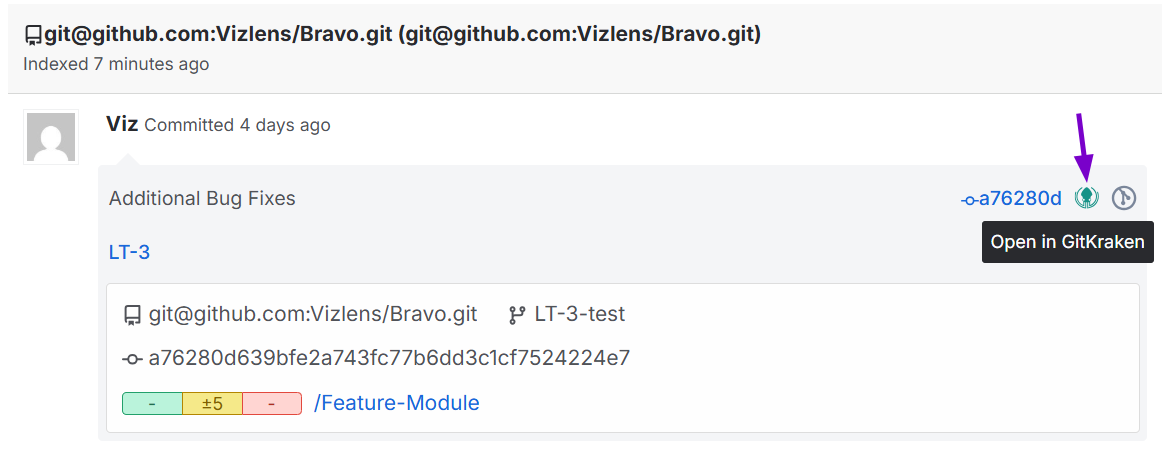
Jira issue – Git commits tab
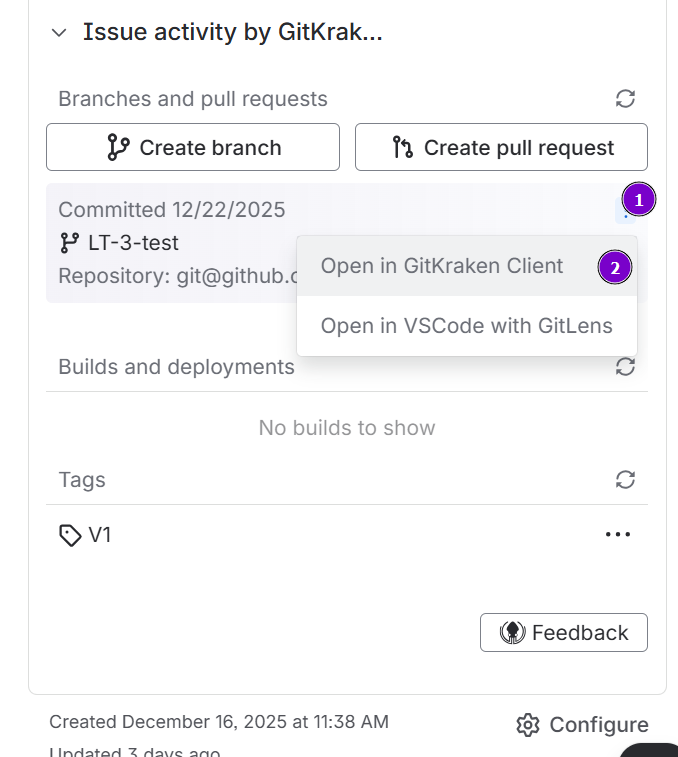
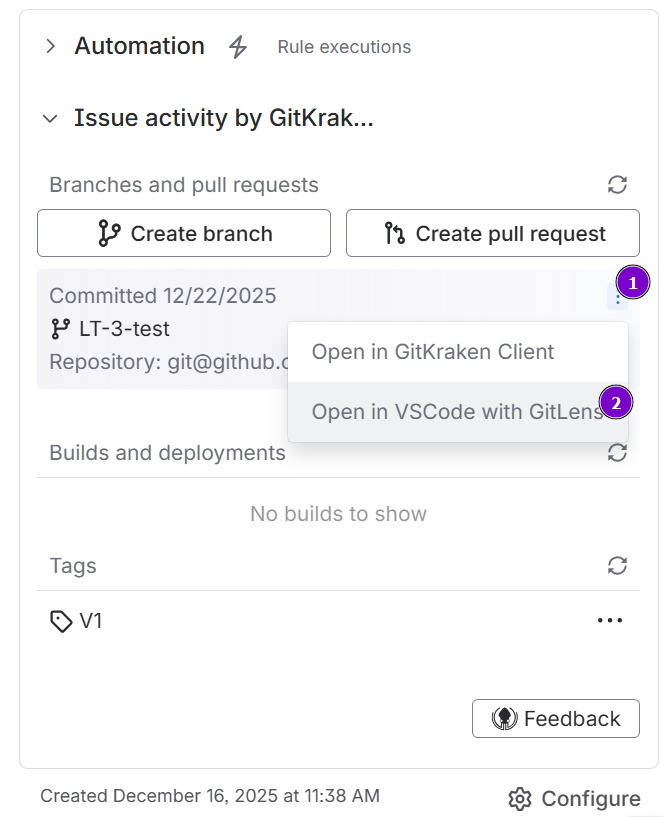
Jira issue Git developer panel – branches and tags lists

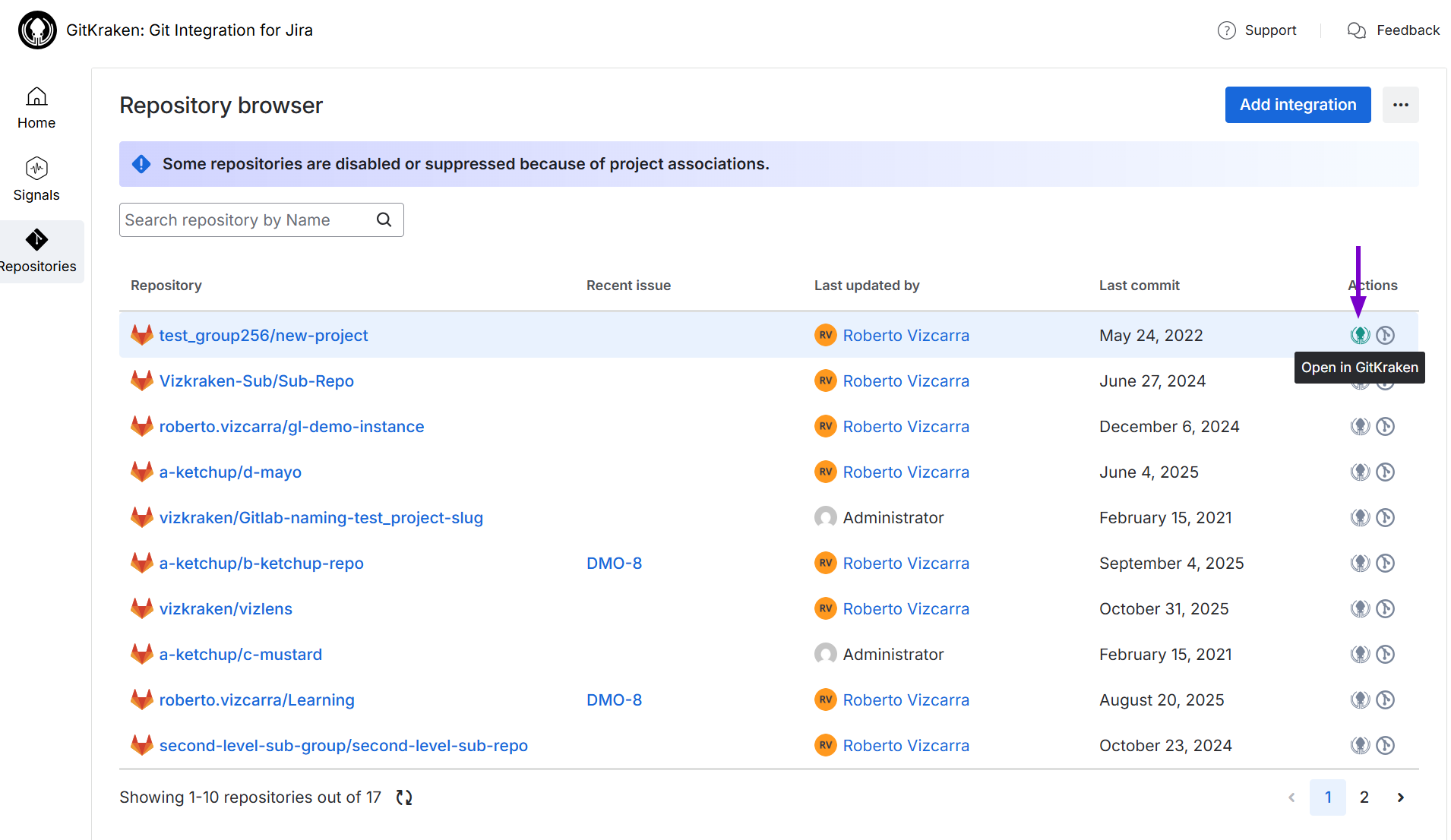
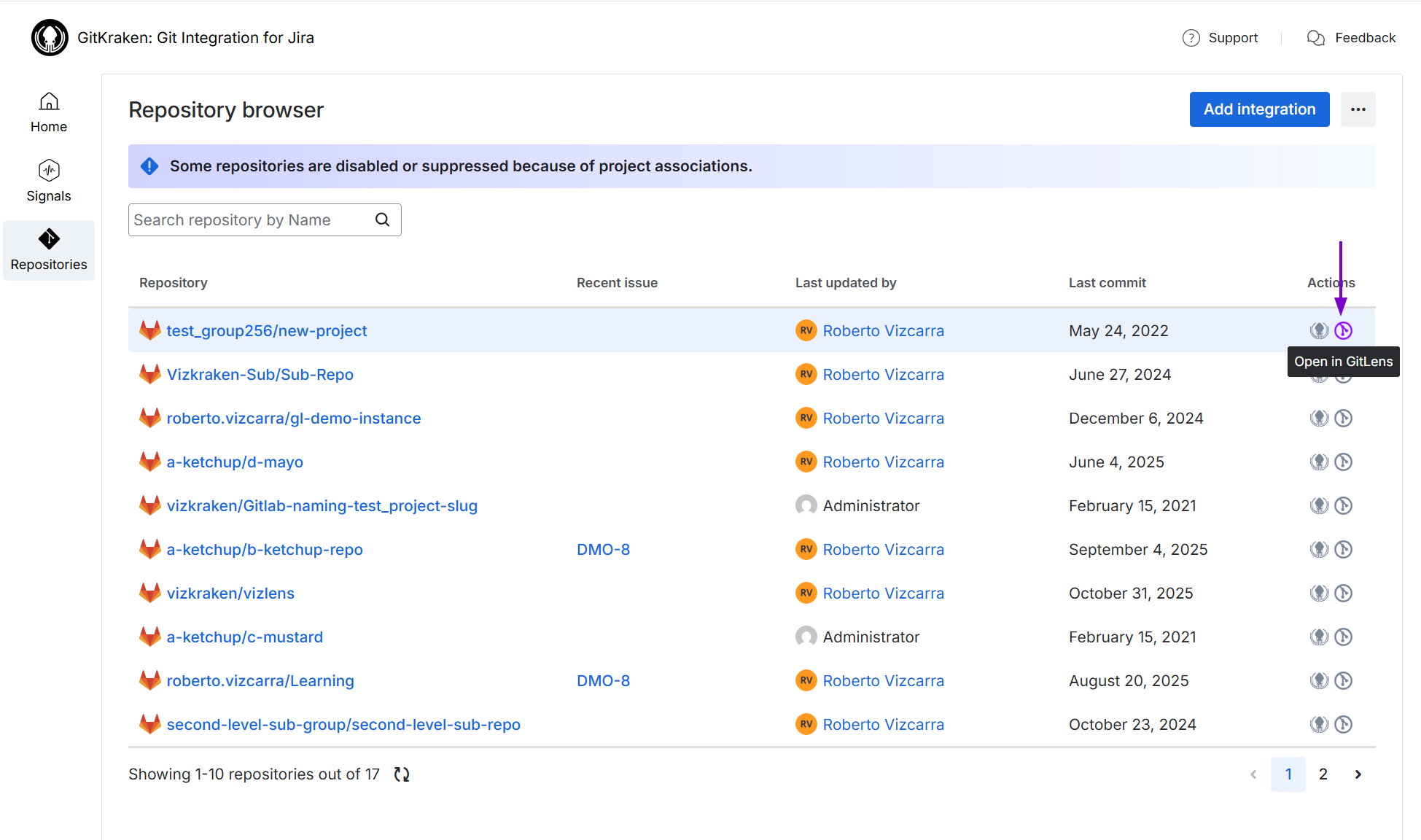
Repository browser – All repository table
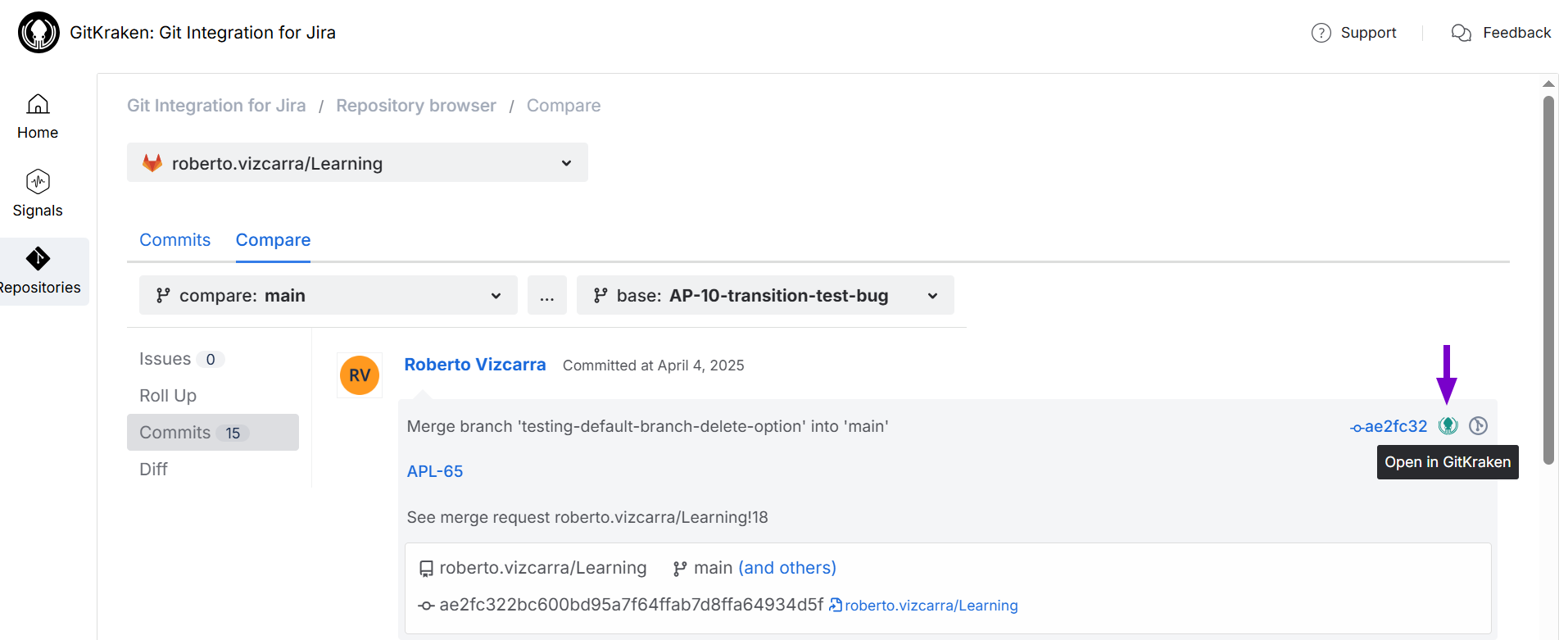
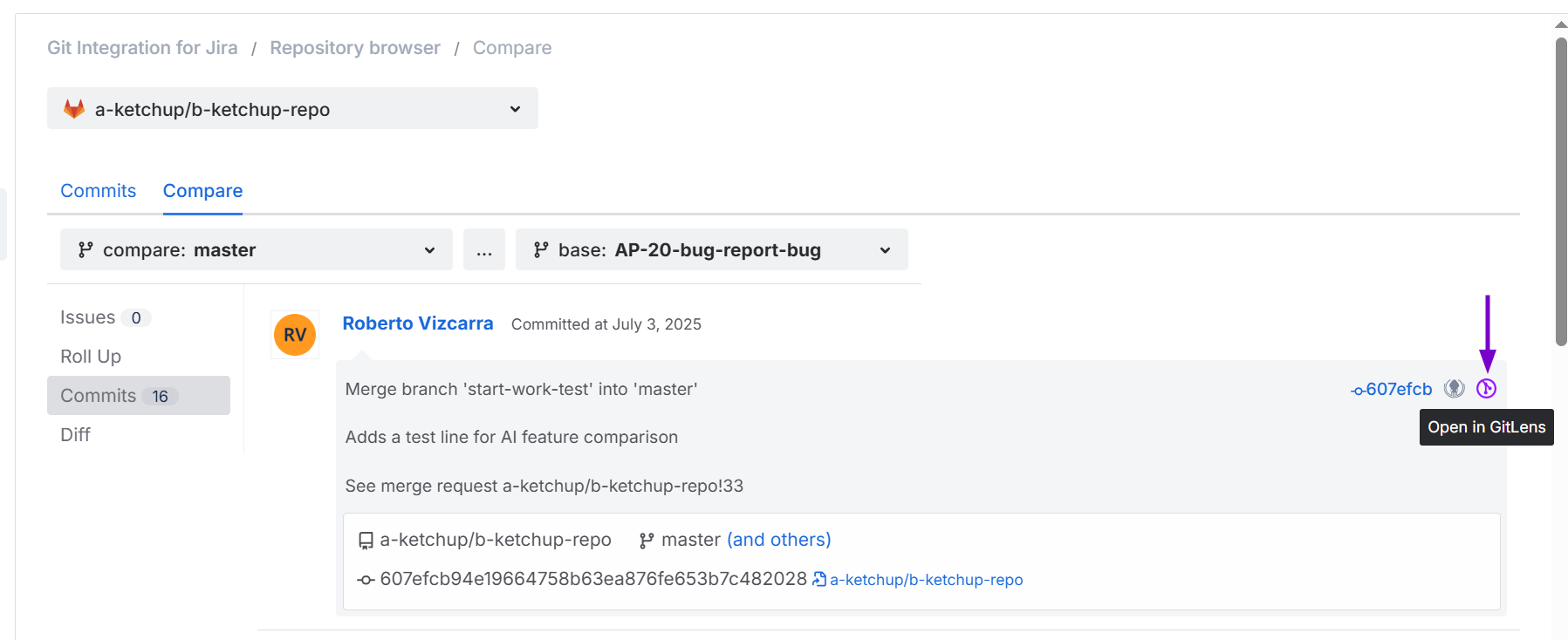
Repository browser – Compare page (commit view)
GitKraken user settings
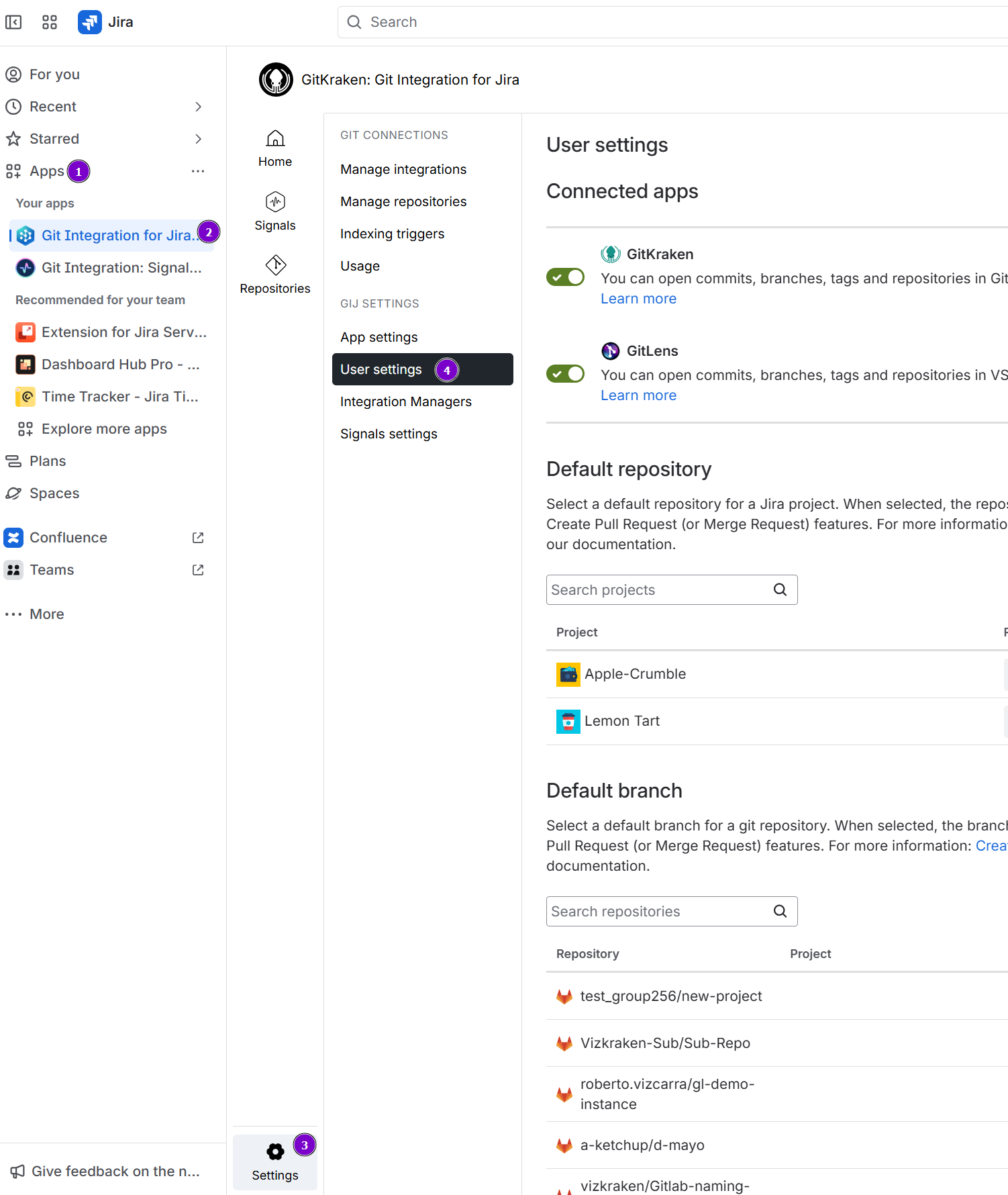
Individual Jira Cloud users can enable or disable the GitKraken integration by visiting the Git Integration: User settings page.
-
Go to the Jira Profile menu.
-
Click Git Integration: User settings.
-
Enable or disable the setting under the Connected apps section.

GitKraken administrator settings
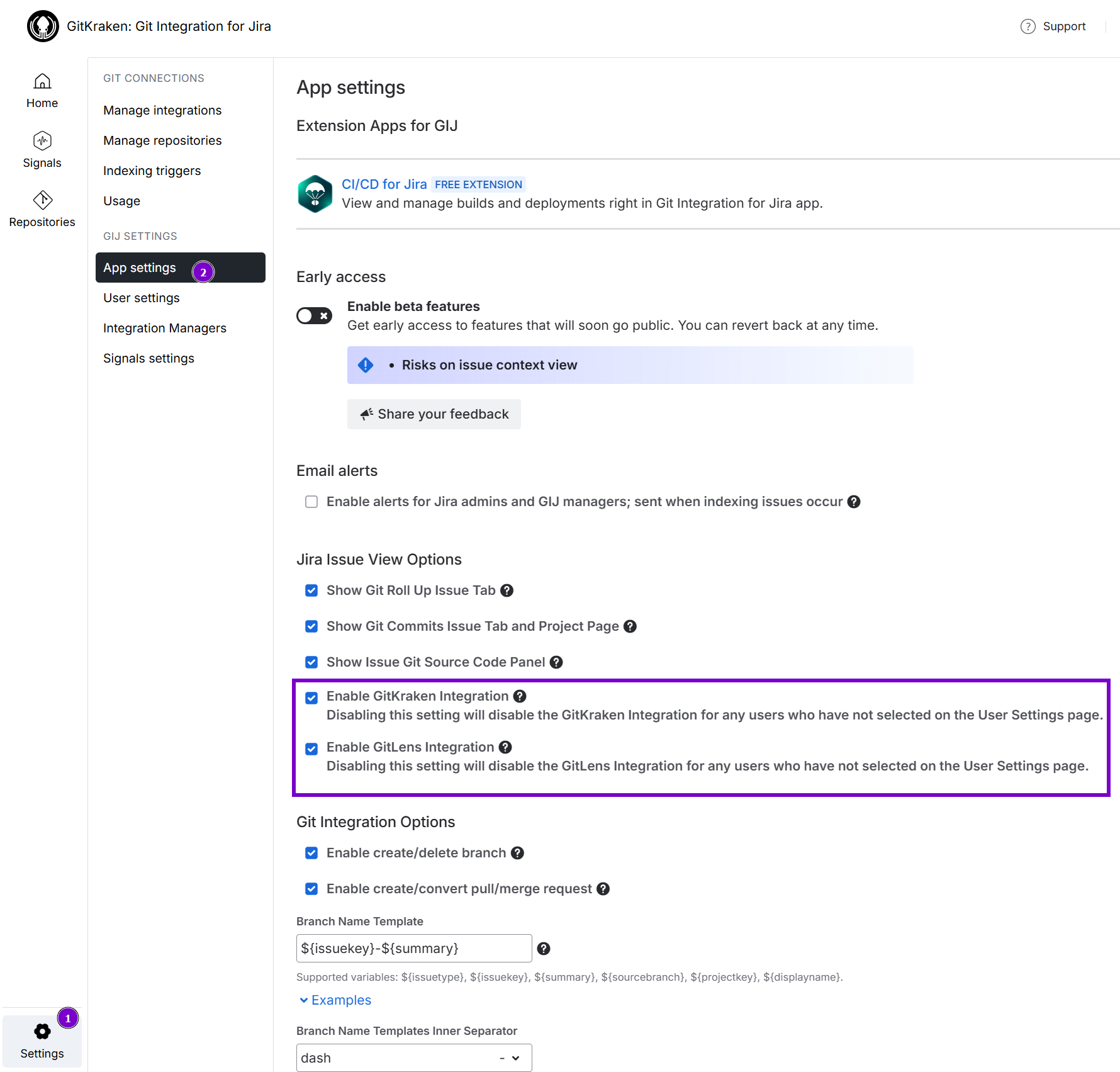
The GitKraken deep linking feature is enabled by default in the Git Integration for Jira app settings.
Jira administrators can enable or disable this feature for all Jira users. Individual users can also enable the GitKraken integration separately (see User settings).
-
Go to the Git Integration for Jira – General settings tab (sidebar).
-
Enable or disable this setting under Jira Issue View Options.
Deep Linking to GitLens

GitLens is a Visual Studio Code extension that supercharges Git inside VS Code. GitLens helps you visualize code, explore Git repositories, use powerful compare commands, and much more.
Git Integration for Jira supports GitLens deep linking. You can open repositories, commits, tags, and branches in GitLens using the relevant access locations in Jira.
GitLens deep link access locations
GitLens deep links are accessible in the following locations:
Jira issue – Git commits tab
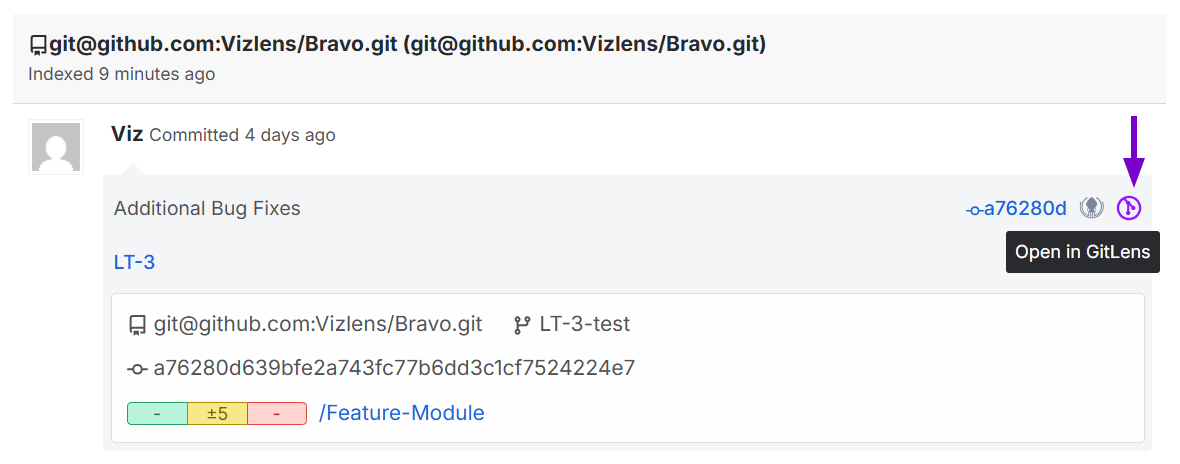
Jira issue Git developer panel – branches and tags lists

Repository browser – All repository table
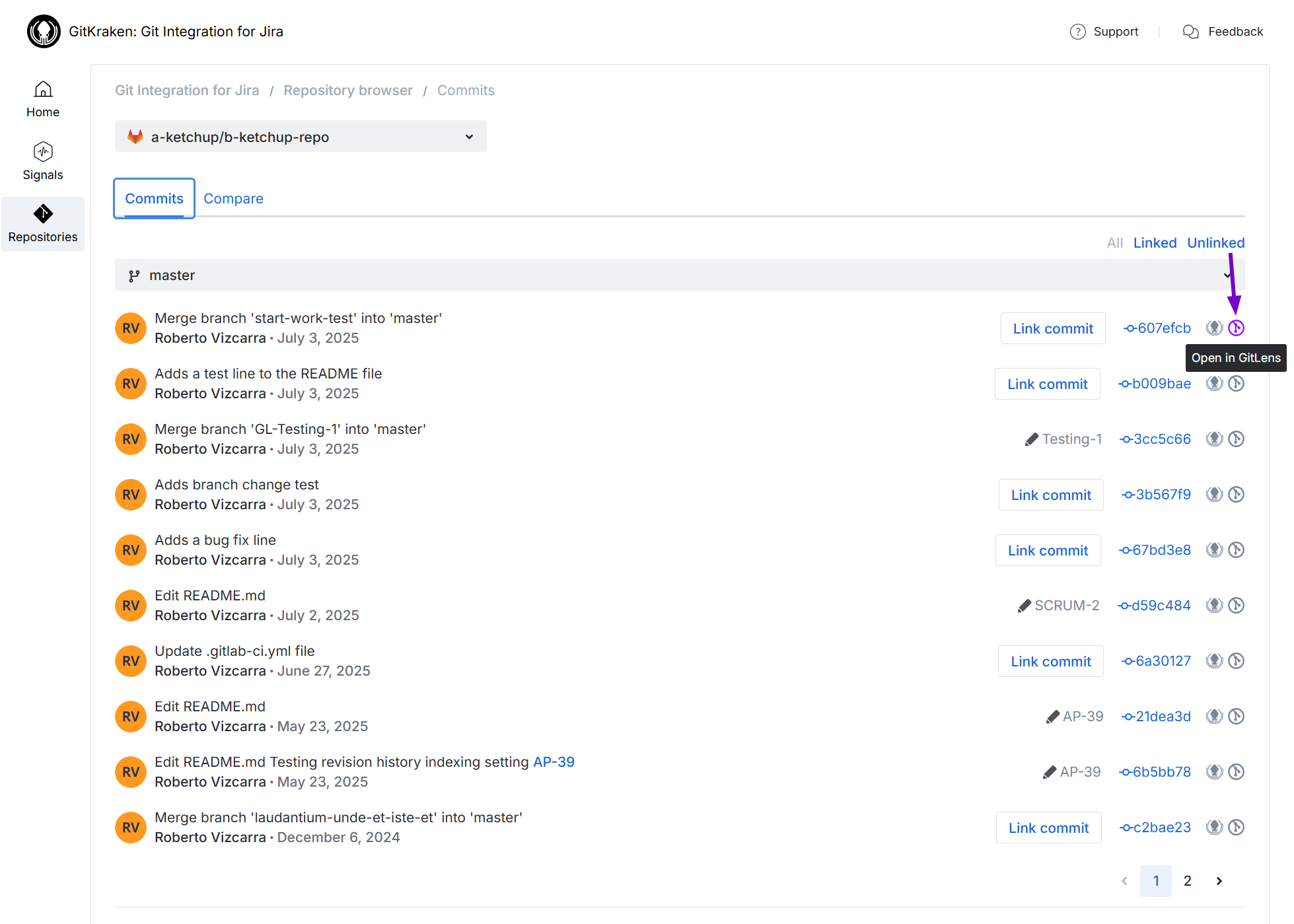
Repository browser – Commits page
Repository browser – Compare page (commit view)
GitLens user settings
Individual Jira Cloud users can enable or disable the GitLens integration by visiting the Git Integration: User settings page.
-
Go to the Jira Profile menu.
-
Click Git Integration: User settings.
-
Enable or disable the setting under the Connected apps section.
GitLens administrator settings
The GitLens deep linking feature is enabled by default in the Git Integration for Jira General settings.
Jira administrators can enable or disable this feature for all Jira users. Individual users can also enable the GitLens integration separately (see User settings above).
-
Go to the Git Integration for Jira – General settings tab (sidebar).
-
Enable or disable this setting under the GitLens integration section.
