
Last updated: March 2026
Backlog View tracks work progress and highlights items needing attention. This page explains how to use Backlog View to monitor sprints and identify risks.
Overview
Backlog View helps you identify work risks before deadlines pass. The view organizes issues into sprints for easy tracking.
Use Backlog View to:
- View Git repository activity during sprint planning
- Identify at-risk issues and adjust plans
- Run faster, more effective standups
Accessing Backlog View
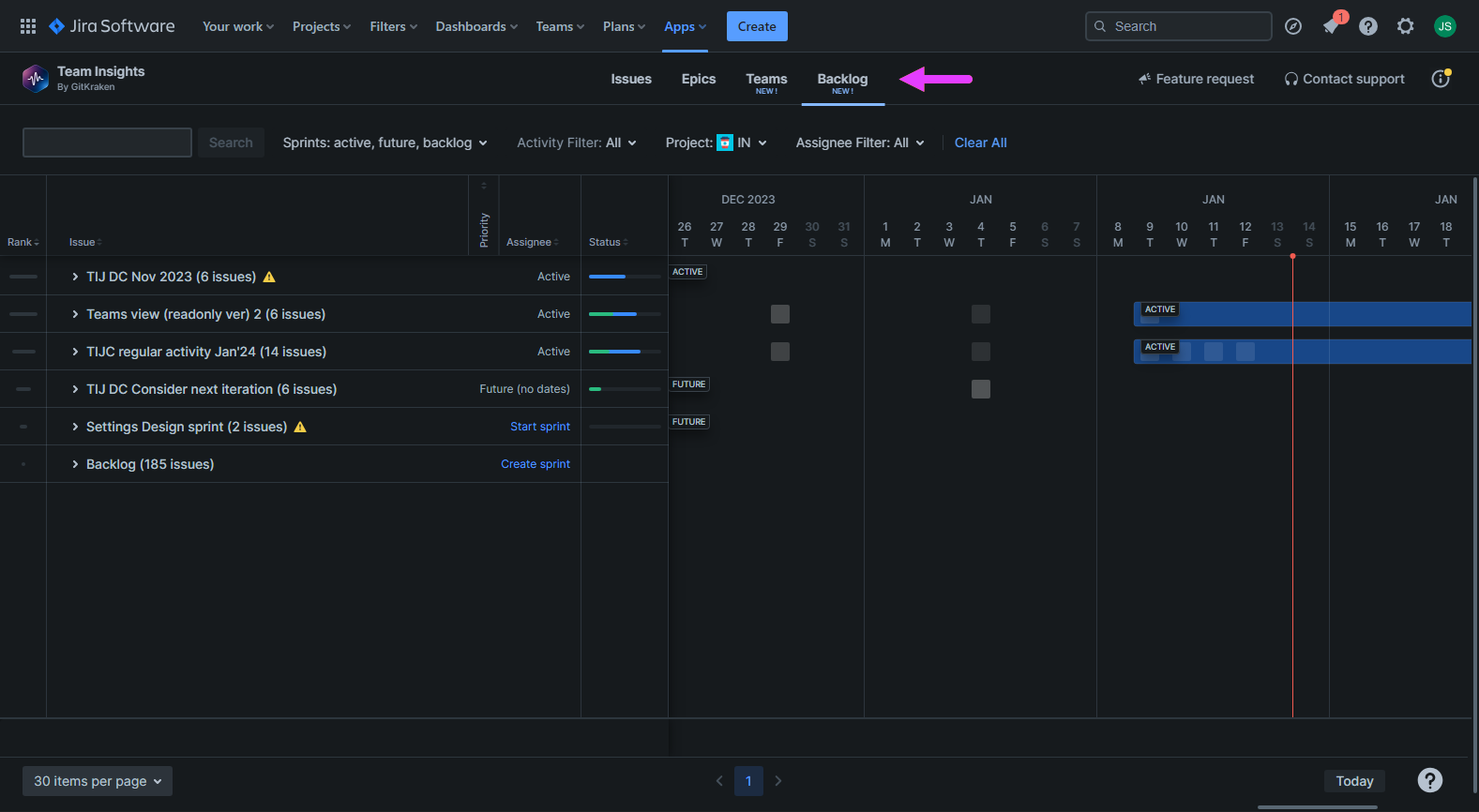
To open Backlog View, click the Backlog View tab at the top of the Signals page.
Backlog View groups issues by sprint, similar to Epics mode in General View. Use the Project filter to manage your backlog. Sprints sort by rank when the view loads.
Understanding the activity timeline
The activity timeline displays sprint duration and user activity. A two-week sprint shows two weeks of work. Longer sprints display their full duration.
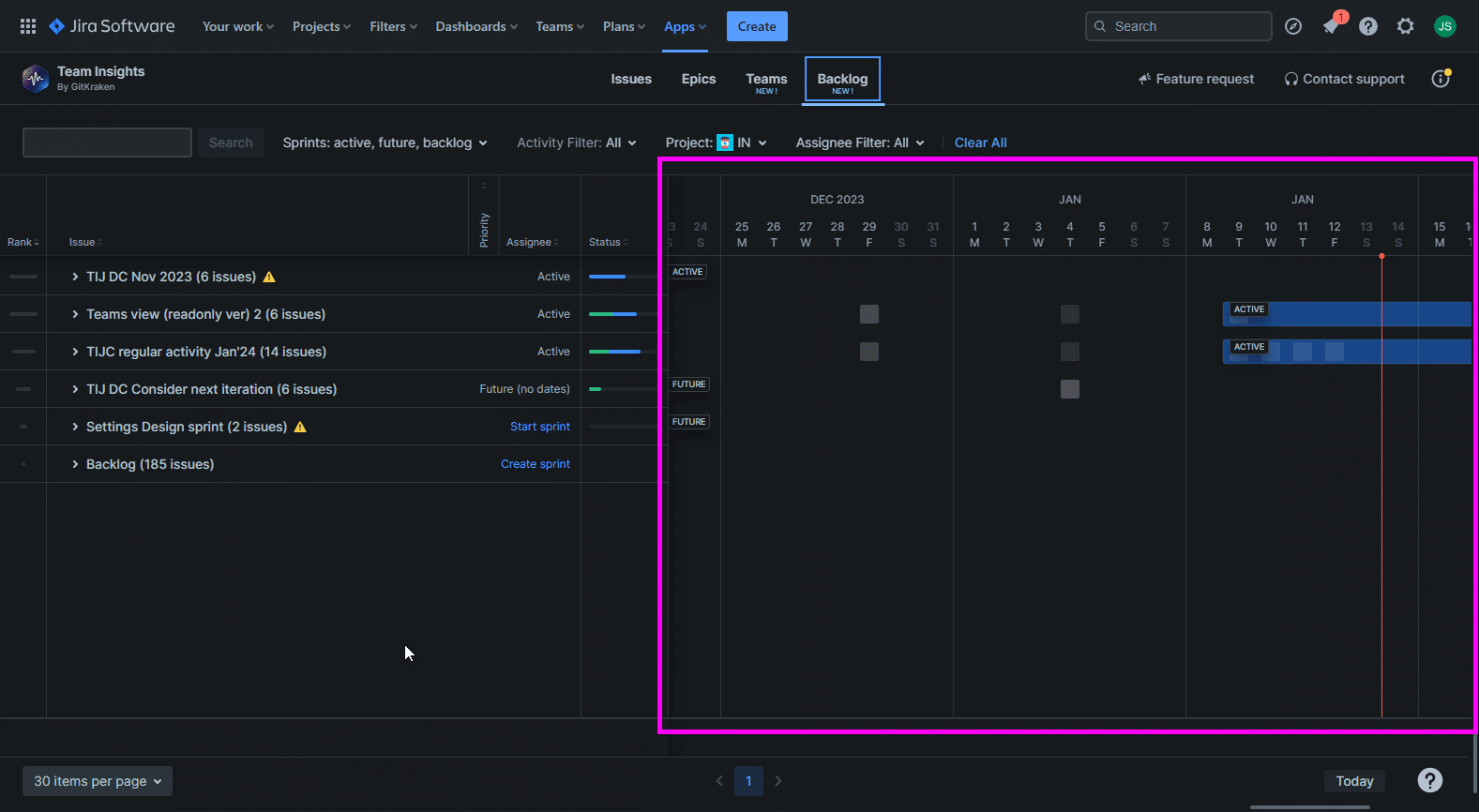
Auditing sprint activity
To view sprint changes, hover over activity boxes. A popup displays issue additions, removals, and status changes. This audit window shows progress and modifications throughout the sprint.
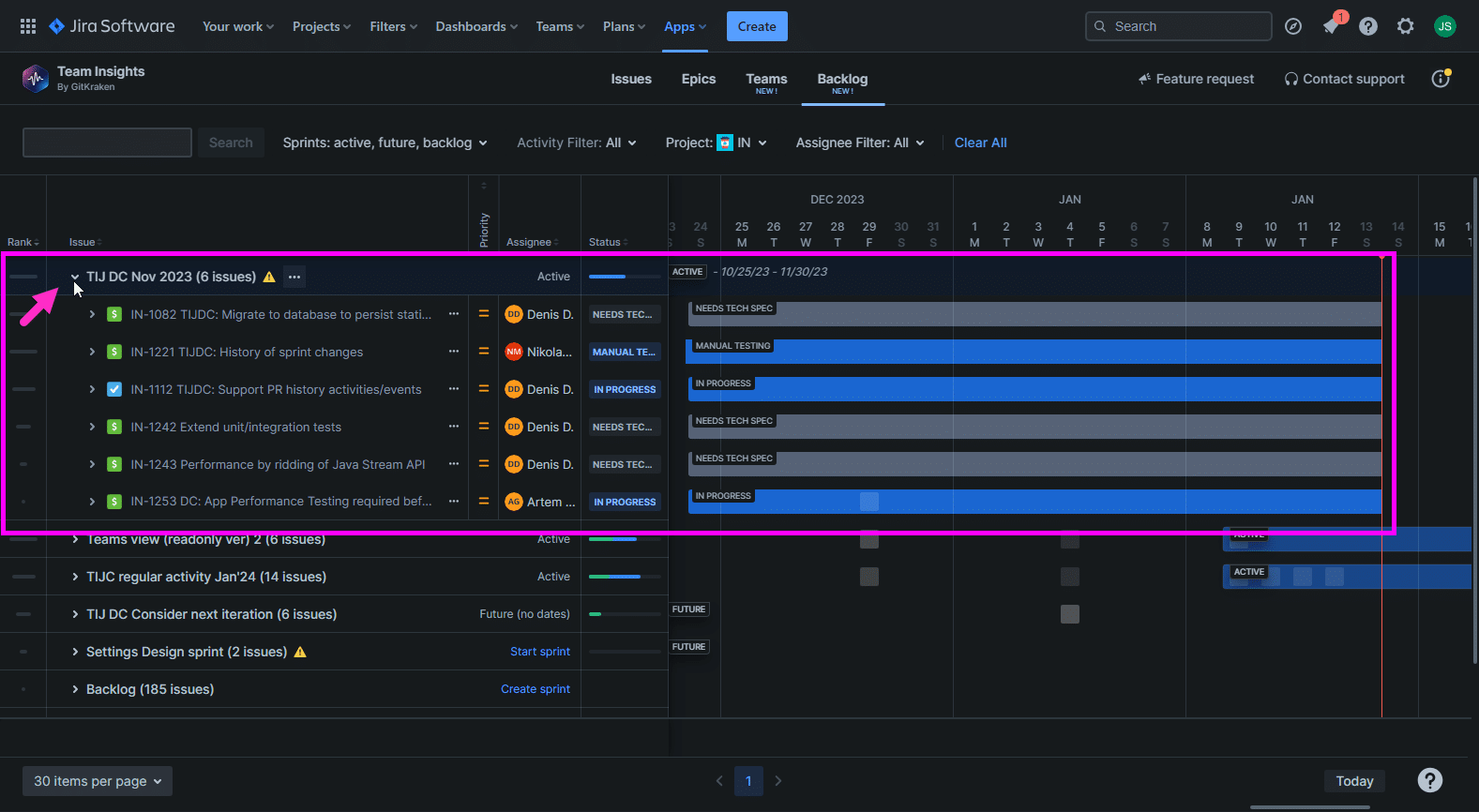
Viewing sprint issues
To expand a sprint and view issue activities, click the expand icon (>).
Understanding the status column
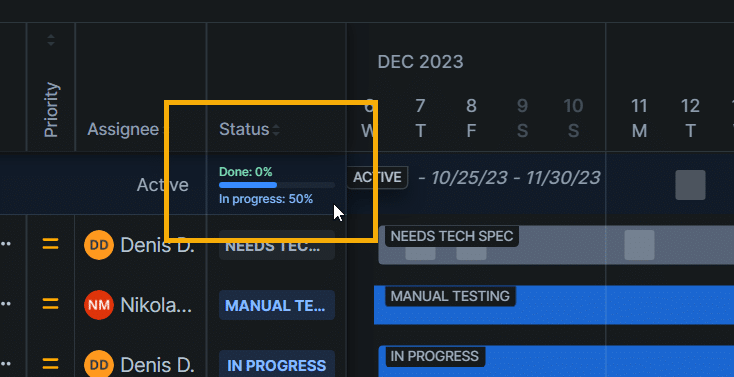
To view progress status and completion percentage, hover over the status column.
Interpreting alert symbols
To compare calculated versus expected progress, hover over  alert icons. The popup shows remaining sprint time and completed issue count.
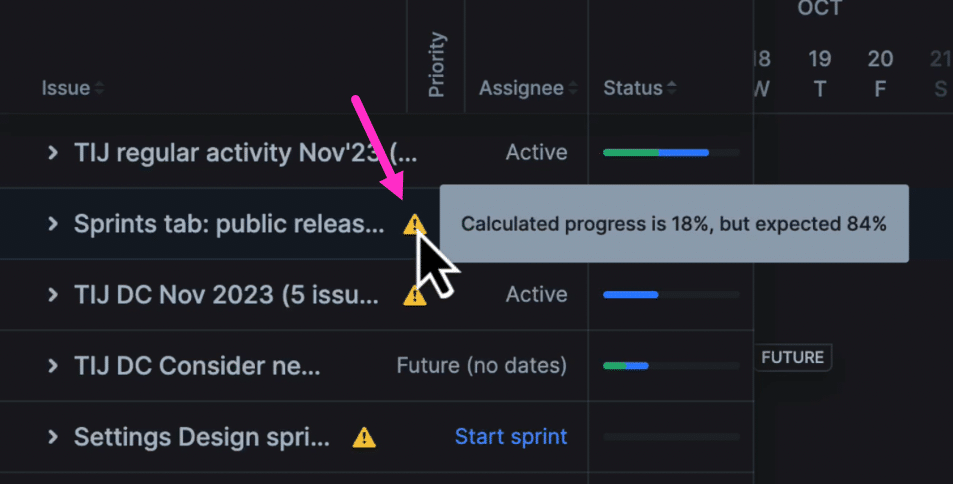
In this example, the sprint has two days remaining with 18% calculated progress, indicating few completed issues.
This view helps you determine whether the sprint is on track or at risk of missing deadlines.
Showing code differences
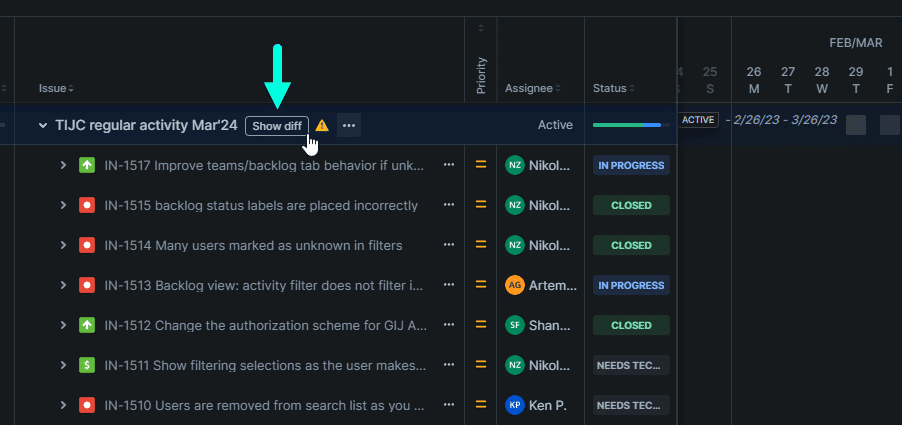
To display issues with code changes, click Show diff. To hide code differences, click Hide diff.
Using the actions menu
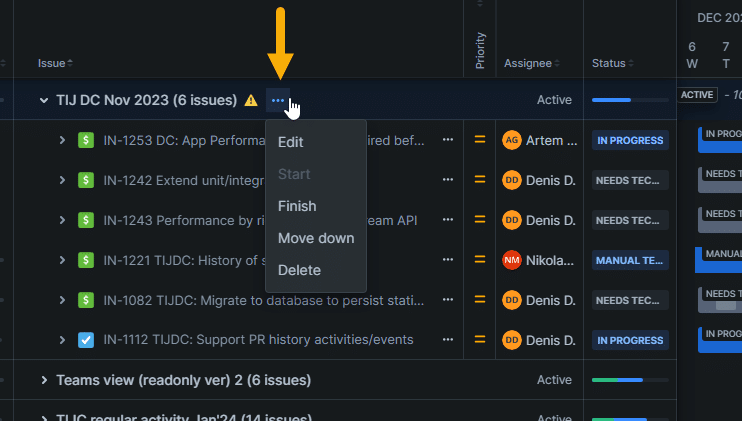
To access sprint actions, click the menu icon […].
| Action | Description |
|---|---|
| Edit | Opens the dialog to modify sprint settings. |
| Start | Begins the sprint. Status changes to: IN PROGRESS. |
| Finish | Completes the sprint. Status changes to: DONE. |
| Move up | Increases the sprint’s priority ranking. |
| Move down | Decreases the sprint’s priority ranking. |
| Delete | Removes the sprint. |
Editing a sprint
To edit sprint properties:
- Click […] to open the actions menu.
- Select Edit to open the sprint properties dialog.
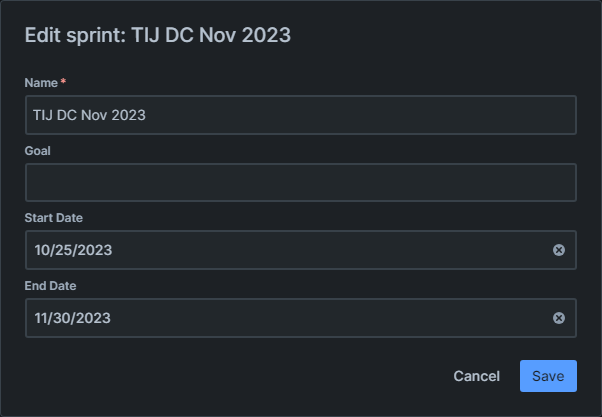
The dialog contains the following fields:
| Field | Description |
|---|---|
| Name | The sprint name. |
| Goal | The completion goal for planning purposes. |
| Start Date | The sprint start date for resource planning. |
| End Date | The sprint deadline for accountability. |
| Timeline | A slider to adjust the sprint period. Dragging changes only the end date. |
Adjusting the timeline
To adjust sprint duration using the timeline slider:
- Click and drag the slider to change the period.
- Release to set the new end date.
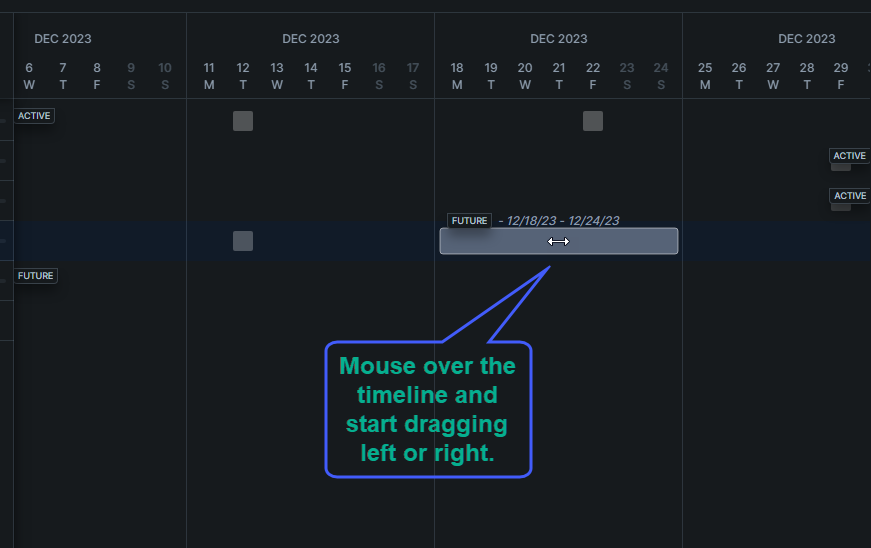
Note that dragging the slider changes only the end date, not the start date.
Searching and filtering
Use the search and sort filters at the top to refine the displayed data.

Enter text to search for issues. Apply filters to narrow results.
Filtering by sprint type

Select sprint types to display: active, future, or backlog. The counter shows the number of matches per type.
Click Apply selection to apply your choices. Click Clear to reset.
Filtering by activity
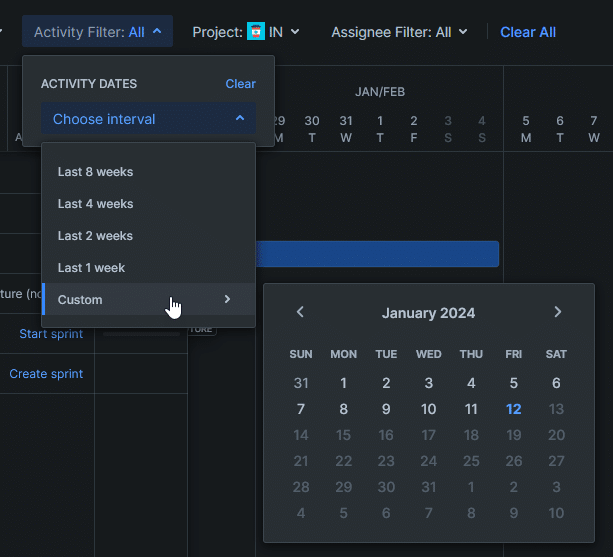
Select an activity date interval. Default: All.
Choose Custom to specify exact dates. Click Clear to reset.
Filtering by project
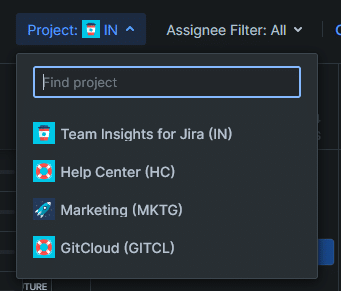
Select a project to search within. Use the search box when filtering across multiple projects.
Filtering by assignee
Select users to filter by assignee. Default: All.
Resetting filters
To reset all filters, click Clear All.
To apply your filter selections and display results, click Search.
Sorting columns
To change the sort order, click a column header. Click again to toggle between ascending and descending order.
Sortable columns include:
- Rank – List position
- Issue Name – Issue title
- Priority – Priority level
- Assignee Name – Assigned user
- Status – Current state
More on Signals features
Backlog View (this page)
