

Last updated: March 2026
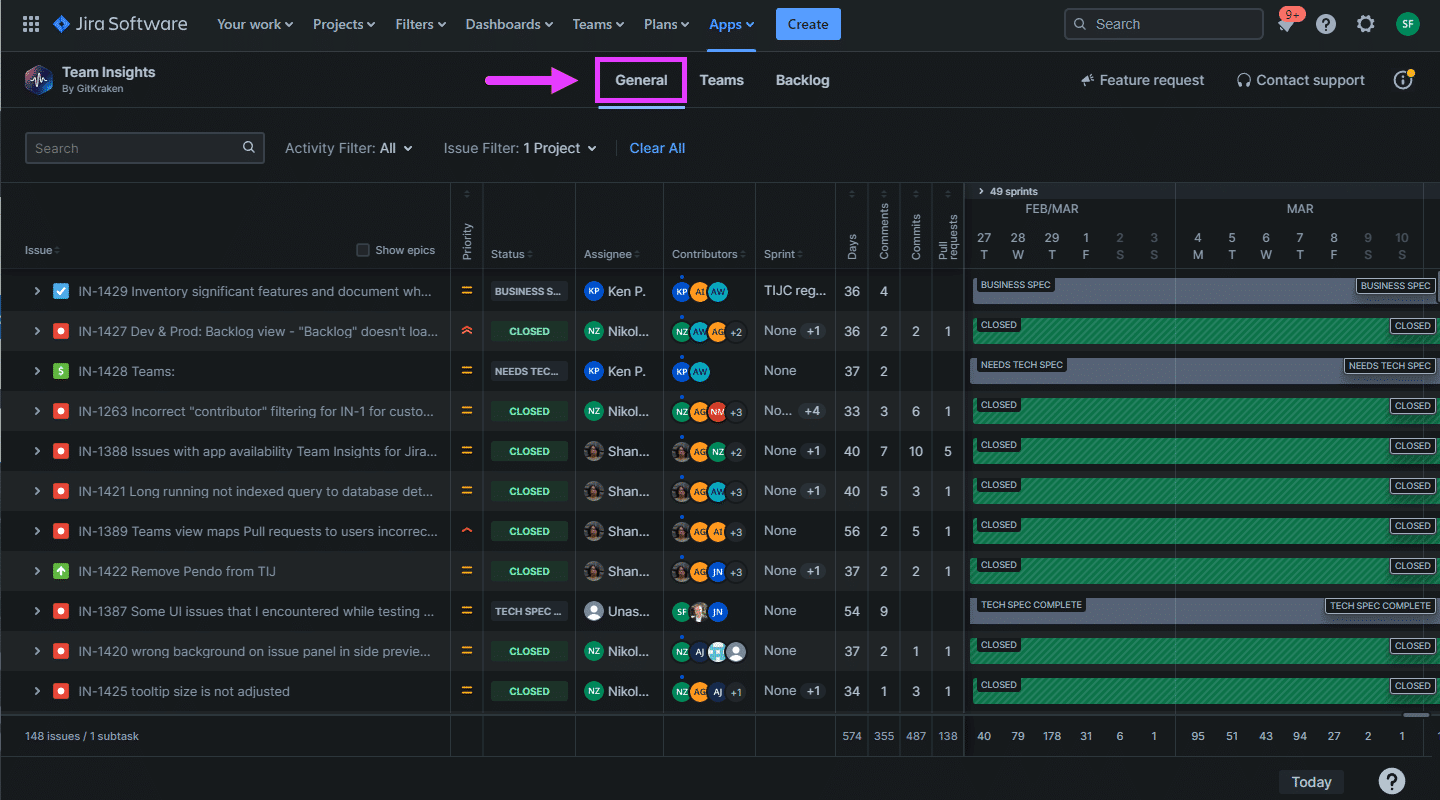
General View is the default Signals view. This page explains how to navigate and use its features effectively.
To switch views, click the tabs at the top to select General, Teams, or Backlog. To display epics instead of issues, select Show epics in the Issues column header.
Use the search bar to filter results by keyword.
Understanding the columns
The list view displays Jira issues with the following columns:
| Column | Description |
|---|---|
| Issue | Displays Jira issues with user and progress activities. Select Show epics to display epics instead. |
| Priority | Shows the issue priority level. |
| Status | Shows the issue progress status. |
| Assignee | Shows the assigned user. |
| Contributors | Lists users who worked on the issue. |
| Sprint | Shows the sprint containing this issue. |
| Days | Shows the number of days worked on the issue. |
| Comments | Shows the comment count. |
| Commits | Shows the commit count.
Requires Git Integration for Jira.
|
| Pull requests | Shows the pull request count.
Requires Git Integration for Jira.
|
Viewing issue details
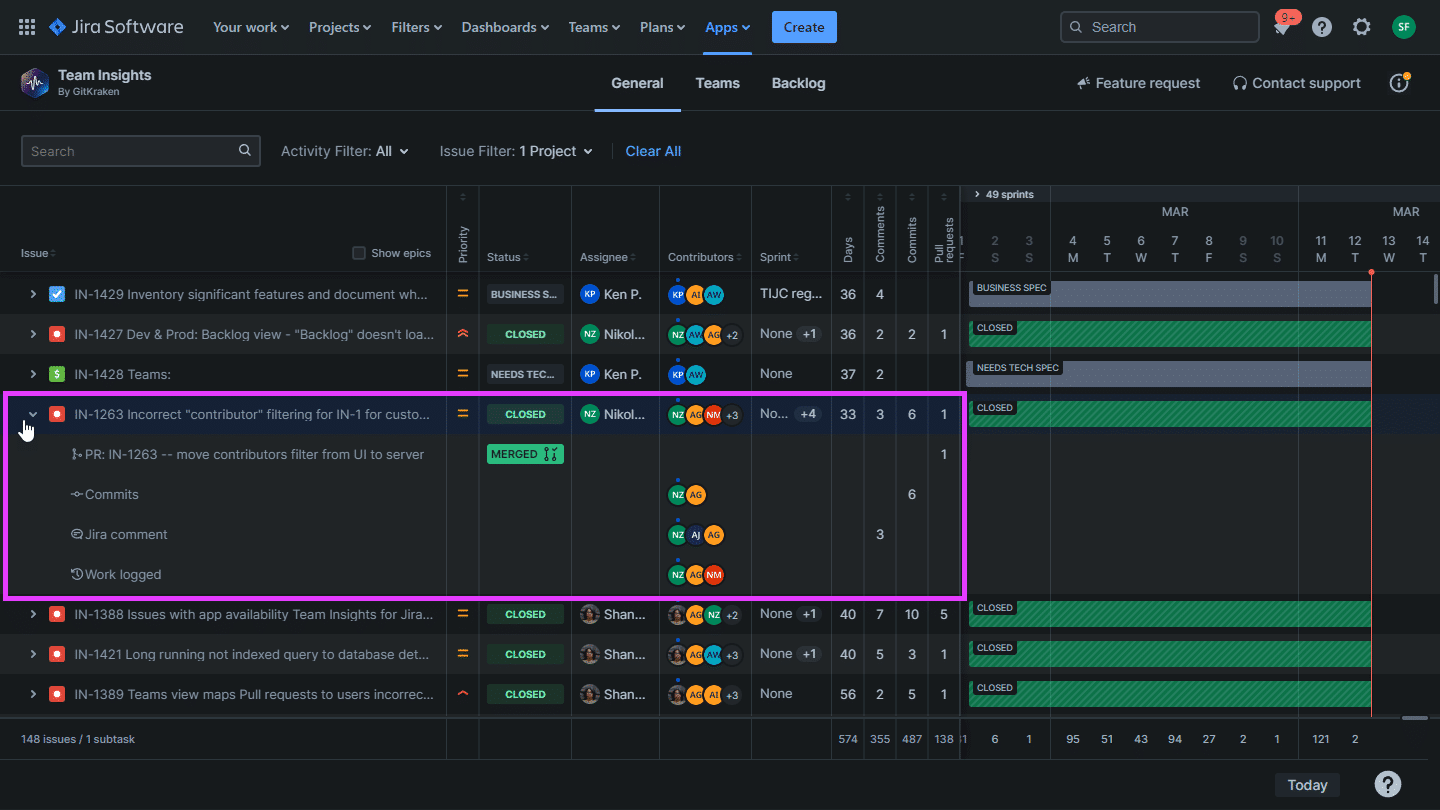
To expand an issue or epic, click the expand icon (>) next to it.
To open the issue details dialog, click the Issue details icon.
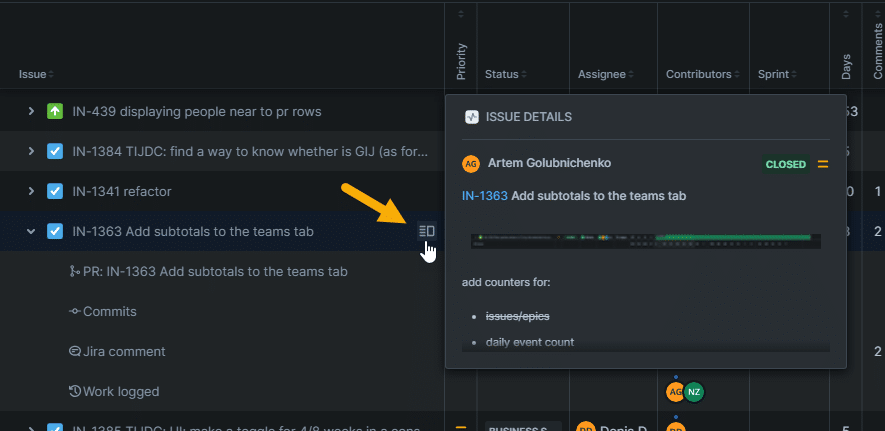
The dialog displays:
- Assigned user
- Blocking issues
- Issues causing stalls
- Current status
Using the sprint timeline
The right section shows the sprint timeline. Use this view to identify issues needing attention, overloaded team members, and at-risk work.
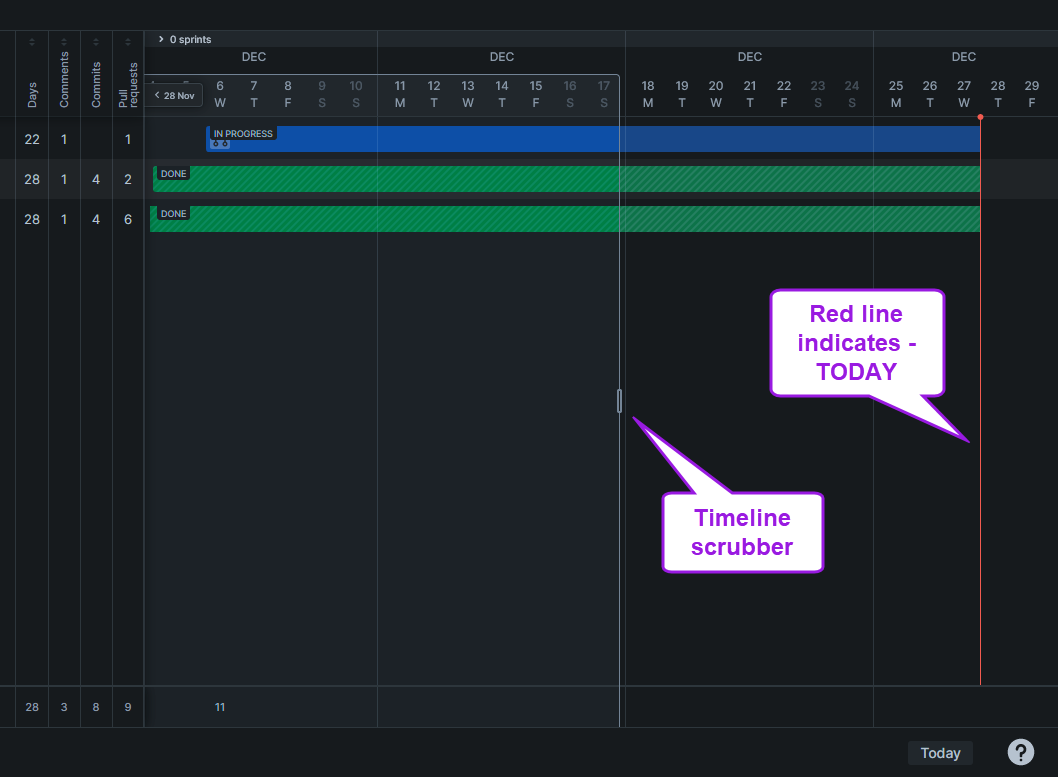
The red vertical line marks today’s date. Drag the timeline scrubber to change the activity date range. The view shows only issues with activity in the selected range.
To view status changes and development statistics for a specific day, hover over the activity bars.
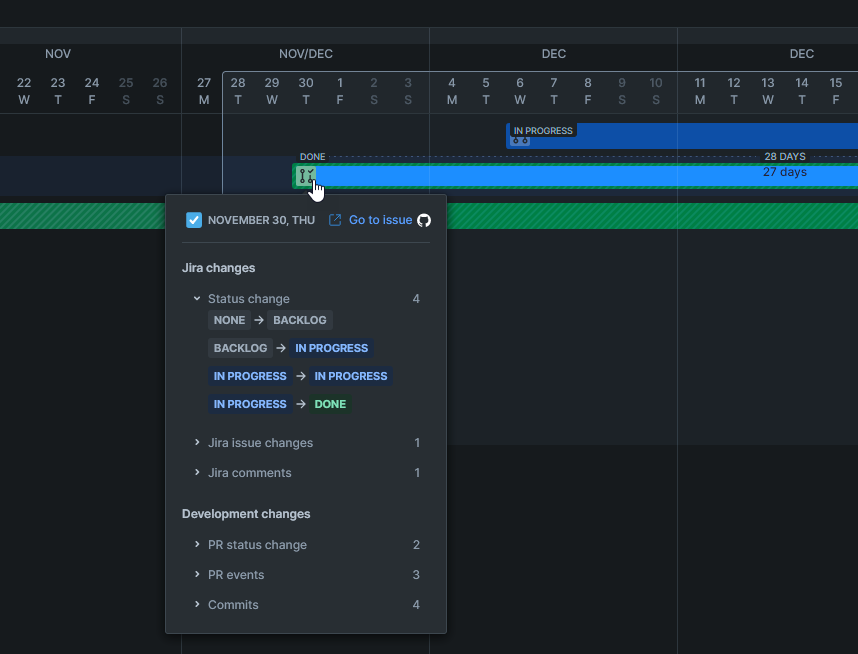
To open the corresponding Jira issue, click Go to issue in the popup.
To scroll the timeline horizontally, use the bottom scrollbar. Results reflect your selected filters.
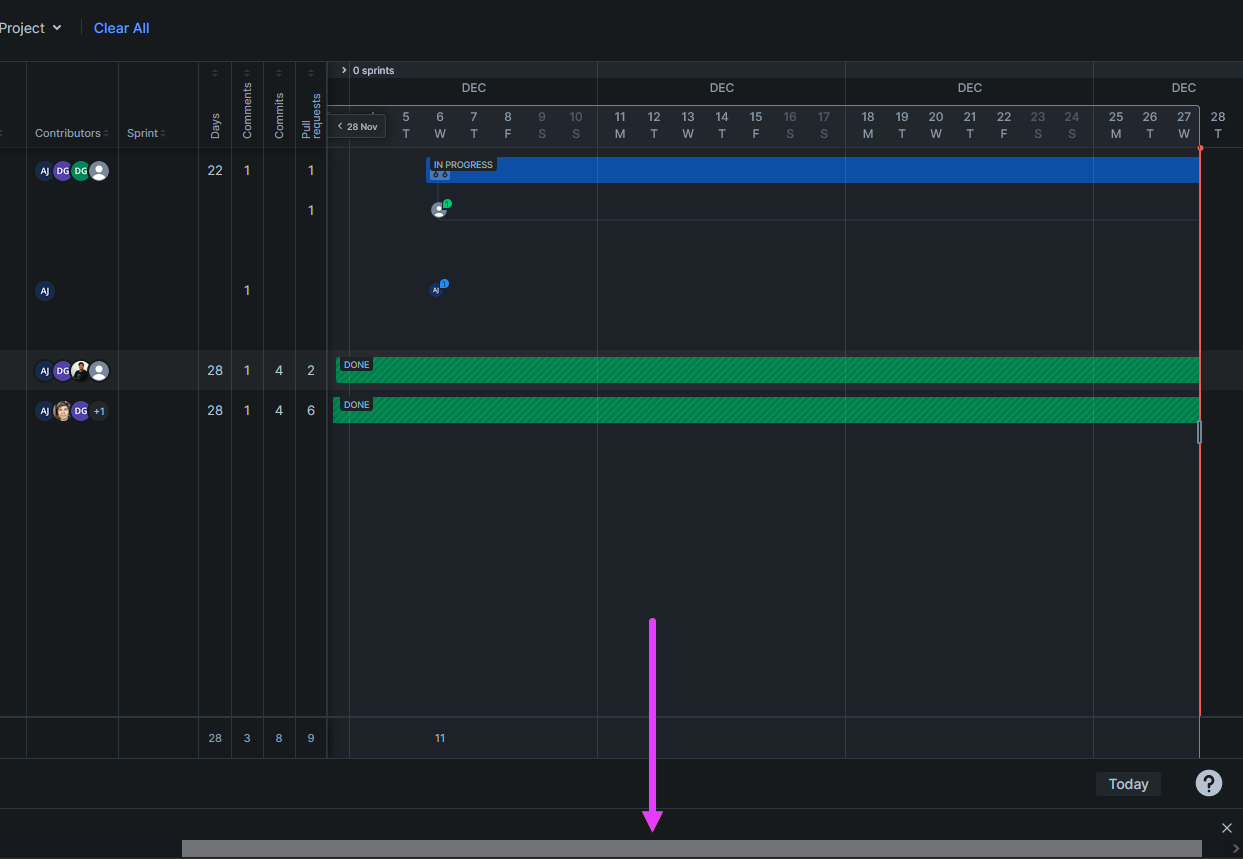
To expand child issues, click an issue row. To view details about specific items, hover over their icons.
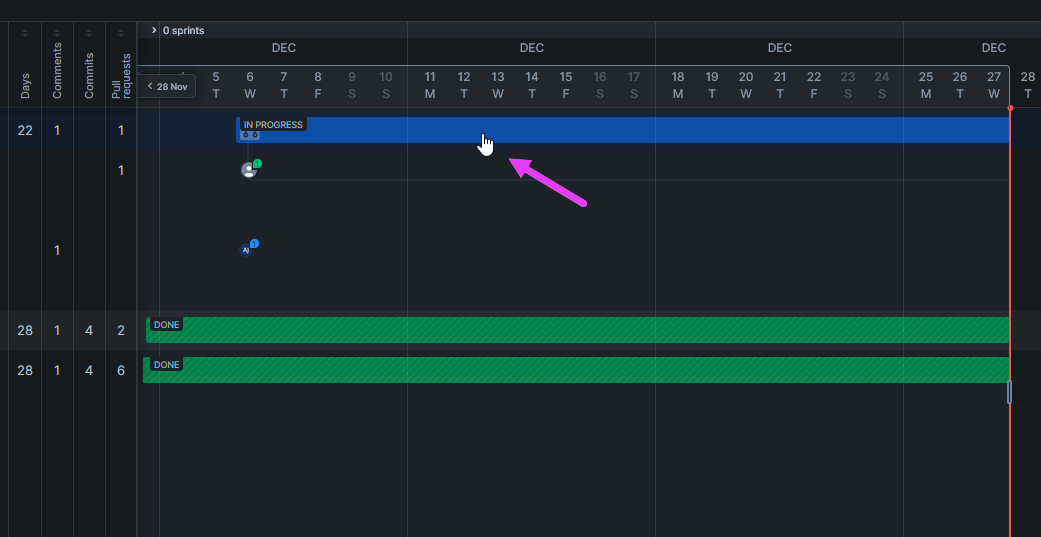
The following controls appear at the bottom of the page:
| Control | Description |
|---|---|
| Displayed items | Sets the number of items per page. |
| Page navigation | Navigates between pages. |
| Today | Jumps to today’s date on the timeline. |
 |
Displays navigation tips. |
Switching to Epics view
To switch to Epics mode, select Show epics in the Issue column header.
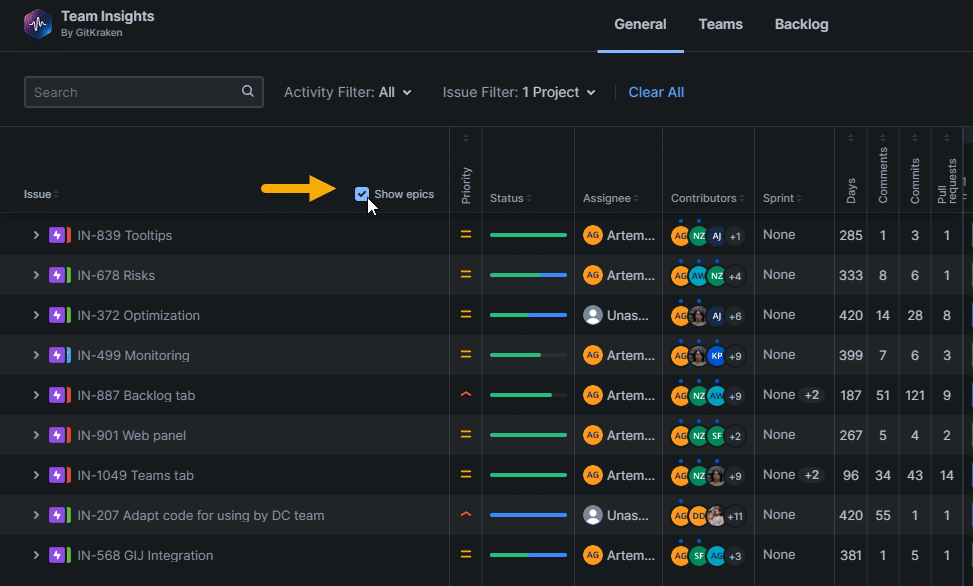
Epics mode groups rows by epic. Expand each epic to view its issues. This mode works like General View but organizes content by epic.
Searching and filtering
Use the search panel to set criteria and filter results.

Enter terms in the search box to find matching items.
Filtering by activity
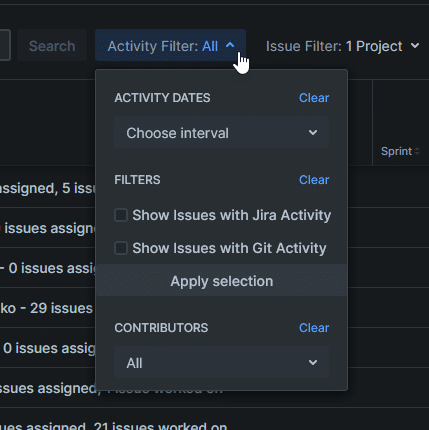
To set the activity date range, select from the Activity Dates dropdown:
- All Activity – Last 8 weeks
- Last 4 weeks
- Last 2 weeks
- Last 1 week
- Custom – Set specific start and end dates
Under Filters, select the activity types to display:
- Show Issues with Jira Activity
- Show Issues with Git Activity (requires Git Integration for Jira)
Click Apply selection to apply your choices.
Under Contributors, select members from the dropdown. Default: All. Use the search box to locate specific members. Click Apply selection to apply.
To reset a filter group, click Clear.
Filtering by issue attributes
Narrow results using issue filters. Use search boxes to locate categories within each filter. Click Apply selection to apply.
| Category filter | Description |
|---|---|
| Project | Select one or more projects. |
| Sprints | Select one or more sprints. Select No Sprint for unassigned issues. |
| Statuses | Select one or more statuses. |
| Assignees | Select one or more team members. |
| Labels | Select one or more labels. |
| Issue Types | Select one or more issue types. |
| Versions | Select one or more versions. |
| Priorities | Select one or more priority levels. |
| Components | Select one or more components. |
Resetting filters
To reset all filters to defaults, click Clear All.
To apply your filter selections and display results, click Search.
More on Signals
