

Last updated: March 2026
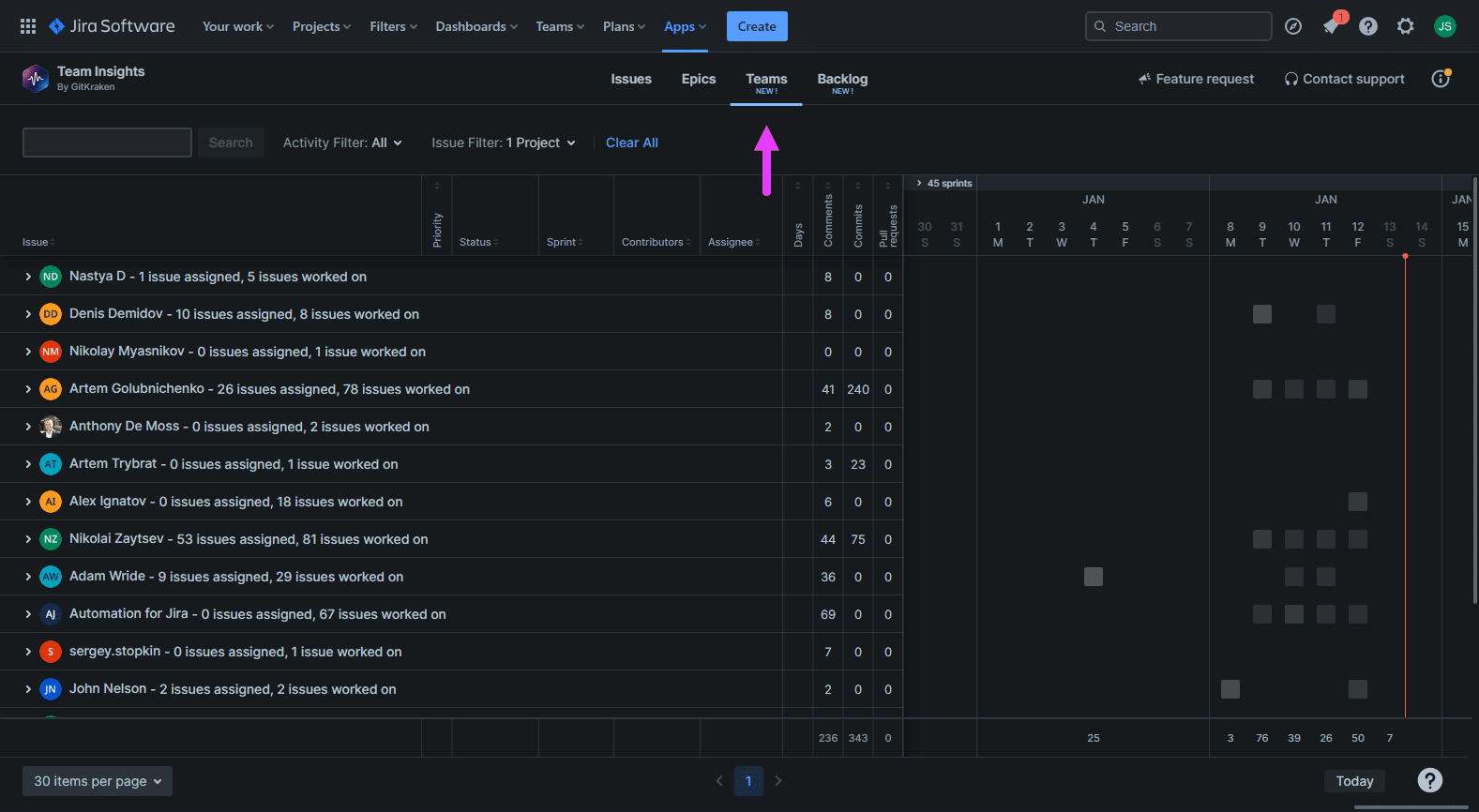
Teams View displays team activities with each row representing a team member. This page explains how to use Teams View to monitor workloads and track individual progress.
Viewing member activities
To view a team member’s activity information, click their row.
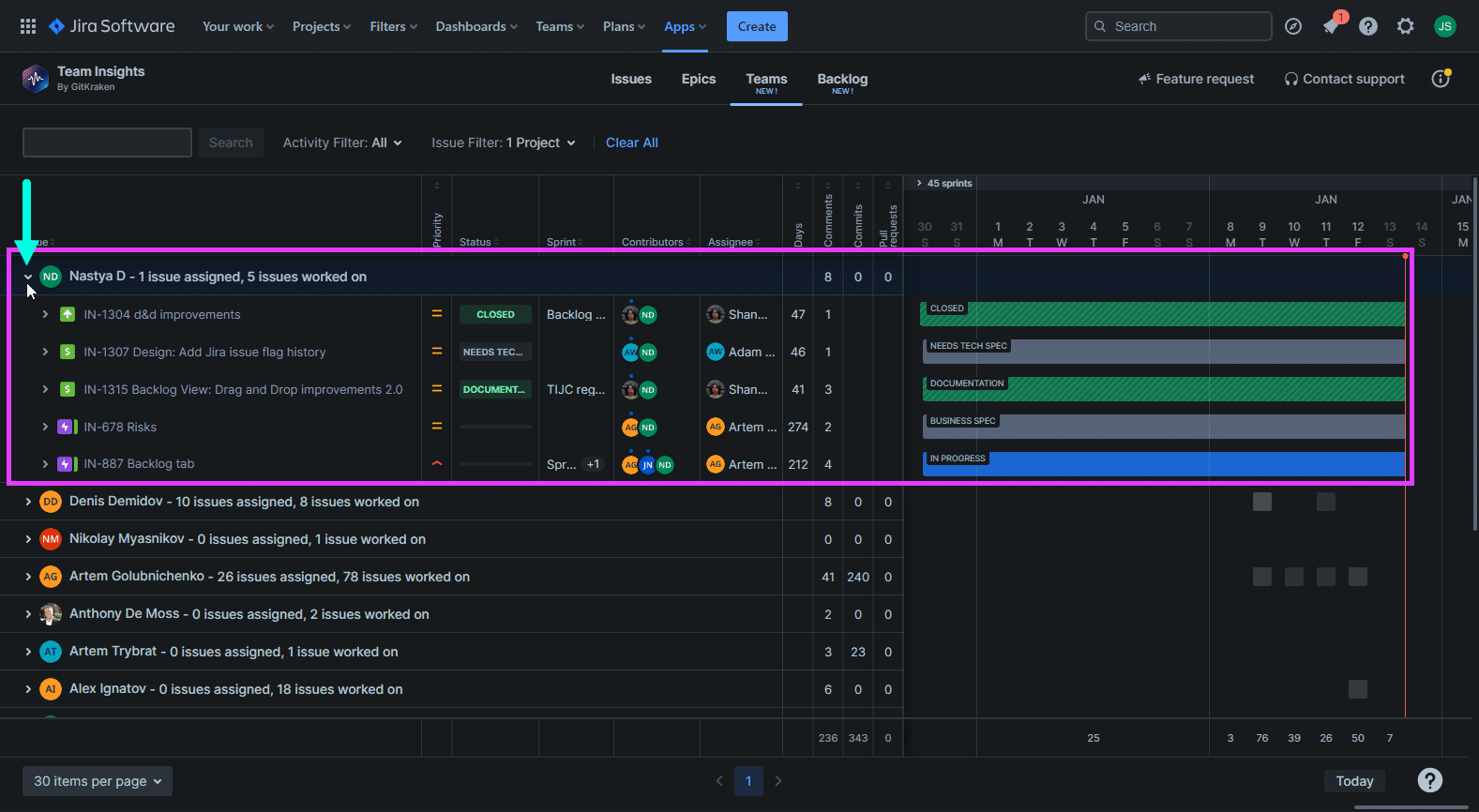
The expanded view displays real-time information for each team member:
- Assigned Jira issues
- Issues the member worked on
- Issue priorities
- Time spent on issues
- Git statistics (requires Git Integration for Jira)
- Progress and status of each issue
- Task deadlines via the timeline
As you scroll, the team member’s name stays at the top while displaying their related issues below.
Viewing member issue details
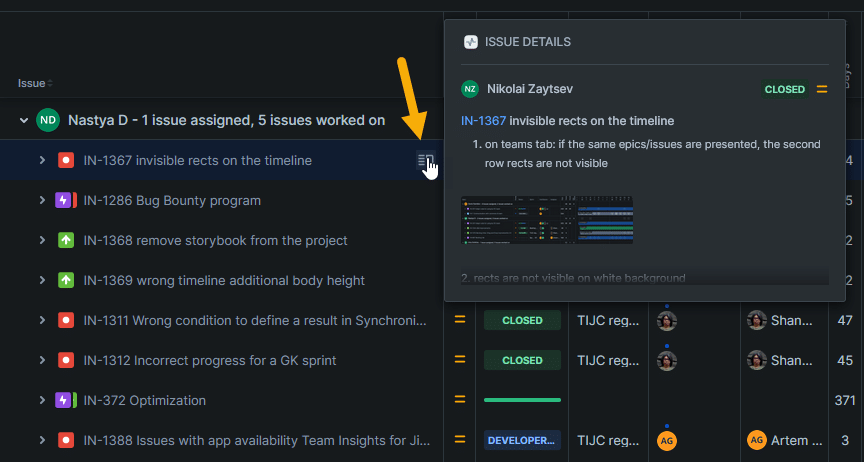
In the expanded member view, hover on an issue row to see brief information about that issue.
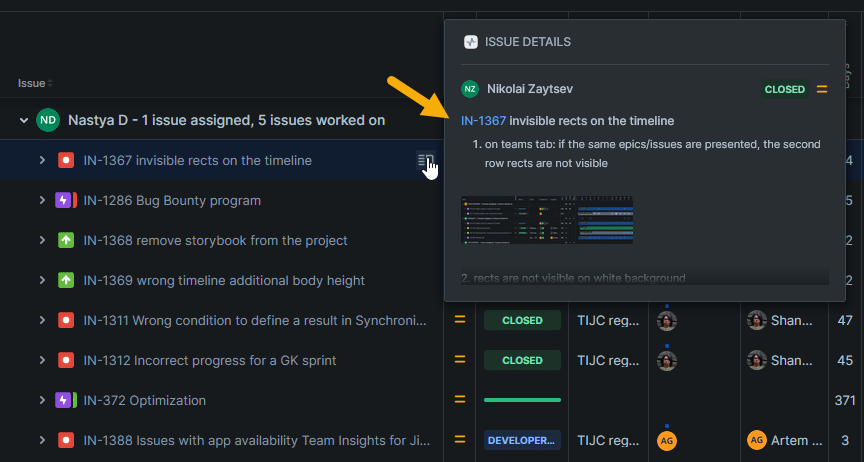
To open the Jira issue in a new browser tab, click the issue link in the popup.
To close the dialog, click anywhere outside it.
Checking status progress
To view task progress information, hover on the status column.
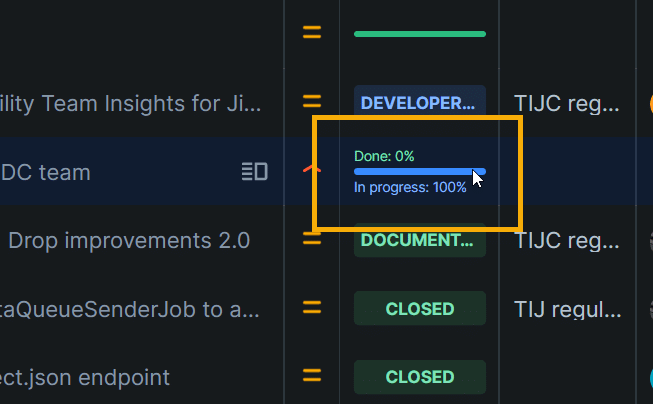
This information helps managers plan ahead and monitor assignment progress.
Using the timeline view
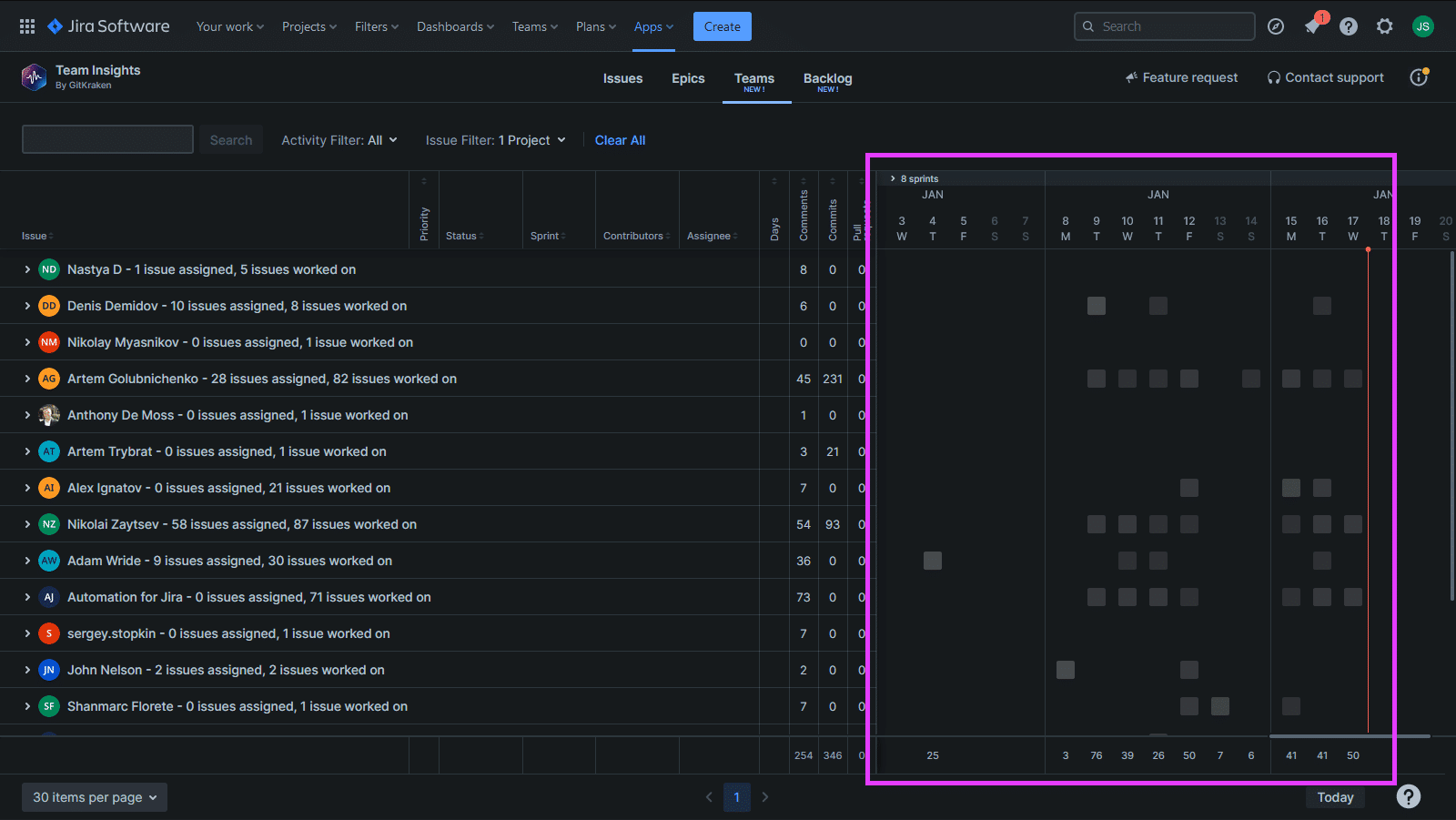
The timeline view shows activity boxes for each team member. This provides a concise overview of daily activities and the tasks each member worked on.
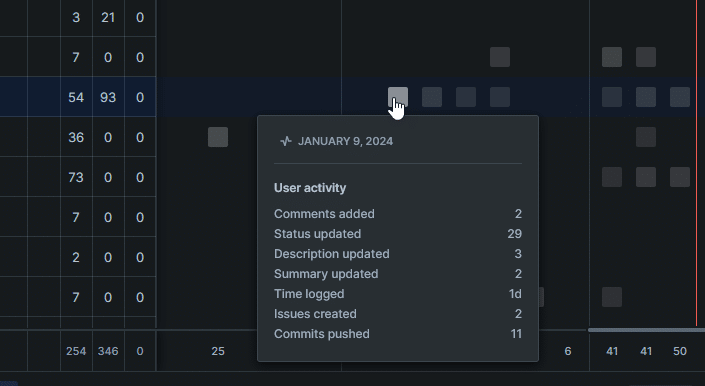
Understanding the columns
The table below describes each column header in Teams View.
| Column | Description |
|---|---|
| Issue | Displays the team member name with their assigned issue count. Click to expand and view activities. |
| Priority | Shows the issue priority level. |
| Status | Shows the task status and progress percentage. |
| Contributors | Lists contributors working on the task. |
| Assignee | Shows the assigned member. |
| Days | Shows the time worked on the task. |
| Comments | Shows the comment count. |
| Commits | Shows the commit count.
Install Git Integration for Jira to display commit data.
|
| Pull requests | Shows the pull request count.
Install Git Integration for Jira to display pull request data.
|
Searching and filtering
Use the search panel to set criteria and apply filters.

Enter search terms in the search box to find and display matching items.
Filtering by activity
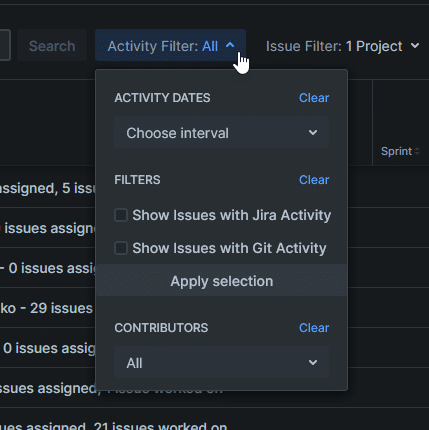
To set the activity date range, select from the Activity Dates dropdown:
- All Activity – Last 8 weeks
- Last 4 weeks
- Last 2 weeks
- Last 1 week
- Custom – Select specific start and end dates
Under Filters, select one or both options:
- Show Issues with Jira Activity
- Show Issues with Git Activity (requires Git Integration for Jira)
Click Apply selection to confirm your choices.
Under Contributors, select one or more members from the dropdown. Default: All. Use the search box to find specific team members. Click Apply selection to confirm.
To reset a filter group, click Clear.
Filtering by issue attributes
Issue filters let managers narrow results to specific criteria. Use the search box in each filter category to find and select items. Click Apply selection to confirm.
| Category filter | Description |
|---|---|
| Project | Select one or more projects. |
| Sprints | Select one or more sprints. Choose No Sprint for issues without sprints. |
| Statuses | Select one or more statuses. |
| Assignees | Select one or more team members. |
| Labels | Select one or more labels. |
| Issue Types | Select one or more issue types. |
| Versions | Select one or more versions. Empty if no versions exist. |
| Priorities | Select one or more priority states. |
| Components | Select one or more components. Empty if no components exist. |
Resetting filters
To reset all filters and search settings to defaults, click Clear All.
To apply your filter selections and display results, click Search.
More on Signals features
