Last updated: March 2026
Use this page to push, pull, fetch, add remotes, and set upstream branches in GitKraken Desktop when you need to synchronize local branches with a remote. It also explains the available pull behaviors, drag-and-drop shortcuts, and when GitKraken prompts you for remote creation or force-push decisions.
Requirements and limits
- Workflow scope: Remote synchronization for existing Git repositories in GitKraken Desktop
- Add remote limitation: Integration dropdowns show forks only; use the URL option for non-fork remotes
- Push behavior: GitKraken prompts to create a remote branch if one does not exist
- Force-push warning: GitKraken may offer Force Push when fast-forwarding fails
- Fetch behavior: Fetch updates remote state without modifying your working directory
- Pull options: Fast-forward if possible, fast-forward only, and rebase behave differently and should be chosen intentionally per repo workflow
Quick Start
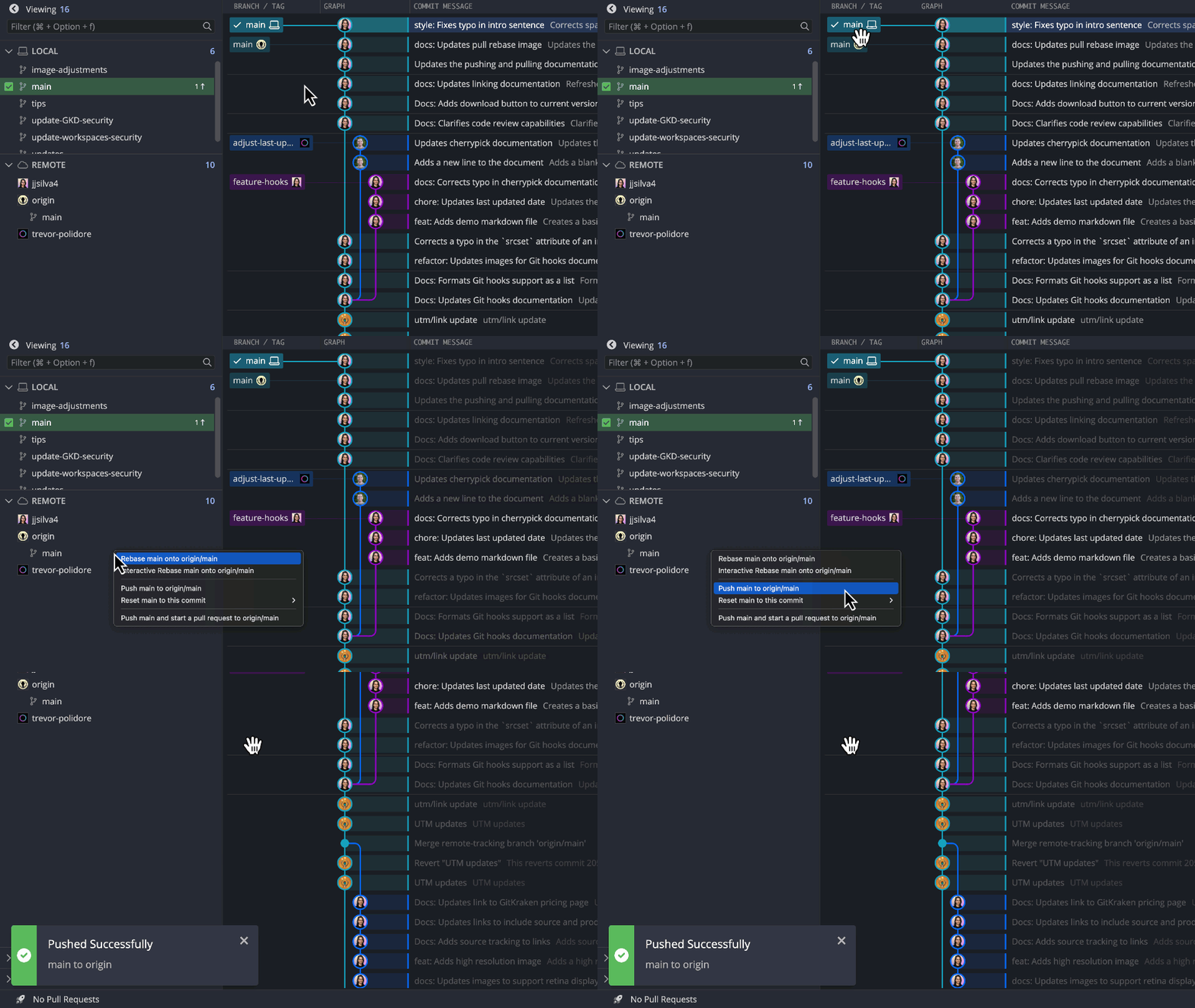
To push local commits: Click Push in the toolbar, or right-click a branch and select Push. If the remote branch does not exist yet, GitKraken Desktop prompts you to create it. You can also drag a branch onto a remote branch to push.
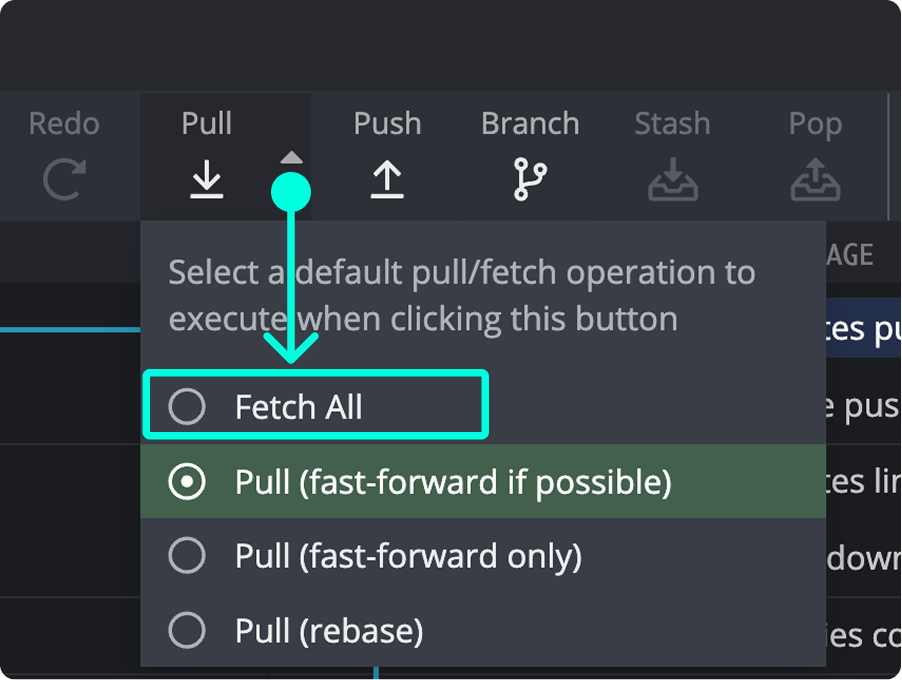
To fetch updates: Click the pull dropdown and select Fetch All to retrieve remote changes without modifying your working directory. Fetching runs automatically each minute by default.
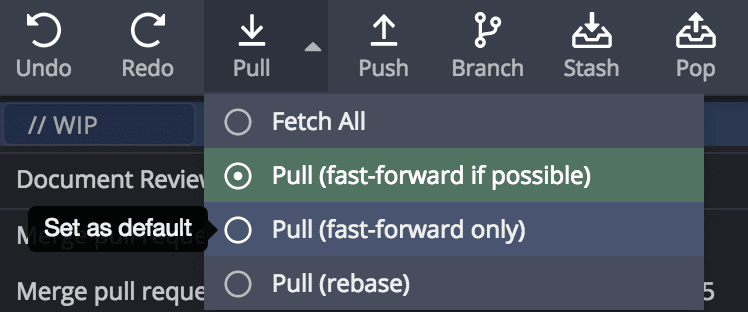
To pull changes: Click Pull in the toolbar. Use the dropdown to choose your preferred pull method:
- Fast-forward if possible: Merges only if fast-forward fails.
- Fast-forward only: Takes no action if fast-forward is not possible.
- Rebase: Replays your commits on top of the updated remote branch.
To add a remote: Hover over Remote in the Left Panel, click the + icon, and enter the URL or select from integration-based dropdowns.
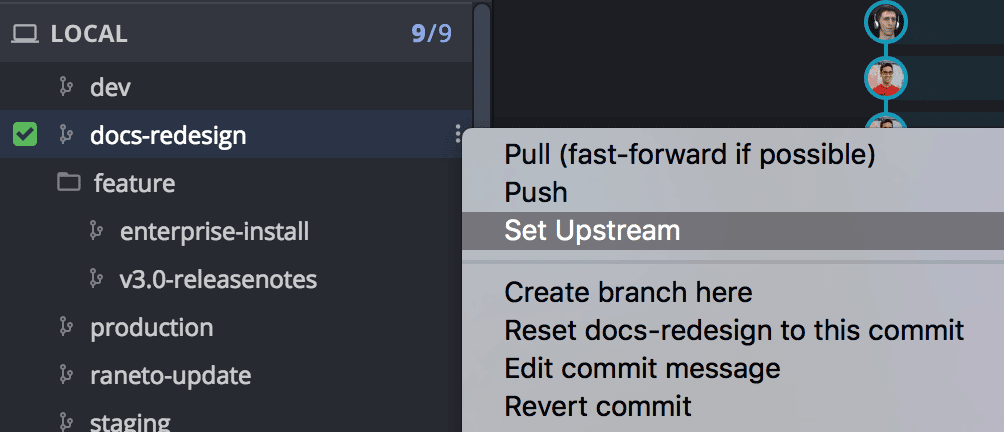
To set an upstream branch: Right-click a branch and select the upstream option. You can also drag and drop a branch onto a remote branch to push without setting the upstream explicitly.
How to add a remote
To add a remote:
- Hover over
 Remote in the Left Panel.
 - Click the icon.
- Enter the remote URL or choose from integration-based dropdowns (GitHub, GitLab, Bitbucket).
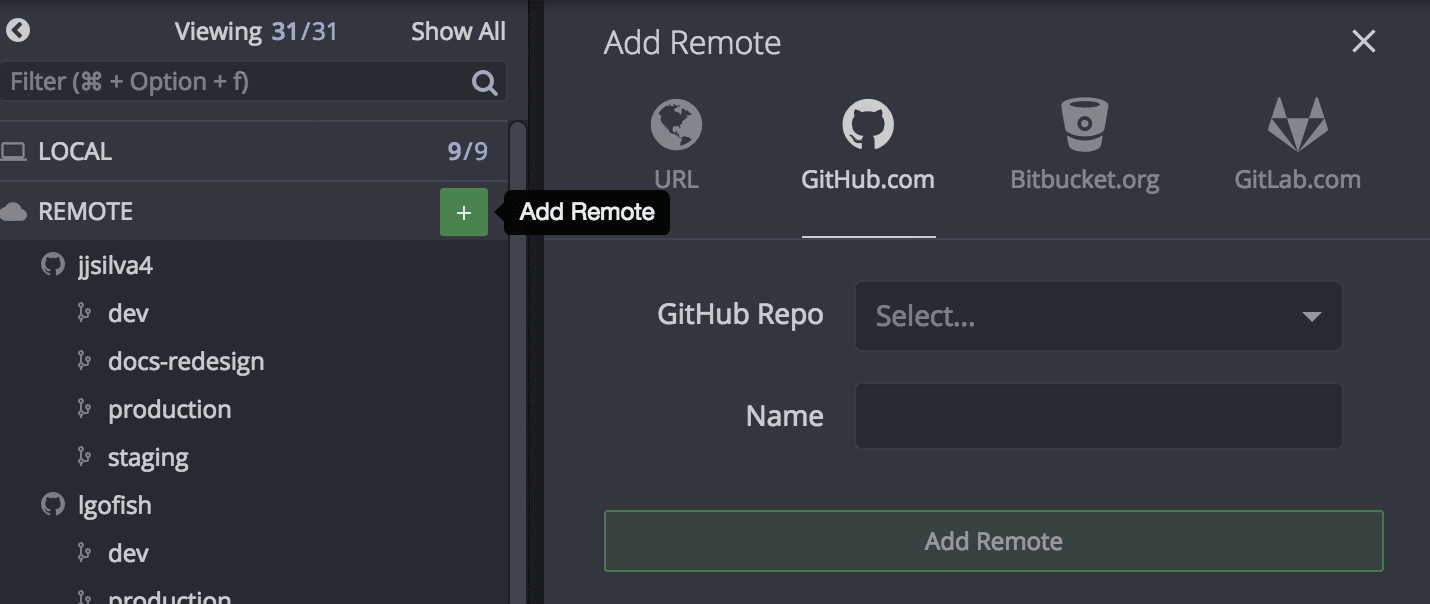
Note: Integration dropdowns show forks only. For non-fork remotes, use the URL option.
If the current repository is a shallow clone, the Add Remote dialog includes shallow clone options (depth, since date, and custom flags) so the new remote is fetched with the same depth constraints as the original clone.
Remote icons in the Commit Graph:
- GitHub
- Bitbucket
- GitLab
- Azure DevOps
- Other
How to push changes 
To push local commits to a remote branch:
- Click Push in the main toolbar
- Or right-click a branch and select Push

If a remote branch doesn’t exist yet, GitKraken will prompt you to name and create it.
Caution: If fast-forwarding fails, GitKraken may offer a Force Push option. Use with care.
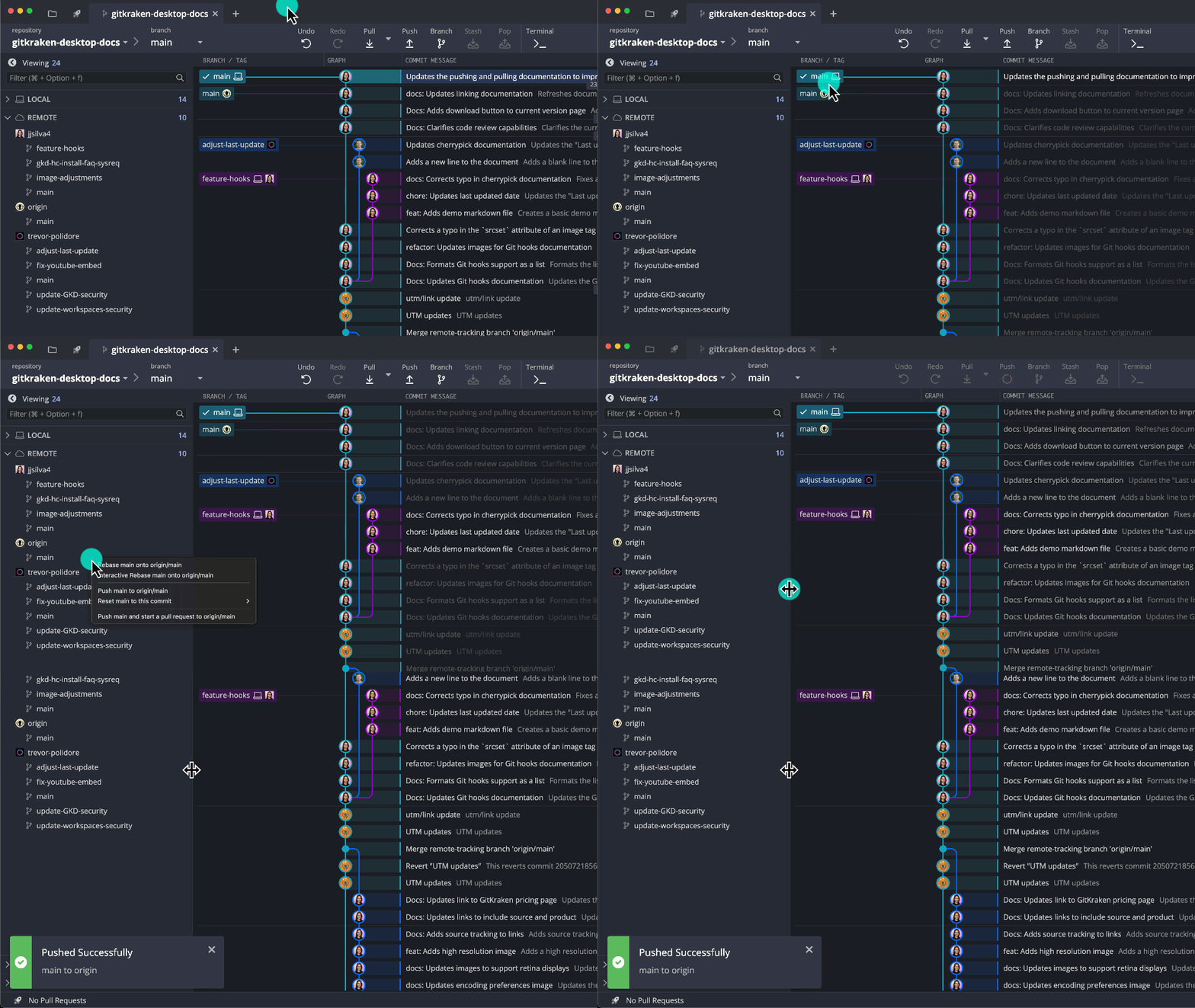
How drag-and-drop push works
Drag a branch onto a remote branch (in the graph or Left Panel) to trigger a push.
How fetch works
Fetching retrieves updates from remotes but doesn’t change your working directory.
What Fetch All does
Shows how far ahead/behind your branches are compared to the remote.
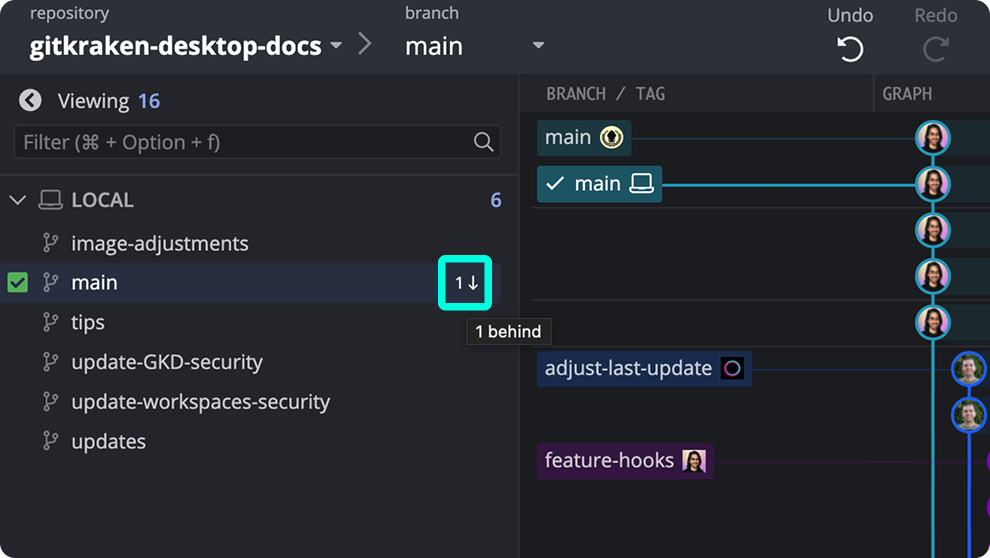
Fetching runs automatically every minute. Adjust the interval in Preferences > General.
How pull options work 
Pulling performs a fetch and then updates your local branch.
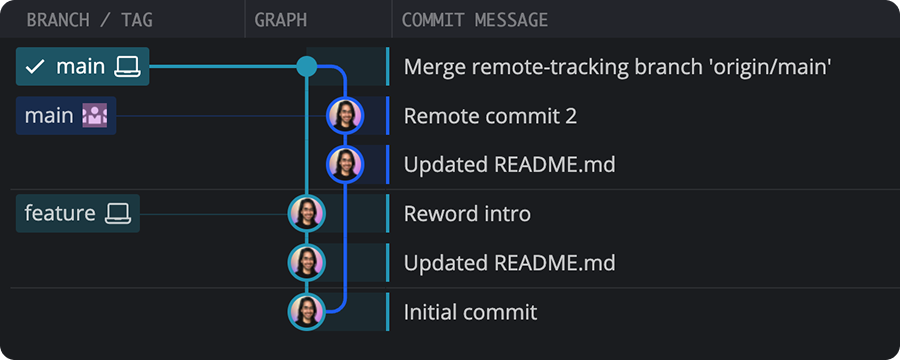
How pull with fast-forward if possible works
Fast-forwards your branch if there are no conflicting commits; otherwise, merges.
How pull with fast-forward only works
Attempts to fast-forward. If not possible, no action is taken.
How pull with rebase works
Temporarily stashes your commits, pulls from remote, and replays your changes on top.

How to set the default pull behavior
Select a default pull method via the dropdown menu.
How to set an upstream branch
The upstream defines the remote branch a local branch tracks.
- Right-click a branch to set its upstream
- Or click the button
You can also drag and drop to push instead of explicitly setting the upstream: