Last updated: April 2026
Use this page to detect likely merge conflicts in GitKraken Desktop before they reach the merge step. Conflict Prevention alerts you when your work overlaps with Org Members or a target branch, shows what changed, and provides early actions such as pushing, rebasing, merging, or sharing a Cloud Patch.
Requirements and limits
- Plan: Pro subscription tier or higher
- Scope: Early conflict detection against Org Members and the configured target branch
- Settings scope: Conflict Prevention preferences are saved per repository
- Branch configuration: Base branches can be included with
**wildcards or excluded with!patterns - Priority rule: Target-branch conflicts take priority over Org Member alerts
- Org-awareness benefit: Inviting collaborators into the GitKraken Org improves earlier overlap detection
- Action scope: Suggested responses include push, merge, rebase, copy summary, and Cloud Patch sharing
GitKraken On-Premise users: Target-branch conflict detection is available in Serverless and Self-Hosted Server deployments. The following features require cloud connectivity and are not available in those environments: Org Member conflict detection (requires a cloud GitKraken Org) and Cloud Patch sharing (requires gitkraken.dev).
Quick Start
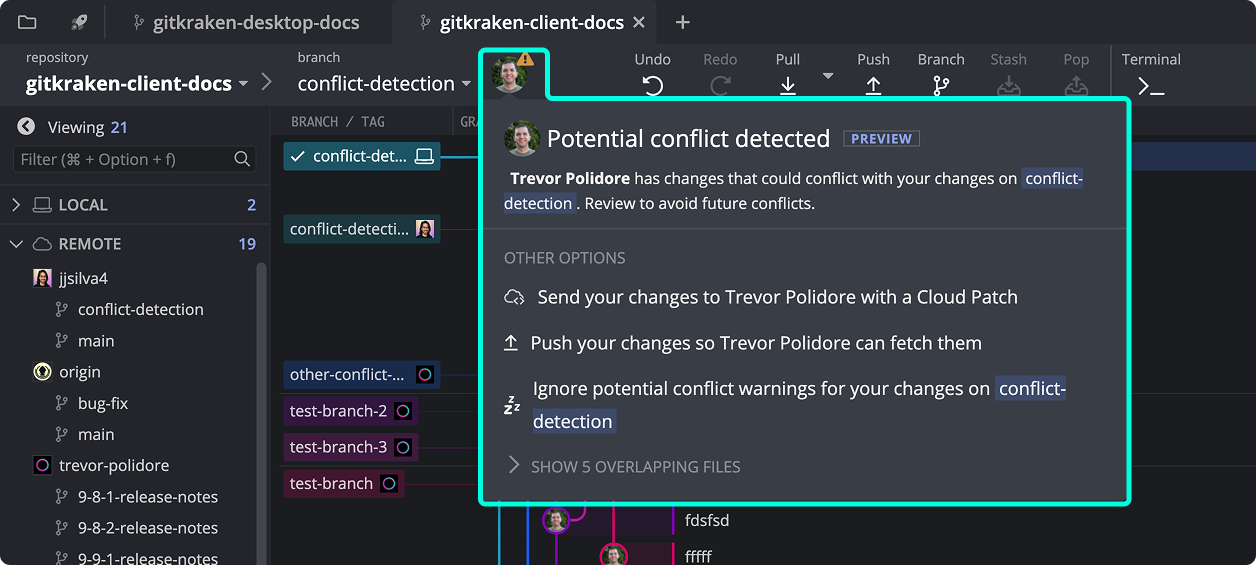
- When GitKraken Desktop detects overlapping changes with an Org Member’s commits, a conflict alert icon appears in the interface. Click the icon to view conflict details and take action.
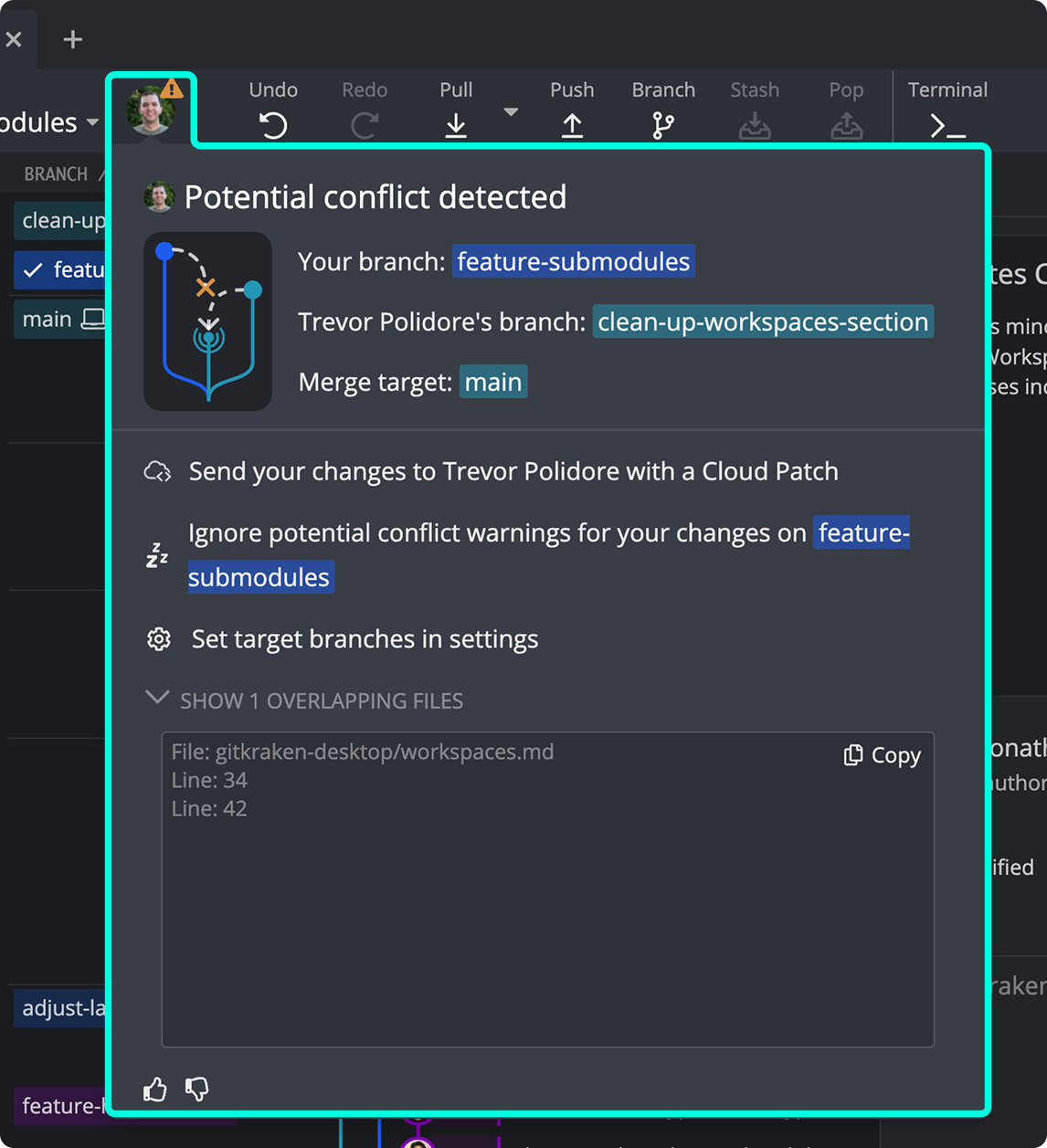
- From the conflict details menu, you can share your edits as a Cloud Patch, push your changes to make them visible, or copy a summary of the overlapping edits.
- If no Org Members are involved, GitKraken still checks your current branch against the target branch and prompts you to merge or rebase proactively.
- To invite a contributor to your GitKraken Org so conflicts are detected earlier, use the Invite option from the conflict alert.
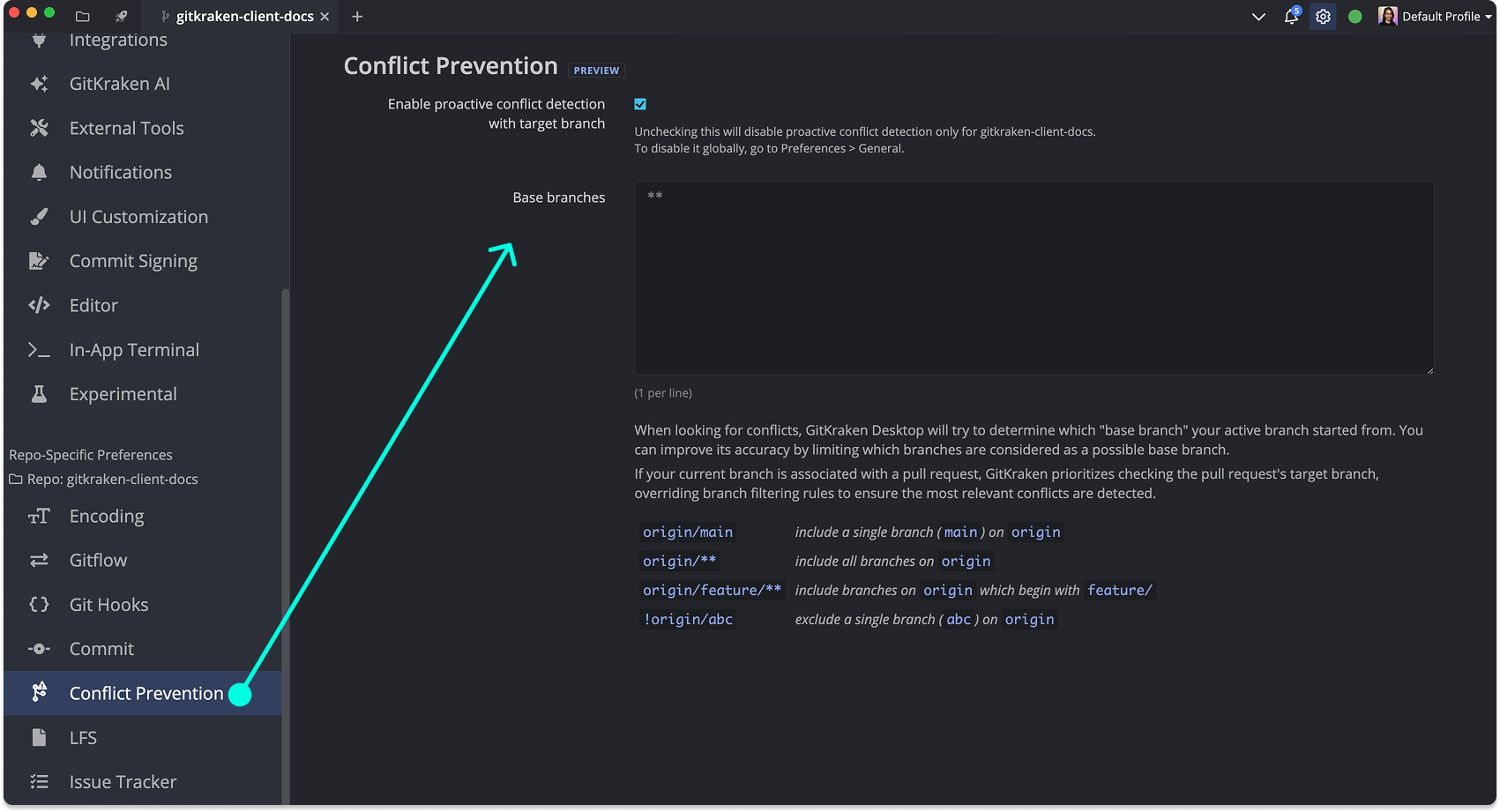
To configure which branches GitKraken monitors for conflicts, go to Preferences > Conflict Prevention. Use ** as a wildcard or prefix a branch pattern with ! to exclude it. Settings are saved per repository.
How Conflict Prevention works
GitKraken detects potential conflicts from Org Members by identifying overlapping edits in committed changes that haven’t yet merged into the target branch.
How to interpret the conflict alert icon
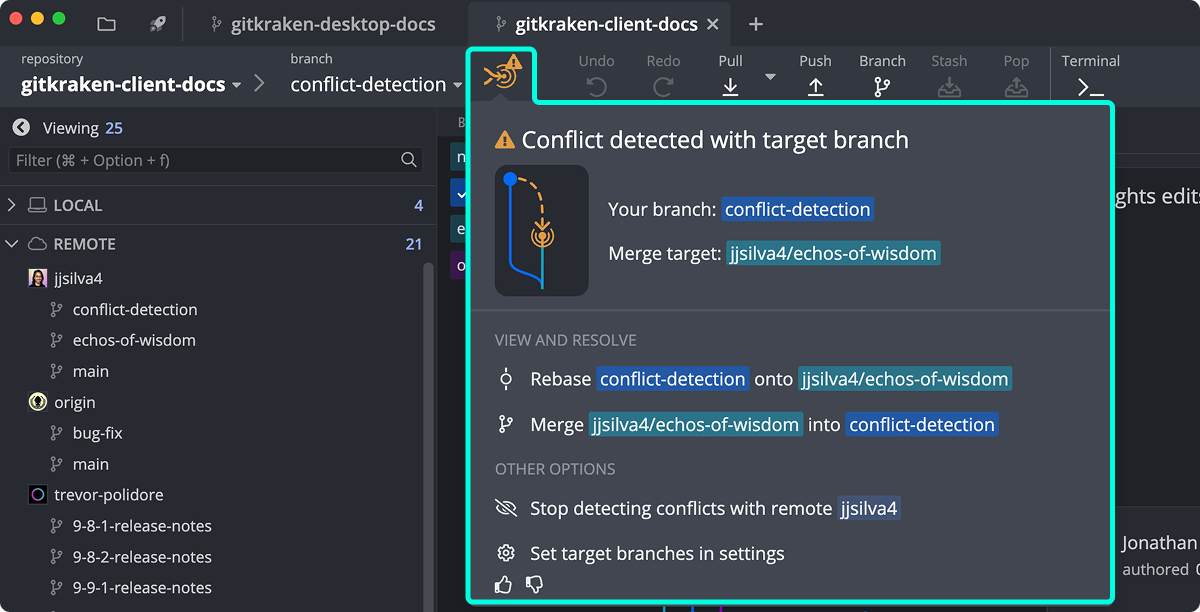
When you open GitKraken Desktop, an alert icon indicates potential conflicts.
How to view conflict details
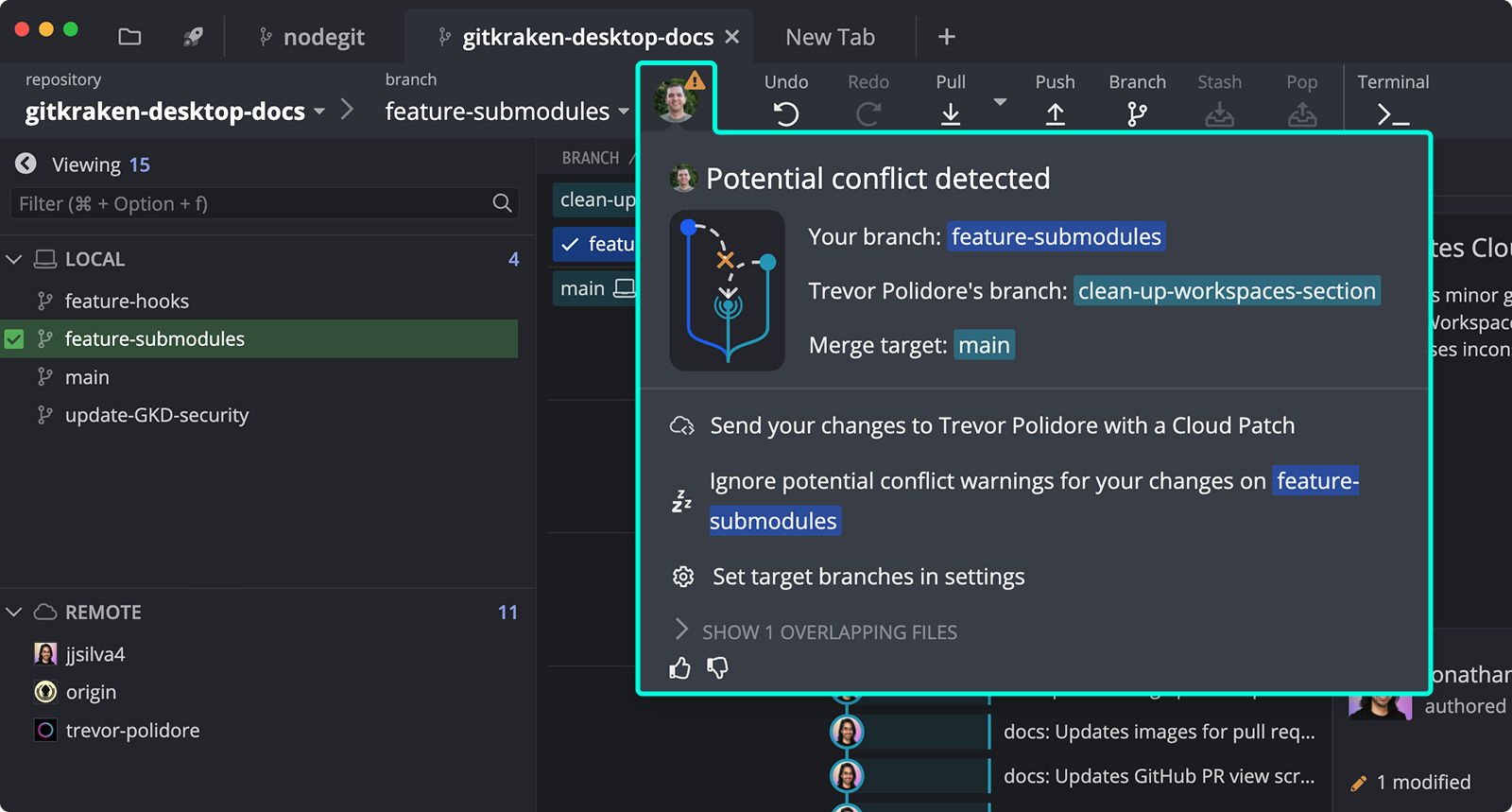
Clicking the icon opens a menu with options to investigate and address the conflict.
Active conflicts with the target branch take priority over Org Member alerts.
How to resolve conflicts early
From the conflict detection menu, you can:
- Share edits as a Cloud Patch
- Push changes to make them visible to others
- Copy summaries of overlapping edits for your team
Note: Cloud Patch sharing is not available in GitKraken On-Premise deployments. In those environments, pushing changes and copying the conflict summary are the available options.
How conflict detection works without Org Members
Even if your repository has no Org Members, GitKraken still checks for conflicts with your target branch.
You’ll be prompted to merge or rebase proactively.
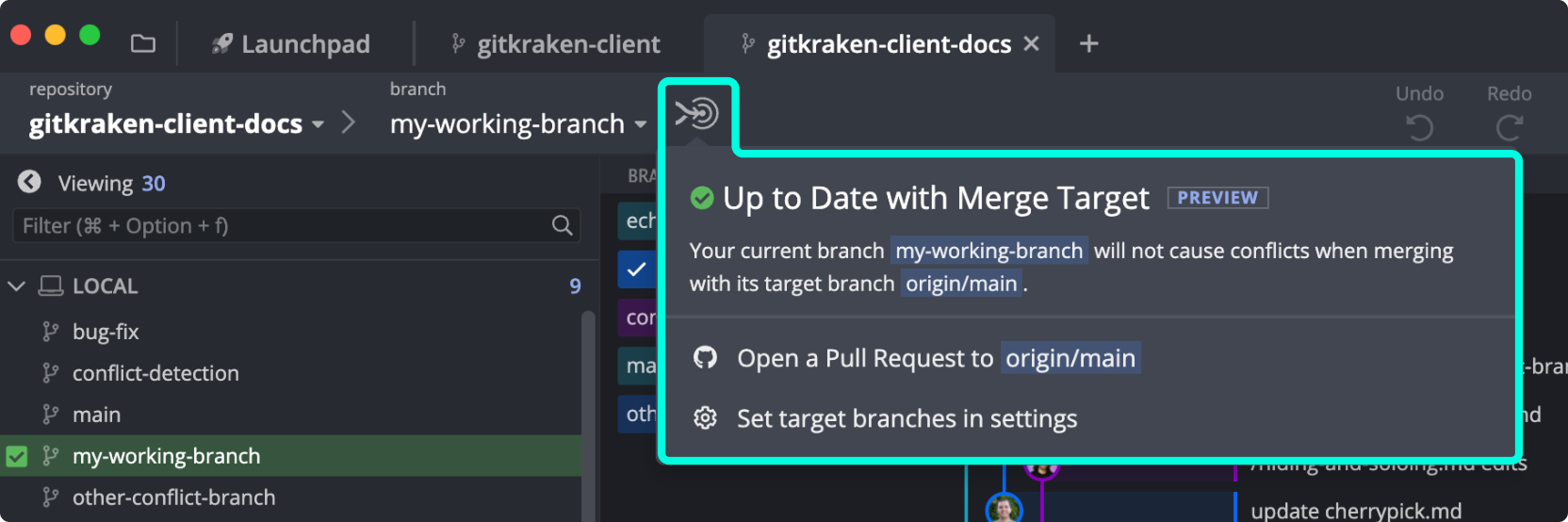
What target branch status means when no conflicts are found
If no potential conflicts are detected:
- A status indicator confirms your branch is conflict-free
- You’ll see quick links to open a pull request or adjust preferences
How to invite contributors to resolve conflicts earlier
Invite the authors of conflicting changes to your GitKraken Org directly from the conflict menu:
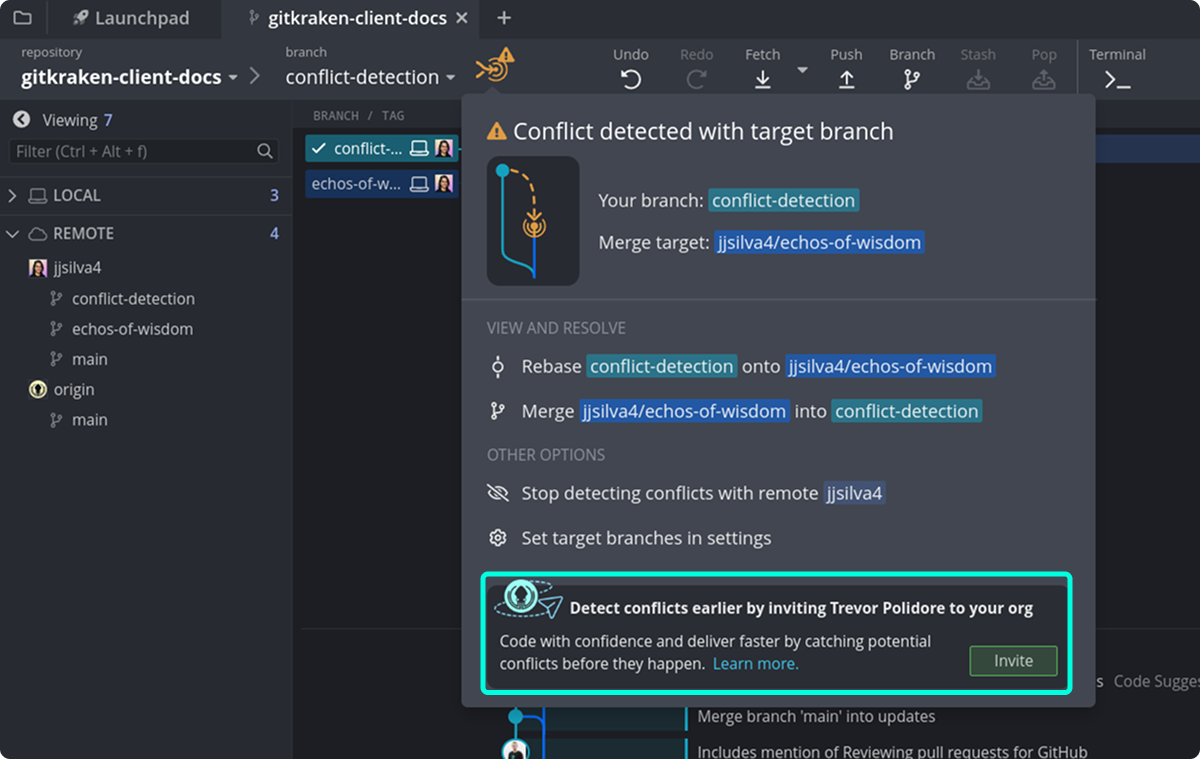
Once added, you’ll receive real-time updates when they’re working in the same areas.
How to configure Conflict Prevention settings
Conflict Prevention settings are repository-specific. You can:
- Set which branches GitKraken should monitor
- Use
**for wildcards or!to exclude branches
Navigate to Preferences > Conflict Prevention to configure these settings.